
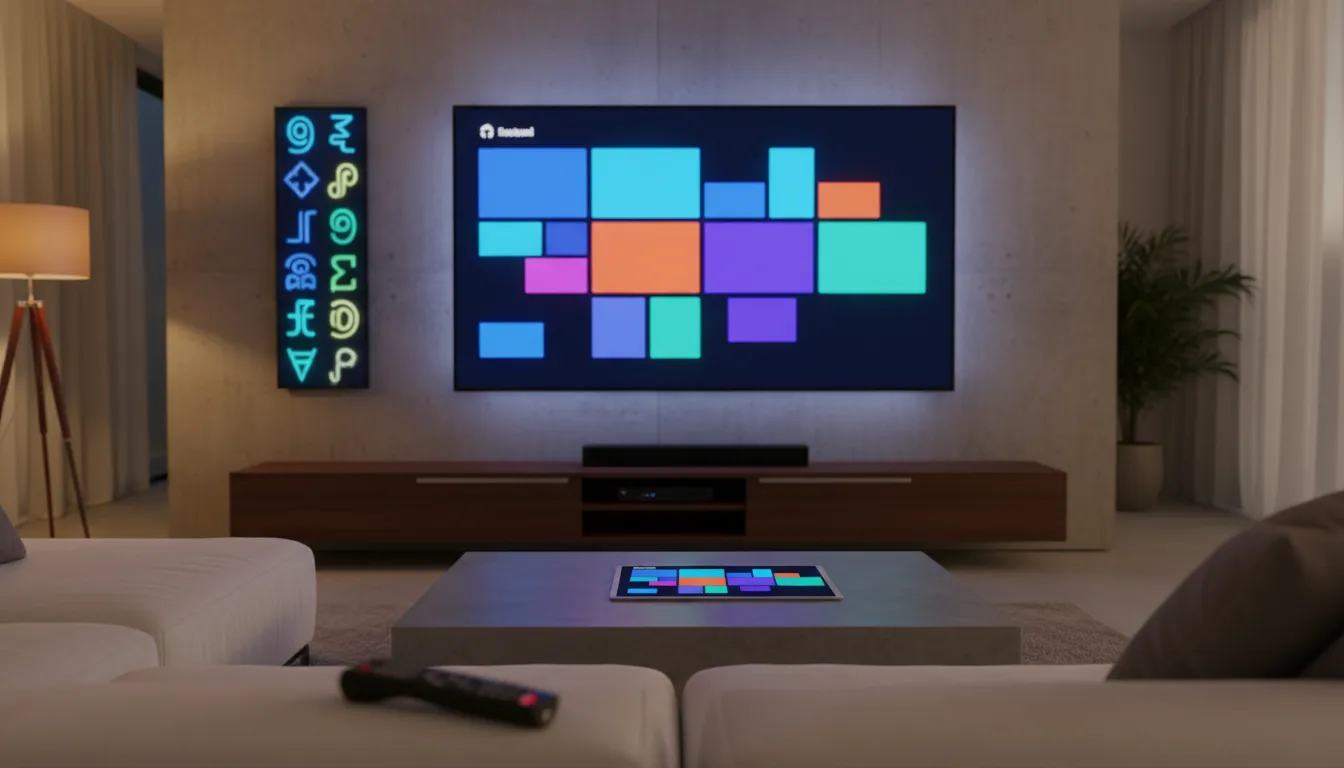
If you use Google TV, a smart TV, or a TV Box and want one entertainment app that brings together Arabic and foreign content in one place, this one is worth trying. It is especially useful for anyone looking for French-language content, since that is one of the things many people have been asking for.
The app offers a wide entertainment library with live channels, movies, and series, and it supports multiple quality levels from SD to HD and even Full HD. As long as you have a reasonably stable internet connection, the overall experience is smooth and enjoyable.
What makes it even better is that it works not only on television setups, but also on Android phones. So whether you prefer using a remote on the big screen or browsing from your phone, the app can fit into your setup without much trouble.
Table of Contents
- 📺 Why this app stands out
- ⬇️ What you need before installing
- 🔢 Download code for the app
- 🛠️ Important step before installing the new version
- 📥 How to install it on Google TV and TV Box
- 📱 Can you install it on a phone too?
- 🎬 What kind of content is inside?
- 🌍 A strong point: French and English audio options
- ⚡ Streaming quality and internet requirements
- 🧭 Why the TV navigation experience matters
- 🧹 If the app says “not installed,” check storage first
- 🏆 Why it is worth keeping apps like this ready
- ❓FAQ
- ✅ Final thoughts
📺 Why this app stands out
There are plenty of entertainment apps around, but this one does a few things especially well.
It combines Arabic and international content in a single interface.
It includes French content, which is a major plus for many users.
It supports multiple streaming qualities, from SD up to Full HD.
It has a built-in player, so there is no need to install an external media player.
It is remote-friendly, which means you can move through the app easily on TV without relying on mouse-style apps.
That last point matters more than people think. Many Android TV apps are frustrating because they clearly were not designed for TV navigation. Here, the content layout is simple enough to browse using only the remote control.
⬇️ What you need before installing
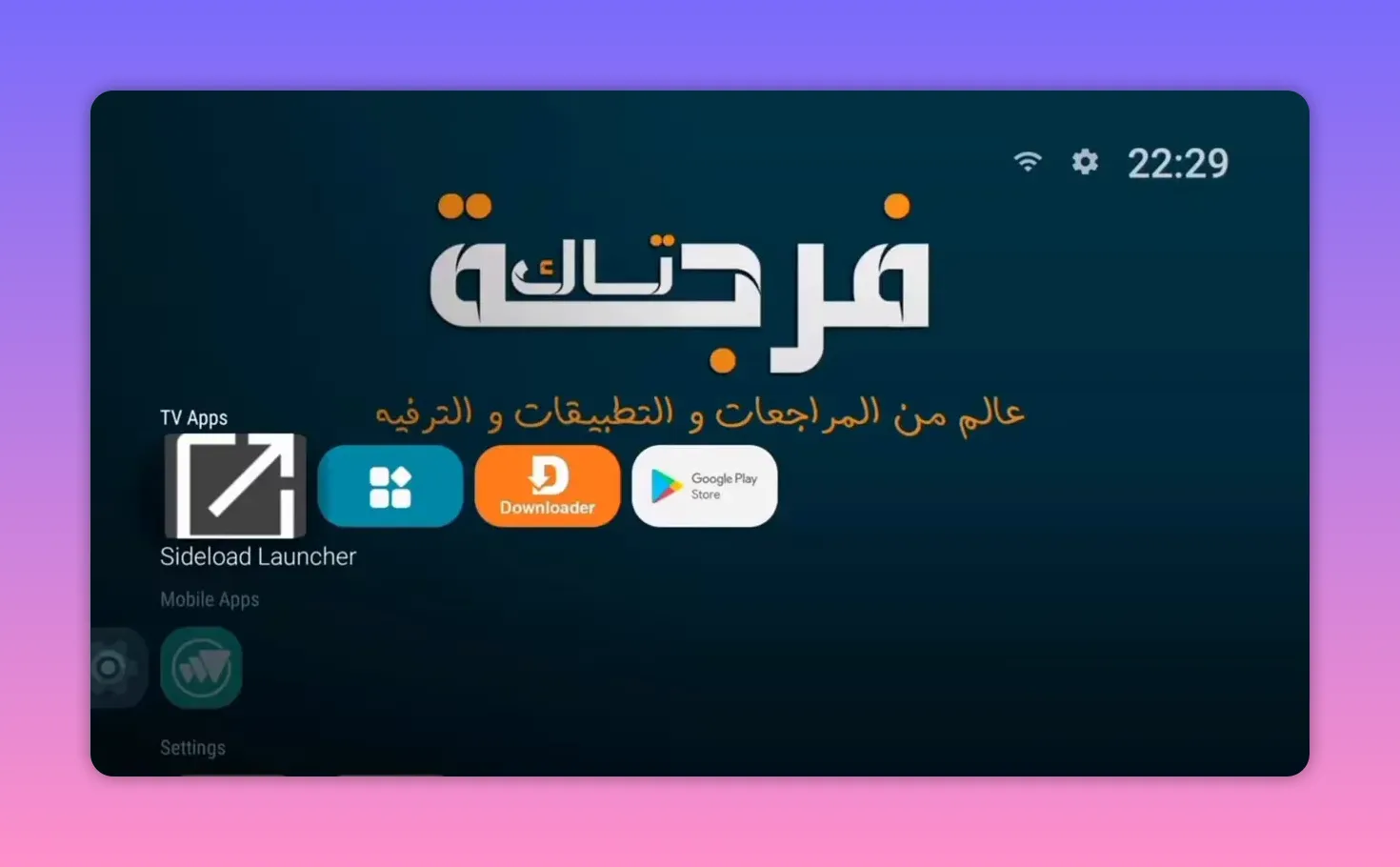
If you are new to installing apps outside the official store on Google TV or Android TV Box devices, there are two basic tools that help a lot:
Downloader, which lets you enter a numeric code or URL to download APK files.
An app launcher or app viewer that shows sideloaded apps more clearly on your device.
On TV devices, Downloader is usually the easiest method because entering a short code is much faster than typing a long web address. On phones, you can also use Downloader, but if you do not want to install it there, you can simply use a browser and open the direct URL manually.
This setup is especially helpful for people who regularly test entertainment apps on their screens and TV Box devices.
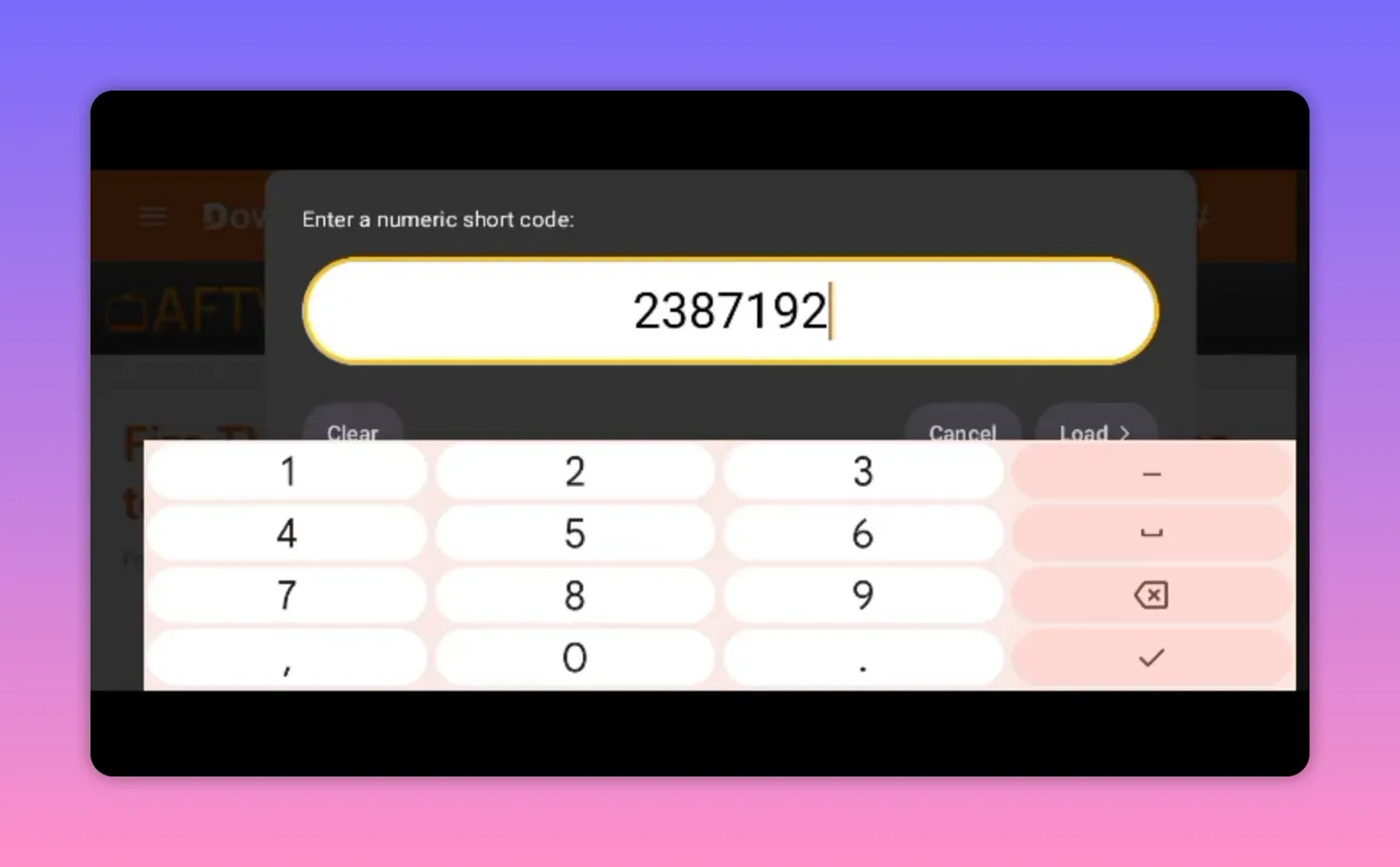
🔢 Download code for the app
To install the app through Downloader, enter the following code in the search field:
238719
After entering the code, start the download and wait for the app page to load. Once the blue download button appears with the app name, select it and the APK download should begin immediately.
🛠️ Important step before installing the new version
If you already have an older version of this app installed, remove it first.
This is important because the new release may not work properly if a previous version is still on the device. If installation fails or the app refuses to open correctly, the first thing to check is whether an older copy is still installed.
The safest order is:
Delete the old version.
Download the new APK.
Install the updated version.
📥 How to install it on Google TV and TV Box
Once the APK finishes downloading, proceed with the installation as usual.
The app size is around 61 MB, which is relatively small considering the amount of entertainment content available inside it.
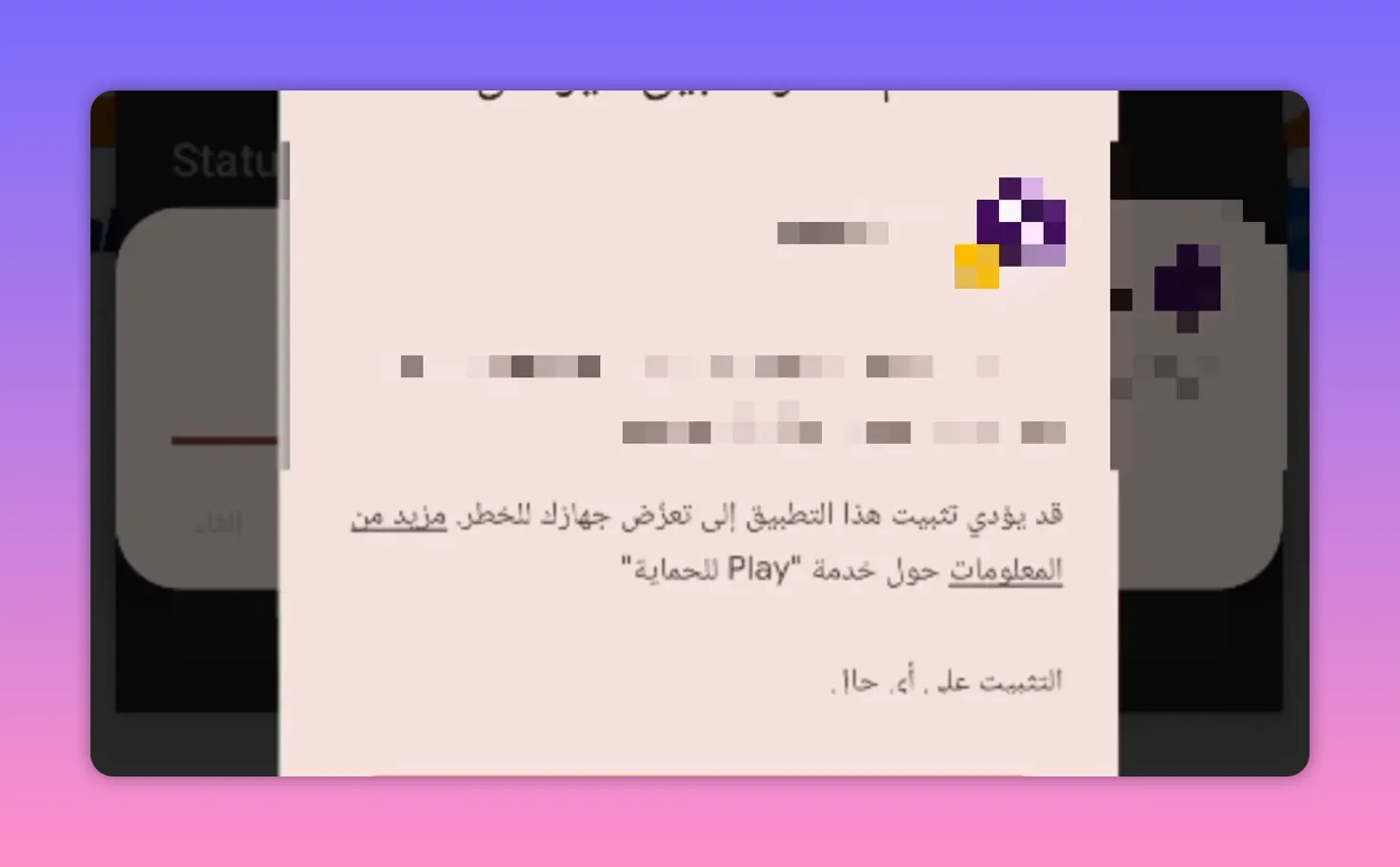
During installation, you may get a warning screen asking whether you still want to continue. If that happens, choose the option to install anyway. This can happen because Google Play Protect or the system security layer does not automatically recognize apps installed from outside the Play Store.
After installation is complete:
Select Delete to remove the APK file from storage.
Open the app.
At the startup screen, choose Login from the yellow button.
Once inside, the app opens access to its main sections such as:
Live TV
Movies
Series
📱 Can you install it on a phone too?
Yes. The app can also be installed on Android phones and should work without major issues.
You have two options:
Use Downloader on the phone exactly the same way.
Use any browser and open the direct link by replacing the dots with the numbers shown for the download code.
So while the app is especially convenient on TV screens, it is not limited to that environment.
🎬 What kind of content is inside?
This is where the app becomes really interesting. It is not limited to one type of entertainment.
Inside, you can find a mix of:
Live channels
Arabic entertainment
Sports content
Foreign channels and programs
Movies and series
The content presentation is clean and easy to browse. Channel lists appear in a simple format that works well with a remote control, and the overall navigation feels smoother than many similar apps.
🌍 A strong point: French and English audio options
One of the best features here is found in the movies and series section. Some titles include more than one audio track, and that means you may find French dubbing or English audio available depending on the title.
In some cases, subtitles are also present.
This makes the app especially appealing for anyone who wants:
French-dubbed movies or series
English audio options
More flexibility in how content is consumed
The audio selection can usually be checked from within the playback options. Testing showed that both the French and English dubbing available in the app can be quite good, which is not always the case with free entertainment apps.
⚡ Streaming quality and internet requirements
The app supports several quality levels, starting from SD and going up to HD and Full HD. That sounds great, but the actual experience depends heavily on your internet connection.
For stable playback, you need:
A medium to stable internet connection
Good enough speed for the quality you choose
Consistent connection stability to avoid buffering or interruptions
If someone experiences cutting, freezing, or lag, the problem is not always the app itself. In many cases, the issue comes down to internet stability.
That is why it helps to test the app under your normal home connection and see how it behaves with live channels, movies, and dubbed content.
🧭 Why the TV navigation experience matters
A lot of apps may have decent content but still fail because the interface is hard to use on a TV. This app avoids that problem pretty well.
You can navigate using only the remote control, without needing to install extra mouse-pointer tools. That makes a big difference on smart TVs and TV Box devices where convenience matters just as much as content.
Combined with the built-in player, this means the setup stays simple:
No external player required
No mouse app required
No complicated workaround just to browse channels or open titles
🧹 If the app says “not installed,” check storage first
One common problem on TV devices is an installation failure message such as “App not installed”. When that happens, the reason is often not the APK itself.
The first thing to check is available storage space on the TV or TV Box.
Before installing any new entertainment app, make sure you have enough free space. If storage is low, remove apps you no longer use, especially older apps that have stopped working and are unlikely to be useful later.
A good cleanup habit is to regularly delete:
Old versions of apps
Apps that no longer work
Unused APK files left behind after installation
This leaves room for trying newer apps without running into installation errors.
🏆 Why it is worth keeping apps like this ready
When there are important entertainment releases or major sports events, it helps to have a few working apps already installed and tested on your device.
That way, if one service gets overloaded or stops working, you are not starting from zero. You already have another option ready on the screen or TV Box.
This app fits that role nicely because it brings together several content categories in one place and keeps the whole experience relatively lightweight and easy to manage.
❓FAQ
What devices can run this entertainment app?
It is suitable for Google TV devices, smart TV setups that support Android-based apps, TV Box devices, and Android phones.
What is the Downloader code for this app?
The code is 238719.
Do I need an external player to use it?
No. The app includes its own built-in player, so there is no need to install a separate playback app.
Does it support French content?
Yes. One of its strongest features is the availability of French content, including French dubbing on some movies and series.
What video quality does it offer?
The app provides multiple quality levels, including SD, HD, and Full HD, depending on the content and your internet connection.
What should I do if installation fails?
First, make sure any older version of the app has been removed. Then check that your device has enough free storage space. Low storage is a common reason for the “not installed” error.
Can I control the app with only a TV remote?
Yes. The interface is designed well enough for remote control navigation, so you do not need a separate mouse app.
Does it work well on slow internet?
It works best with a medium to stable connection. If the connection is weak or unstable, buffering and interruptions may appear, especially on higher quality streams.
✅ Final thoughts
If you have been looking for a Google TV entertainment app that offers Arabic and international content, live TV, movies, series, and French audio options, this one brings a lot together in a single package.
It is lightweight, easy to install, simple to navigate with a remote, and flexible enough to run on both TV devices and phones. The built-in player, the organized content library, and the availability of French and English audio tracks on some titles give it extra value.
The main thing to keep in mind is that good performance depends on having a stable connection and enough storage on your device. If those two basics are covered, the app is a very solid option to keep on your screen, especially when you want one place for varied entertainment content.
Quick reference
If you’re setting this up for the first time, it can help to also review your site’s contact options and general navigation. For a broader starting point, you can return to the homepage and explore the site’s sitemap links.
When you’re troubleshooting errors like “not installed,” remember that the problem may be unrelated to the APK itself—often it’s storage or device readiness. If you keep seeing issues, you can use the site’s search to find related posts and guides.
