
Today I want to share two useful things in one place.
First, I will show the exact method used to add Moroccan TNT channels available on the Badr satellite. Second, I will give you the Downloader code for the ABDO 26 app, which is presented here as one of those all-in-one applications people keep asking about.
The important thing is not to rush and take only the code. If you skip the setup details and the context, you will likely end up with questions later. So here everything is organized clearly, step by step.
Table of Contents
- 📡 How to add Moroccan TNT channels on Badr
- 🔍 Scan only the transponder you added
- 📱 What makes the ABDO 26 app attractive
- 📥 How to install the app using Downloader
- 🔢 Downloader code for ABDO 26
- ⚠️ Why the setup details matter
- 🛠️ Practical recap of both methods
- ❓FAQ
- ✅ Final notes
📡 How to add Moroccan TNT channels on Badr
If your receiver has already been updated and you want to manually add the Moroccan terrestrial channels carried on Badr, the process is straightforward once you enter the correct transponder settings.
Start by going into the installation menu of the device:
- Installation
- Configuration
- Select Badr
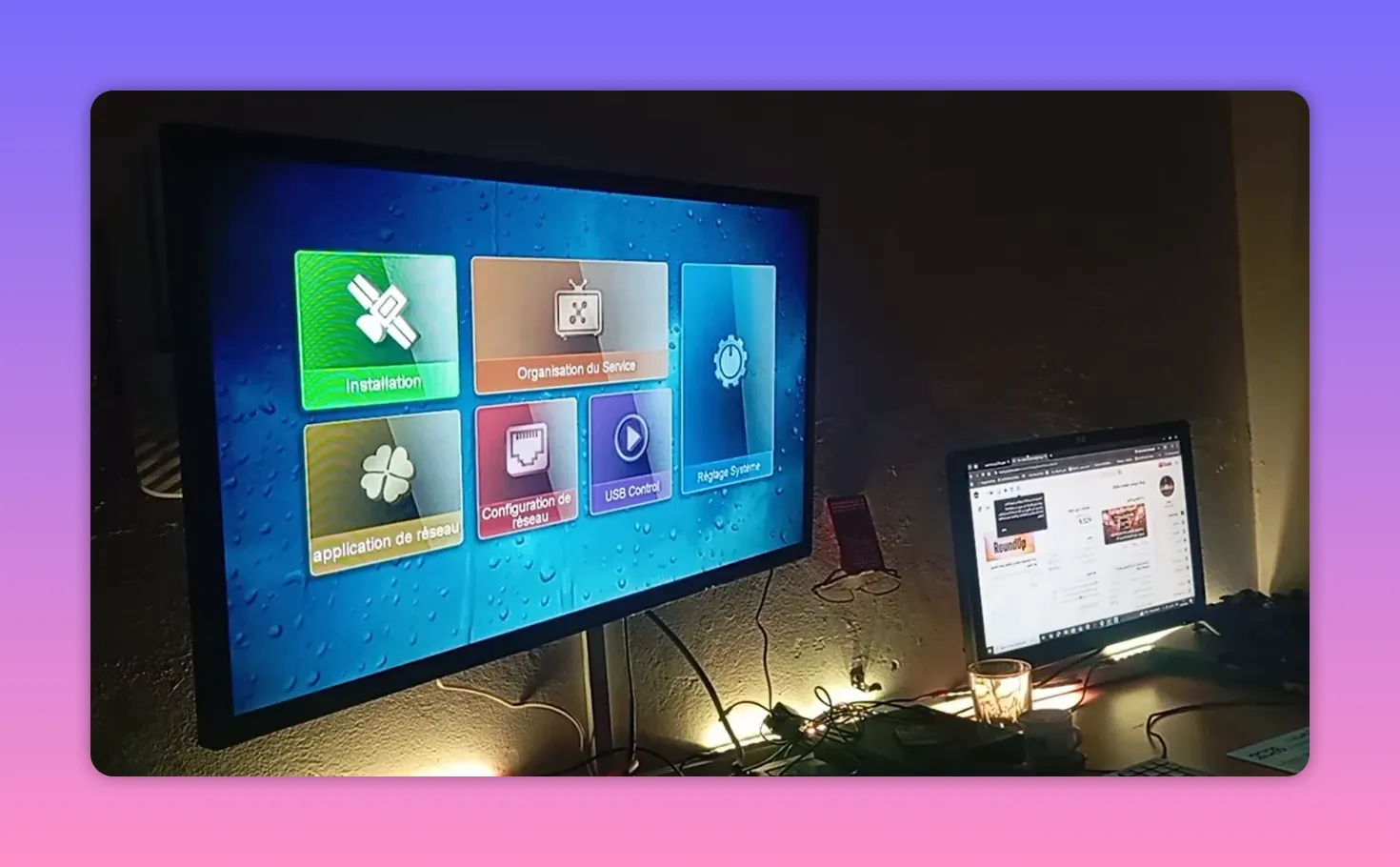
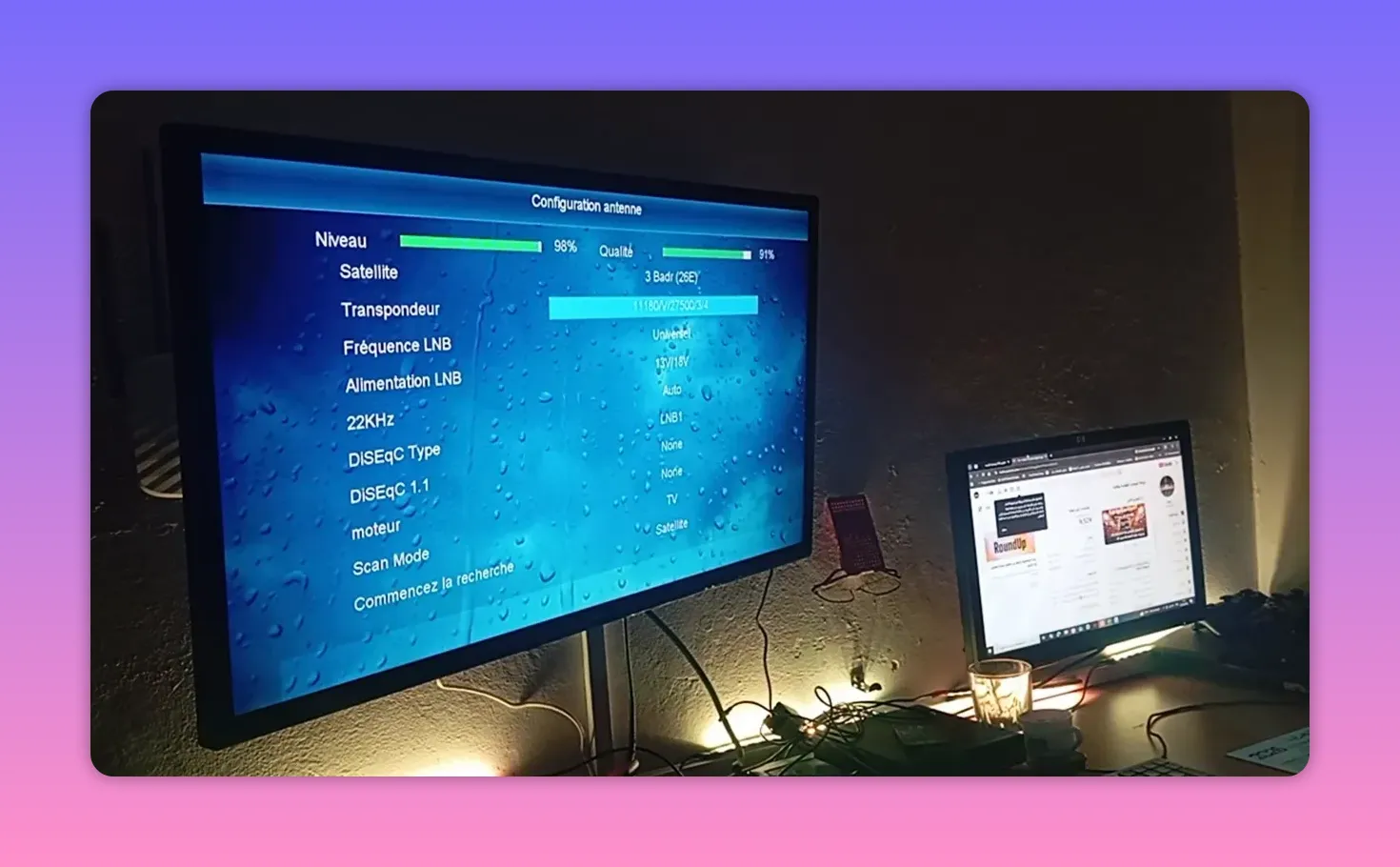
After selecting the satellite, go to the transponder list and choose the option to add a new frequency. On many remotes, this is done by pressing the red button.
Enter the transponder values exactly like this:
- Frequency: 10880
- Polarization: Vertical
- Symbol Rate: 27500
- FEC: 3/4
Once the values are entered, confirm with OK. If the receiver tells you the frequency already exists, that is fine. You can simply select it and continue.
🔍 Scan only the transponder you added
This is the step many people miss.
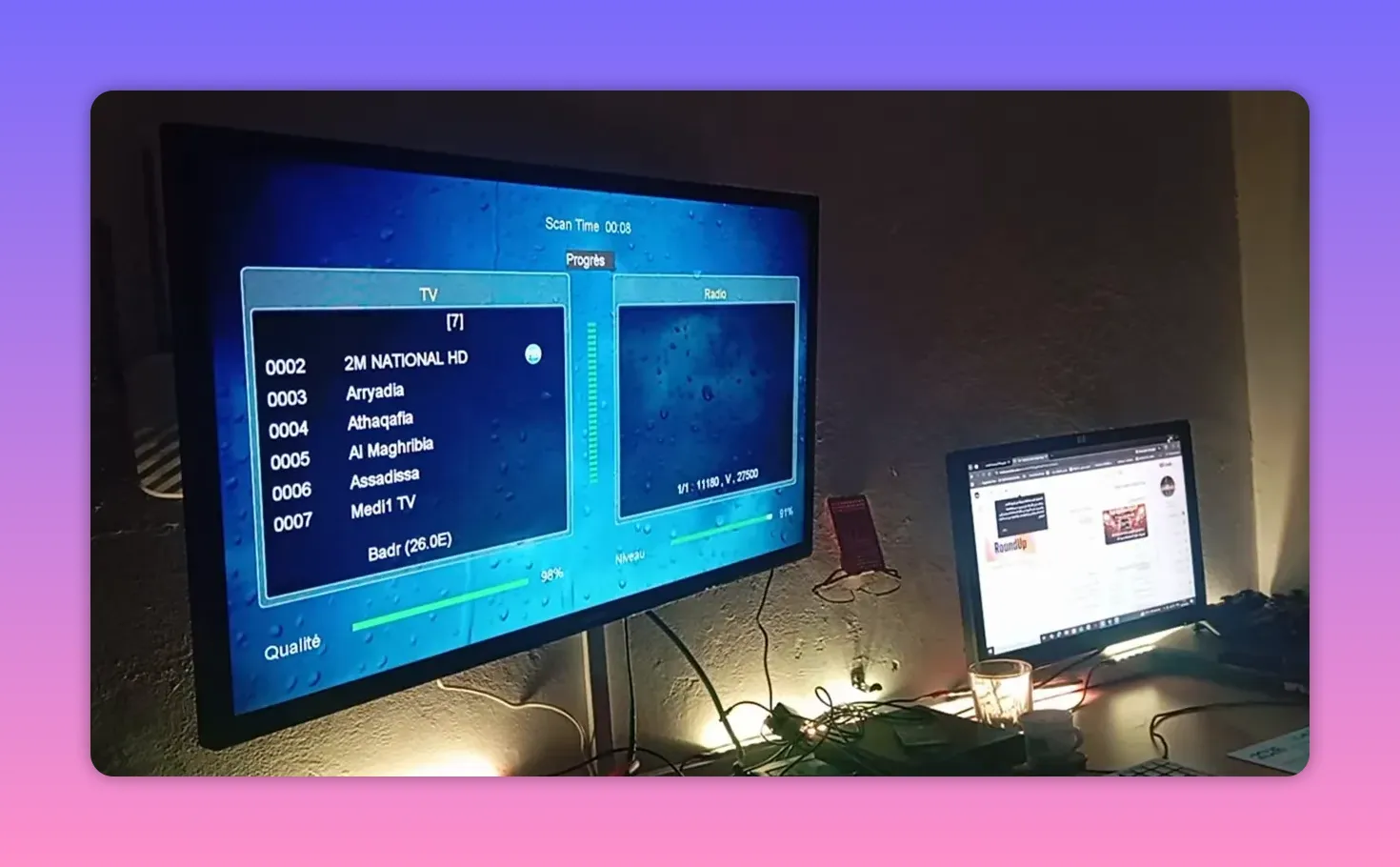
Do not launch a full satellite scan if your goal is only to bring in the Moroccan TNT package. Instead, move to the search settings and change the scan mode from full satellite to Transponder only.
That way, the receiver searches only the frequency you just added.
The general flow is:
- Select the transponder you entered
- Choose the search option
- Set scan type to Transponder
- Press OK
- Start the scan
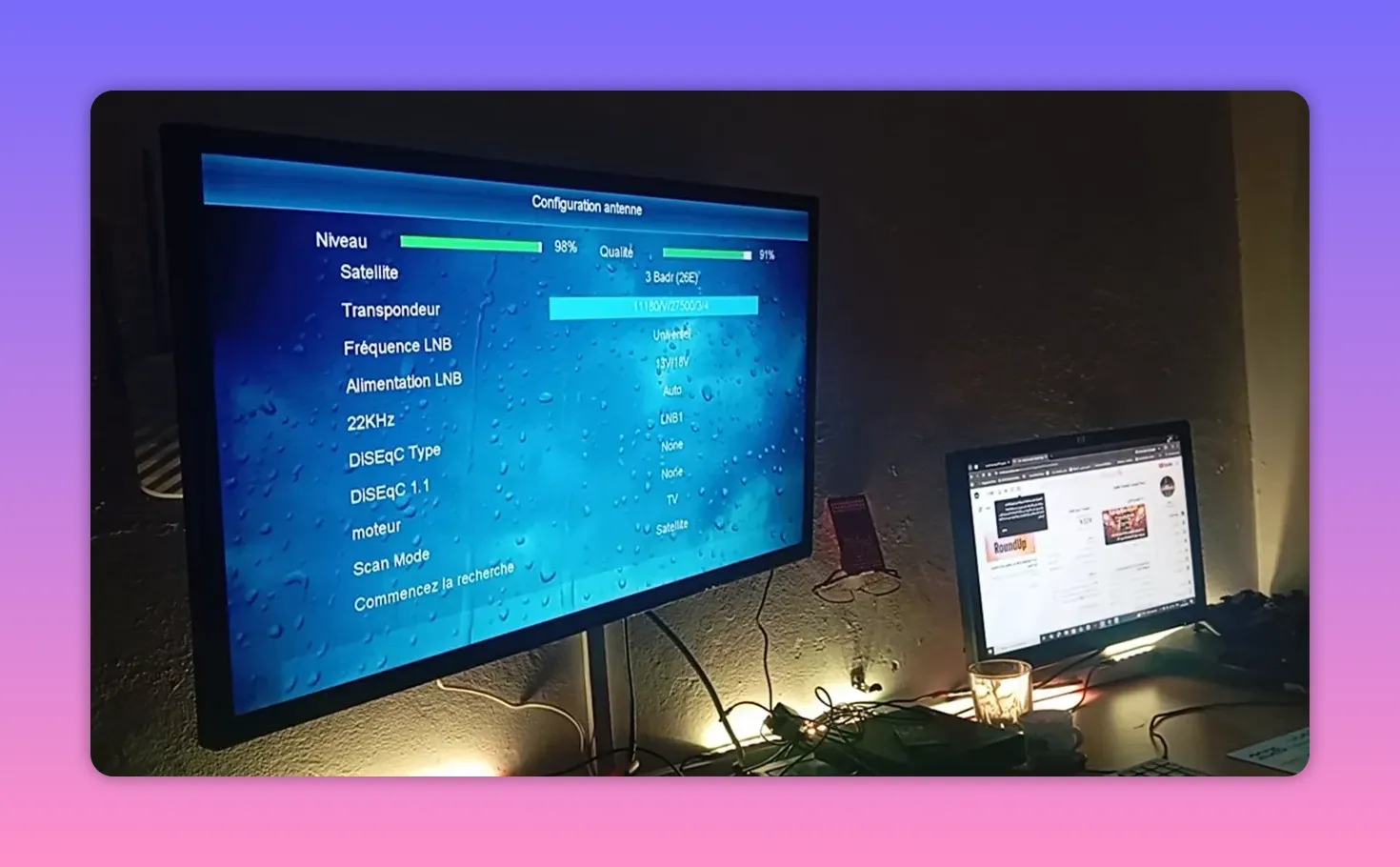
After a short wait, the Moroccan TNT channels should appear. The result mentioned here is around 13 channels, and once the scan finishes, they are saved to the receiver normally.
📱 What makes the ABDO 26 app attractive
Now to the app itself.
The featured application is presented as a strong all-around option because it gathers a wide range of content in one place. The emphasis here is on convenience: instead of moving between several apps, the goal is to have something that includes the essentials people usually look for.
The app is described as containing:
- Many channels
- Useful content categories
- A broad selection gathered into one app
The message is simple: if you like practical tools and all-in-one solutions, this is the kind of app that tends to get attention quickly.
📥 How to install the app using Downloader
To get the app, begin from the Google Play Store. Search for the Downloader app, install it, and give it the permissions it needs so it can work properly.
The path is:
- Open Play Store
- Search for Downloader
- Install it
- Grant the necessary permissions
- Open Downloader
- Go to the search or code entry field
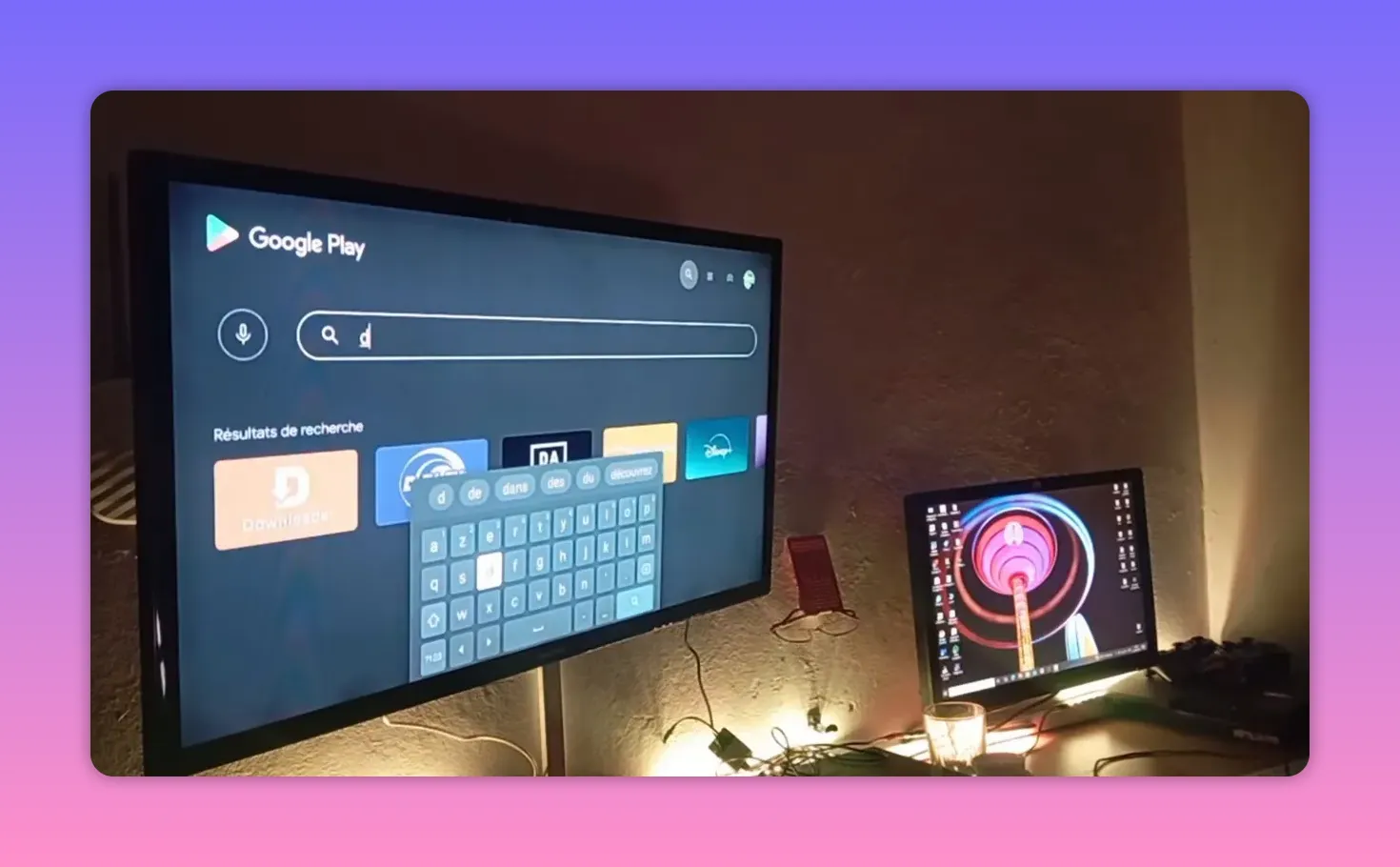
There is also a note that Downloader itself may have a newer update, so if the interface looks slightly different, that is normal. The main idea remains the same: open the app and enter the code in the designated field.
🔢 Downloader code for ABDO 26
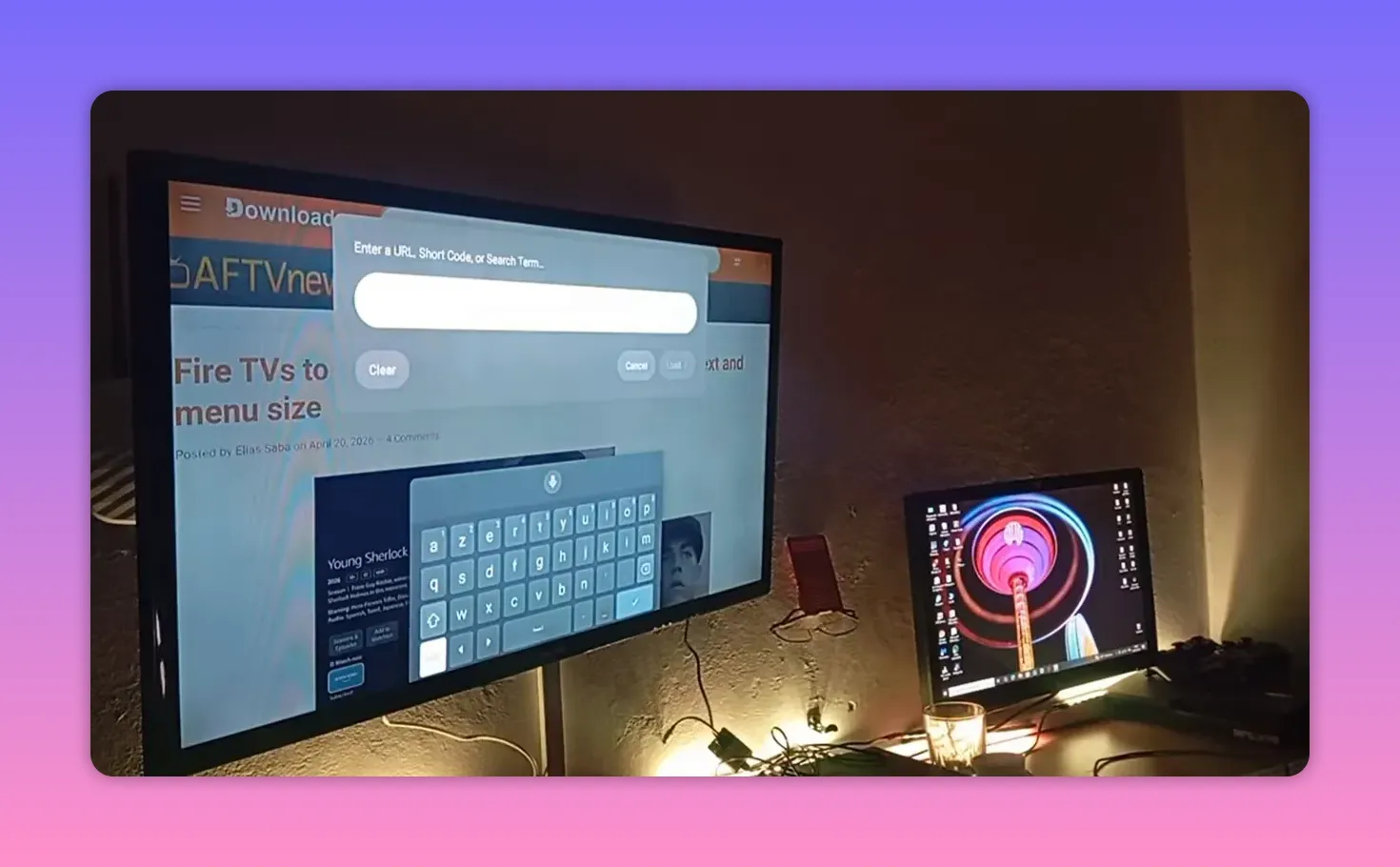
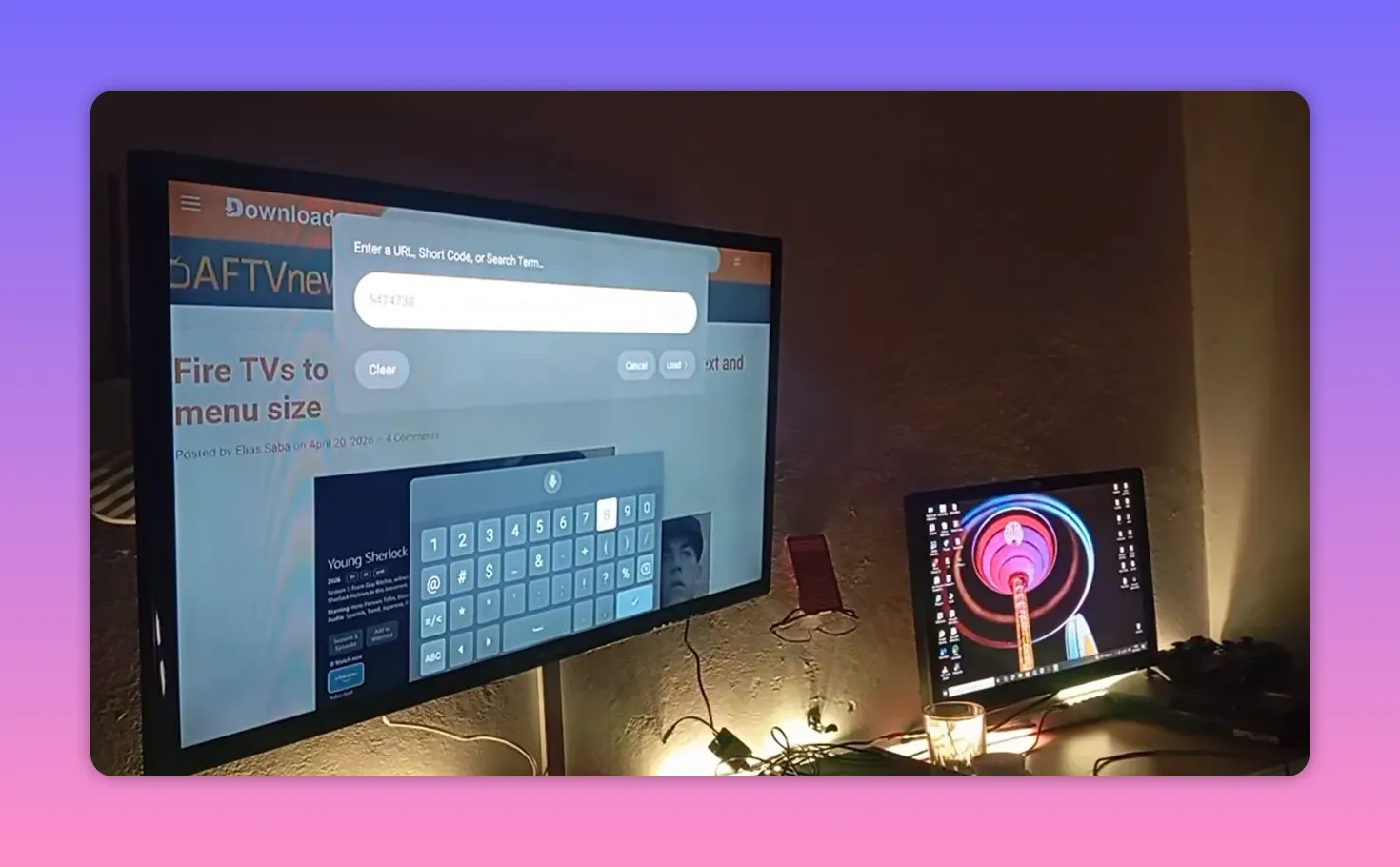
The Downloader code provided for the application is:
5474738
To make it easier to verify, here it is again broken into the same sequence used during entry:
- 54
- 74
- 738
Or as one full code:
5474738
After entering the code, confirm the search and proceed with the download and installation.
⚠️ Why the setup details matter
One point is repeated with real emphasis: taking only the Downloader code without following the rest of the explanation often creates avoidable confusion.
That is why the setup process matters:
- You need the correct app, which is Downloader
- You need to give it the proper permissions
- You need to enter the code accurately
- You should not assume every missing step will fix itself automatically
When content like this is shared carefully, there is usually a reason for being selective with details and how they are presented. Platform rules, moderation systems, and technical differences between devices all play a part. So the best approach is to follow the process completely instead of jumping to the shortcut.
🛠️ Practical recap of both methods
Adding Moroccan TNT channels on Badr
- Go to Installation
- Open Configuration
- Select Badr
- Add transponder 10880 V 27500
- Set FEC 3/4
- Choose a Transponder scan, not a full satellite scan
- Save the found channels
Installing ABDO 26 with Downloader
- Open Play Store
- Install Downloader
- Grant permissions
- Open Downloader
- Enter code 5474738
- Search, download, and install
❓FAQ
What is the frequency for Moroccan TNT channels on Badr?
The settings given here are 10880, Vertical, 27500, with FEC 3/4.
Should I scan the whole satellite or only one transponder?
Use a transponder-only scan. That is the recommended method for quickly finding the Moroccan TNT channels without scanning the entire satellite.
How many Moroccan channels are expected after the scan?
The result mentioned is around 13 channels, depending on the receiver and the scan result at the time.
Where do I install Downloader from?
Install Downloader from the Google Play Store, then grant it the necessary permissions before entering any code.
What is the Downloader code for the ABDO 26 app?
The code provided is 5474738.
Why might the process fail even if the code is correct?
Problems usually happen when Downloader permissions are not enabled, the code is entered incorrectly, or someone skips the setup steps and tries to go straight to installation.
✅ Final notes
If your goal is to improve your receiver setup and keep a strong collection of useful apps on your device, these two methods are practical and direct.
The first gives you a reliable way to add Moroccan TNT channels on Badr. The second gives you the ABDO 26 Downloader code and the exact route to install it properly.
Use the settings carefully, enter the values exactly, and follow the steps in order. That alone solves most of the common problems.
