
If you are looking for a strong Android TV app for channels, movies, and series without the usual headaches, this setup is worth your attention. The app itself is easy to install, but there are a few details that make the whole experience much better, especially if you want the app to actually appear on your TV screen and be easy to manage later.
The important thing is not just installing the app. The real trick is setting up the tools around it properly: Downloader, VLC, and a launcher such as Sideload Launcher or, even better, Dashboard.
Once these pieces are in place, the app becomes simple to access, use, and even uninstall if needed.
Table of Contents
- 📥 Start with Downloader from Google Play
- ⚠️ A quick note about Android compatibility
- 🎞️ Install VLC first
- 🔢 Download the main app using Downloader
- 🧩 Why the app may not appear on your TV home screen
- 📺 Option 1: Install Sideload Launcher from Play Store
- ⭐ Option 2: Dashboard is the better choice
- 🔓 How to activate Dashboard properly
- 🗂️ The real advantage of Dashboard over Sideload Launcher
- 🛠️ Recommended setup summary
- ✅ Final thoughts
- ❓FAQ
📥 Start with Downloader from Google Play
The first step is to install Downloader from the Google Play Store. This app is a well-known browser-style utility used on Android TV and TV Box devices to download apps from external sources.
Open Google Play, search for Downloader, and make sure the icon matches the correct app before installing it. After installation, go into settings and enable whatever permissions are needed so the app can work normally.
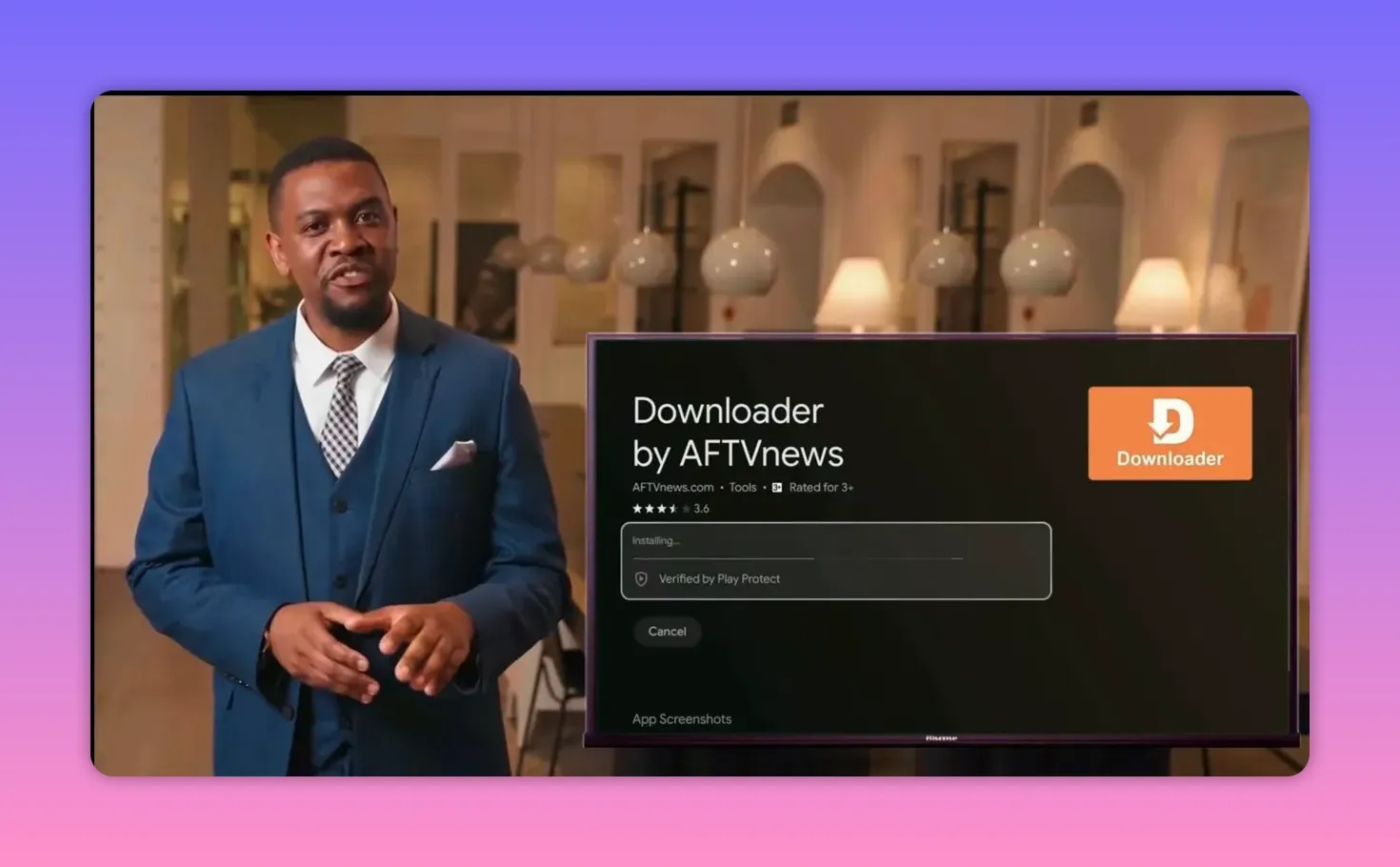
If Downloader is installed and appears on your main interface, you are ready for the next step.
⚠️ A quick note about Android compatibility
Before going further, there is one useful warning: some apps do not work well on newer phones or newer Android versions, while they run perfectly on older Android releases or Android TV environments.
That matters here because if something does not behave as expected, it is not always the app itself. In many cases, the Android version or device type is the reason.
🎞️ Install VLC first
This app needs a known media player to work properly, and that player is VLC.
So before downloading the main app, install VLC from the app store. It is a simple step, but it is required for smooth playback.
The order here matters:
- Install Downloader
- Install VLC
- Download the main app
🔢 Download the main app using Downloader
Now open Downloader and enter this code:
1957318
After entering the code, press Go and let the app download directly. The installation flow is straightforward and follows the usual Android TV sideload pattern.
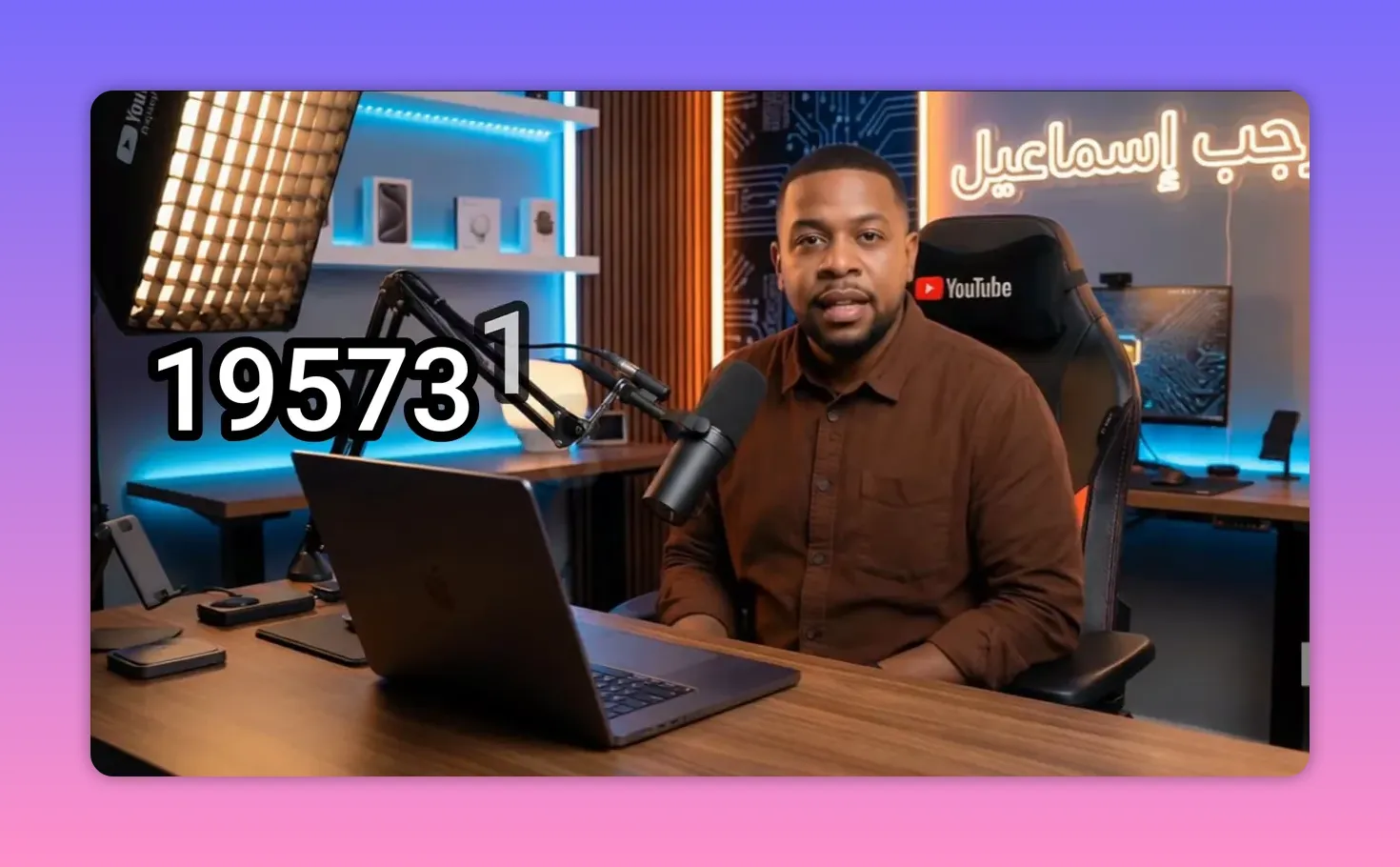
If you have used Downloader before, this part should feel very familiar. Download, install, confirm permissions if needed, and proceed.
🧩 Why the app may not appear on your TV home screen
Here is the part that confuses many people: the app can be installed and working, but you still may not see it directly on the Android TV home screen.
This is normal with many sideloaded apps.
To access those hidden installed apps, you need an app launcher that can display sideloaded software. Two options are mentioned:
- Sideload Launcher
- Dashboard
Both can show apps installed from Google Play and from external APK sources, but one of them is clearly the better choice.
📺 Option 1: Install Sideload Launcher from Play Store
If your Android TV device has Google Play Store available, installing Sideload Launcher is very easy.
Open Play Store and search for:
Sideload Launcher
Install it, open it, and you will see all apps installed on the device, including apps installed through Downloader.
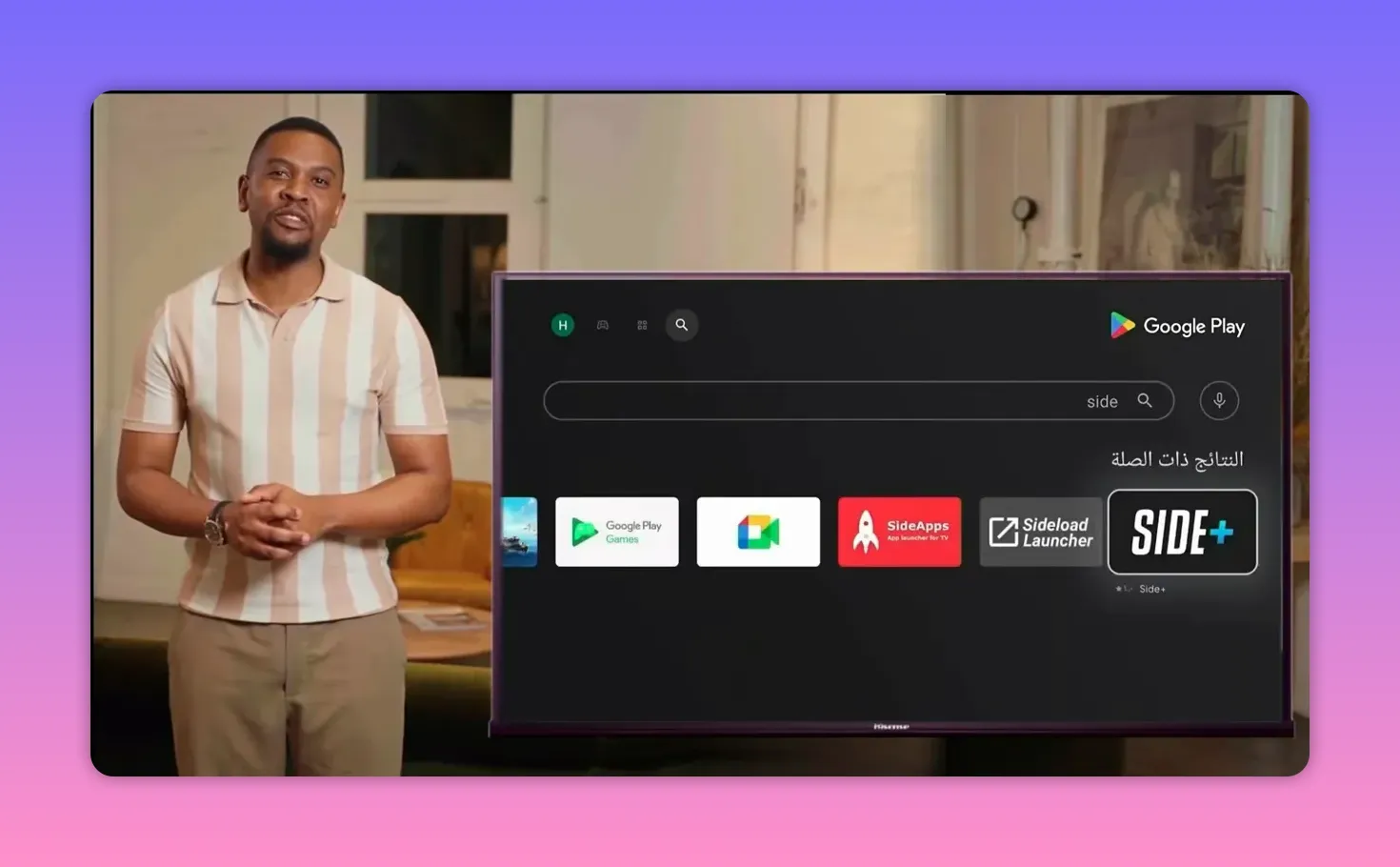
This solves the visibility problem immediately. If the app is installed but hidden from the default TV interface, Sideload Launcher will list it.
Its main limitation
Sideload Launcher is useful, but it has one major downside: it does not make app removal easy.
If later you want to uninstall something, you usually have to dig through settings manually, which is less convenient than it should be.
⭐ Option 2: Dashboard is the better choice
If you want a cleaner and more practical setup, Dashboard is the preferred option.
It does what Sideload Launcher does, but with a major advantage: it lets you uninstall apps more easily.
To install Dashboard, open Downloader and enter this code:
3763535
Then follow the regular installation steps just like any other app.
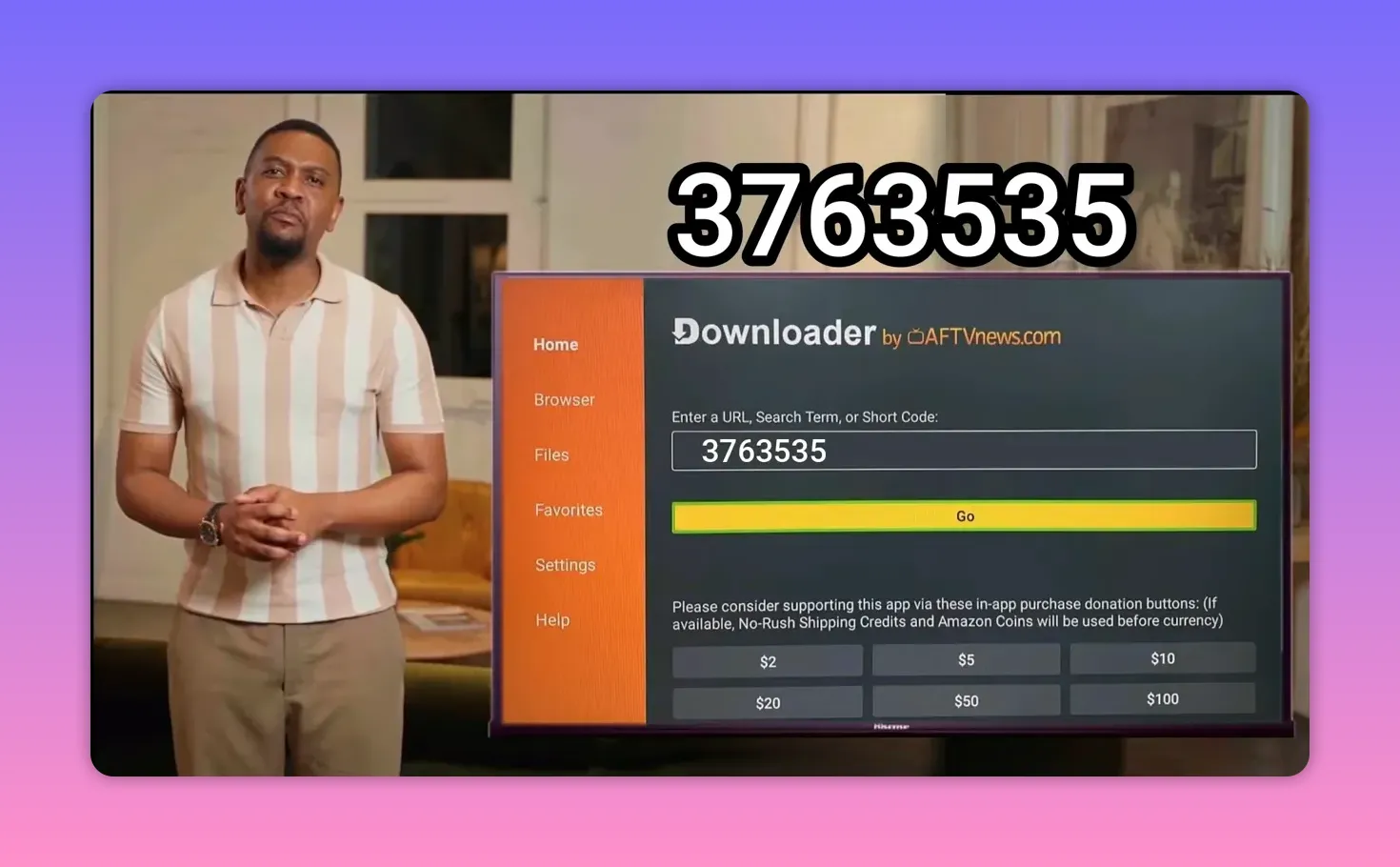
Move Dashboard to the home screen
After installing Dashboard, move it to the main screen and add it to favorites so it is always easy to reach.
The process is simple:
- Select the app
- Choose the move option
- Drag it forward to a visible position
- Add it to favorites if your interface supports that
This is a small step, but it saves time every day.

🔓 How to activate Dashboard properly
When you open Dashboard for the first time, it may ask for Accessibility access. This permission is necessary so the app can interact with and manage other installed apps.
If prompted, select Open Settings. If the settings page does not open automatically, you can go there manually through your device preferences.
Then follow this path:
- Open Settings
- Go to Accessibility
- Find Dashboard
- Enable it
- Confirm with OK
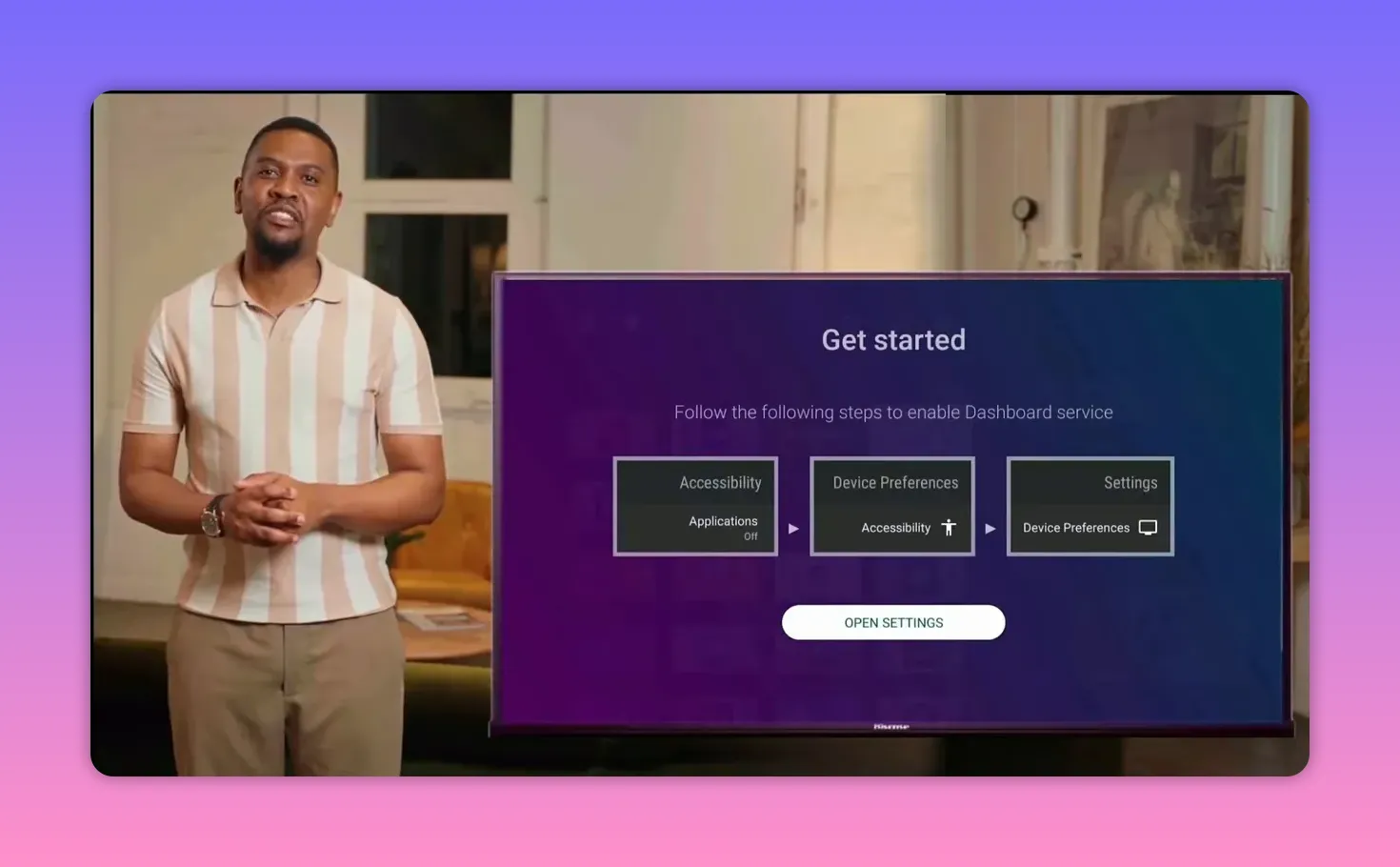
After enabling the permission, open Dashboard again. You should now see all installed apps, whether they came from Google Play or were sideloaded using Downloader.
🗂️ The real advantage of Dashboard over Sideload Launcher
This is the key difference.
Dashboard is not just for showing hidden apps. It also makes app management easier. By pressing and holding on an app, you can remove it or fully uninstall it directly from the interface.
That means less time going into deep settings menus and less frustration when cleaning up your Android TV box.
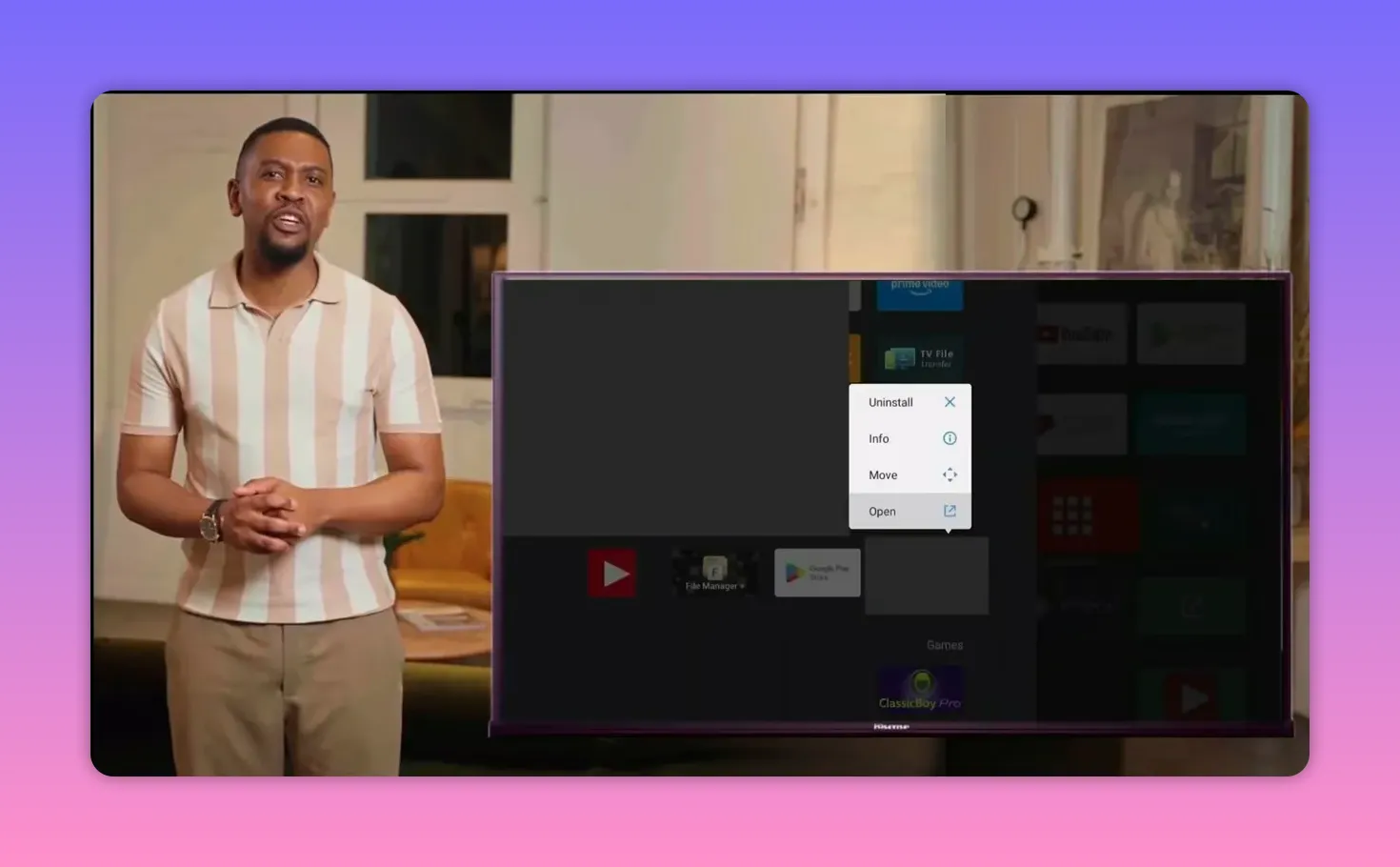
So if the goal is a practical long-term setup, Dashboard wins.
🛠️ Recommended setup summary
For the smoothest experience on Android TV, this is the best order to follow:
- Install Downloader from Google Play
- Install VLC
- Use Downloader code 1957318 to get the main streaming app
- Use either:
- Sideload Launcher from Play Store, or
- Dashboard with Downloader code 3763535
- Grant required permissions, especially Accessibility for Dashboard
- Move Dashboard to the home screen for fast access
If you want the simplest route, Sideload Launcher works. If you want the better route, use Dashboard.
✅ Final thoughts
A lot of Android TV apps fail not because the app is bad, but because the setup around it is incomplete. Install the app without VLC, and playback may break. Install it without a proper launcher, and it looks like the app disappeared. Use a basic launcher, and uninstalling later becomes annoying.
That is why this method works well. It handles the full chain, from downloading the app to making it visible and manageable on the TV interface.
If you are searching for a capable Netfly alternative on Android TV or TV Box, this setup gives you a more complete and cleaner experience, especially when paired with Downloader, VLC, and Dashboard.
❓FAQ
What is the Downloader code for the main app?
The code used to download the main app is 1957318. Enter it in Downloader, then press Go.
Why do I need VLC before installing the app?
The app requires VLC as a media player. Installing VLC first helps ensure the content can play correctly.
Why is the app not showing on my Android TV home screen?
Some sideloaded Android TV apps do not appear directly on the default launcher. In that case, use Sideload Launcher or Dashboard to access them.
How do I install Sideload Launcher?
Open the Google Play Store on your Android TV device, search for Sideload Launcher, and install it normally.
What is the Downloader code for Dashboard?
The code for Dashboard is 3763535. Enter that code inside Downloader and complete the installation steps.
Which is better, Sideload Launcher or Dashboard?
Dashboard is the better option overall because it not only shows installed apps but also makes it easier to uninstall them with a long press.
How do I enable Dashboard permissions?
Go to Settings, then Accessibility, select Dashboard, enable it, and confirm the prompt. After that, reopen Dashboard.
Does this method work on all Android versions?
Not always. Some apps may not work properly on newer Android versions or modern phones, while they work better on older Android systems or Android TV devices.
