
If you use an Android TV, TV Box, or any Android-based screen for entertainment, keeping your apps updated matters a lot. A fresh update can mean better stability, smoother playback, and an easier overall experience.
One issue many people run into is that some apps are not updated directly from the Google Play Store. That is where Downloader becomes useful. It lets you install apps from external sources quickly, and once you know the correct code and setup steps, the whole process becomes very simple.
This guide walks through the full method, from installing Downloader to opening hidden apps on Android TV and managing them more easily with launcher tools.
Table of Contents
- Step 1: Install Downloader from Google Play 🛠️
- Step 2: Enter the Update Code for the App 📥
- Step 3: Understand Why the App May Not Appear on the Home Screen 📺
- Step 4: Install Sideload Launcher from the Play Store 🚀
- Step 5: Install Dashboard with Downloader for Better Control ⭐
- Step 6: Enable Accessibility Permission for Dashboard 🔐
- Step 7: Use Dashboard to Open or Remove Apps Easily 🗂️
- Step 8: Keep Your Android TV Setup Clean and Efficient ✅
- FAQ ❓
Step 1: Install Downloader from Google Play 🛠️
The first thing you need is the Downloader app. This is one of the most common tools used on Android TV for downloading apps from outside the Play Store.
Go to Google Play Store on your screen and search for Downloader. When it appears, make sure the app icon matches the familiar Downloader icon shown during setup, then install it.
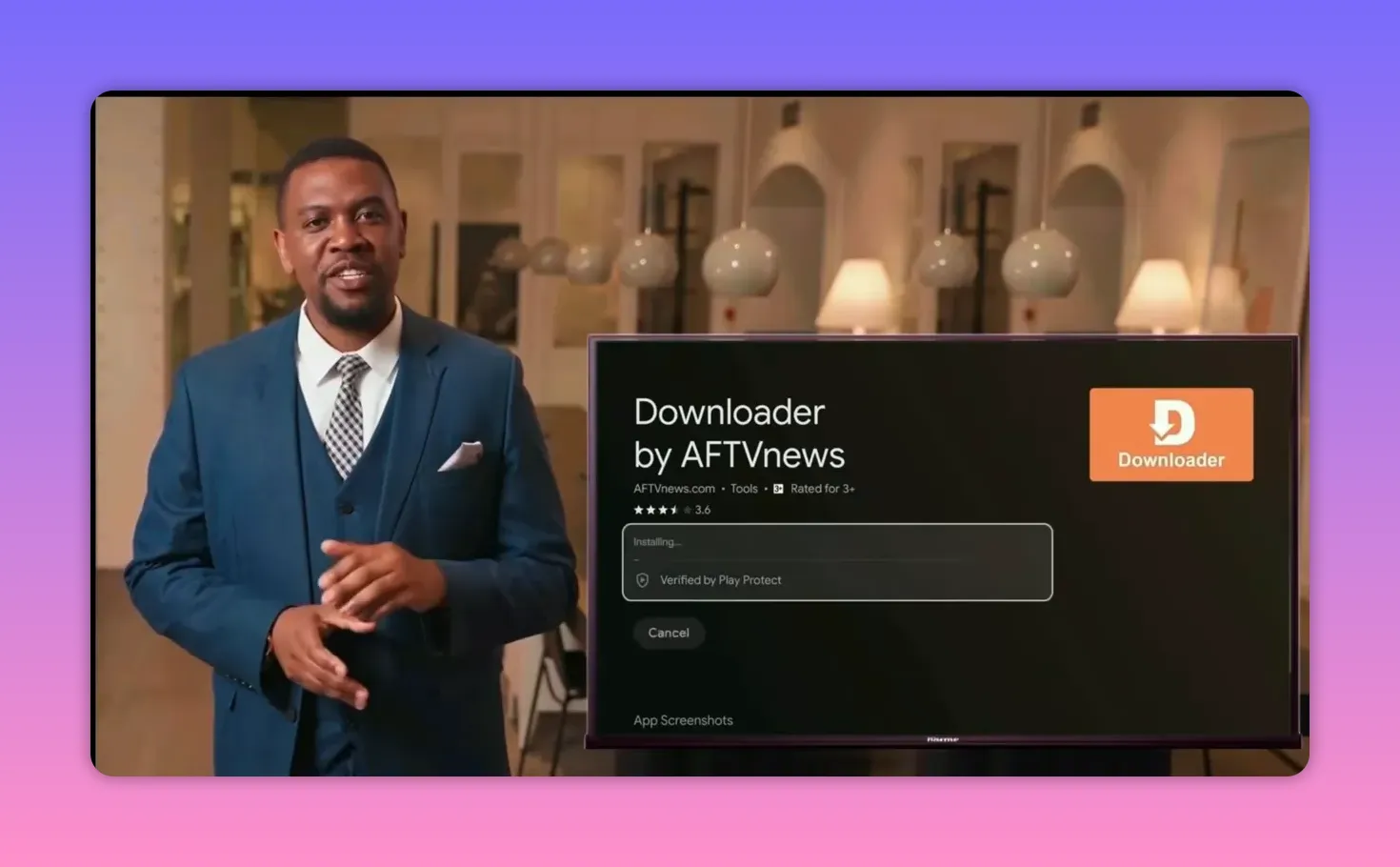
After installation:
- Open the app
- Complete any initial prompts
- Press OK when the welcome or permission message appears
Once Downloader is ready, you can move on to the update itself.
Step 2: Enter the Update Code for the App 📥
The app being discussed receives frequent updates, which is one reason it has become popular. These updates are meant to improve the experience and fix common issues.
If updating it manually has been confusing, use the provided update code inside Downloader:
471687
Type the code into Downloader, then press Go or Start. That begins the loading process automatically.
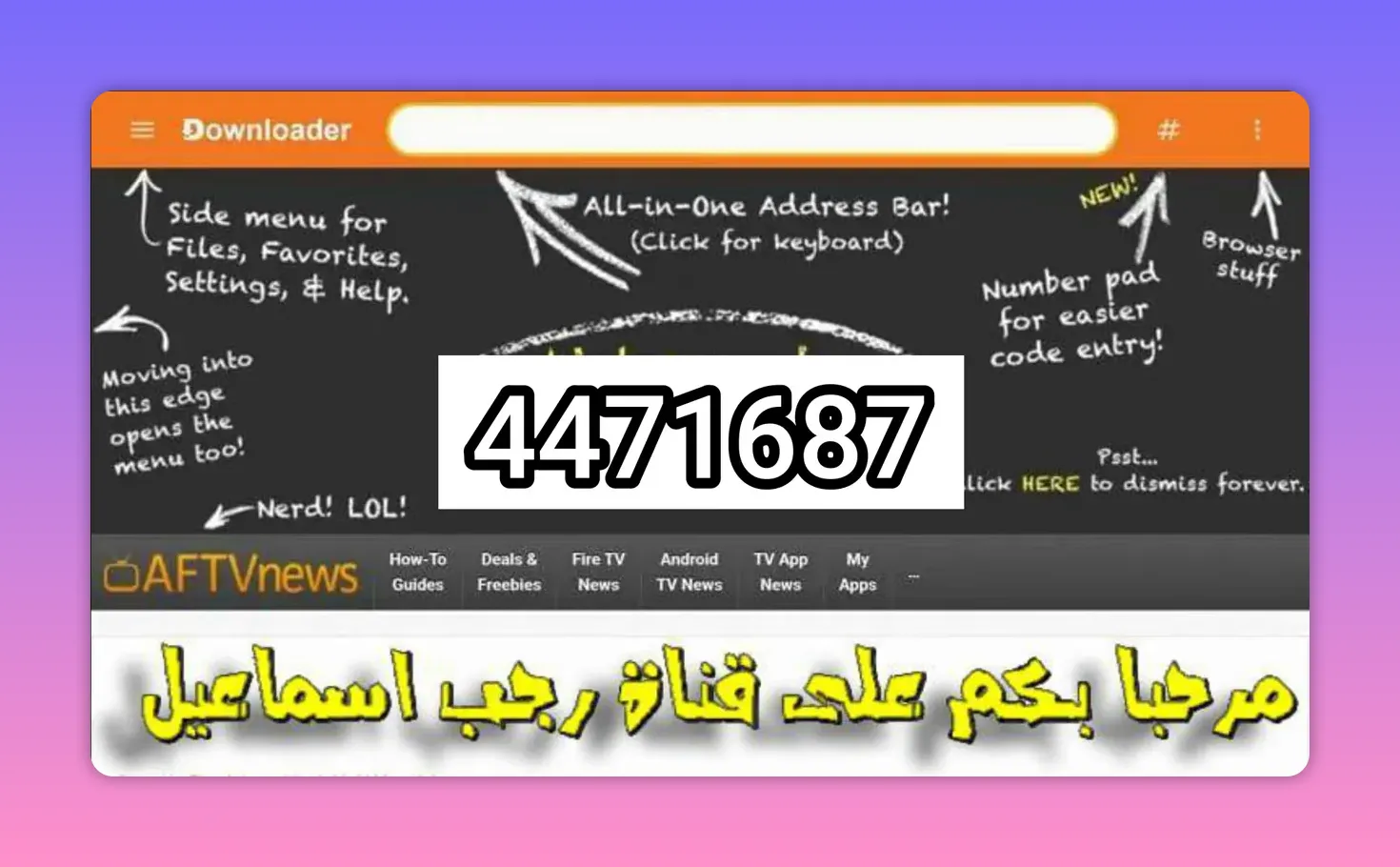
After that, the remaining steps are straightforward:
- You may be redirected to a temporary page for a few seconds
- Then the app download page will open
- Check that the file name matches Rajab Ismail so you know you are on the correct file
When the installation finishes, do not forget one small but important cleanup step: delete the installation file afterward to save storage space on your device.
Step 3: Understand Why the App May Not Appear on the Home Screen 📺
After installation, the app may be successfully installed and working, but you still might not see it directly on the main Android TV home screen.
This is normal with some sideloaded Android TV apps.
In other words, the app is installed, but it is not always shown like regular Play Store apps. To access it, you need a tool that can display sideloaded apps.
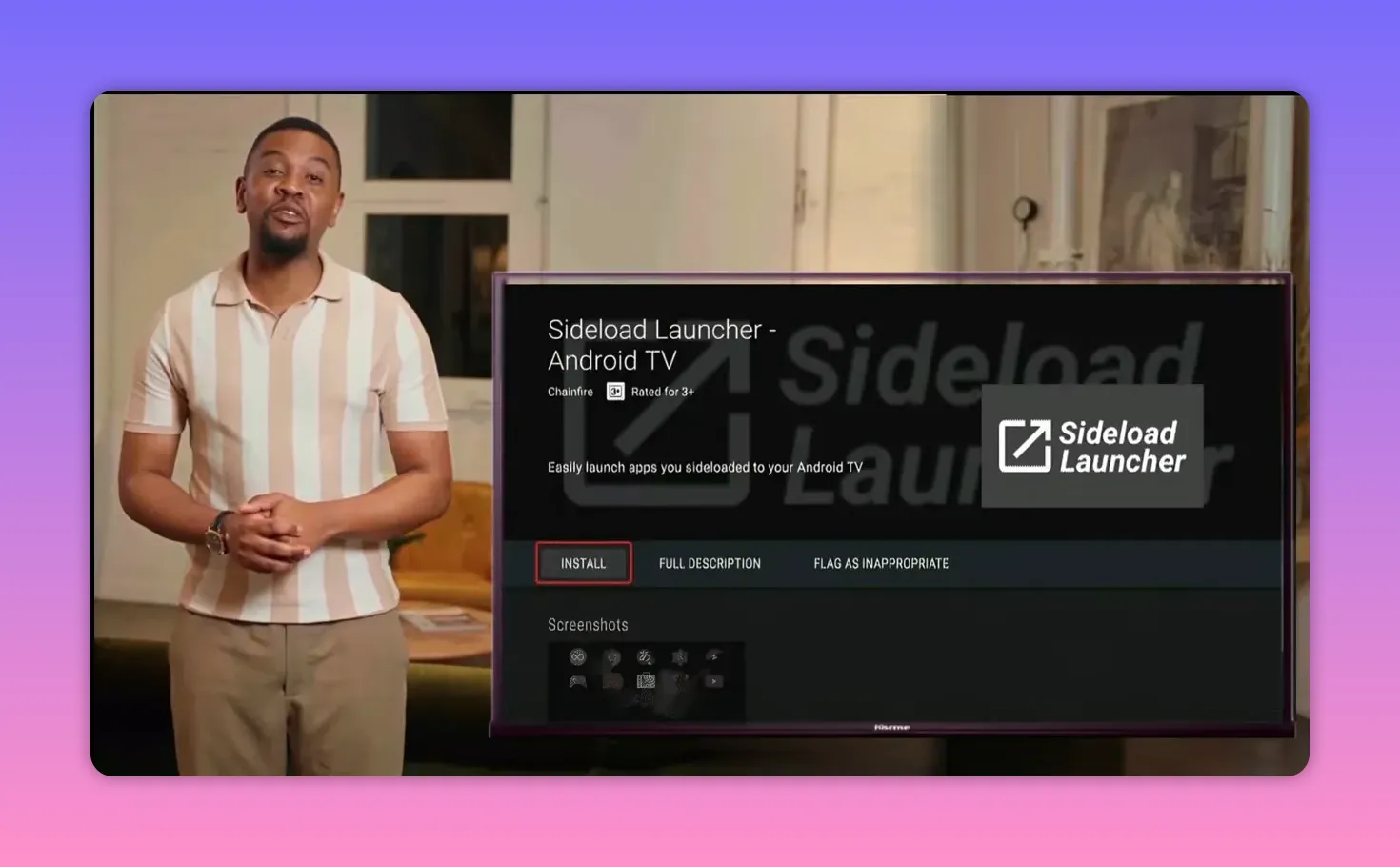
You have two options mentioned here:
- Sideload Launcher
- Dashboard
Both can help you open installed apps that do not appear on the default launcher. However, one of them is clearly preferred for easier management.
Step 4: Install Sideload Launcher from the Play Store 🚀
If you want the simplest way to make hidden apps visible, open the Google Play Store and search for:
Sideload Launcher
Install it directly from the store. Once opened, it will show all apps installed on the device, including:
- Apps installed from Google Play
- Apps installed from external sources through Downloader
- Entertainment and IPTV-style apps installed manually
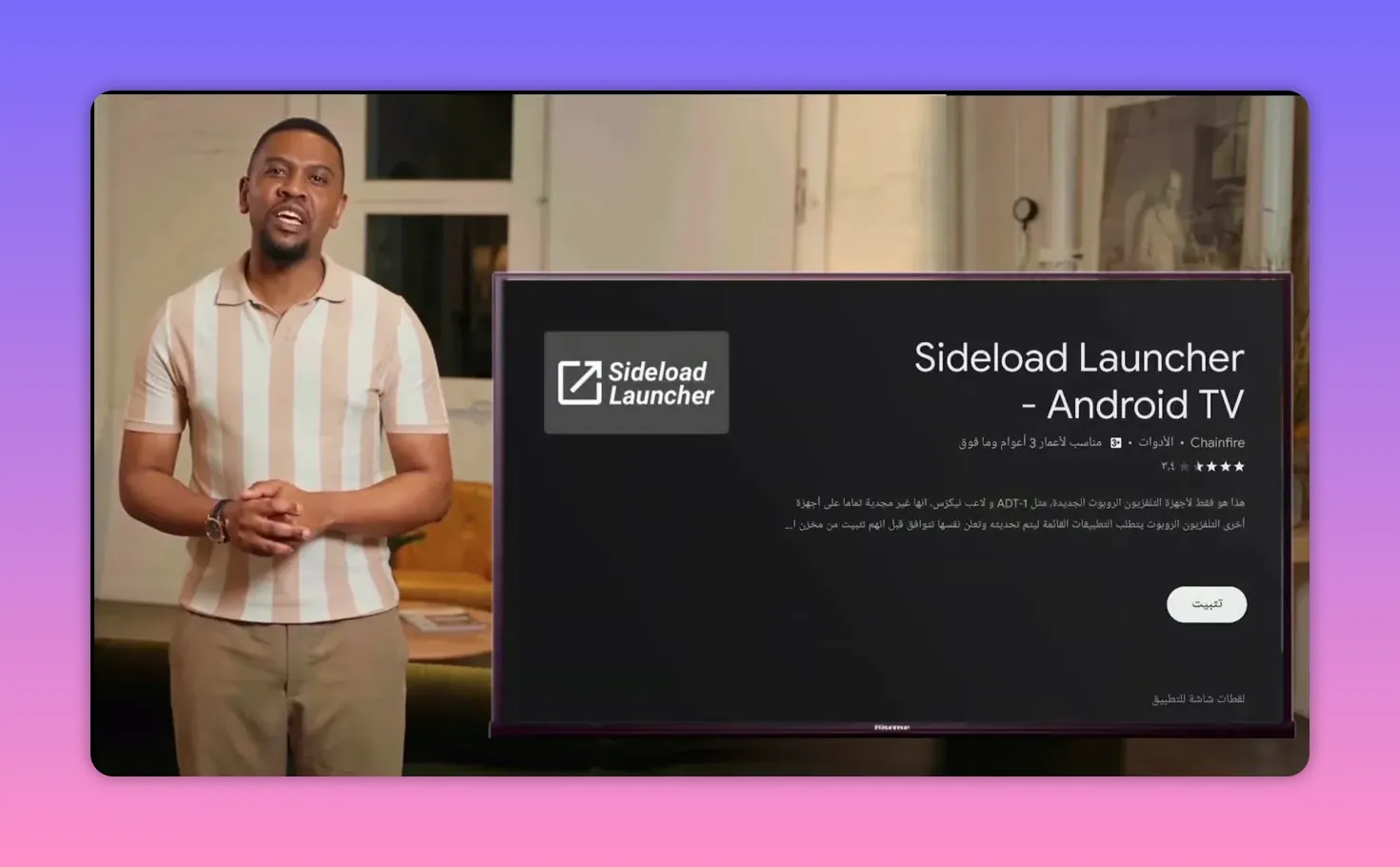
This makes Sideload Launcher useful if your only goal is to find and open apps that are otherwise hidden.
There is one limitation though. It does not make uninstalling those apps easy. If you want to remove an app later, you may still need to go through settings and several extra steps.
That is exactly why the second option is better for many people.
Step 5: Install Dashboard with Downloader for Better Control ⭐
If you want something more practical than Sideload Launcher, use Dashboard. It is preferred here because it not only displays installed apps, but also makes app management easier.
To install Dashboard, open Downloader and enter this code:
3763535
Then continue the installation just as you would with any other app.
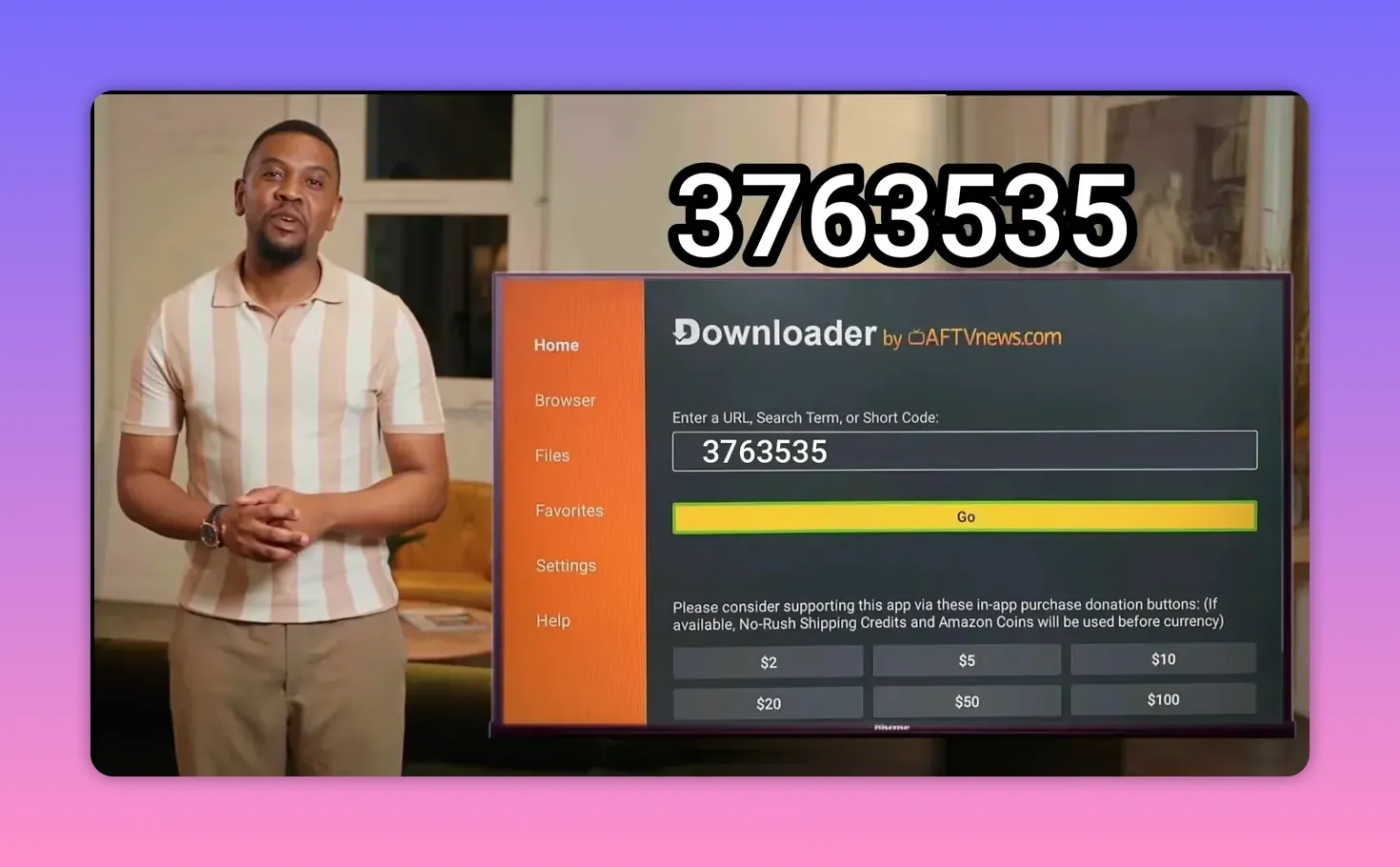
Once the installation is complete, move Dashboard to the main screen and add it to favorites if possible. That way it stays easy to access without digging through menus every time.
The process is simple:
- Select the app
- Choose the move option
- Drag it toward the front
- Place it where it is easy to reach
Step 6: Enable Accessibility Permission for Dashboard 🔐
When opening Dashboard for the first time, you will likely see a message asking for permission to access certain system controls. This permission is needed so the app can properly interact with and manage other installed apps.
Press Open Settings. If the settings page does not open automatically, go there manually through your device preferences.
Then follow this path:
- Open Device Preferences or your Android TV settings
- Go to Accessibility
- Select Dashboard
- Enable it
- Confirm by pressing OK
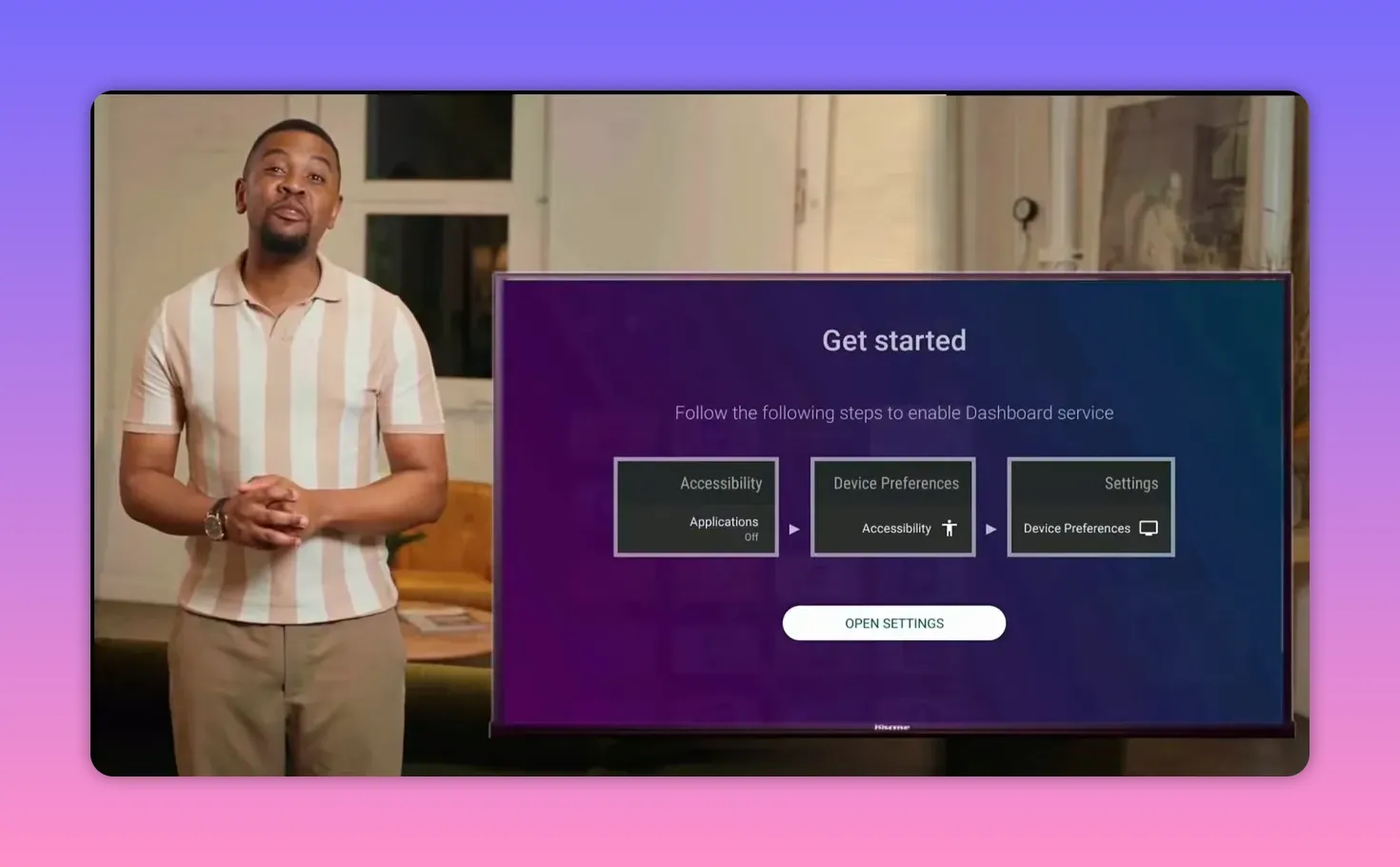
After activation, reopen Dashboard. At that point, you should see all installed applications, whether they came from the Play Store or from an external source through Downloader.
Step 7: Use Dashboard to Open or Remove Apps Easily 🗂️
This is where Dashboard really stands out.
Compared to Sideload Launcher, the main advantage is that Dashboard gives you an easier way to uninstall apps. Instead of going through several settings screens, you can simply long-press an app and remove it more directly.
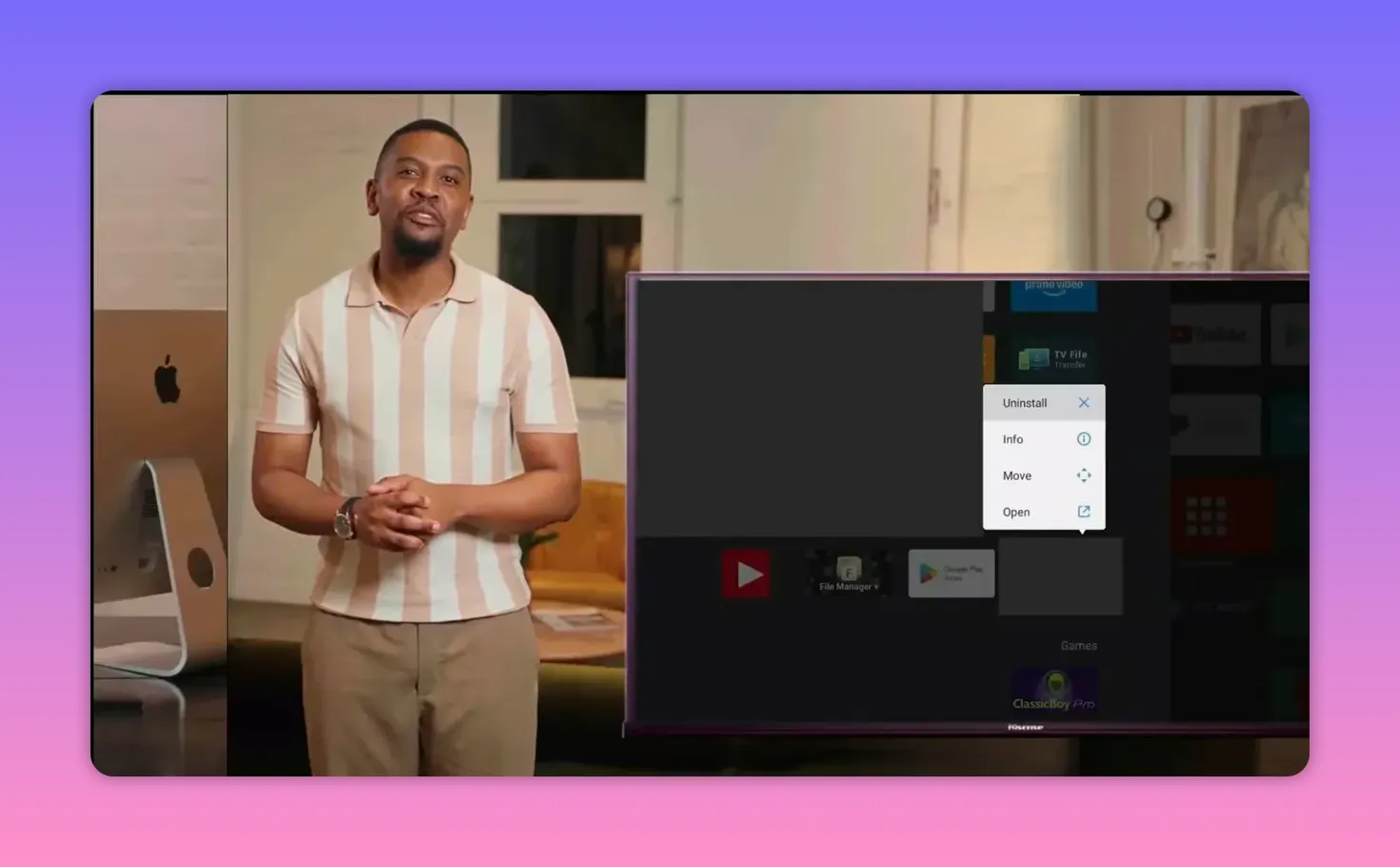
That means Dashboard is useful for two reasons:
- It shows apps that are hidden from the main Android TV interface
- It helps you delete apps you no longer want
If you install and test lots of Android TV apps, especially apps downloaded with Downloader, this feature saves time and keeps your device cleaner.
Step 8: Keep Your Android TV Setup Clean and Efficient ✅
Once everything is working, there are a few habits worth keeping:
- Delete APK installation files after installing apps to save storage
- Pin important tools like Dashboard to your home screen or favorites
- Use Downloader carefully and confirm file names before installing
- Prefer tools with app management features if you install many external apps
For Android TV and TV Box users, small setup choices make a big difference. A proper launcher tool can turn a cluttered sideloading experience into something much easier to manage.
FAQ ❓
What is Downloader used for on Android TV?
Downloader is used to download and install apps from external sources on Android TV or TV Box devices. It is especially helpful when an app is not available directly in the Google Play Store or when an update is shared through a short code.
What is the update code mentioned for the app?
The update code provided is 471687. Enter it in Downloader, then press Go or Start to begin the process.
Why is the installed app not showing on the Android TV home screen?
Some sideloaded apps do not appear directly on the default Android TV launcher. They are installed correctly, but you need a tool like Sideload Launcher or Dashboard to see and open them.
Which is better, Sideload Launcher or Dashboard?
Sideload Launcher is useful for displaying hidden apps, but Dashboard is better if you want more control. Dashboard can show apps and also makes uninstalling them much easier.
What is the Downloader code for Dashboard?
The Dashboard code is 3763535. Enter it inside Downloader and complete the installation normally.
Do I need to enable any permission for Dashboard?
Yes. Dashboard needs Accessibility permission to manage and interact with installed apps. You can enable it through your Android TV settings if it does not open automatically.
Should I delete the APK file after installing the app?
Yes. Deleting the installation file after setup is a good idea because it frees up storage space on your device.
If your goal is a smoother Android TV entertainment setup, the winning combination here is simple: Downloader for installation, Dashboard for access and management, and a little cleanup after each install. That gives you a cleaner home screen, easier app control, and a much better experience overall.
