
If you use an Android TV, Google TV, TV Box, or even an Android phone and you like free entertainment apps, this one is worth a serious look. It brings together live TV, movies, series, and sports in one place, and one of its best points is that it does not require an external player to work out of the box.
The app is available directly from the Google Play Store, which makes installation much easier than the usual downloader-code method. You install it, enter a username and password, connect to the right server, and you are ready to go.
There is one important condition though. To get the best experience, you need a decent internet speed, especially if you want stable playback in higher quality.
Table of Contents
- 📲 What this app offers
- 🛒 Installation is easier than usual
- 💾 Before installing, check your device storage
- 🔐 How to set up the app after installation
- 📺 What the interface looks like
- ⚽ Live TV quality and channel variety
- 🛠️ Useful settings if channels are not working properly
- 🌐 A note about availability
- ✅ Final thoughts
- ❓FAQ
📲 What this app offers
This is positioned as an all-in-one entertainment app, with a large library that combines several types of content inside a single interface.
- Live TV channels
- Movies
- Series
- Sports content
- Arabic and foreign packages
The content is organized in a clean way, and the app interface separates sections clearly so navigation feels straightforward. From the channel selection to the media categories, the app is built to work nicely on large-screen devices.
The quality options mentioned inside the app range from SD to HD and Full HD, which is another reason a stronger connection helps.
🛒 Installation is easier than usual
One of the nicest things here is that there is no need for Downloader. That alone will make this app more appealing for many people, especially those who prefer simple setup steps and do not want to deal with external APK links.
The app can be installed directly from the Play Store on:
- Android TV screens
- Google TV devices
- TV Box units
- Android phones
How to find the app in the Play Store
- Open the Google Play Store.
- Go to the search bar.
- Type: Click IPTV.
- Select the app icon when it appears.
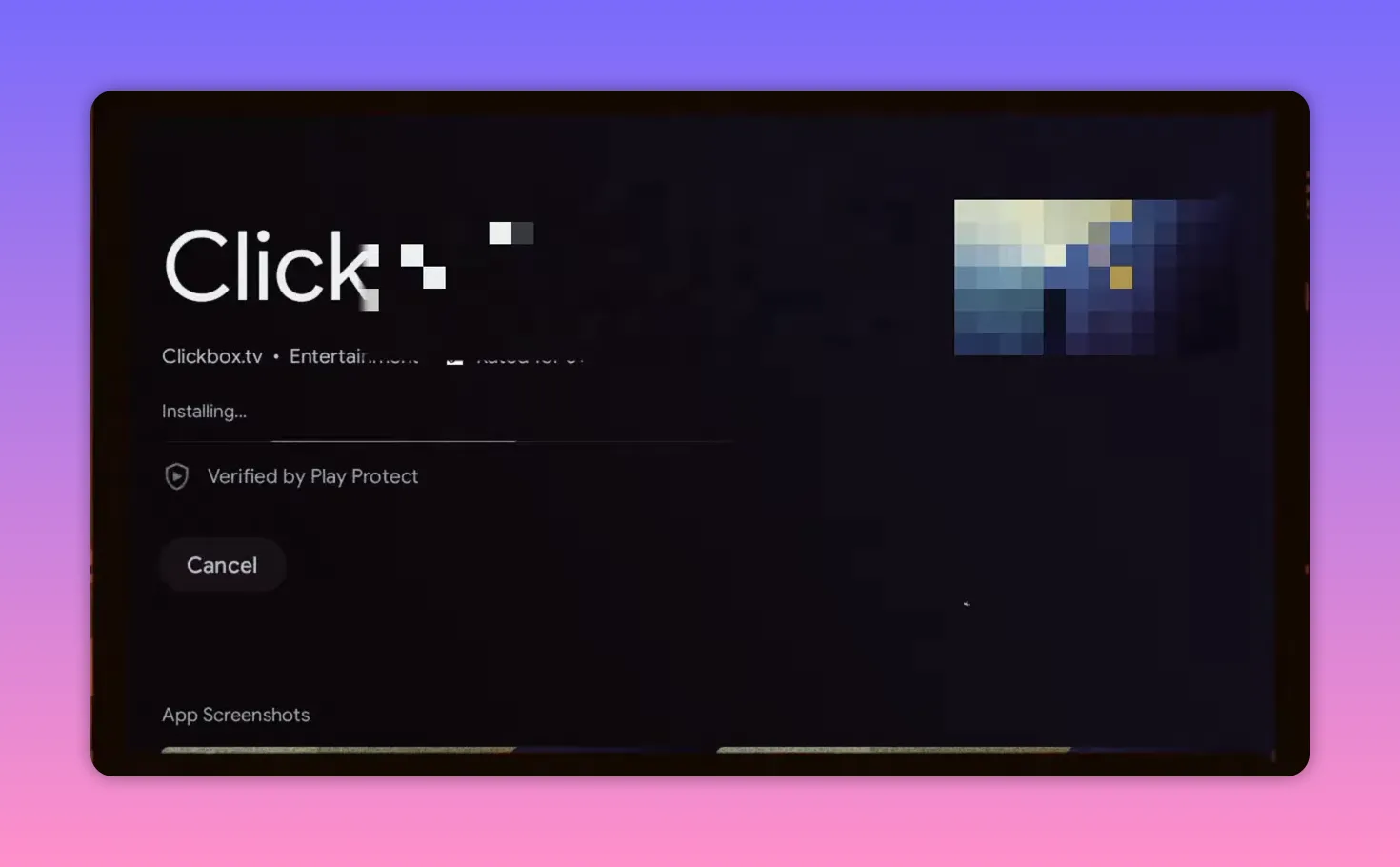
- Install it normally.
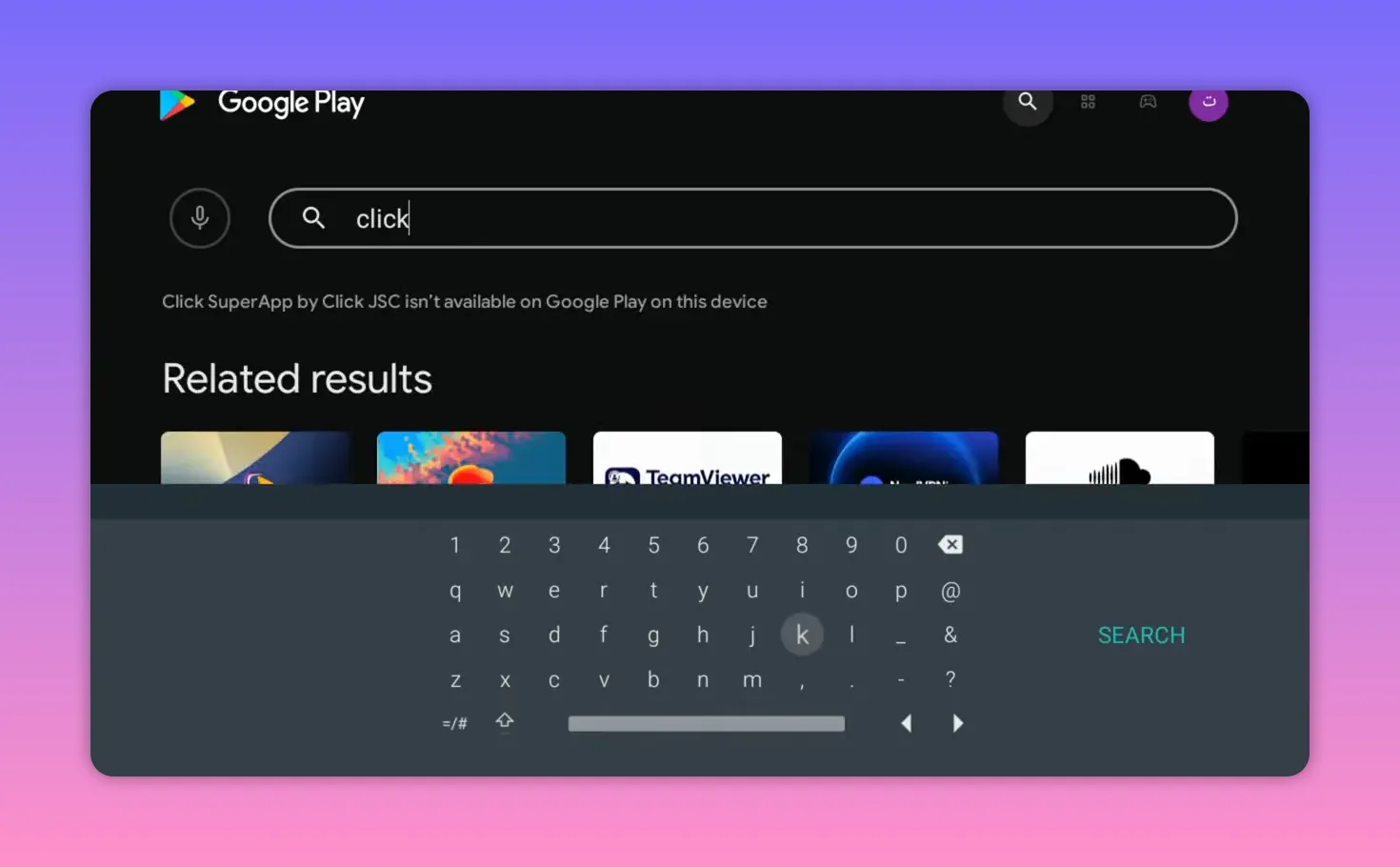
That is all you need for the installation side. No downloader code, no separate sideloading step, and no complicated workaround.
💾 Before installing, check your device storage
This point is easy to ignore, but it matters more than people think. If your TV, TV Box, or Android device has very limited internal storage, some apps may fail to install properly or behave badly after installation.
It is a good habit to clean up old apps you no longer use, especially outdated entertainment apps that have stopped working. Freeing storage space helps avoid installation issues and gives new apps a better chance to run smoothly.
A quick checklist before installation:
- Make sure there is enough available storage.
- Delete older unused apps.
- Avoid filling the device with inactive tools and players you no longer need.
🔐 How to set up the app after installation
Once the installation is complete, open the app and follow the configuration steps carefully. The app needs permission first, then it needs the correct server details.
Setup steps
- Open the app.
- Grant the requested permission.
- Go to Server 4.
- Select Edit.
- Enter the username.
- Enter the password.
- Press Update Playlist.
- Press OK.
- Select Server 4 again.
- Press Connect.
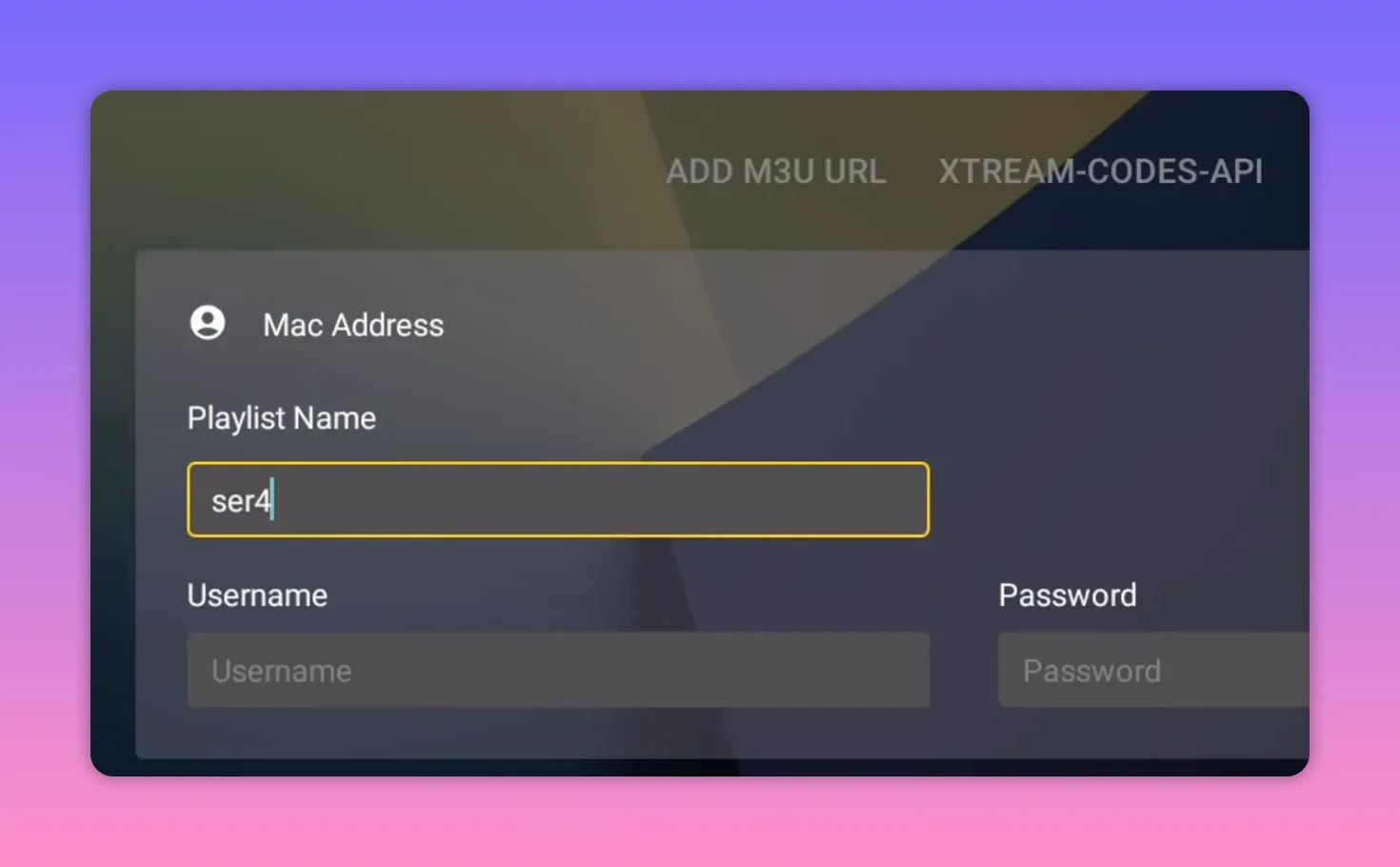
Username and password entered in the app
The login details shown for this setup are:
Username: 1s453128
Password: 4327236
It is important to enter the values exactly and without mistakes. If there is a typo in either field, the playlist will not update correctly and the server connection may fail.
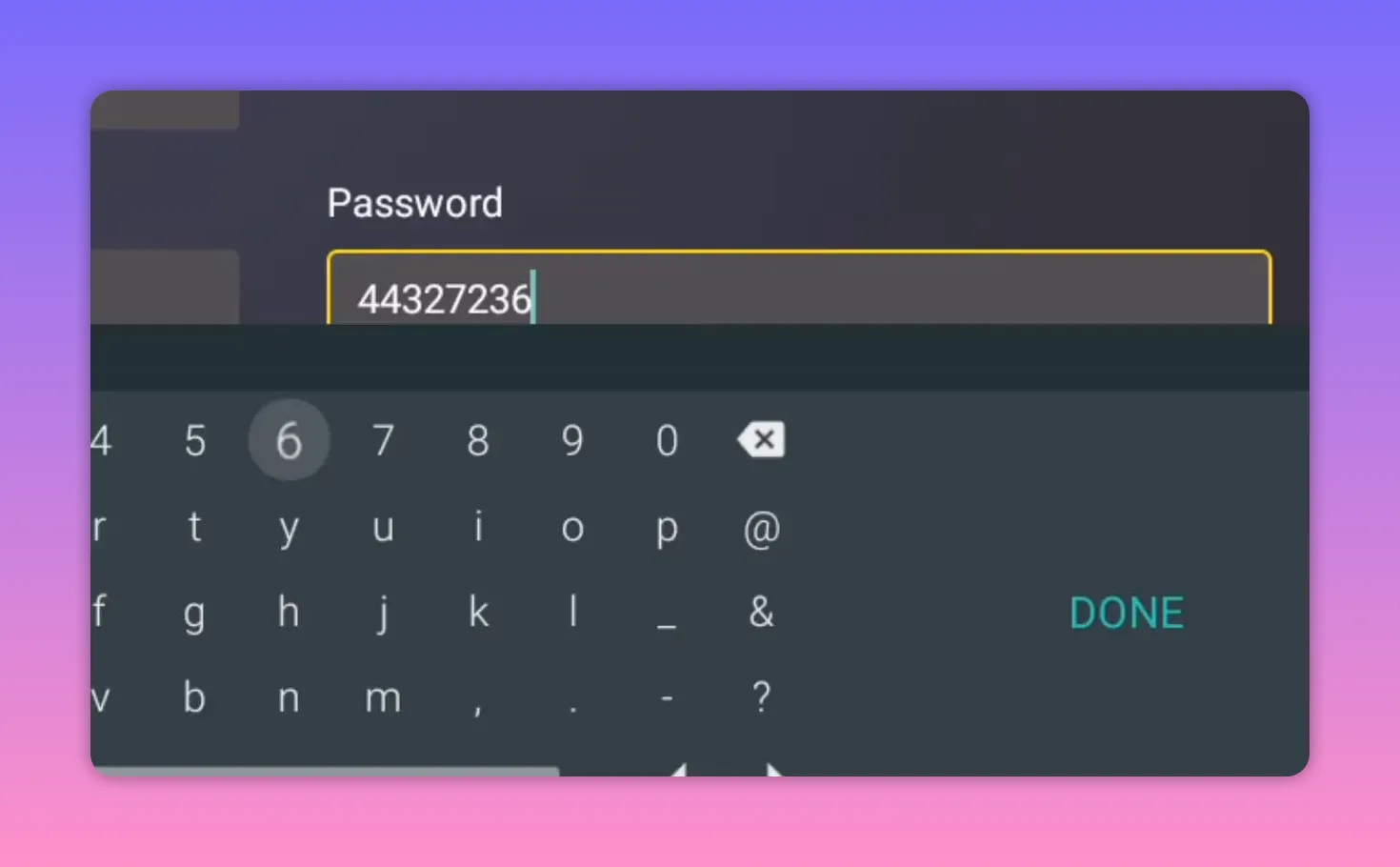
After pressing connect, the app will start loading data. The waiting time depends on your device performance. Faster devices tend to open the interface more quickly, while older TVs and weaker TV Box models may take a little longer to process the initial data.
📺 What the interface looks like
Once everything loads, the home interface appears with the main sections arranged clearly. The app is divided into categories such as:
- Live TV
- Movies
- Series
- Sports
This category-based layout makes it easy to move around without wasting time. If your main interest is live channels, you can jump directly there. If you prefer on-demand content, the movies and series sections are already separated for you.
The general impression is that the interface is built in a practical, professional way, especially for TV navigation with a remote.
⚽ Live TV quality and channel variety
The live TV section is one of the strongest parts of the app. It includes a wide range of Arabic and international channel packages, covering both entertainment and sports.
Another positive point is picture quality. The app offers channels in several quality levels, including:
- SD
- HD
- Full HD
If your internet connection is stable, the image quality can be very good. That said, if buffering appears often, the issue may come from either the stream format, the selected player, or simply a weak connection.
🛠️ Useful settings if channels are not working properly
If you run into playback problems, there are a couple of settings inside the app that can make a real difference.
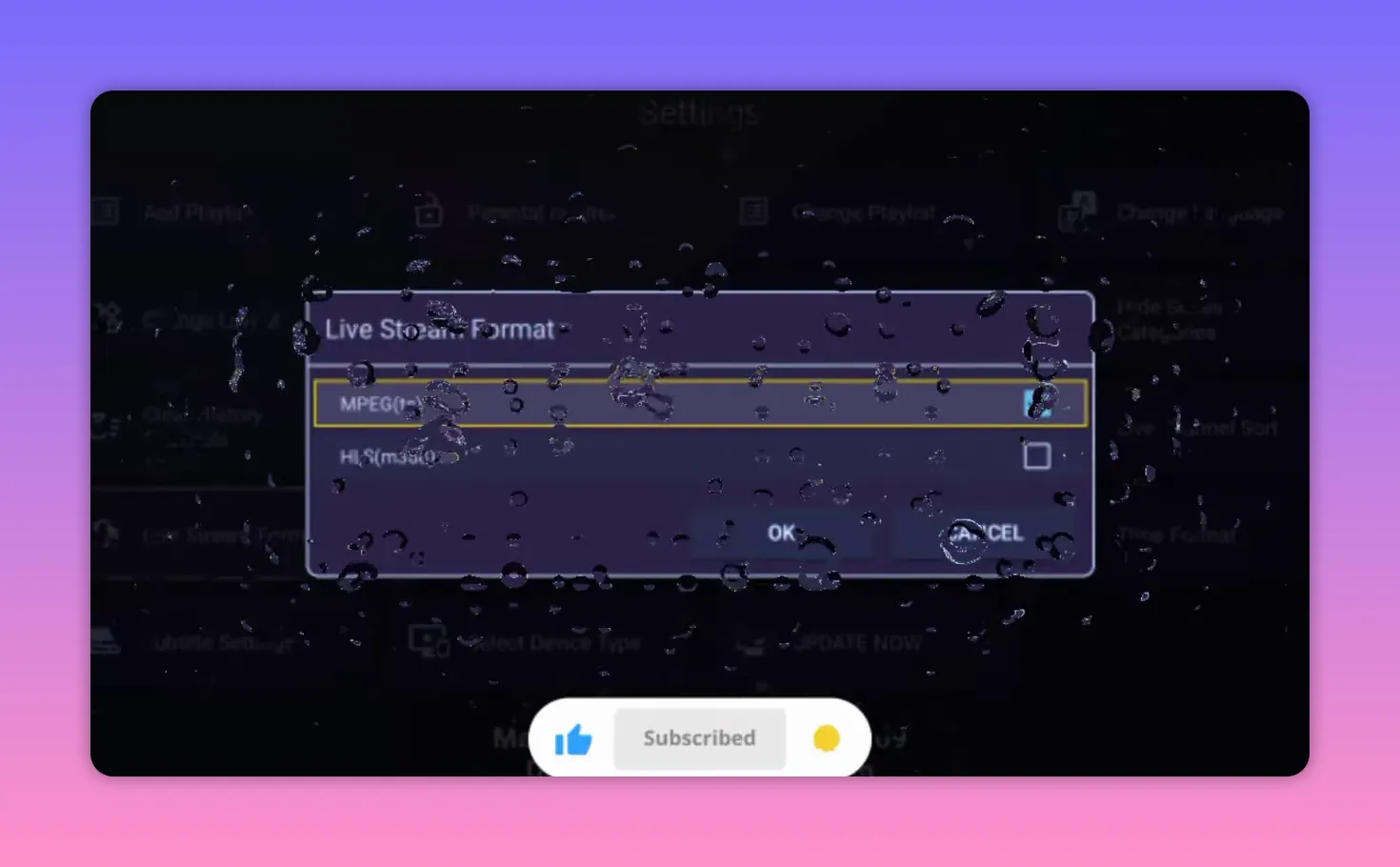
1. Change the live stream format
Inside the app settings, there is a Live Stream Format option. If channel packages are not loading correctly, freezing, or showing odd colors, switch between the available stream format choices and test again.
This small adjustment can sometimes solve issues immediately.
2. Use an external player if needed
Although the app works without requiring an external player, there are situations where a built-in player may not perform well on a specific device. If playback is poor or cuts frequently, selecting another player can help.
The recommended options mentioned are:
- VLC
- MX Player
If either of these is already installed on your device, you can choose it from the app settings and confirm with OK. That way, streams will open through the selected player instead of the internal one.
🌐 A note about availability
The information shown inside the app suggests that the service may continue until 2027. Of course, with apps like this, long-term availability is never guaranteed with total certainty. It could last that long, or it could stop earlier.
The practical takeaway is simple: if the app is working well for you now, make the most of it while it remains active.
✅ Final thoughts
For anyone looking for a free entertainment and sports app for Android TV, this one stands out for a few very practical reasons:
- It is available directly on the Play Store
- It supports Android TV, Google TV, TV Box, and phones
- It includes live channels, movies, series, and sports
- It can run without needing an external player
- It offers troubleshooting options through stream format and player settings
If you want a single app that gathers different types of content in one place and keeps setup relatively simple, this is a solid option to test.
❓FAQ
Is this app available on the Google Play Store?
Yes. The app can be installed directly from the Google Play Store, which makes setup easier than sideloading through Downloader.
What should I search for in the Play Store?
Search for Click IPTV and install the app normally from there.
Which devices are supported?
The app is presented as working on Android TV screens, Google TV devices, TV Box units, and Android phones.
Do I need an external player to use the app?
No, the app does not require an external player to work. However, if playback is unstable, you can choose VLC or MX Player from the settings.
What login details were used in the setup?
The setup shown used Username: 1s453128 and Password: 4327236, entered under Server 4 before updating the playlist and connecting.
What should I do if channels do not play correctly?
First, check the Live Stream Format setting and switch between the available options. If playback is still poor, try using VLC or MX Player instead of the built-in player.
Why is the app not installing on my TV Box or smart TV?
A common reason is low internal storage. Delete old unused apps and make sure your device has enough free space before trying again.
What kind of content does the app include?
It includes live TV, movies, series, sports content, and a mix of Arabic and foreign channel packages.
What internet speed is needed?
There is no exact speed listed, but a respectable and stable internet connection is recommended, especially for HD and Full HD playback.
More Helpful Reads
If you want more Android TV / Google TV entertainment app guides, you can browse our related posts in the site sitemap. Start here: sitemap.
- Learn about another all-in-one entertainment library: entertainment
- Check an Android-focused live TV guide: live TV
- Explore streaming stability tips for fast playback: stable
