
If you want a simple way to install a strong Android TV app for channels, movies, and series, the setup is actually easier than it looks once you know the correct order. The key is using Downloader, entering the code carefully, then making sure the app appears properly on your Android TV home screen.
This guide walks through the full process clearly, including the activation steps, the launcher issue that confuses many people, and why I personally prefer Dashboard over Sideload Launcher for managing installed apps.
Table of Contents
- 📥 Start by Installing Downloader
- 🔢 Enter the App Download Code Correctly
- 📺 Why the App May Not Show on the Main Screen
- 🧭 Option 1: Install Sideload Launcher from Play Store
- ⭐ Option 2: Install Dashboard, the Better Alternative
- ⚙️ Enable Accessibility Permission for Dashboard
- ✅ Why Dashboard Is Better Than Sideload Launcher
- 🔐 Complete the Activation Inside the App
- 🧹 Final Setup Tips for a Smooth Android TV Experience
- ❓FAQ
📥 Start by Installing Downloader
The first thing you need is the Downloader app from the Google Play Store. This is one of the most popular tools for Android TV and TV Box devices because it lets you install apps from external sources quickly.
- Open Google Play Store on your Android TV.
- Search for Downloader.
- Make sure the app icon matches the well-known Downloader app.
- Install it.
- Go into settings if needed and enable the required permissions after installation.
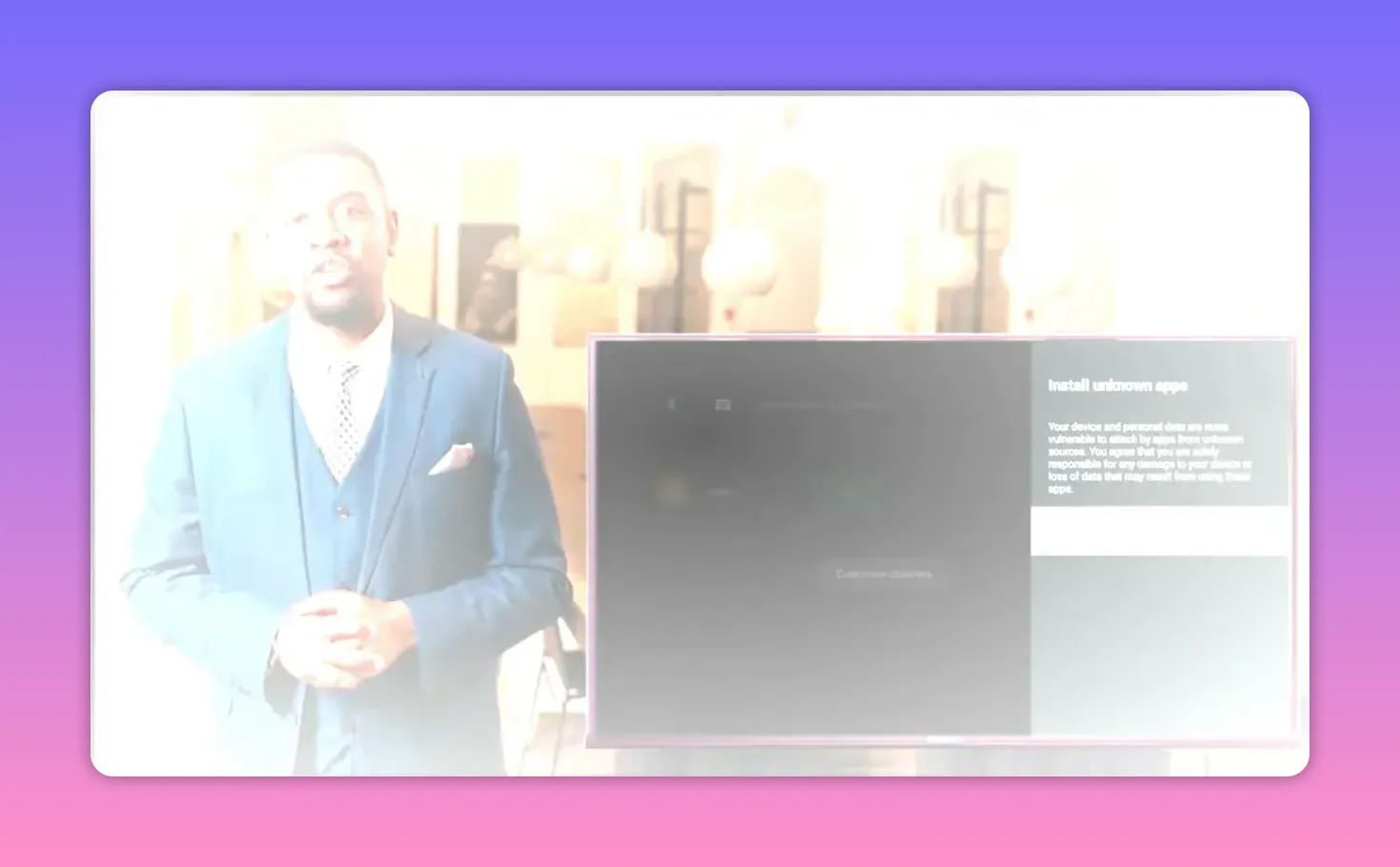
Once the app is installed and visible on your interface, open it and confirm any welcome or permission prompts with OK.
🔢 Enter the App Download Code Correctly
The app discussed here is installed using a code inside Downloader. This is the step where people often make mistakes, simply because the code is a bit long. So enter it slowly and double-check every digit before continuing.
App code: 5606604
After entering the code:
- Press Go or Start.
- Wait for the temporary page to load.
- After a few seconds, the download page for the app should open.
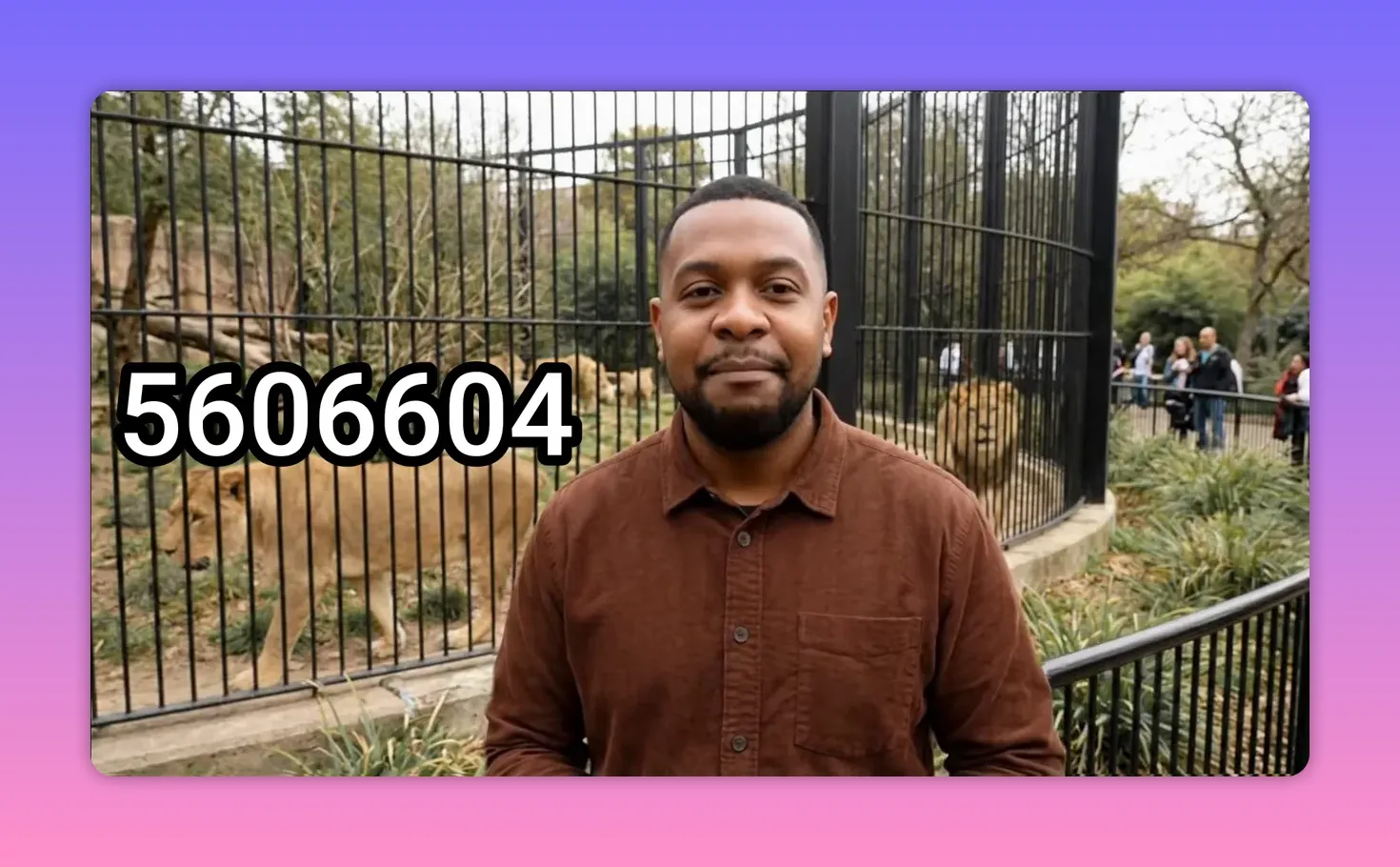
One important detail here is to confirm the file name shown during download. The file should carry the channel-related name mentioned in the walkthrough so you can feel confident that you are on the correct page and downloading the intended file.
After installation, do not forget to delete the installer file. This helps save storage space on your Android TV or TV Box, especially if you install apps regularly.
📺 Why the App May Not Show on the Main Screen
Here is the part that surprises a lot of people. Even after the app installs successfully and runs, you may not find it showing directly on the Android TV home screen.
That does not mean the installation failed.
It usually means the app is installed as a sideloaded application, so you need a launcher that can display all installed apps, including the ones added from external APK sources.
You have two options mentioned here:
- Sideload Launcher
- Dashboard
Both can help you access apps that do not appear normally on the home screen, but there is an important difference between them.
🧭 Option 1: Install Sideload Launcher from Play Store
If you want the simplest path, open the Play Store and search for Sideload Launcher.
- Open Google Play Store.
- Search for Sideload Launcher.
- Install it.
- Open it to see all apps installed on the device.
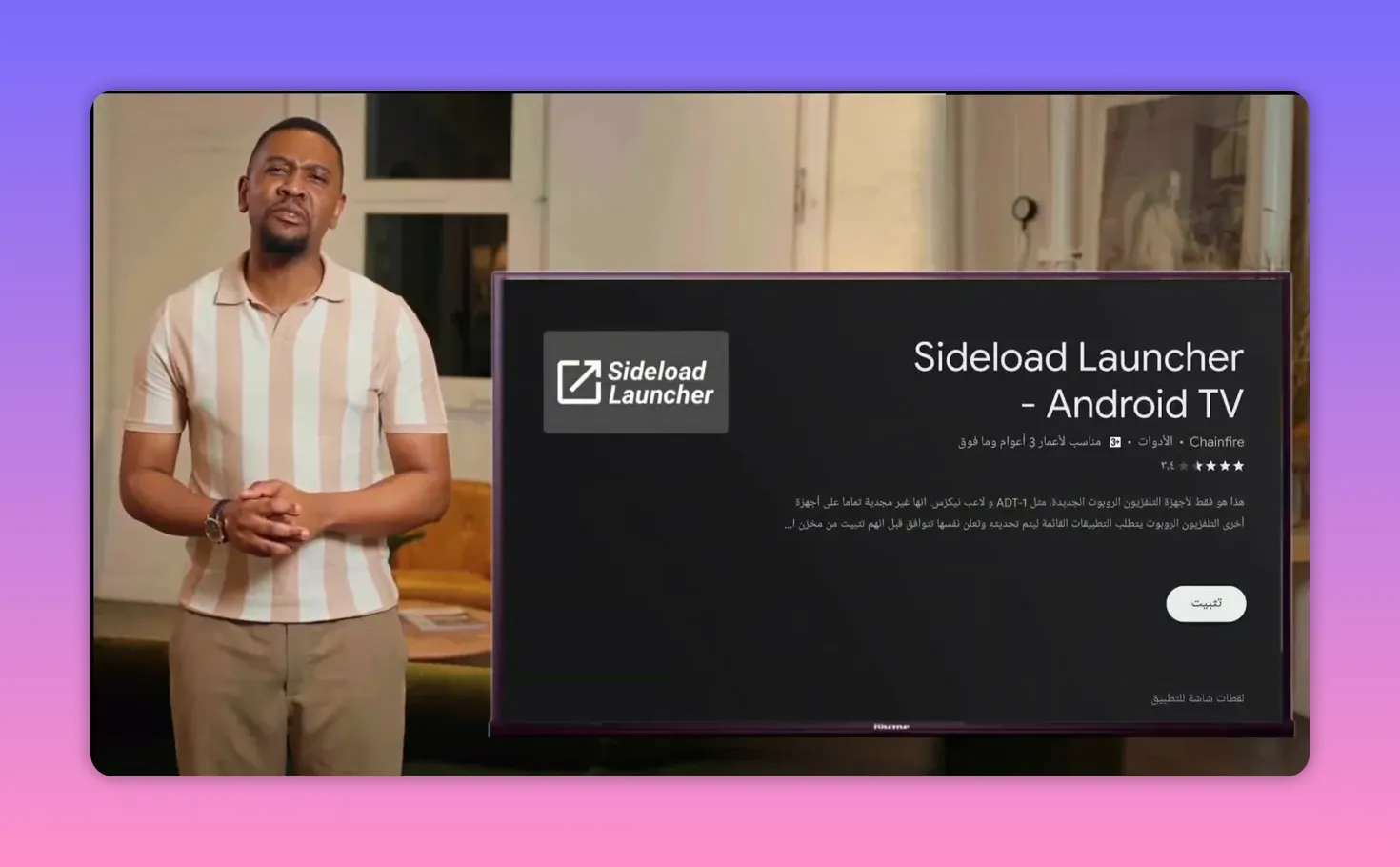
Once installed, Sideload Launcher will show applications installed from both:
- The Google Play Store
- External sources through Downloader
This includes the Android TV apps you install manually, such as IPTV or other sideloaded tools.
But there is a limitation. Sideload Launcher does not make uninstalling easy. If you want to remove an app, you may have to go through more complicated device settings. That is the main reason I consider the second option better.
⭐ Option 2: Install Dashboard, the Better Alternative
For a cleaner experience, Dashboard is the stronger choice. It not only shows your installed applications, but also makes uninstalling them much easier.
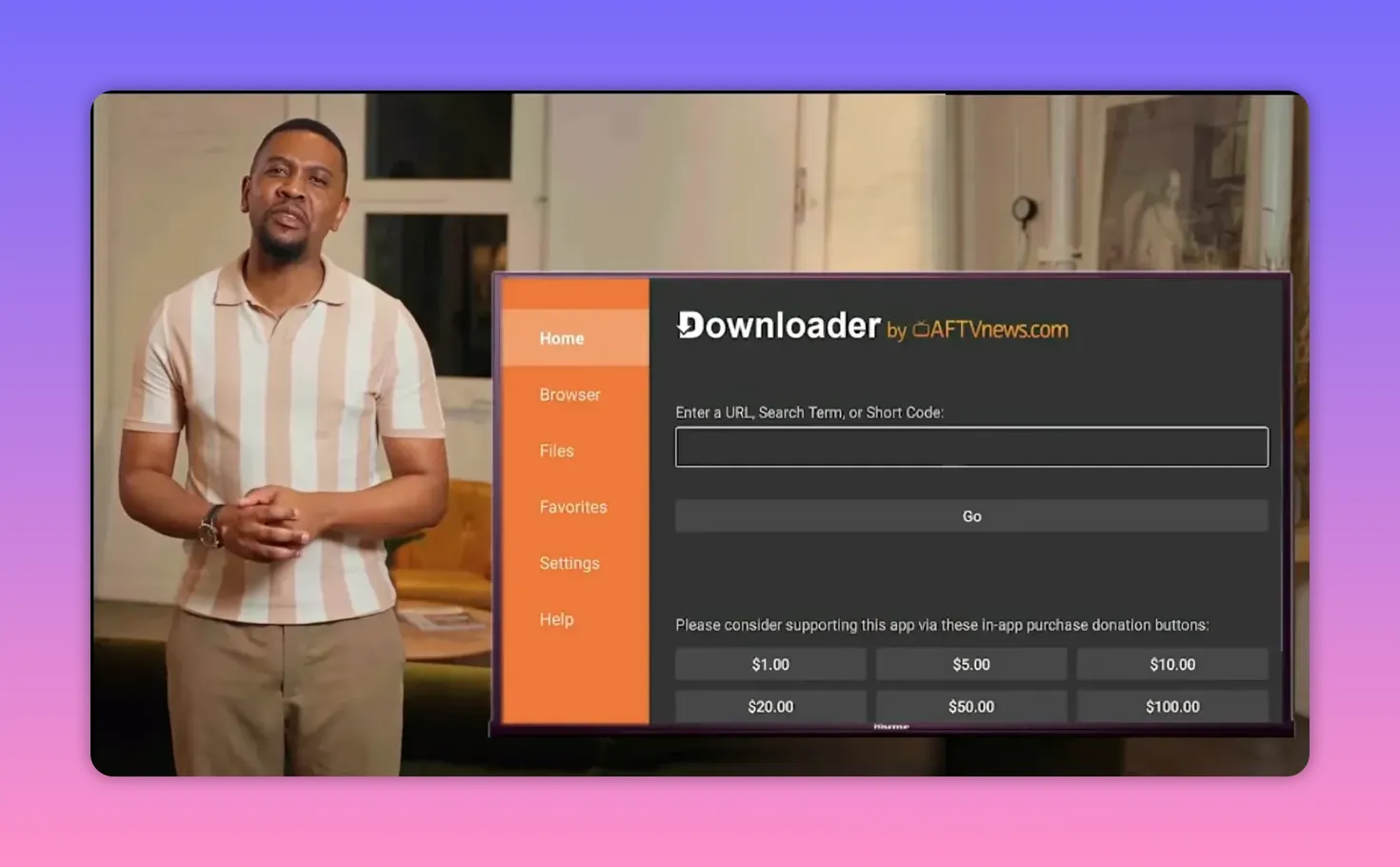
To install Dashboard, use Downloader again and enter this code:
Dashboard code: 3763535
- Open Downloader.
- Enter 3763535.
- Complete the installation like any other app.
After installing Dashboard, move it to the home screen and add it to favorites so it is always easy to reach.
The general process is:
- Select the app.
- Choose Move.
- Drag it forward to a visible spot on the main screen.
⚙️ Enable Accessibility Permission for Dashboard
When opening Dashboard for the first time, you will likely see a message asking for access permission so the app can interact properly with other installed apps.
This is expected.
Follow these steps:
- Open Dashboard.
- When prompted, select Open Settings.
- If settings do not open automatically, go there manually through your device preferences.
- Find Accessibility.
- Select Dashboard.
- Enable the permission and confirm with OK.
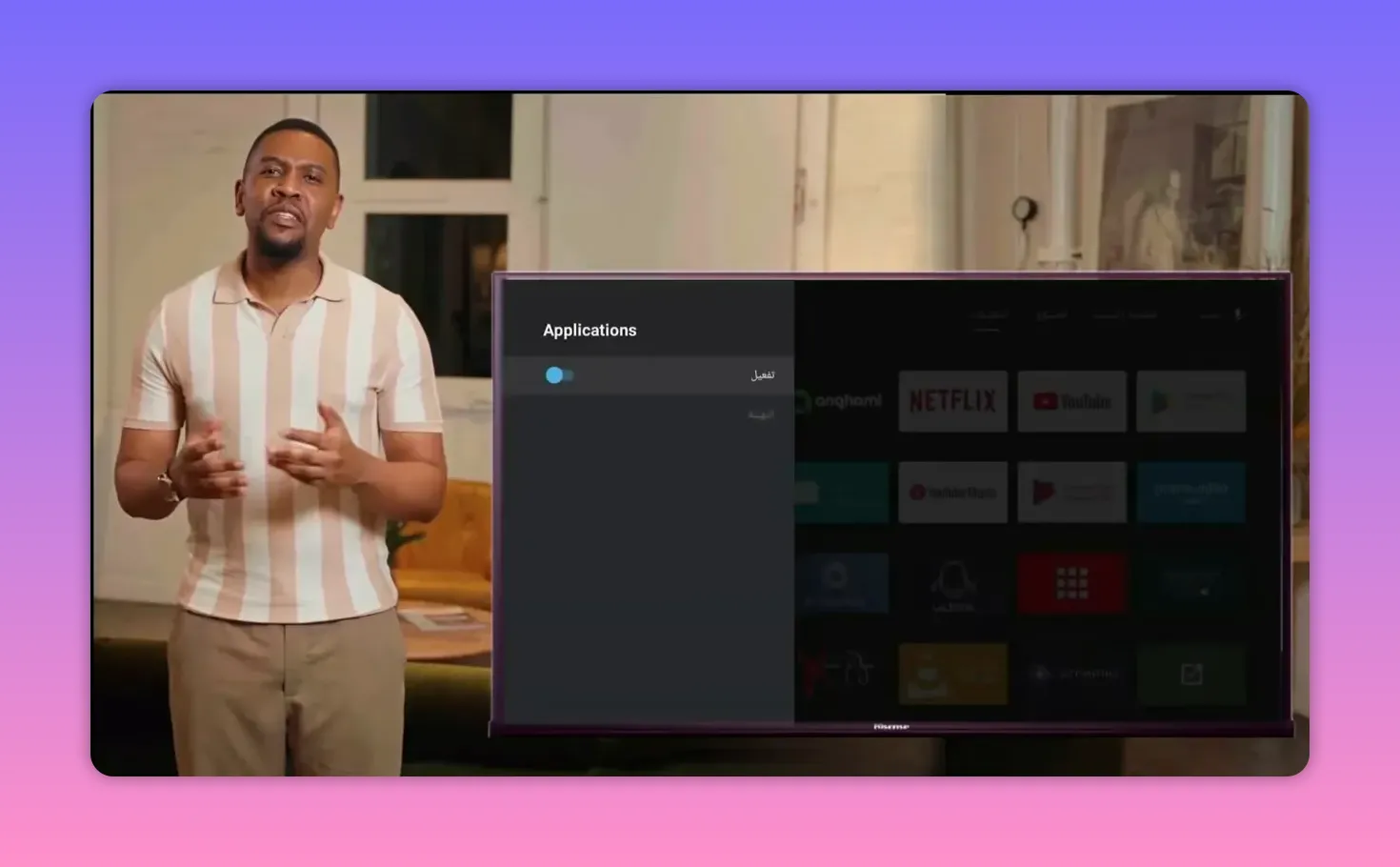
Once this is enabled, reopen Dashboard and you should see all installed apps, whether they came from Play Store or from Downloader.
✅ Why Dashboard Is Better Than Sideload Launcher
Both tools help reveal hidden sideloaded apps on Android TV, but Dashboard has one big practical advantage: easy app removal.
With Dashboard, you can usually:
- Press and hold an app
- Delete it
- Uninstall it directly and more conveniently
That makes a real difference if you test many Android TV apps and want to keep your system clean without digging through menus every time.
🔐 Complete the Activation Inside the App
After launching the installed app for the first time, there is one final activation sequence.
Here is what to expect:
- You will first see a small box with a mark inside it.
- Press that box to continue.
- A new page will appear with two fields:
- Username
- Password
- Enter the first code in the Username field.
- Enter the second code in the Password field.
- Press Activate.
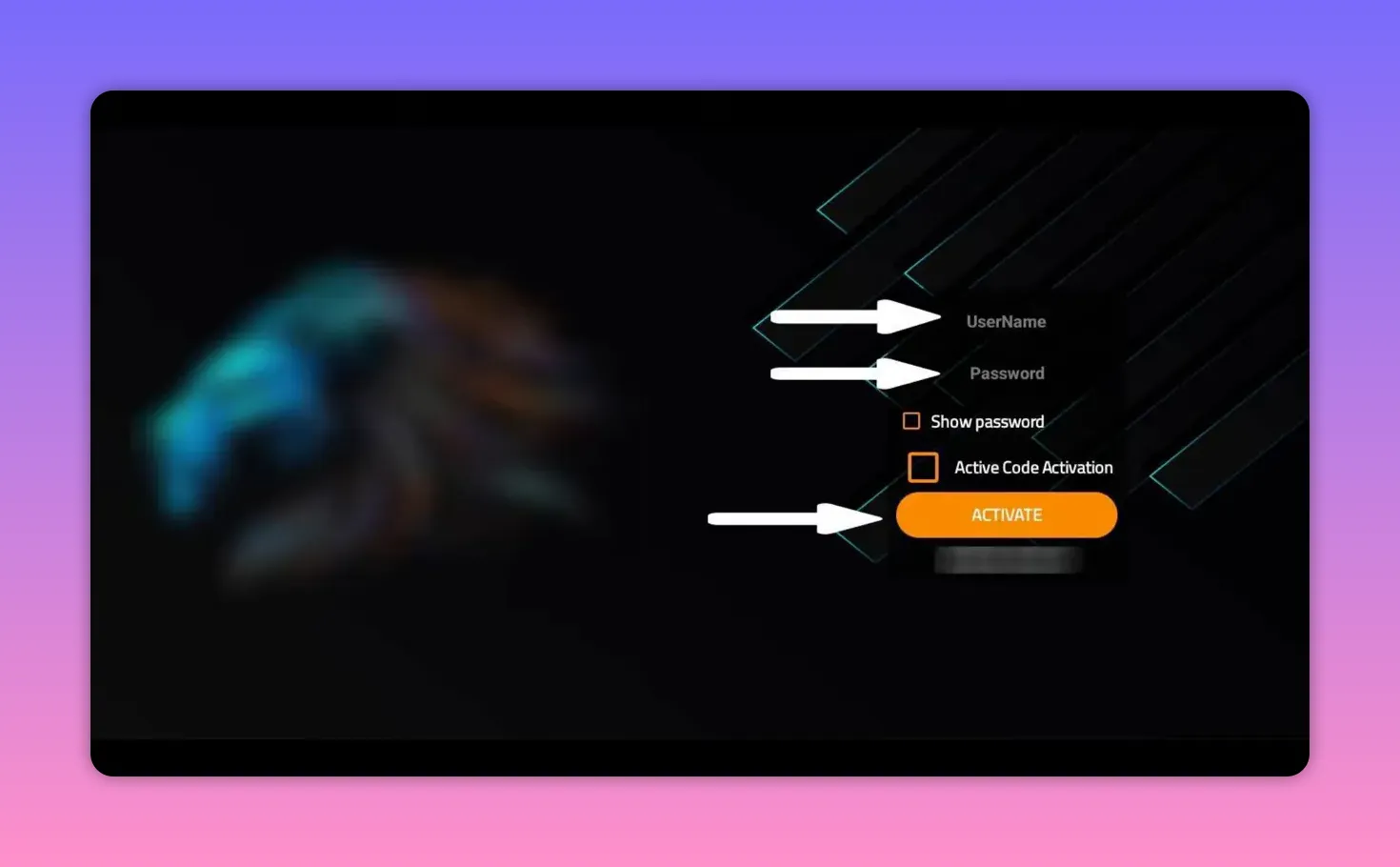
The walkthrough notes that these activation codes are provided in the pinned comment associated with the original source. The important thing here is to place each code in the correct field, because swapping them can cause activation to fail.
🧹 Final Setup Tips for a Smooth Android TV Experience
To avoid problems and keep everything running cleanly, these are the practical takeaways:
- Double-check every code before pressing Go.
- Confirm the file name during download so you know you are on the right page.
- Delete the APK installer after installation to free storage.
- Use Dashboard if you want easier access and simpler uninstalling.
- Enable accessibility permissions when Dashboard asks for them.
- Pin useful tools to the home screen so you do not have to search for them later.
If your goal is to build a better Android TV setup for streaming channels, movies, and series, this method keeps the process organized and much less frustrating.
❓FAQ
Why doesn’t the installed app appear on my Android TV home screen?
Because some apps installed through Downloader are sideloaded apps, and Android TV may not show them directly on the main screen. Use Sideload Launcher or Dashboard to access them.
What is the Downloader code for the main app?
The code shown for the app installation is 5606604. Enter it carefully inside Downloader, then press Go or Start.
What is the Downloader code for Dashboard?
The code used to install Dashboard is 3763535.
Which is better, Sideload Launcher or Dashboard?
Dashboard is the better option if you want more control. Both can show sideloaded apps, but Dashboard also makes uninstalling apps much easier.
Do I need to enable any special permission for Dashboard?
Yes. Dashboard may ask for Accessibility access so it can manage app interactions properly. You can enable it from your device settings if it does not open automatically.
Should I keep the downloaded installer file after installing the app?
No. It is better to delete the installer file after setup to save storage space on your Android TV or TV Box.
Where do the activation username and password go?
On the activation screen, place the first code in the Username field and the second code in the Password field, then press Activate.
