
If you are tired of Android TV and TV box apps that come with too many steps, confusing menus, and activation headaches, this setup is one of the easiest options right now.
The app being explained here is presented as a lightweight, fast, practical streaming app for channels, movies, and series. The big selling point is the updated interface, smoother experience, and a simpler installation flow than many alternatives. There is still one activation code involved in the setup shown here, but the overall process is straightforward when done in the correct order.
The key is not just installing the app. You also need to know how to:
- install Downloader
- enter the correct activation code
- exit the app properly so it does not keep running in the background
- find the app later on Android TV if it does not appear on the home screen
- use Side Load Launcher or Dashboard to access installed apps
Table of Contents
- 📺 Why this app stands out after the latest update
- ⬇️ Step 1: Install Downloader from Google Play
- ⚠️ Important tip: Exit the streaming app correctly
- 🔐 Step 2: Enter the activation code
- 🗂️ Step 3: Install the app and delete the installer file afterward
- 🧭 Why the app may not appear on your Android TV home screen
- 🛠️ Option 1: Install Side Load Launcher from the Play Store
- ⭐ Option 2: Use Dashboard instead, which is the preferred choice
- 🏠 Move Dashboard to the home screen for quick access
- 🔓 Enable accessibility permission for Dashboard
- 🧹 How to uninstall apps easily with Dashboard
- ✅ Full setup summary
- ❓FAQ
📺 Why this app stands out after the latest update
The main reason this app gets such strong praise is the latest update. The update is described as a major improvement, especially in three areas:
- A cleaner interface that is easier to navigate
- Better speed and lighter performance on Android TV devices
- Practical everyday use without the clutter found in many similar apps
In simple terms, it is positioned as the kind of app that becomes your default once you try it properly.
⬇️ Step 1: Install Downloader from Google Play
Before installing the app itself, the first tool you need is Downloader. This is the well-known browser-style utility used to install external APK files on Android TV and TV box devices.
Here is the process:
- Open Google Play Store on your screen or Android TV device.
- Search for Downloader.
- Make sure the icon matches the expected Downloader app.
- Install it.
- Open it and complete any initial prompts.
After installation, the explanation notes that you should go into settings and enable what is needed for the app to work. On many Android TV devices, this usually means allowing installation from unknown sources for Downloader if prompted.
⚠️ Important tip: Exit the streaming app correctly
This is one of the most useful practical warnings in the whole setup.
When you finish using the app, do not just hit the back button repeatedly or jump straight to the home screen. If you do that, the app may continue running in the background, and the stream audio can keep playing even after you leave.
That creates two annoying problems:
- unwanted audio continuing in the background
- unnecessary battery and data usage
The correct method is simple:
- Choose to exit from inside the app.
- When the confirmation popup appears, press OK or Confirm.
That proper exit closes the app cleanly.
🔐 Step 2: Enter the activation code
Once you are ready to continue, open Downloader and enter the activation code exactly as provided:
767719
The code was repeated for emphasis, and it is important to type it without mistakes. After entering it:
- Press the start or go button.
- Wait for the activation process to begin automatically.
- You may be taken to a temporary page for a few seconds.
- After that, the download page for the app should open.
One extra detail mentioned during the setup is that the downloaded file should carry the channel name Rajab Ismail. That is presented as a way to confirm you reached the correct file.
🗂️ Step 3: Install the app and delete the installer file afterward
After the APK finishes downloading, install it as usual.
Once installation is complete, there is one small but smart housekeeping step that should not be ignored:
Delete the installation file after the app is installed.
This keeps your device storage cleaner, especially on Android TV sticks and TV boxes where free space is often limited.
🧭 Why the app may not appear on your Android TV home screen
Here is where many people get confused.
Sometimes the app installs and works perfectly, but when you search for it on the main Android TV screen, it does not show up like a normal Play Store app. That usually happens with sideloaded apps.
The solution is to use a launcher tool that lists all installed apps, including those installed from external APK files.
Two options are discussed:
- Side Load Launcher
- Dashboard
Both can help you access apps that do not appear on the standard Android TV interface. However, one of them is clearly preferred.
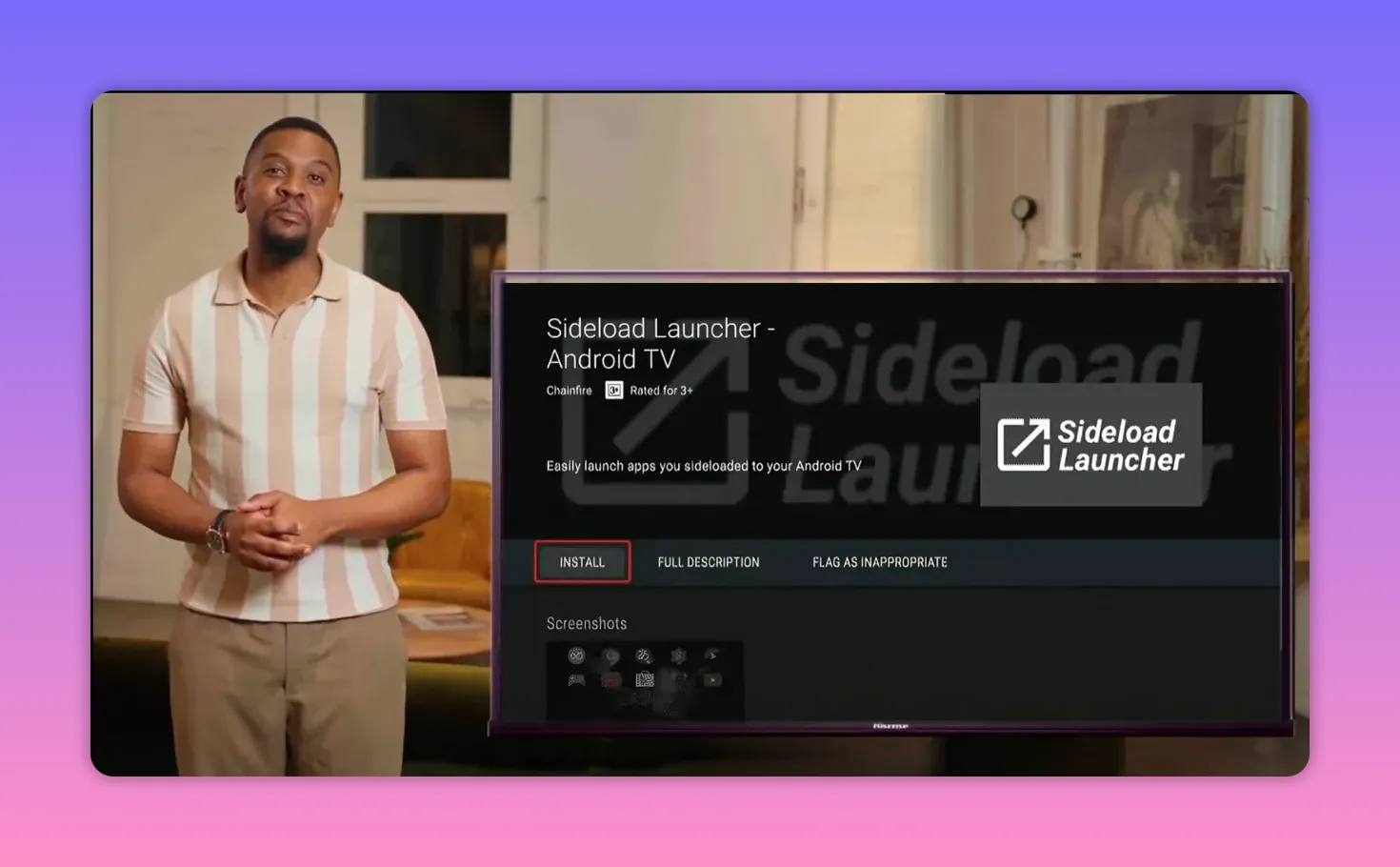
🛠️ Option 1: Install Side Load Launcher from the Play Store
If your screen already has Google Play, this is the simplest option to get started.
To install Side Load Launcher:
- Open Google Play Store.
- Search for Side Load Launcher.
- Install it directly.
- Open it to see all apps installed on the device.
That includes apps installed from:
- the Play Store
- external sources through Downloader
- other APK-based installs such as IPTV-related apps
The downside is important though. Side Load Launcher makes it easy to open hidden apps, but it does not make uninstalling them easy. If you later want to remove an app, you may need to dig through settings manually.
⭐ Option 2: Use Dashboard instead, which is the preferred choice
The stronger recommendation is Dashboard, mainly because it does more than just list hidden apps.
It also makes app removal easier.
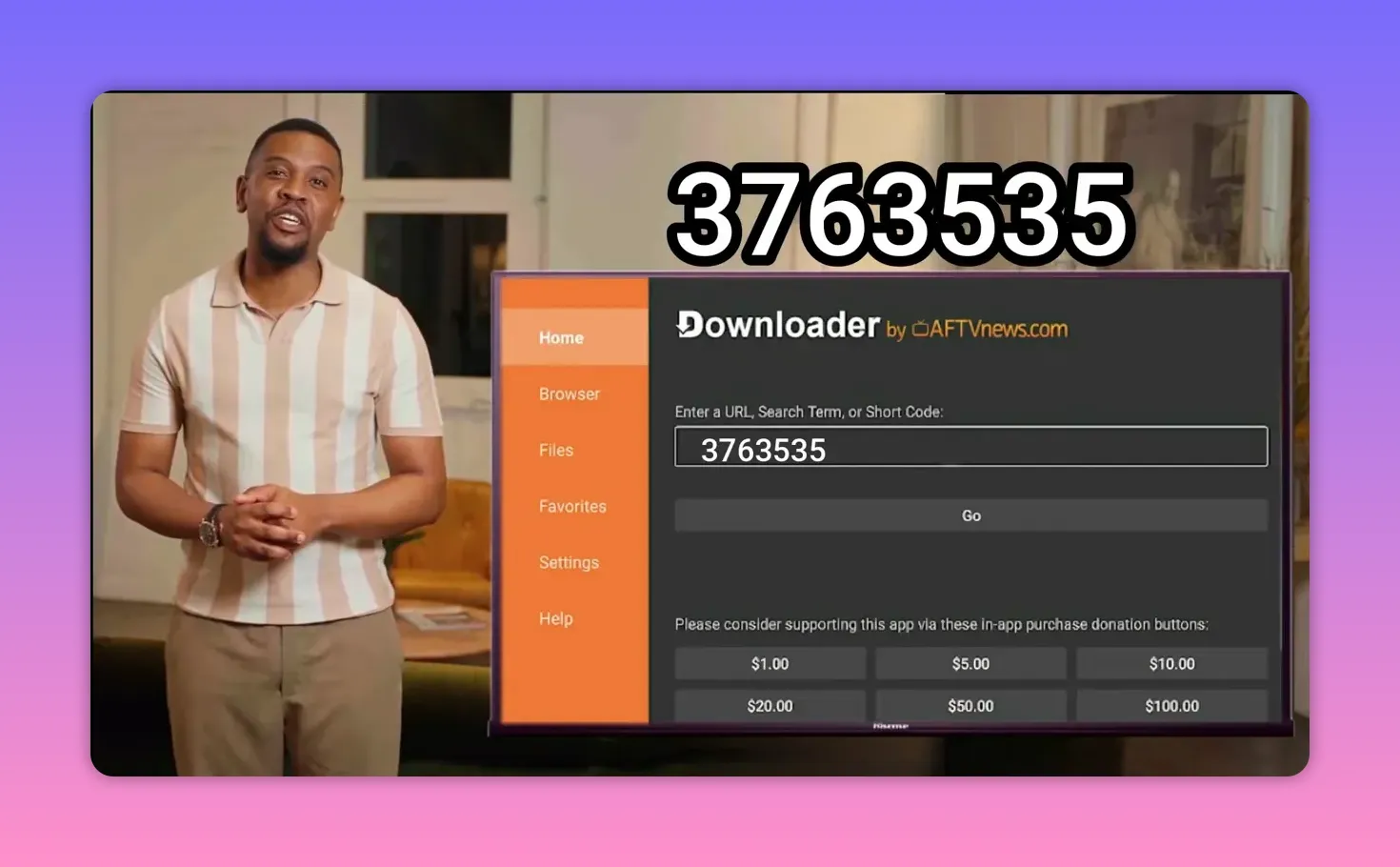
To install Dashboard, you will use Downloader again and enter this code:
3763535
After entering the code in Downloader, continue with the installation just like any other APK.
Why Dashboard is better than Side Load Launcher
The main advantage is simple:
- Dashboard lets you uninstall apps more easily.
With a long press on an app inside Dashboard, you can remove or uninstall it directly from the screen. That is much more convenient than going back and forth through Android TV settings menus.
If you install a lot of external apps on your TV box, this feature alone can save time and frustration.
🏠 Move Dashboard to the home screen for quick access
Once Dashboard is installed, the setup continues by placing it somewhere easy to reach.
The idea is to move it to the front or add it to favorites so it stays available whenever you need to launch hidden apps.
The basic steps shown are:
- Highlight the app.
- Select the move option.
- Drag it forward on the home screen.
- Add it to favorites if supported on your device.
This turns Dashboard into your quick access hub for apps that Android TV normally hides.
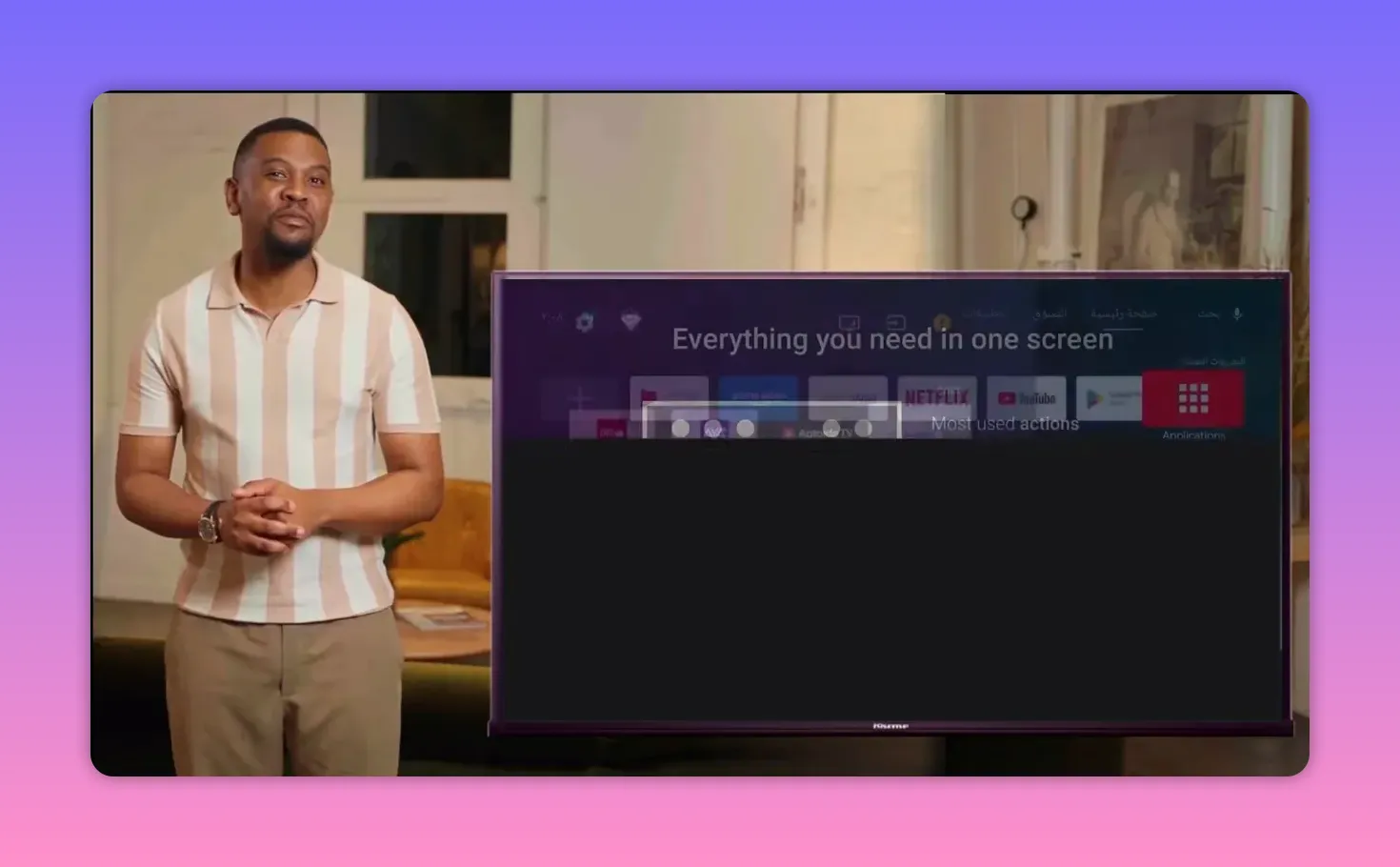
🔓 Enable accessibility permission for Dashboard
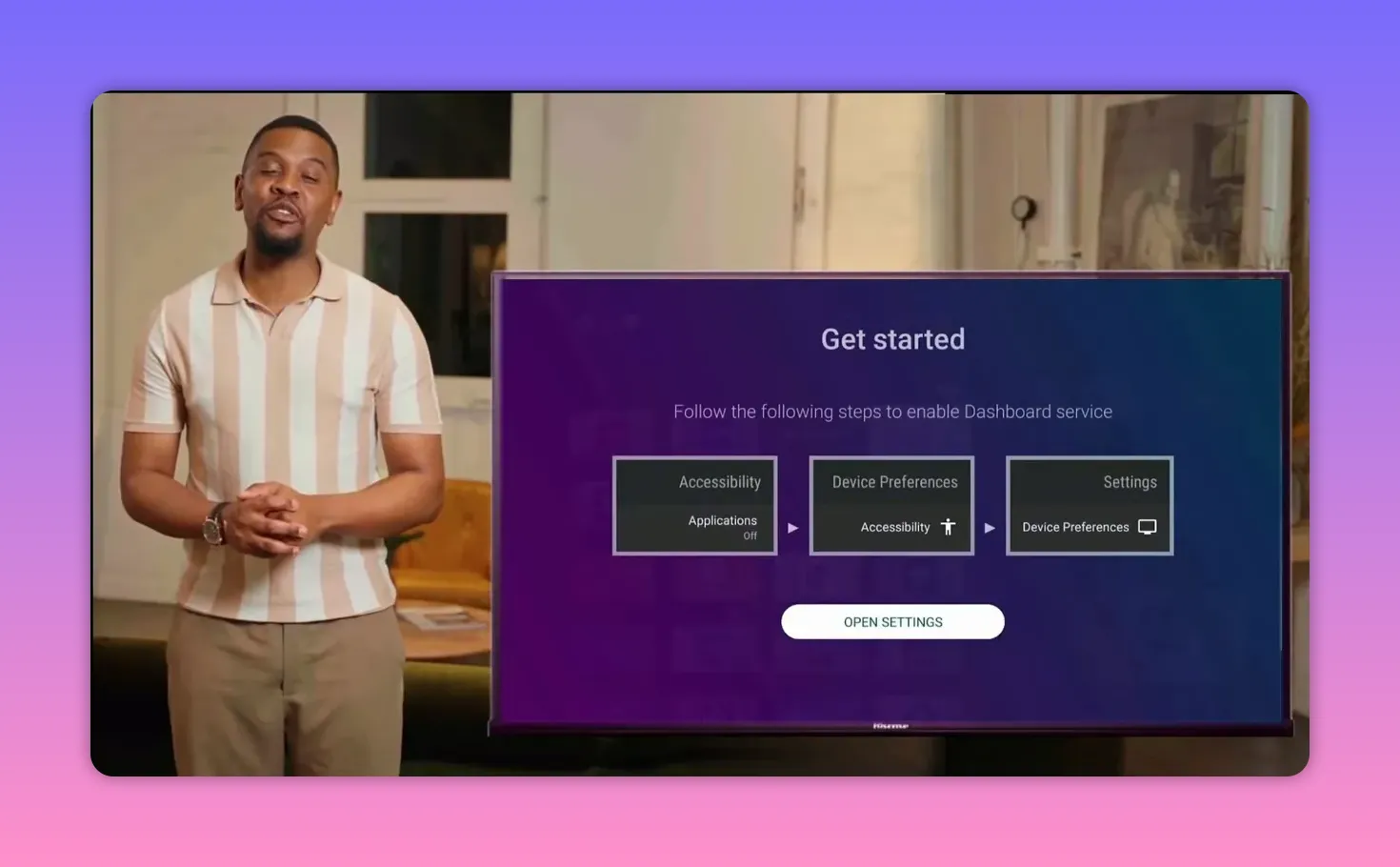
After opening Dashboard for the first time, you may get a prompt asking for accessibility access. This permission is needed so the app can manage interactions with other installed apps properly.
If the app opens the settings page automatically, follow that path. If not, go there manually.
The route described is generally:
- Open device preferences or settings.
- Go to Accessibility.
- Select Dashboard.
- Enable it.
- Press OK to confirm.
After enabling accessibility, open Dashboard again and it should display all installed apps from both Play Store and external sources.
🧹 How to uninstall apps easily with Dashboard
This is the feature that really separates Dashboard from simpler launcher tools.
Once Dashboard is active:
- Find the app you want to remove.
- Long-press on it.
- Choose the delete or uninstall option.
That means you can manage sideloaded apps directly from one place instead of dealing with complicated settings menus.
For anyone regularly testing Android TV apps, that is a big convenience.
✅ Full setup summary
If you want the cleanest path from start to finish, the complete flow looks like this:
- Install Downloader from Google Play.
- Open Downloader and enter the app activation code 767719.
- Download and install the app.
- Delete the APK installer file afterward.
- If the app does not appear on the home screen, install Side Load Launcher or preferably Dashboard.
- To install Dashboard through Downloader, enter code 3763535.
- Grant Dashboard accessibility permission.
- Use Dashboard to open hidden apps and uninstall them later if needed.
- Always exit the streaming app properly using the on-screen confirmation prompt.
❓FAQ
What is the Downloader code for the streaming app?
The activation code given for the app is 767719. It should be entered exactly in Downloader.
Why does the app keep playing audio after I leave it?
That usually happens when the app is not closed properly. Instead of just pressing back or going to the home screen, exit from inside the app and confirm the exit when the popup appears.
Why can’t I find the installed app on my Android TV home screen?
Some sideloaded apps do not appear directly on the main Android TV launcher. In that case, use a tool like Side Load Launcher or Dashboard to access all installed apps.
Which is better: Side Load Launcher or Dashboard?
Dashboard is the preferred option in this setup because it not only shows hidden apps, but also makes uninstalling them much easier through a long press.
What is the Downloader code for Dashboard?
The code provided for installing Dashboard through Downloader is 3763535.
Do I need Google Play Store on my screen device?
For the method shown, having Google Play Store on the device helps because Side Load Launcher can be installed directly from there. Downloader is also used for installing external apps like Dashboard.
Should I keep the APK file after installation?
No. It is recommended to delete the installer file after the app is installed to save storage space on your device.
If the goal is a simple Android TV setup for channels, movies, and series without getting lost in complicated menus, this method is one of the cleaner ways to do it. Install the app properly, keep Dashboard handy, and make sure you exit correctly when finished. That small detail alone can save a lot of annoyance later.
Quick Resources for Android TV App Setup
If you want more guides like this, check out the Android app setup posts available in the site sitemap.
Also, if you need help navigating or troubleshooting when an app doesn’t show correctly after installation, explore more entertainment/app instructions from ptjqatar.
For instructions on where the app appears (or how to find it), you can browse related posts inside the sitemap, including steps for installing apps such as a Lion app-style setup.
