
If you use Android TV, Google TV, TV Box, Smart TV, or even an Android phone and you are always looking for solid entertainment apps, this update is worth your attention.
The app discussed here had been inactive for a while, but it has now returned with a strong update that makes it one of the better options currently available. What makes it especially interesting is that it can work as a practical alternative to older favorite streaming apps, while offering stable live playback and up to 1080 quality.
The latest version is available for both phones and TV screens, and the installation method is simple once everything is set up correctly.
Table of Contents
- 📺 Why this app stands out
- 🛠️ What you need before installing
- ⬇️ Download code and installation steps
- ⚠️ Delete the old version first
- 💾 A quick note about storage space
- 🖥️ First launch: choose phone or TV mode
- 🎯 What the interface includes
- 🚀 What improved in this latest update
- 📡 Why reliability matters so much for live events
- 📱 Can you use it on Android phones too?
- ✅ Best practices for smooth installation and use
- ❓FAQ
- 📝 Final thoughts
📺 Why this app stands out
There are a few reasons this update feels important.
- It supports live streaming with a clean interface.
- It works on Android phones and TV devices.
- It offers multiple servers per channel, which helps when one stream is unstable.
- It includes quality options from SD and HD up to Full HD and even 1080+ on some channels.
- It does not require extra external players in the way many older apps did.
That last point matters more than it seems. A lot of streaming apps become annoying because they force you to install another player just to get basic playback working. Here, the player has been improved, and the experience is more direct.
🛠️ What you need before installing
If you are new to installing apps outside the Play Store on Android TV or TV Box devices, there are two basic tools that make the process easier.
Downloader
You first need the Downloader app from the Play Store. This is the app used to enter download codes and fetch APK files directly onto the device.
An app launcher or app viewer
Because apps installed from outside the official store do not always appear neatly on the home screen, it helps to install a second app that displays all installed applications in one place.
This is especially useful on Android TV and TV Box systems, where sideloaded apps can sometimes feel hidden even after successful installation.
On phones, the process is easier. You can still use Downloader, or simply open a browser and type the provided URL manually by replacing the dots with the code numbers.
⬇️ Download code and installation steps
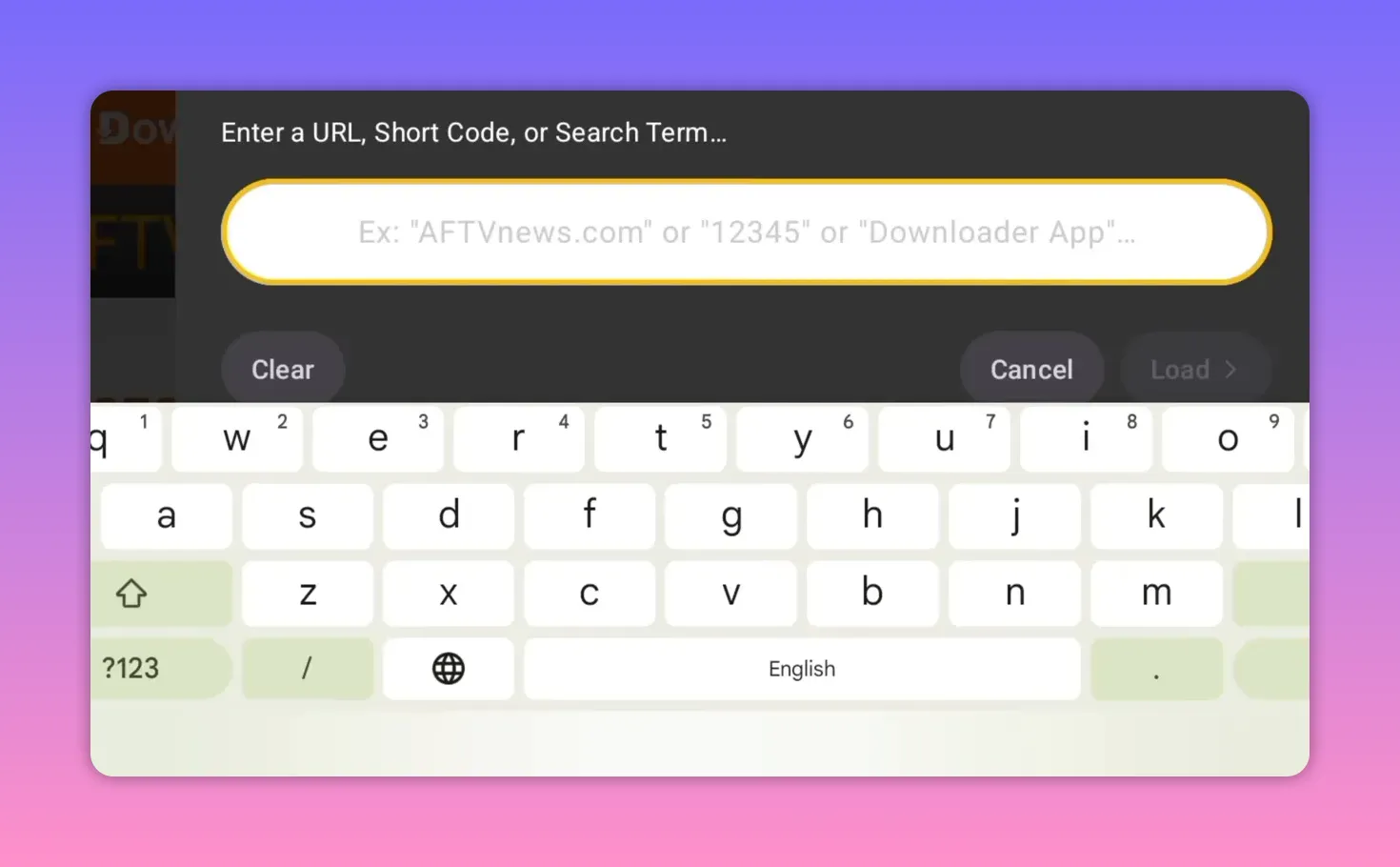
The latest version is installed through Downloader using a short code.
Download code: 2793126
Here is the proper installation flow:
- Open the Downloader app.
- Go to the search or URL field at the top.
- Enter this code: 2793126
- Press Go.
- Wait a few seconds for the download page to open.
- Press the blue download button.
- Wait for the APK to finish downloading.
- Press Install.
- After installation, press Done.
- Delete the APK file to save space.
The APK size is around 50 MB, which is relatively small considering the amount of content inside the app.
Before installing, there is one important condition you should not ignore.
⚠️ Delete the old version first
If you already have an older version of this app installed, remove it before trying to install the update.
This version does not install properly over previous releases. If you keep the old one on the device, the installation may fail.
That applies to:
- Android phones
- Android TV
- Google TV
- TV Box devices
It is a simple step, but it avoids the most common installation problem.
💾 A quick note about storage space
Another small but important detail is storage.
If your device is low on free space, installation problems can appear even when the APK itself is perfectly fine. Make sure there is enough storage available before installing, especially on older TV Box devices that tend to run out of internal memory quickly.
After the app is installed, deleting the APK file is a good habit. It keeps your system cleaner and frees up a little extra space.
🖥️ First launch: choose phone or TV mode
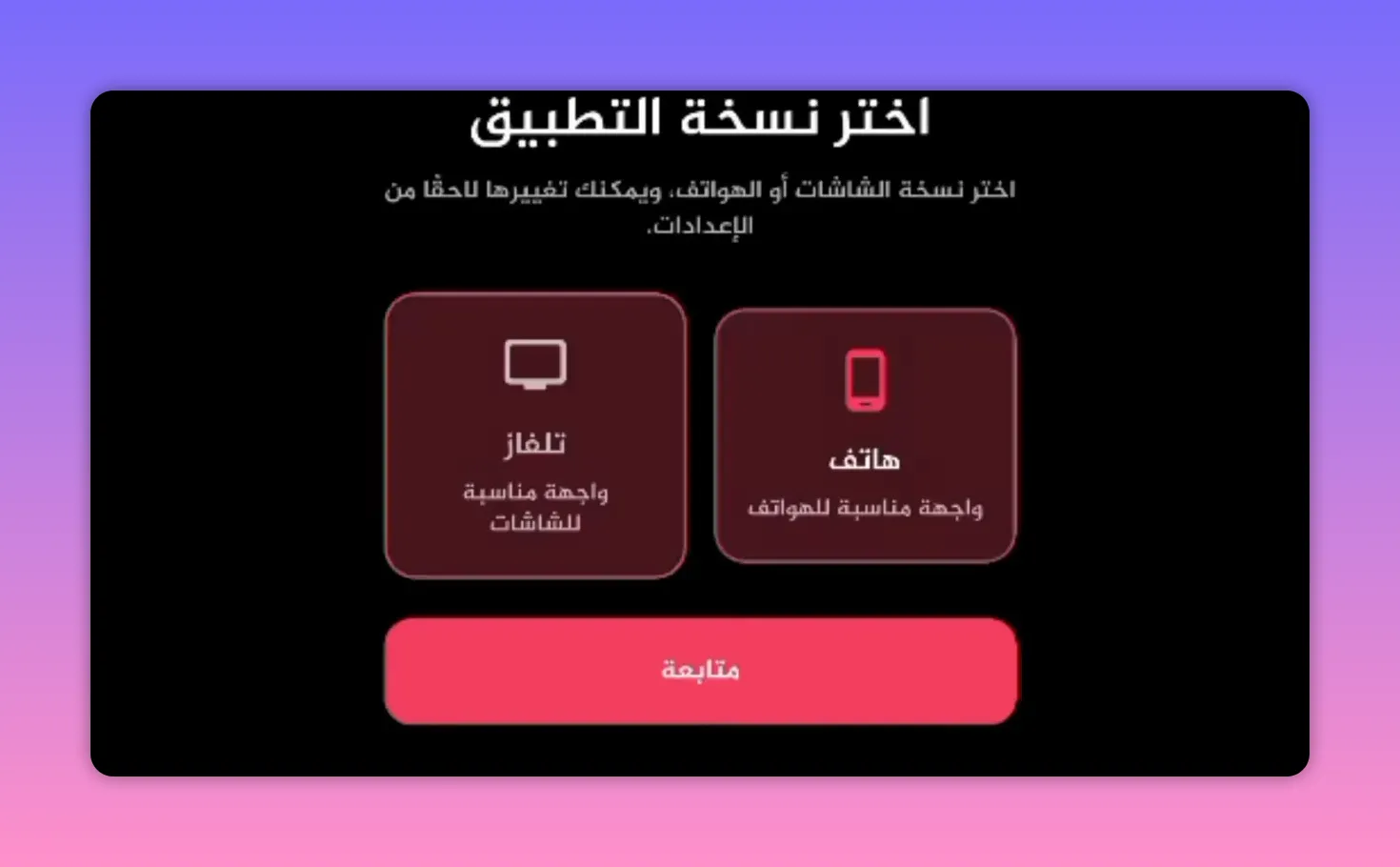
When the app opens for the first time, it gives you two startup options:
- Phone mode for Android mobile devices
- TV mode for televisions and TV Box systems
This matters because the interface changes depending on the type of device you are using. If you are on a television, select TV. If you are on a phone, select Phone.
After that, the app opens into its main interface, which is one of the better aspects of this update. The layout is clean, modern, and easy to navigate.
🎯 What the interface includes
Once inside, the app presents content in a straightforward way.
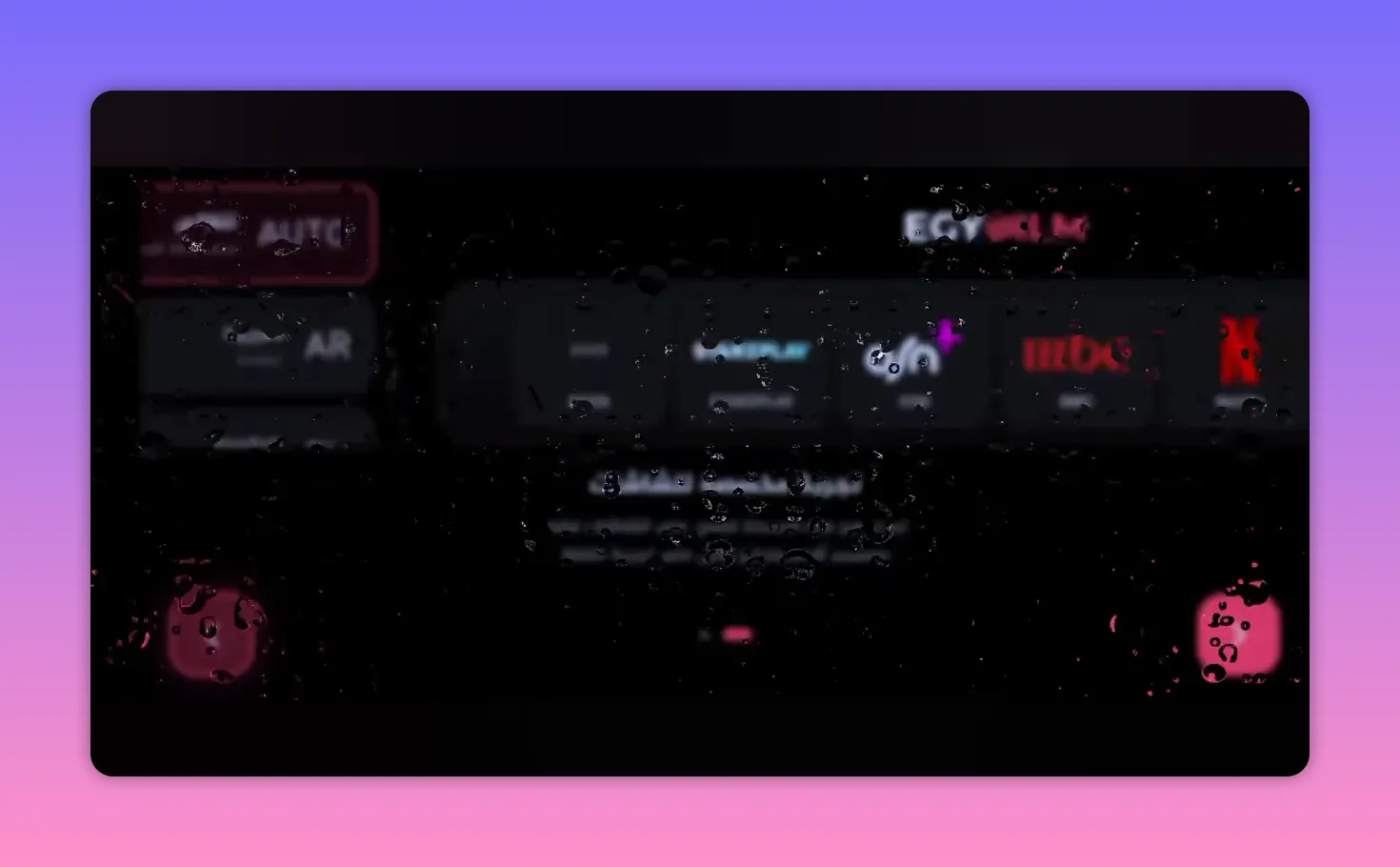
At the top, you get access to live content. You will also find ongoing sports events and the available channel packages. The structure is designed so you can move quickly from event browsing to stream selection.
One of the most useful improvements is that each channel may offer several streaming servers. This is excellent for stability because if one server is overloaded or temporarily down, another may still work smoothly.
For people who care about playback quality, the app offers a useful range:
- SD
- HD
- Full HD
- 1080+
The mention of a specific premium package with stronger quality options is also notable, especially for users focused on sports and live event coverage.
🚀 What improved in this latest update
This release is not just a minor refresh. It includes practical improvements that affect day-to-day use.
1. Better playback engine
The app no longer leans on the old habit of making you depend on separate external players. The built-in playback setup has been improved, which makes usage simpler.
2. More server choices per channel
This is one of the best additions. Multiple servers mean more chances of finding a stable stream during big live events.
3. Strong image quality
Stable 1080 streaming is one of the key reasons this app is being recommended so strongly.
4. Works across device types
The same app can be used on both Android phones and Android TV systems, which gives it more flexibility than many alternatives.
📡 Why reliability matters so much for live events
One of the biggest frustrations with entertainment and live TV apps is that many of them look fine until a major event starts. Then the buffering begins, channels stop loading, and the app becomes useless exactly when you need it most.
That is why a streaming app is not judged only by how many channels it has. What really matters is whether it remains usable during important matches, live sports, and high-traffic broadcasts.
This update gives a better impression precisely because it tries to solve that issue with multiple servers and stronger playback stability.
If the developers continue supporting it well, it could stay useful for a much longer period than many short-lived apps in the same category.
📱 Can you use it on Android phones too?
Yes. The app is not limited to televisions.
If you are on an Android phone, you can:
- Install Downloader and use the same code
- Or use a browser and type the direct URL manually using the displayed number sequence
After installation, just choose Phone when launching the app for the first time.
This makes it a practical option for anyone who wants the same live TV and entertainment setup across multiple Android devices.
✅ Best practices for smooth installation and use
To avoid the common problems, keep these points in mind:
- Install Downloader first if you do not already have it.
- Delete any old version of the app before installing the update.
- Check available storage on your phone, TV, or TV Box.
- Delete the APK file after installation to keep extra space free.
- Select the correct startup mode, Phone or TV, on first launch.
- Test different servers for a channel if one stream does not perform well.
❓FAQ
What is the Downloader code for this app?
The code used to download the latest version is 2793126.
Does the app work on Android TV and TV Box devices?
Yes. It is designed to work on Android TV, Google TV, Smart TV setups, and TV Box devices, and it also supports Android phones.
Do I need to uninstall the old version first?
Yes. This update should be installed after removing any previous version, otherwise the installation may fail.
Does it require an external video player?
No extra external player is highlighted as necessary in this update. The playback system has been improved within the app itself.
What video quality does the app offer?
The app provides multiple quality levels including SD, HD, Full HD, and 1080+ on some streams.
Why are multiple servers per channel useful?
They improve reliability. If one server is slow or unavailable, another one may work better, especially during crowded live events.
Can I install it without Downloader on a phone?
Yes. On a phone, you can use a web browser and manually enter the URL with the same number sequence if you prefer not to use Downloader.
📝 Final thoughts
For anyone searching for a live TV and entertainment app for Android TV and Android, this update is one of the more interesting options right now.
It combines a clean interface, good quality options, multiple servers, and support across different Android devices. Just make sure you install it the right way: remove the old version, use the correct download code, and choose the proper display mode on first launch.
When an app offers stable playback during important live moments, that is what really sets it apart. This one looks promising for exactly that reason.
More help for your Android TV setup
If you’re still exploring how this kind of Android TV installation process works, browse our site for additional guides and troubleshooting tips.
For general setup guidance and device management ideas, you can also check our contact page in case you want to request a specific walkthrough.
