
Peace be upon you, my brothers. Today I want to share something useful on two levels.
First, there is a practical setup many people need after updating their receiver, especially when it comes to adding the Moroccan TNT channels available on the Badr satellite.
Second, there is an app shared through Downloader using a code that was highlighted as one of the strongest options for this period, with a content library that includes channels and useful streaming resources.
So instead of leaving things scattered, here is the complete method in a clean written format, with the exact settings and the important notes that matter.
Table of Contents
- 📡 How to add Moroccan TNT channels on Badr
- 🔎 Scan only the transponder you added
- 📲 Installing the app through Downloader
- 🔥 Why this app was highlighted so strongly
- ⚠️ Important note before using only the Downloader code
- 🛠️ Practical recap of the full process
- 💬 A final word on this style of sharing
- ❓FAQ
📡 How to add Moroccan TNT channels on Badr
If your device has already been updated and you want to manually bring in the Moroccan terrestrial channels carried on Badr, the process starts from the installation and configuration section of the receiver.
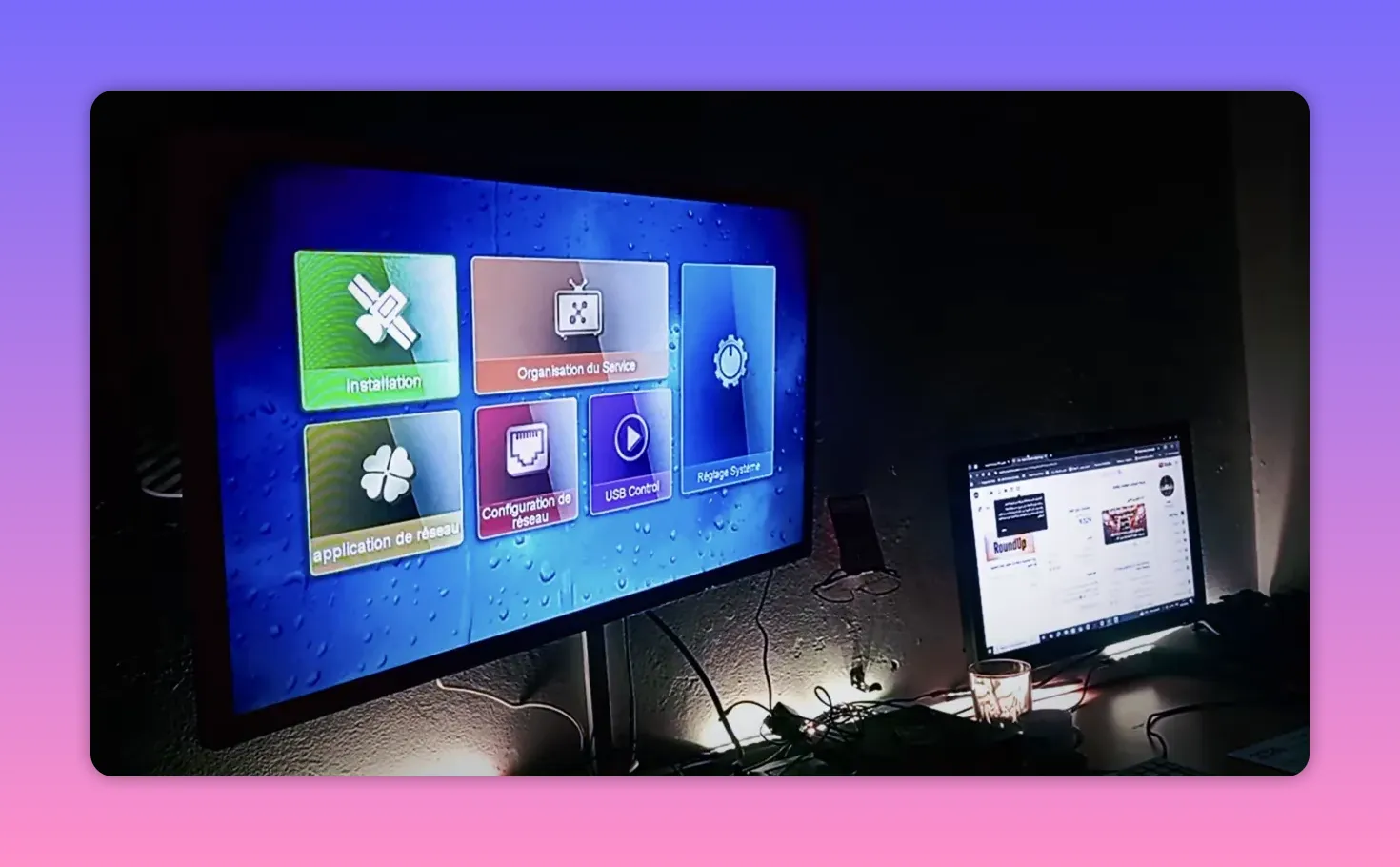
The path is straightforward:
- Go to Installation
- Open Configuration
- Select Badr
- Add a new frequency manually
To add the transponder, highlight the frequency list and press the red button on the remote for Add.
Frequency settings to enter
- Frequency: 10800
- Polarization: Vertical
- Symbol Rate: 27500
- FEC: 3/4
After entering these values, confirm with OK. If the receiver indicates that the transponder already exists, that simply means the frequency is already stored and can be used directly.
🔎 Scan only the transponder you added
This step is important. Many people run a full satellite scan when all they really need is a scan on the single transponder they just added.
Once the frequency is selected, move to the scan options at the bottom and make sure the search mode is set to Transponder. The idea here is simple: search only the frequency you entered, not the whole satellite.
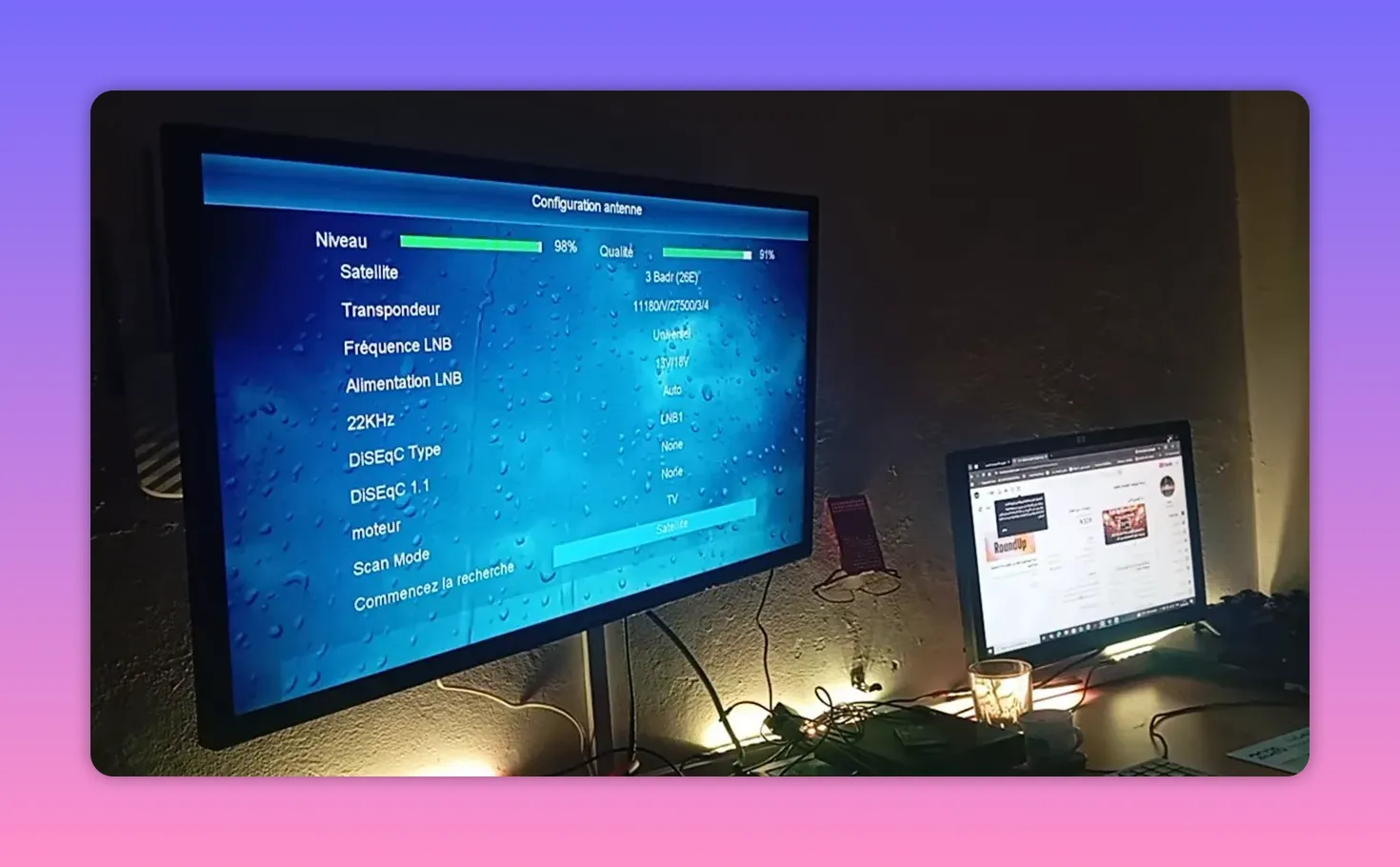
Then press OK and start the scan.
After a short wait, the Moroccan TNT channel package on Badr should appear. The result mentioned was around 13 channels, and once the scan finishes, those channels are added to the list on the receiver.
If your goal is specifically to restore or organize Moroccan channels after a device update, this is the cleanest part of the process:
- Add the transponder
- Choose transponder-only search
- Run the scan
- Save and exit
📲 Installing the app through Downloader
Now to the app side of the setup.
The method starts in the Google Play Store. Search for the app called Downloader, install it if necessary, and grant it the permissions it needs so it can work properly without errors.
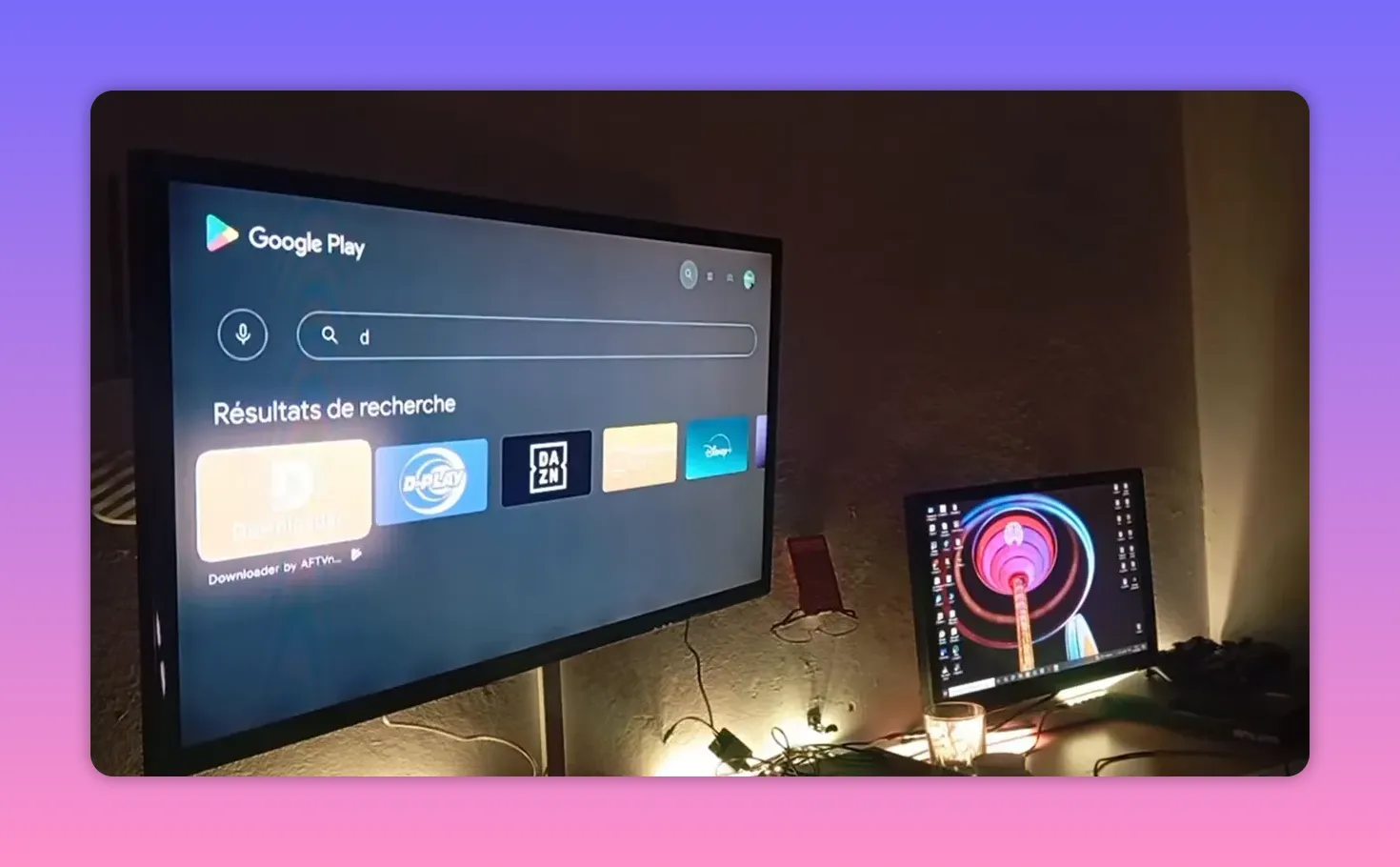
After opening Downloader, go to the search field and enter the code exactly as follows:
5474738
That is the full Downloader code:
- 54
- 74
- 738
Combined together, it becomes 5474738.
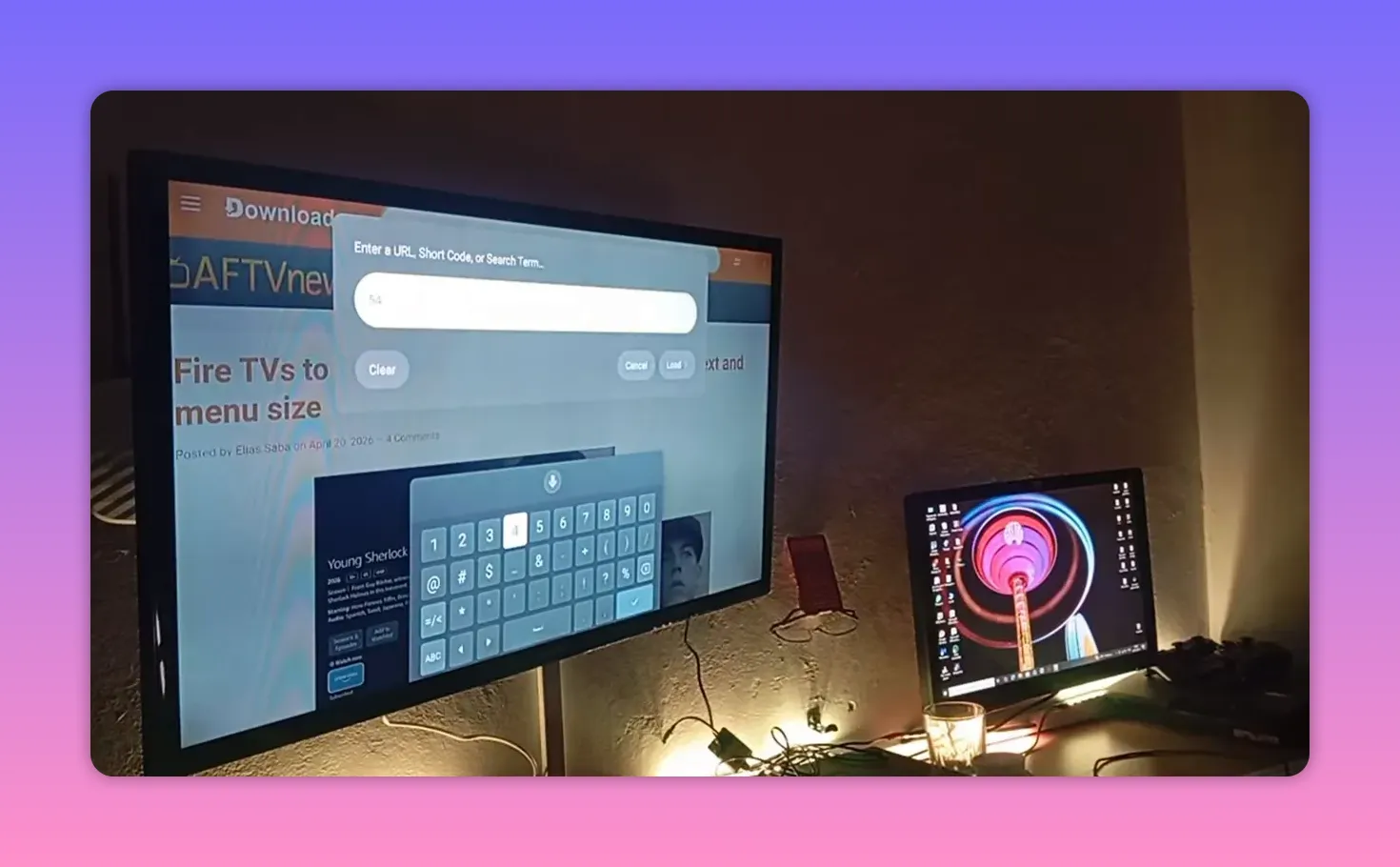
Once entered, proceed with the search and start the download for the app.
🔥 Why this app was highlighted so strongly
The app was presented as a strong all-in-one option because of the type of content it gathers in one place. The emphasis was not just on installing an APK for the sake of installing it, but on the usefulness of what it contains.
The value described for the app includes:
- A broad content selection
- Channels people commonly search for
- Additional useful resources gathered in one app
The overall message was clear: if you are already using Android-based satellite or TV tools and you like testing strong content apps, this is one of those options worth trying.
⚠️ Important note before using only the Downloader code
There was a strong warning attached to the code-sharing part, and it is worth repeating in plain terms.
Do not grab a Downloader code and assume that is the whole story. In practice, many problems happen because people install quickly, skip the important details, and then come back asking why something is missing or unclear.
The point here is not technical complexity. It is that some methods are shared carefully, with a bit of reservation, to avoid unnecessary issues. On platforms like YouTube, creators who know how the rules and moderation systems work often choose to present things in a more cautious way.
That means:
- Follow the exact steps
- Pay attention to setup notes
- Do not rely on the code alone without understanding the process around it
This careful style is intentional, not accidental.
🛠️ Practical recap of the full process
If you want everything in one place, here is the full workflow.
Add Moroccan TNT channels on Badr
- Open Installation
- Go to Configuration
- Select Badr
- Press the red button to add a transponder
- Enter:
- 10800
- Vertical
- 27500
- 3/4
- Confirm with OK
- Set the search option to Transponder
- Run the scan
- Save the found channels
Install the featured app
- Open Google Play Store
- Search for Downloader
- Install it and allow permissions
- Open Downloader
- Enter the code 5474738
- Start the download
💬 A final word on this style of sharing
The spirit behind this kind of content is simple. Keep bringing useful apps, practical receiver tips, and direct solutions that save time.
Some days the work means preparing one video for one channel while editing another piece for a second channel. That rhythm explains why the approach is often compact, practical, and focused on results. The goal is to deliver value continuously, whether the topic is a receiver update, a satellite transponder, or a strong Android TV app.
If you like practical satellite content, app setup guides, and receiver configuration tips, this kind of method remains one of the most useful: exact values, exact path, and no unnecessary complication.
❓FAQ
What frequency should I use to add the Moroccan TNT channels on Badr?
Use 10800 with Vertical polarization, 27500 symbol rate, and 3/4 FEC.
Should I scan the whole satellite or only the transponder?
Choose Transponder search. That scans only the frequency you added and is the intended method here.
How many Moroccan channels were found in this setup?
The scan result mentioned was about 13 channels.
Where do I get the featured app?
Install Downloader from the Google Play Store, open it, and enter the code 5474738.
Why is there so much emphasis on following the full method and not just taking the code?
Because the code alone does not explain the full setup context. The method is shared carefully to avoid confusion and reduce problems that come from skipping details.
What is Downloader used for in this process?
Downloader is used to access and download the featured application by entering the shared code directly inside the app.
More guides you may like
If you want a second walkthrough for installing a new Android TV app using Downloader codes, you can follow this related guide. It repeats the same workflow: install Downloader from Google Play, grant permissions, then enter the specific code and download the app.
For another option in the same category, check this review of the Bleu 4K streaming app, including common troubleshooting notes when using Downloader.
