
If you use an Android TV, Google TV, TV Box, or even an Android phone, this collection is one of those setups that can genuinely upgrade the whole experience. The focus here is simple: useful apps, fresh updates, direct install codes, and a few fixes for the common problems people run into when sideloading apps on smart screens.
The big idea is not just to throw random app names at you. It is to help you install them properly, update older versions when needed, and know what to do if Downloader does not work or if the app installs but never appears on the home screen.
Table of Contents
- 📺 Start with the right tool: Downloader
- 🔥 App 1: Gold
- 🛠️ App 2: Al Basha update
- 🎬 App 3: Al Mostadira
- 🎭 App 4: Drama as an alternative to Al Ostora
- ⭐ App 5: XP update and activation
- 🌐 If Downloader is not working, use a browser from Google Play
- 🧭 If the app installs but does not appear on the home screen
- ✅ Recommended setup flow for Android TV, Google TV, and TV Box devices
- 💡 Why this matters for smart TV users
- ❓FAQ
📺 Start with the right tool: Downloader
If this is your first time setting up apps this way, the first thing you need is Downloader. It can be installed directly from Google Play on Google TV or Android TV devices.
Once Downloader is installed, open it and use the code field to enter the install numbers listed below. On some devices, you can type inside the main rectangle on the home screen, and on others you may use the address bar at the top. Either way, the goal is the same: enter the code, open the page, and begin the download.
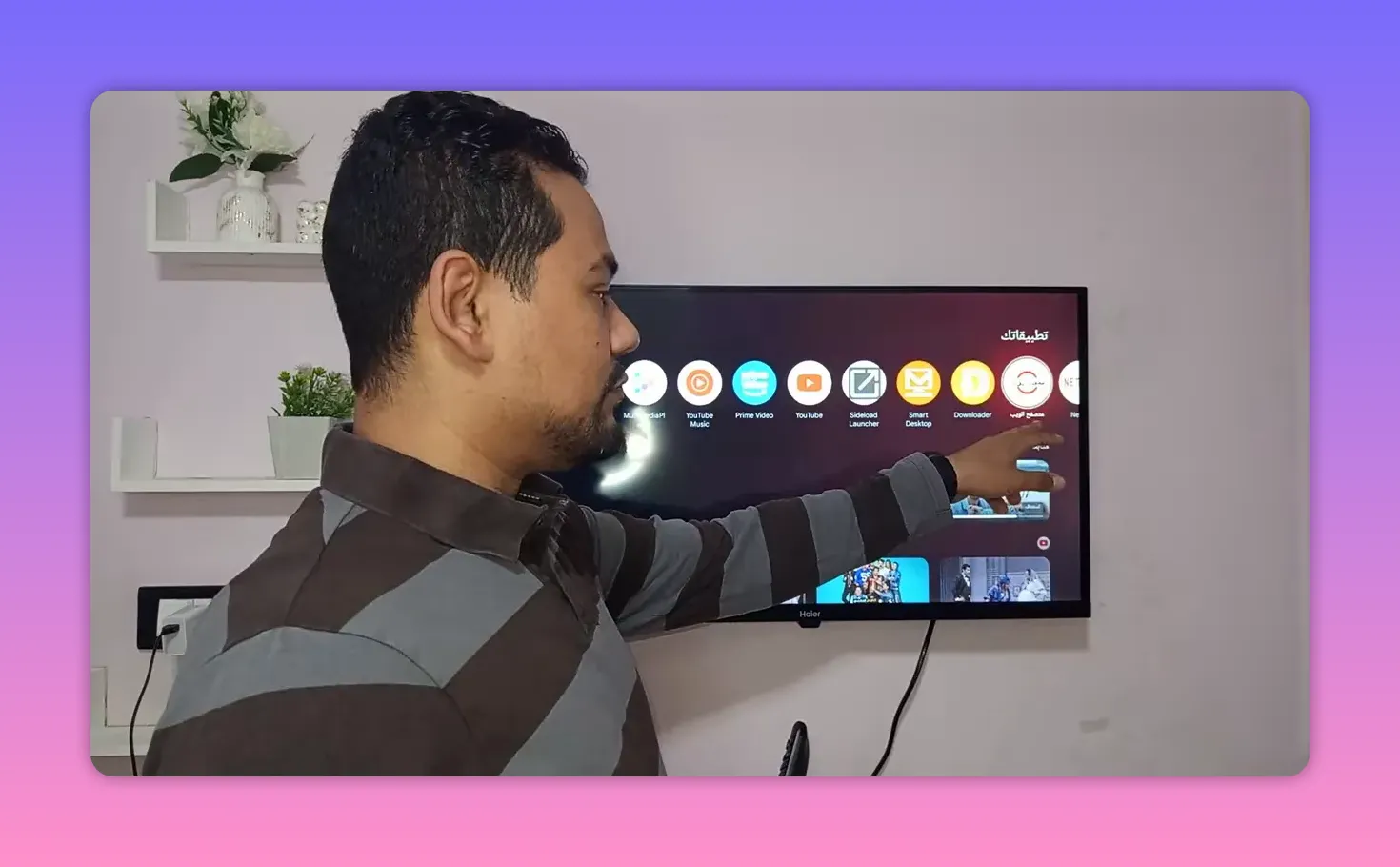
There is also an important tip here. If Downloader gives you trouble on your device, you do not have to get stuck. A browser app from Google Play can do the same job, and I will explain that workaround shortly.
🔥 App 1: Gold
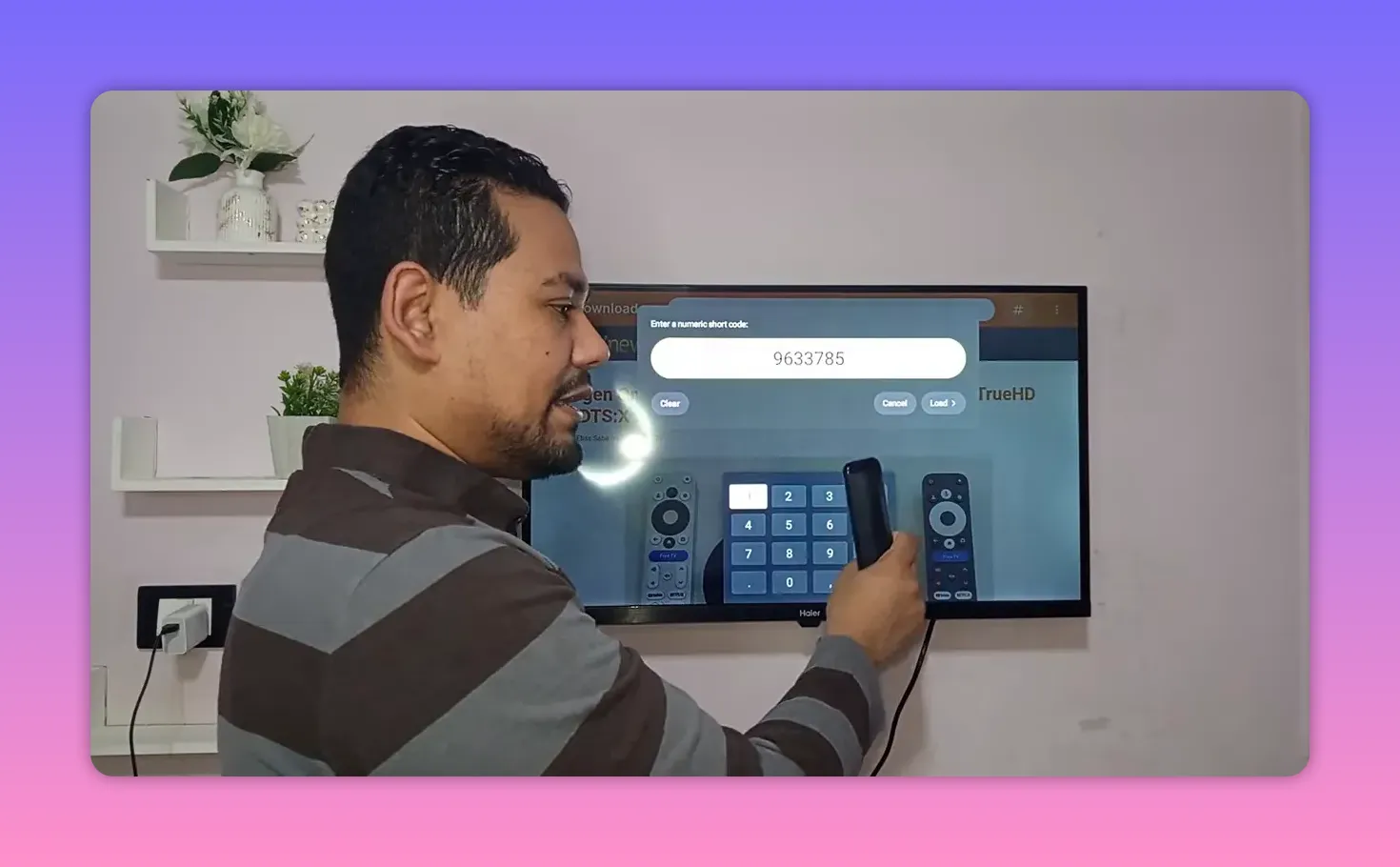
The first app mentioned is Gold, and its download code is:
963785
After entering the code, the download flow is slightly different from the older style some people are used to. Here is how it works:
- Open the page using the code.
- Tap Load.
- Scroll down.
- Tap the first Download button.
- Wait a few seconds.
- Tap the second Download button.
The nice part is that the process is presented as clean and simple, without annoying ad redirects or a maze of fake links. Once installed, the app shows a Login option, but in this case it does not ask for complicated details. Tapping it should open the app directly.
This one is described as a fresh and exclusive addition, so if you like trying newer free TV apps on Android TV, it is one of the first options to test.
🛠️ App 2: Al Basha update
The second item is an update for an app referred to as Al Basha. A lot of people apparently ran into the same issue: the old version asks for an update, then refuses to work correctly. The solution is not to keep forcing it. Remove the old version and install the updated one instead.
Update code: 565708
If you already have an older copy installed, do this in order:
- Delete the previous version.
- Open Downloader.
- Enter 565708.
- Install the updated release.
This step matters because some apps stop functioning completely until the update is installed. If the app keeps pushing you to update but never opens correctly, uninstalling the old version first is usually the cleanest fix.
🎬 App 3: Al Mostadira
The third app highlighted is called Al Mostadira, described as a strong entertainment option and also a newer updated version.
Download code: 7434053
This app is positioned as a solid free TV and entertainment choice for Android screens, especially for anyone building a varied app collection instead of relying on just one service.
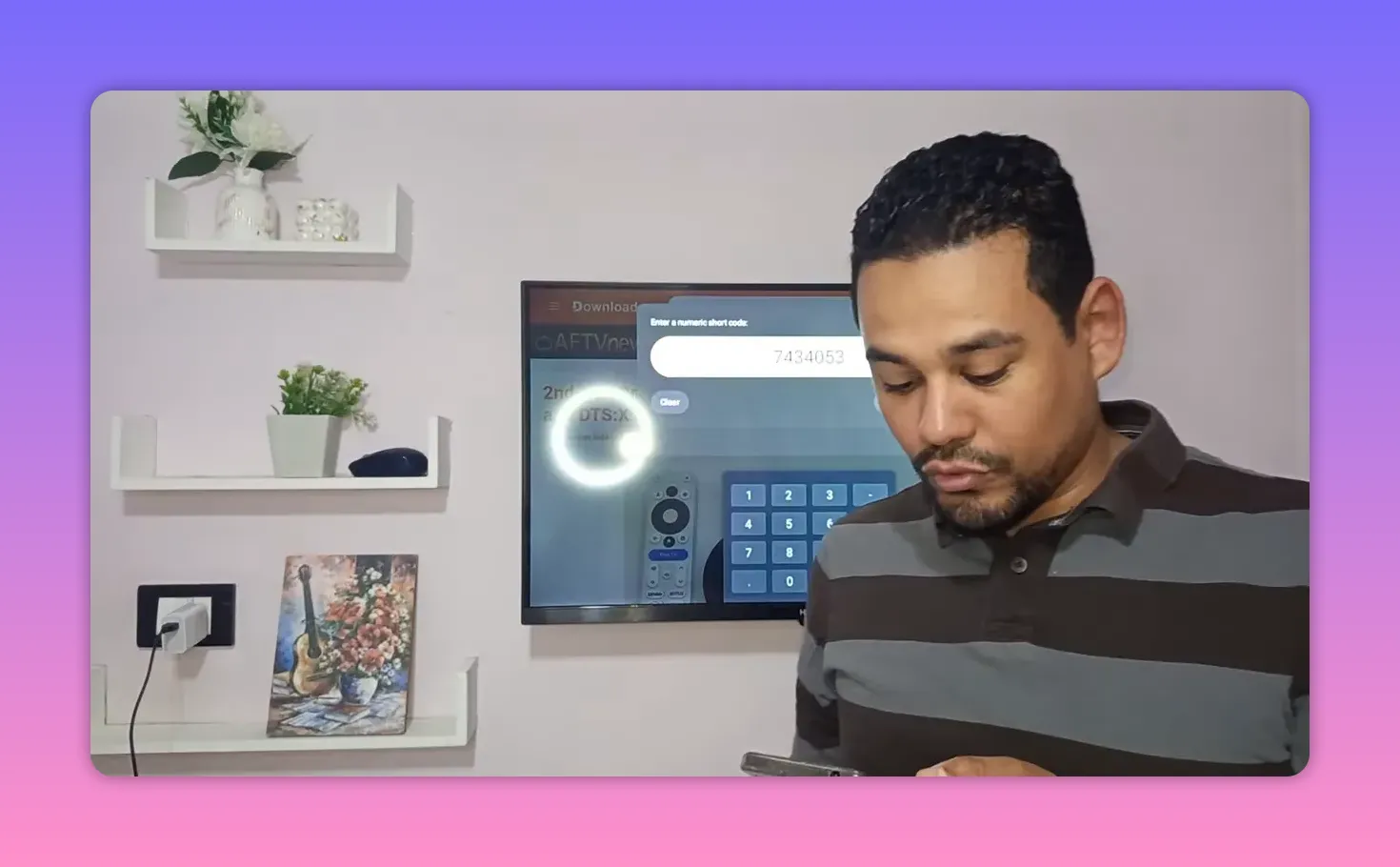
As always, use the code inside Downloader, wait for the package to download, then proceed with installation.
🎭 App 4: Drama as an alternative to Al Ostora
Some people have issues with Al Ostora, especially around the player version or compatibility. For that reason, a replacement option is suggested here: Drama.
Download code: 425
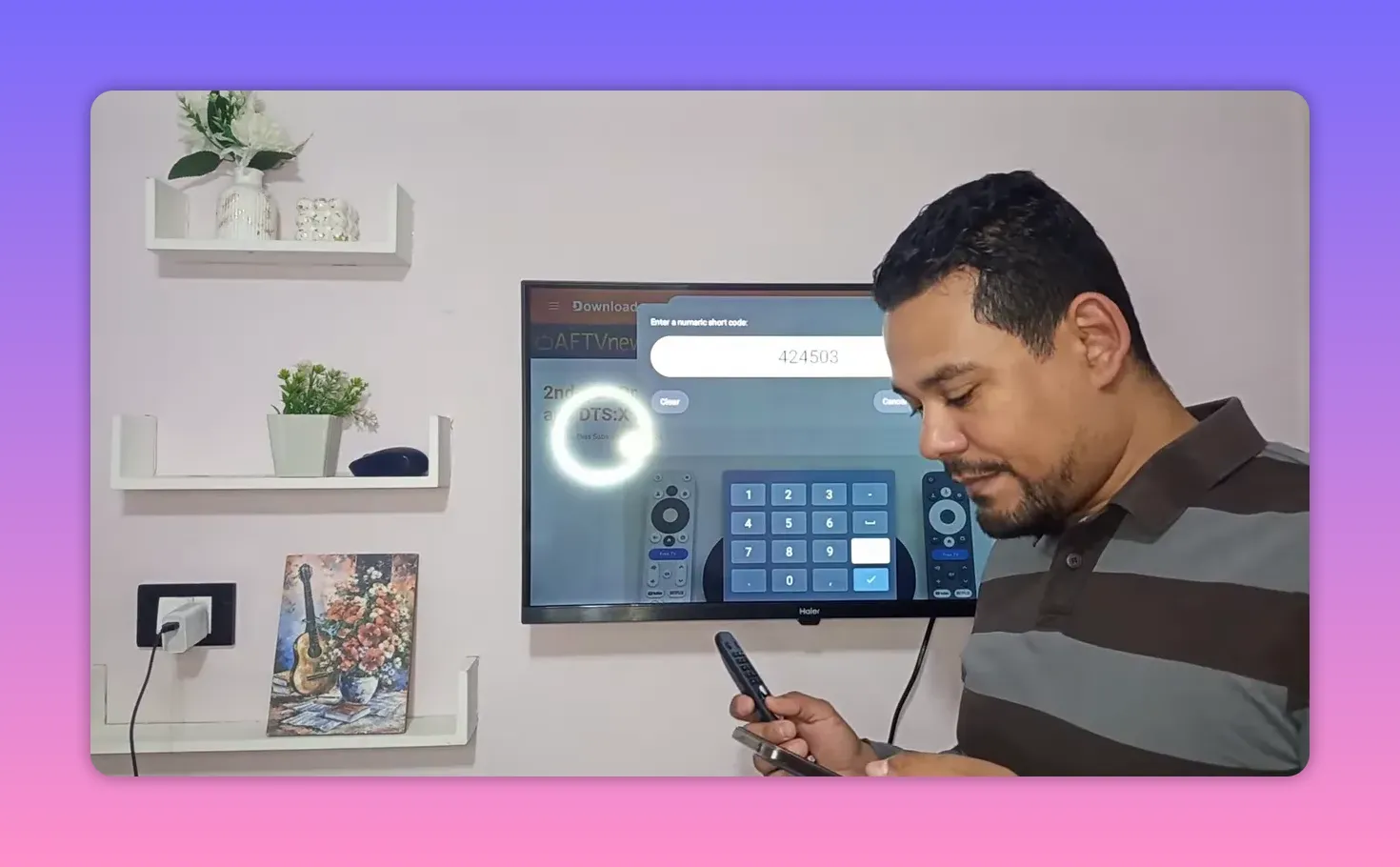
The code in the source audio is spoken a bit unclearly, but the important part is what happens after installation. When the app opens, it asks for an activation or access number in the first field.
Activation number: 232425
So the process becomes:
- Install Drama using the provided code.
- Open the app.
- Enter 232425 in the first box.
If one app gives you playback or player-version errors, having a backup like this is incredibly useful. That is especially true on Android TV boxes where app compatibility can vary from one device to another.
⭐ App 5: XP update and activation
The last major app covered is XP, and this section matters because it includes both an update note and an activation code that was emphasized as especially useful.
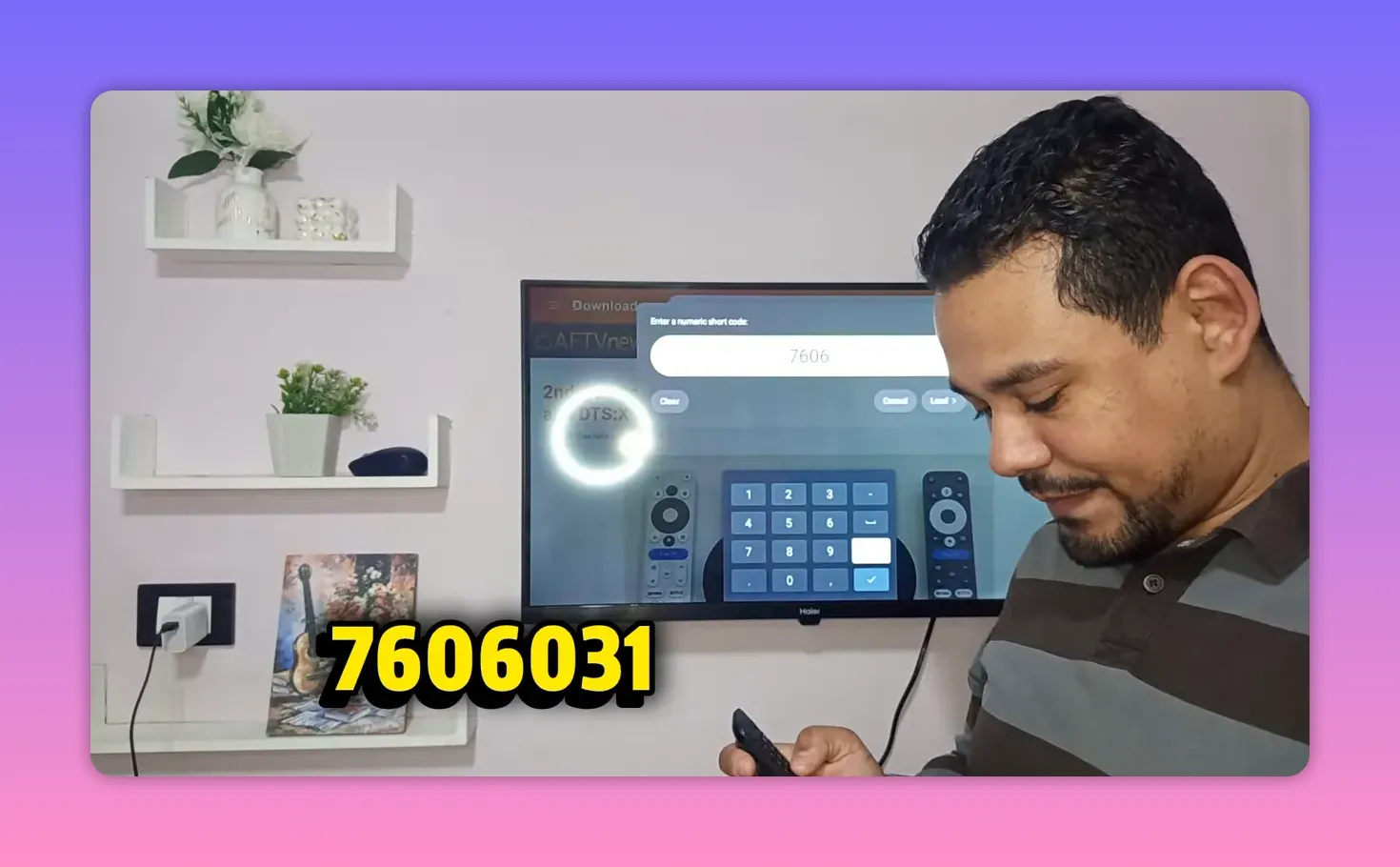
XP code: 7606031
This code is presented as giving access for one year, which is why it was singled out as an important addition. If you use this app regularly, this is the kind of detail worth saving.
The key point here is simple:
- Install or update XP using 7606031.
- The code is intended to activate the app for a full year.
For anyone organizing a reliable smart TV setup in 2026, this kind of long-term activation can make the app much more practical.
🌐 If Downloader is not working, use a browser from Google Play
One of the most useful parts of the walkthrough is the troubleshooting advice. If Downloader does not work on your device, there is no need to stop there. You can install a browser directly from Google Play and use it to download the same files.
The suggested approach is:
- Open Google Play on your Android TV or Google TV device.
- Search for a browser, such as Browser or a web browser app.
- Install it.
- Open the browser.
- Type in the required code or download address in the search/address field.
- Open the download page and install the app manually.
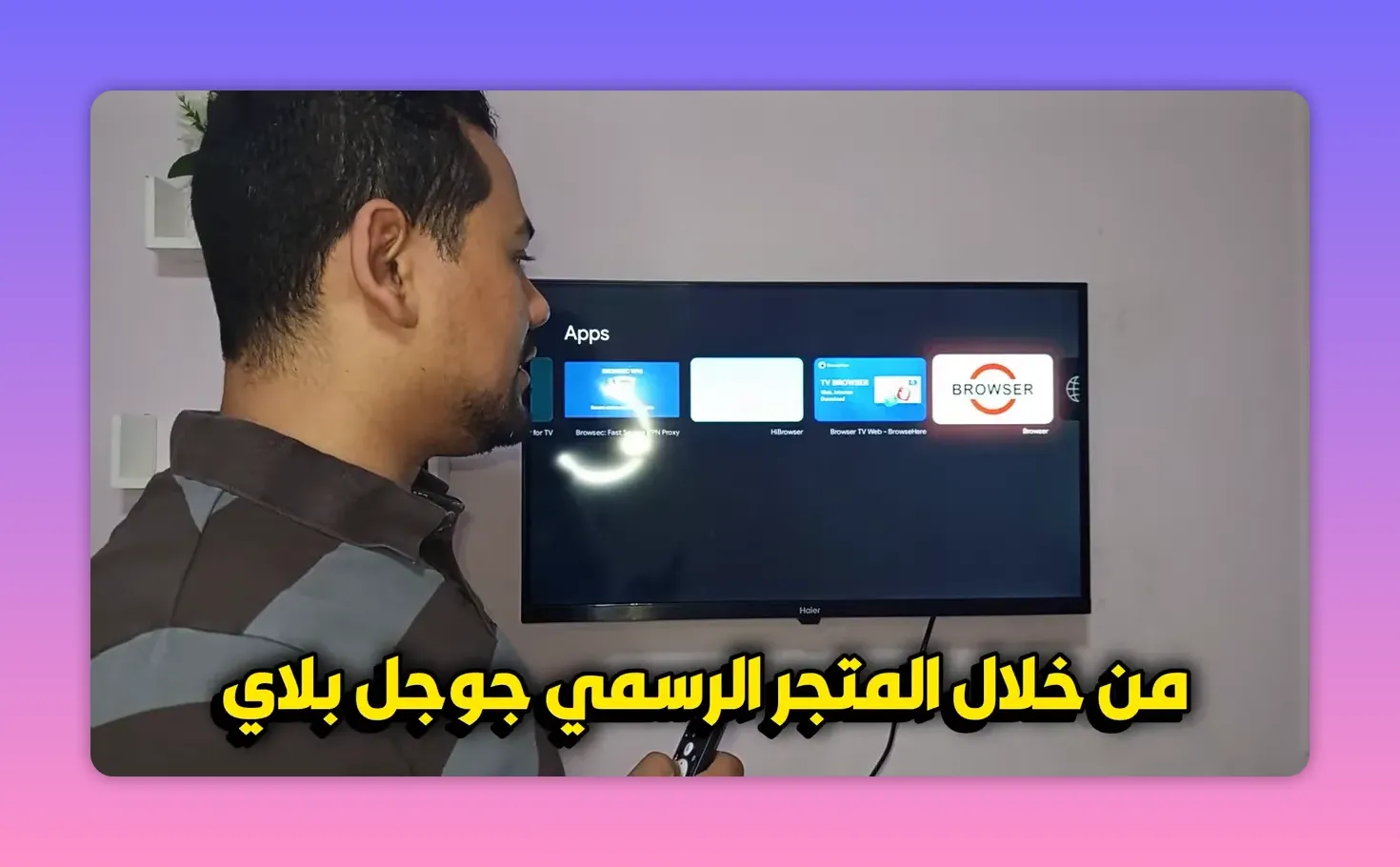
Once the file downloads, go to the Downloads section inside the browser. From there, tap the downloaded file, confirm installation, and the app will be added to your device.
This is a practical workaround for Android TV users who run into device-specific Downloader errors, update problems, or unsupported behavior.
🧭 If the app installs but does not appear on the home screen
This is another very common issue on smart screens. You install the app successfully, but then you return to the home screen and it is nowhere to be found. That does not always mean the install failed.
The recommended fix is to use Sideload Launcher or Side Apps, both available from Google Play.
Search for a launcher app such as:
- Sideload Launcher
- Side Apps
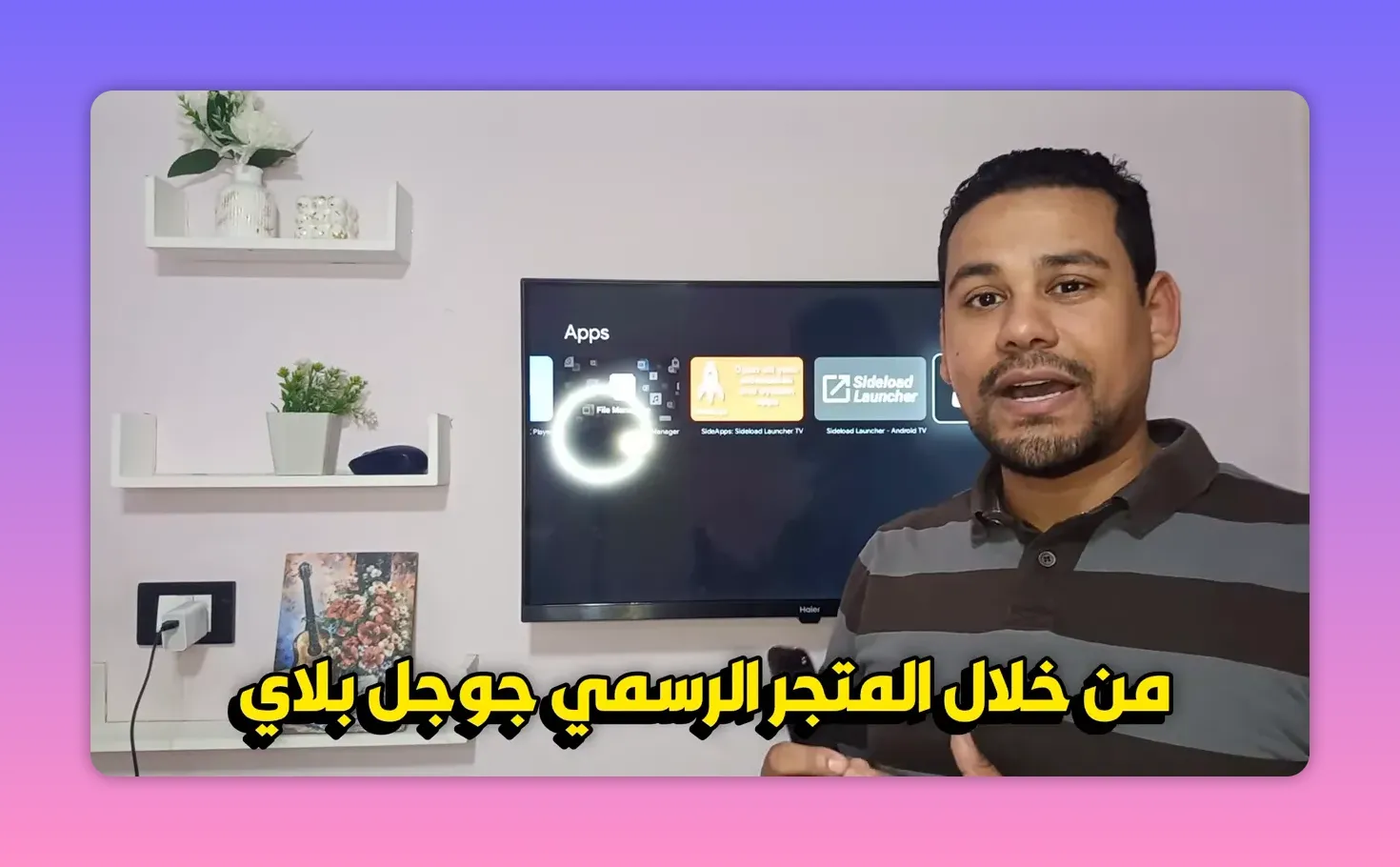
These tools are helpful because some sideloaded Android apps do not automatically place themselves on the main Android TV home screen. The apps are installed, but hidden from the normal launcher. A sideload launcher shows them so you can open them without hunting through system menus.
This is one of those beginner-friendly tips that saves a lot of frustration. Many people assume the install failed, when in reality the app is already there and just needs a launcher to appear.
✅ Recommended setup flow for Android TV, Google TV, and TV Box devices
If you want the whole process organized in the cleanest way, use this order:
- Install Downloader from Google Play.
- If Downloader fails, install a browser from Google Play instead.
- Use the codes below to download the apps you want.
- Remove old versions before installing major updates.
- If an app asks for an internal access number, enter the required code exactly.
- If the app does not appear on the home screen, install Sideload Launcher or Side Apps.
Quick code list
- Gold: 963785
- Al Basha update: 565708
- Al Mostadira: 7434053
- Drama: 425
- Drama activation: 232425
- XP: 7606031
💡 Why this matters for smart TV users
A lot of Android TV and Google TV users are not looking for complicated technical tricks. They just want a setup that works. That means:
- apps that install without endless redirects,
- updated versions that actually open,
- alternatives when one service stops working,
- and simple solutions when sideloaded apps stay hidden.
That is really the value of this collection. It is not only about free TV apps. It is also about understanding the small steps that make Android TV devices easier to manage, especially for beginners using Google TV, Android TV, TV Stick devices, or Android TV Box systems.
❓FAQ
Do I need Downloader to install these apps?
No. Downloader is the main method, but if it does not work on your device, you can install a browser from Google Play and use it to download the same files.
What should I do if an old app version keeps asking for an update?
Delete the old version first, then install the newer one using the updated code. This was specifically recommended for Al Basha.
Why does a newly installed app not appear on my Android TV home screen?
Some sideloaded apps do not show in the default launcher. Install Sideload Launcher or Side Apps from Google Play, then open the app from there.
What code should I enter inside the Drama app?
After installing Drama, enter 232425 in the first field when the app opens.
Which code is used for XP activation?
The XP code shared here is 7606031, and it was described as providing access for one year.
Can these apps be used on phones too?
Yes. Although the setup focuses heavily on smart screens like Android TV and Google TV, it was also mentioned that Android phone users can benefit as well.
If you are building a better smart TV setup for 2026, save the codes, keep Downloader and a browser ready, and always keep a sideload launcher installed. That combination alone solves most of the headaches people face on Android TV and TV Box devices.
