
If you enjoy French-language channels and entertainment content on Android TV, this setup is worth trying. The app featured here is aimed at people who want an easy way to access that kind of content, and it also includes support for other languages inside the app.
The installation is simple, but there are two important details to get right:
You need the Downloader app installed first.
After installation, the app may not appear directly on the main screen, so you may also need a launcher such as Sideload Launcher or Dashboard.
Below is the full method, organized clearly so you can install everything without confusion.
Table of Contents
- Step 1: Install Downloader from Google Play 🛒
- Step 2: Make sure your internet speed is good enough 🌐
- Step 3: Use Downloader code 60776597 to get the app 📥
- Step 4: If the app does not appear on your home screen, use a launcher 🧩
- Step 5: Install Sideload Launcher from the Play Store if you want the quickest option 🚀
- Step 6: Install Dashboard if you want better app management 🛠️
- Step 7: Enable accessibility permissions for Dashboard 🔐
- Step 8: Use Dashboard to uninstall apps easily if needed 🗑️
- Step 9: Launch the app and start using it on your Android TV 📺
- Step 10: Keep these practical tips in mind for a better experience ✅
- FAQ ❓
Step 1: Install Downloader from Google Play 🛒
Start by opening the Google Play Store on your Android TV or TV box and search for Downloader.
Downloader is a well-known browser-style utility used to install apps from external sources. If you regularly try Android TV apps that are not available directly in the Play Store, this tool is essential.
When the app appears in search results, make sure the icon matches the correct Downloader app before installing it.
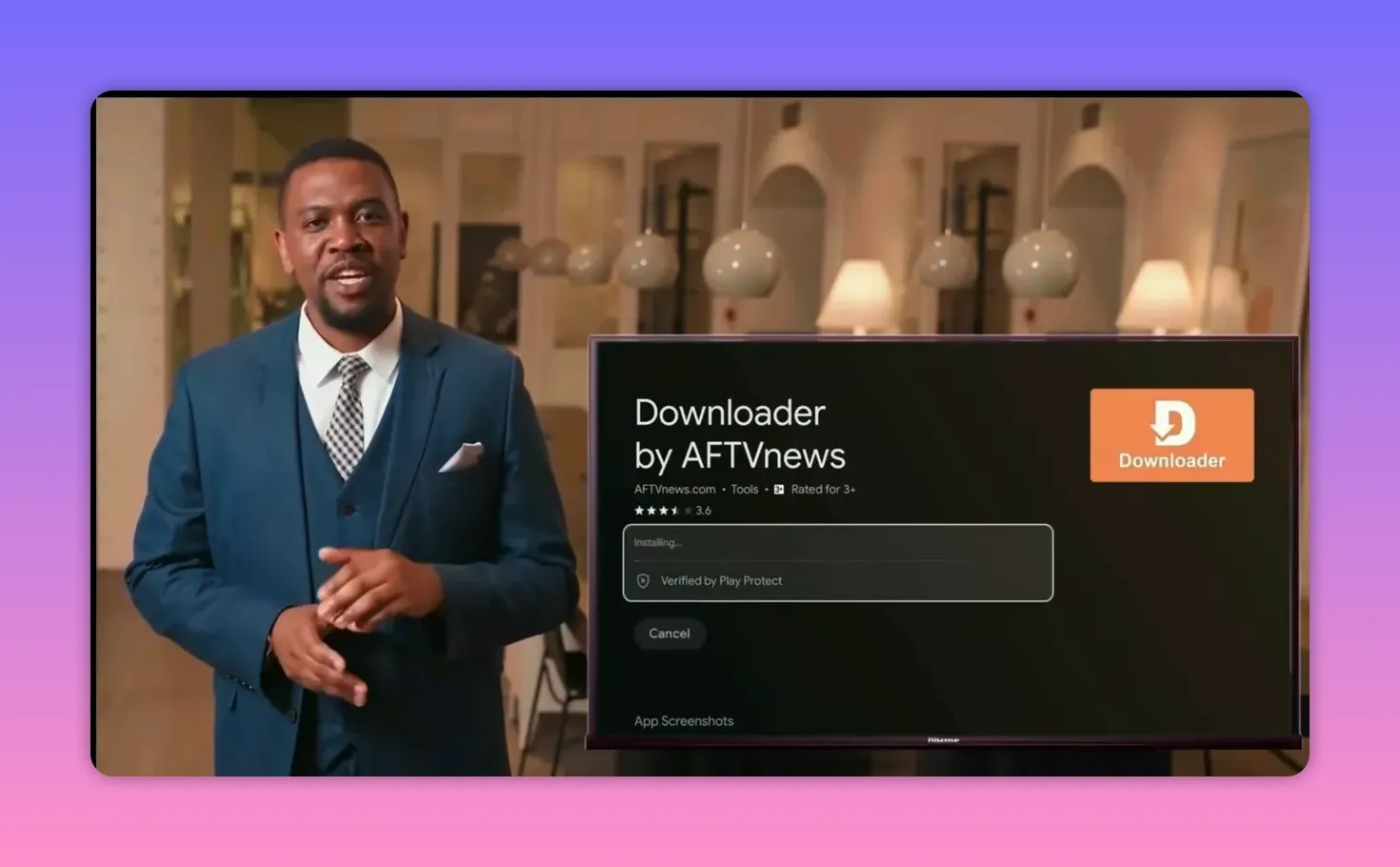
Once Downloader is installed, open it and complete the initial prompts. If an activation or confirmation screen appears, press OK and continue.
Step 2: Make sure your internet speed is good enough 🌐
Before going further, it is worth checking your internet connection. This matters more than many people think.
Streaming apps and Android TV entertainment apps depend heavily on connection quality. A poor connection can lead to buffering, slow loading, or unstable performance even if the app itself is working correctly.
A quick way to test your connection is by using Fast.com. It gives a simple estimate of your current internet speed and helps you confirm whether your provider is delivering acceptable performance.
This point is especially important because real-world internet speeds in many regions do not always match what is advertised in service contracts. So before blaming the app, check the connection first.
Step 3: Use Downloader code 60776597 to get the app 📥
Open Downloader and enter the following app code:
60776597
After entering the code, press Load and follow the normal installation steps.
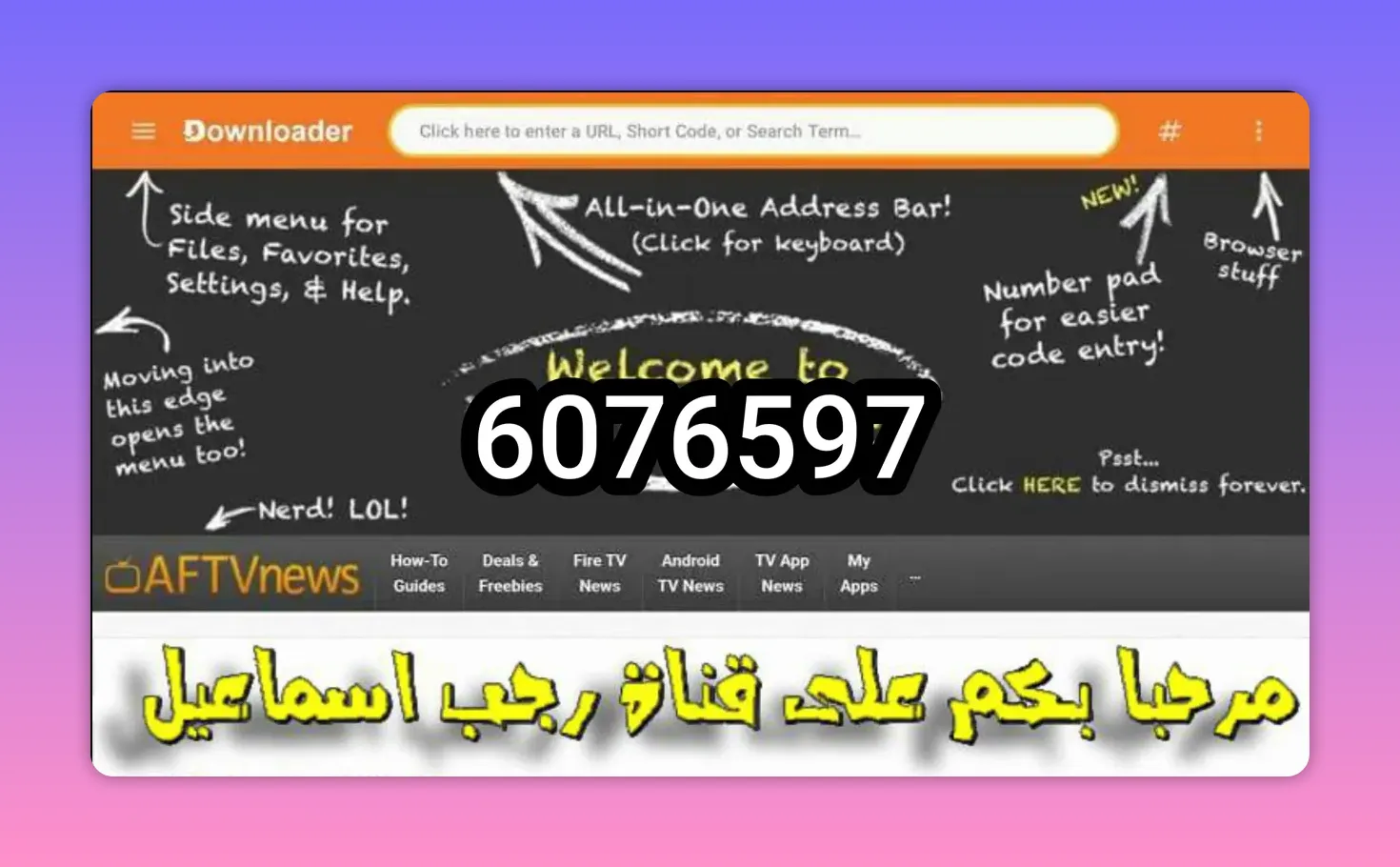
The process from here is straightforward. Download the file, install the app, and let Android TV finish the setup.
At this stage, the app itself should be installed successfully. But there is one more practical issue you need to know about.
Step 4: If the app does not appear on your home screen, use a launcher 🧩
After installation, many sideloaded Android TV apps do not appear directly on the main interface. That does not mean the installation failed.
It simply means you need a launcher that can display all installed apps, including those installed from external sources.
You have two options mentioned here:
Sideload Launcher
Dashboard
Both can help you access apps that do not show up on the default Android TV home screen. However, there is a clear preference here for Dashboard, mainly because it gives better control over installed apps.
Step 5: Install Sideload Launcher from the Play Store if you want the quickest option 🚀
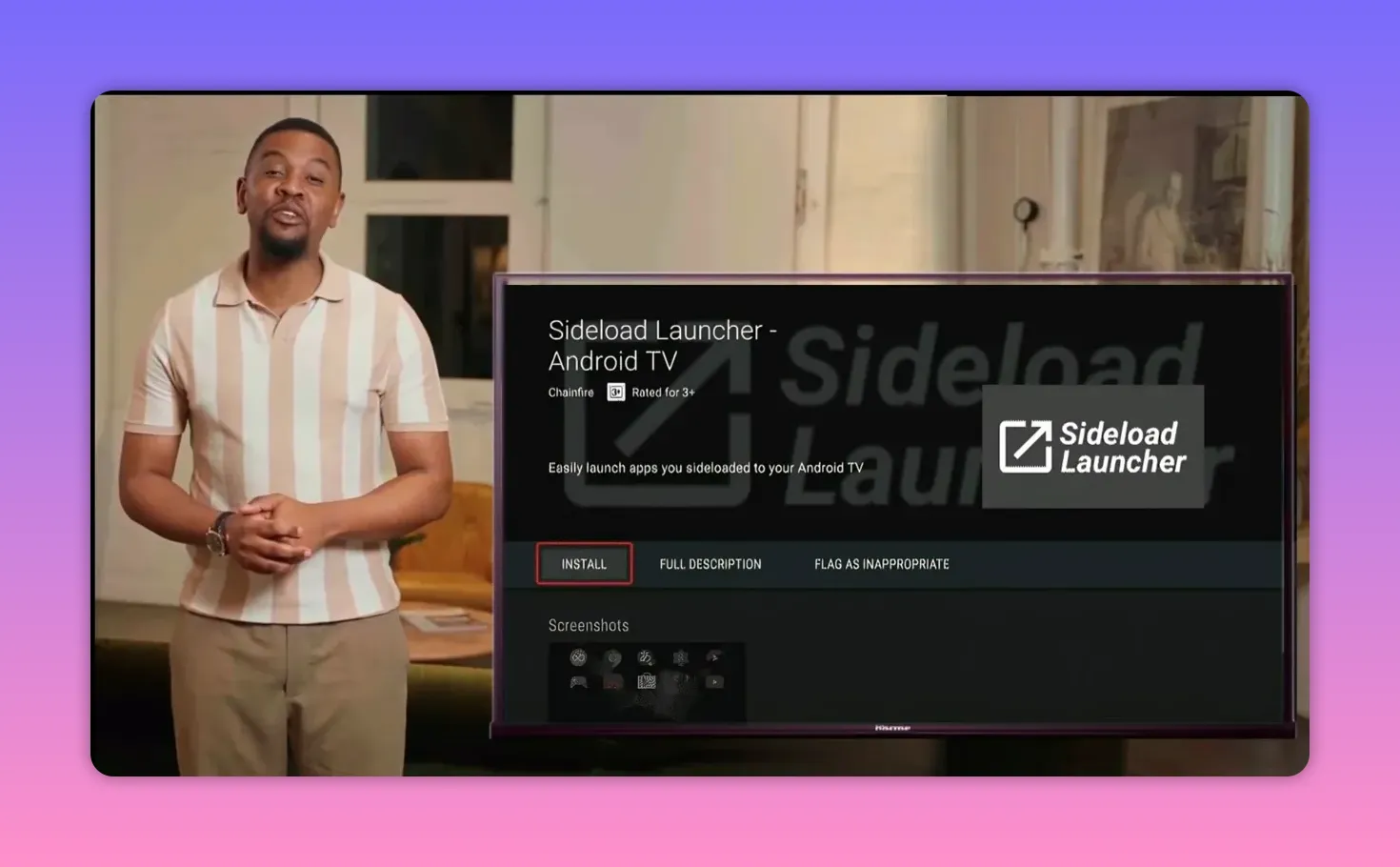
If you want the easiest route, open the Google Play Store and search for:
Sideload Launcher
Install it directly from the store.
Once opened, it will display all apps installed on the device, including:
Apps installed from the Play Store
Apps installed externally through Downloader
Android TV APK apps you have added manually
This makes it a practical solution for simply finding and launching hidden apps.
But it does have one limitation.
Sideload Launcher does not make uninstalling apps easy. If later you decide to remove an app, you may need to go into settings and handle it manually through a more complicated path.
Step 6: Install Dashboard if you want better app management 🛠️
If you want something more powerful, use Dashboard instead.
To install Dashboard, open Downloader and enter this code:
3763535
Then complete the installation the same way you would with any other app.
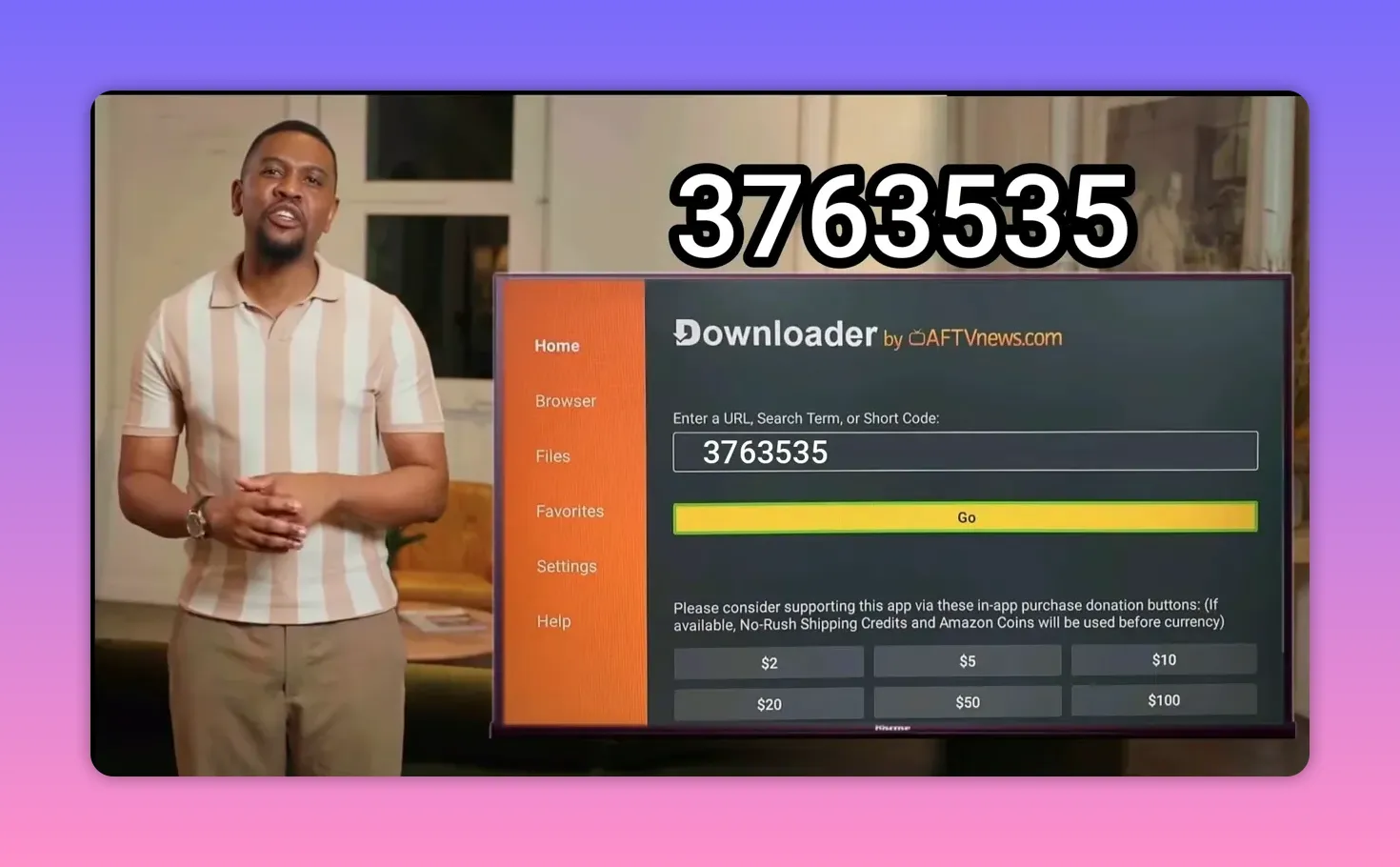
The main reason Dashboard is preferred is simple: it is not just for launching apps. It also makes managing them easier.
After installation, move Dashboard to your home screen or favorites row so it is always easy to access. Select the app, choose the move option, and place it near the front.
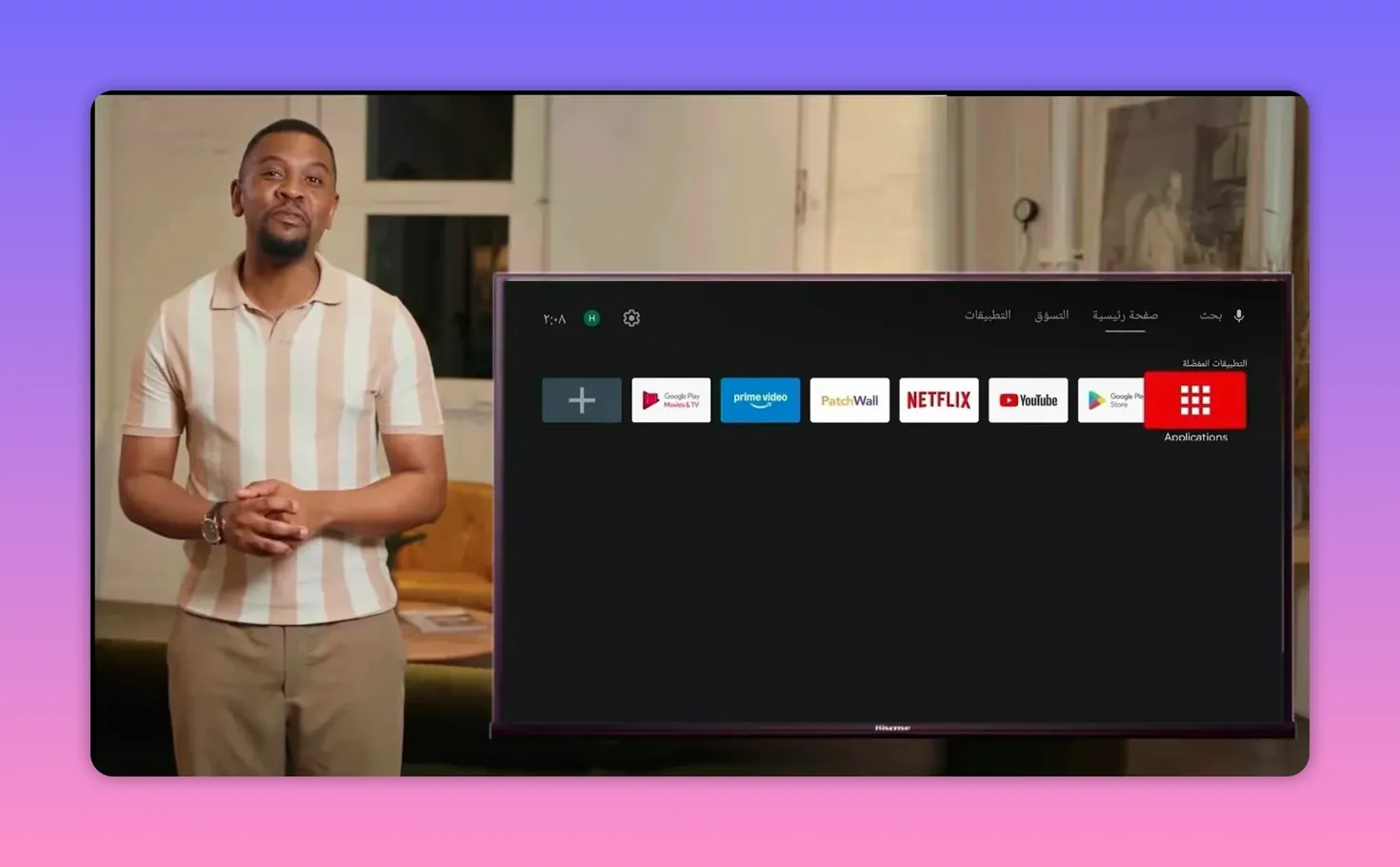
Step 7: Enable accessibility permissions for Dashboard 🔐
When you open Dashboard for the first time, it may ask for permission to access certain system controls. This is necessary so it can interact properly with other installed apps.
If prompted, choose Open Settings. If the settings page does not open automatically, go there manually through your device preferences.
From there:
Open Accessibility
Find Dashboard
Enable it
Confirm by pressing OK
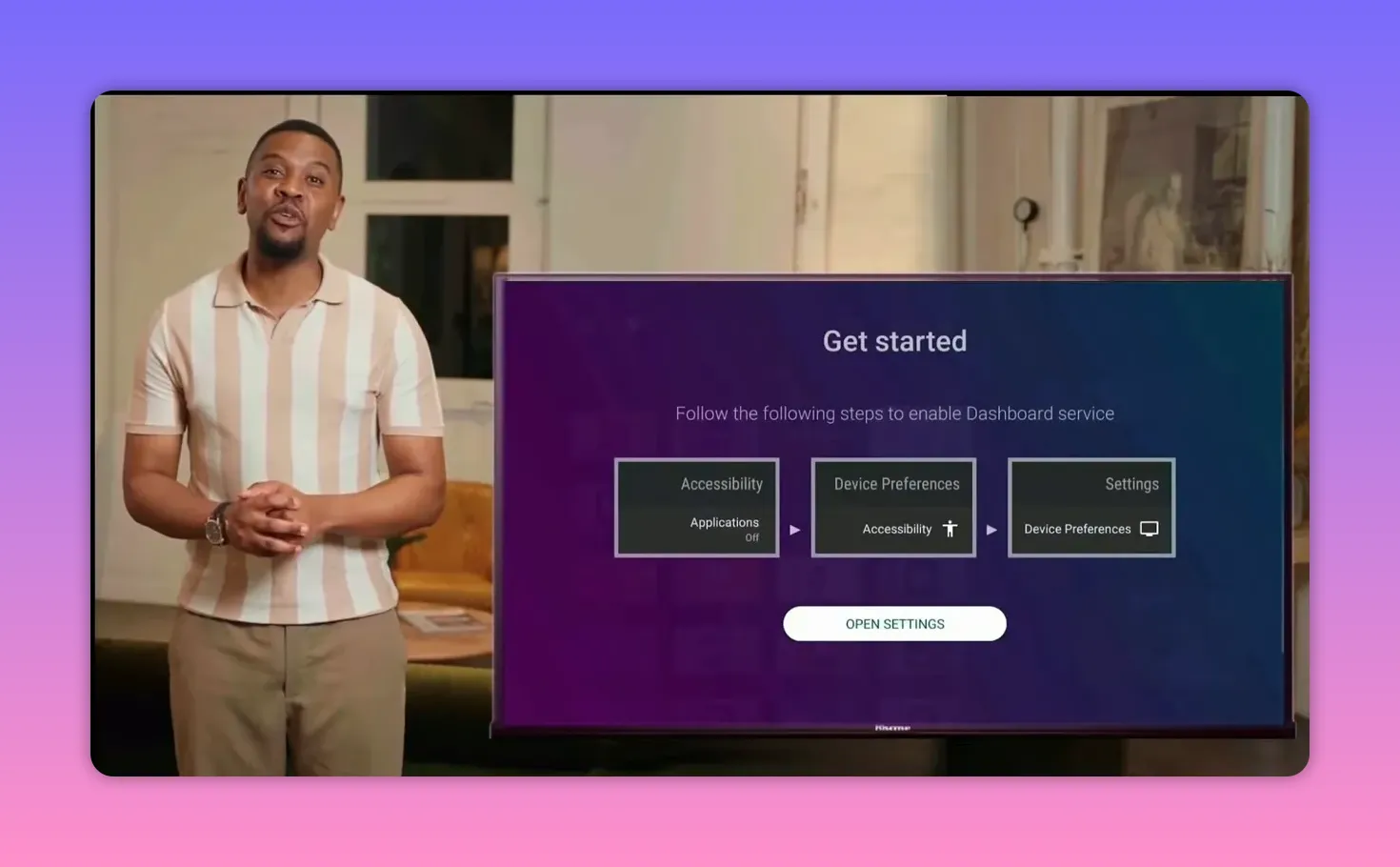
Once this is done, reopen Dashboard and you should see all installed apps listed clearly.
That includes both:
Apps installed from Google Play
Apps installed externally using Downloader
Step 8: Use Dashboard to uninstall apps easily if needed 🗑️
This is the feature that gives Dashboard a real advantage over Sideload Launcher.
With Dashboard, you can long-press on an app and uninstall it directly. That saves time and avoids digging through Android TV settings menus.
If you frequently test Android TV apps, IPTV tools, or entertainment apps from external sources, this makes a noticeable difference.
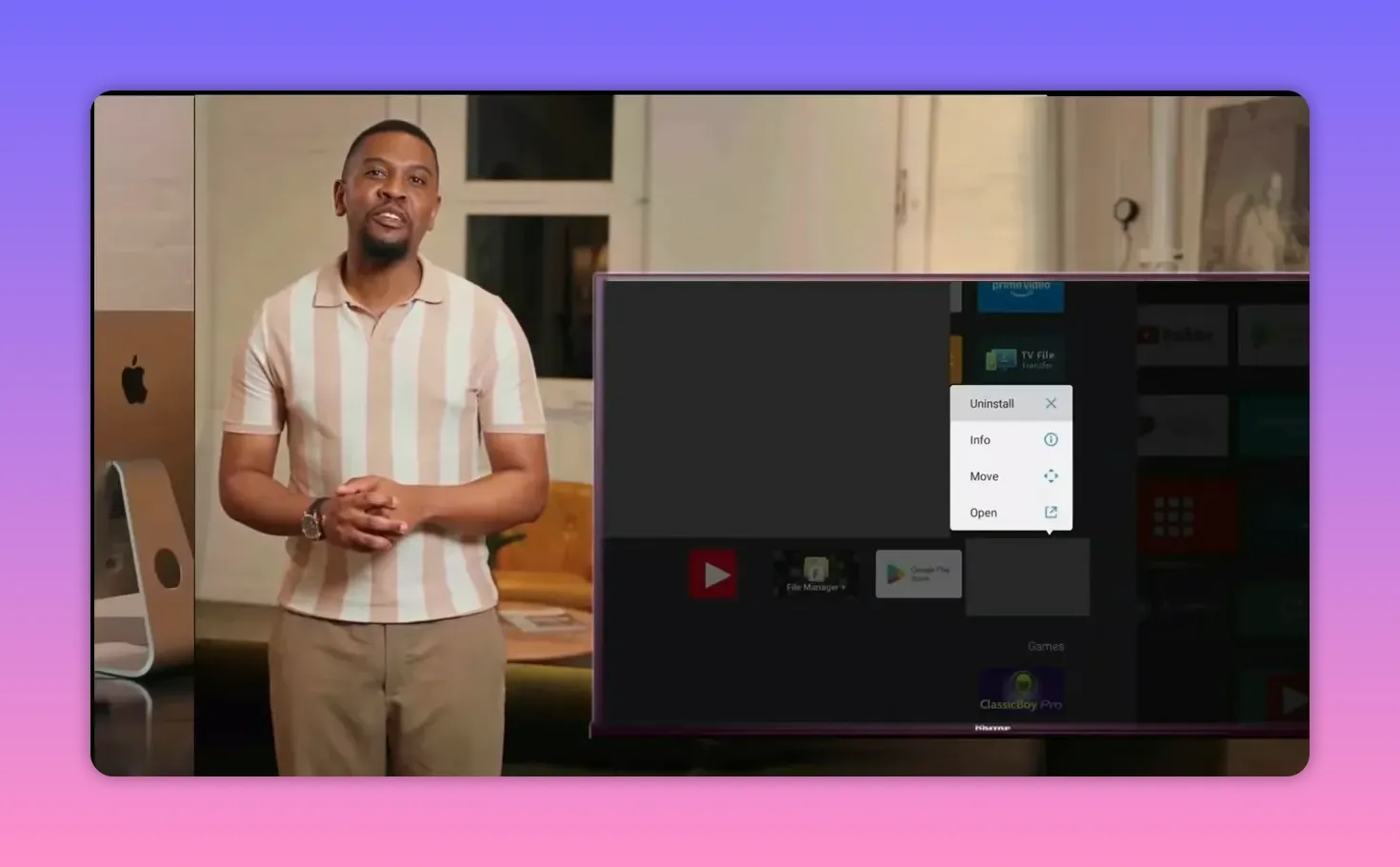
So if your goal is not only to launch hidden apps but also to organize and remove them easily, Dashboard is the better option.
Step 9: Launch the app and start using it on your Android TV 📺
After completing the setup, open the installed app from Sideload Launcher or Dashboard and begin exploring the content.
The app is presented as a strong option for anyone interested in French-language entertainment, especially channels and media content on Android TV. It also includes other language options inside the app, which adds flexibility depending on your preferences.
The key thing is that once Downloader and your launcher are in place, the rest becomes much easier for future app installations too. This is not just a one-time setup. It creates a smoother Android TV workflow overall.
Step 10: Keep these practical tips in mind for a better experience ✅
To avoid problems during installation and use, keep these points in mind:
Use a stable internet connection. App performance depends heavily on speed and consistency.
Install Downloader first. It is the gateway for adding external Android TV apps.
Do not panic if the app does not appear on the home screen. This is common with sideloaded apps.
Use Sideload Launcher for simplicity. It is quick and easy to get from the Play Store.
Use Dashboard for better control. It is more useful if you want to uninstall apps directly.
FAQ ❓
Why is the installed app not showing on the Android TV home screen?
Many apps installed from external sources do not appear on the default Android TV launcher. This is normal. Use Sideload Launcher or Dashboard to access them.
What is the Downloader code for the French content app?
The code used for the app is 60776597.
What is the Downloader code for Dashboard?
The code used to install Dashboard is 3763535.
Which is better, Sideload Launcher or Dashboard?
If you only want to open hidden apps, Sideload Launcher is enough. If you also want easier uninstall options and better app management, Dashboard is the better choice.
Do I need Google Play Store on my Android TV for this setup?
Yes, Google Play Store is needed at least to install Downloader and optionally Sideload Launcher. Dashboard itself is installed through Downloader.
Why is internet speed important for Android TV apps?
A weak connection can cause slow loading, buffering, and poor overall performance. Checking your speed with a tool like Fast.com can help confirm whether the issue is the connection rather than the app.
If you regularly install Android TV apps from outside the Play Store, this setup is one of the most useful to have. Downloader handles the installation, and Dashboard or Sideload Launcher makes sure you can actually find and use what you installed. For French content fans especially, that makes this app a practical addition to any Android TV box or smart screen.
