
If you use an Android TV, TV Box, or smart display and want a simple app for channels, movies, and series, the biggest issue usually is not the app itself. The real problem is installation, access, and finding the app later on the home screen.
This guide walks through the full setup clearly, using Downloader, the app code, and then the best way to launch sideloaded apps on Android TV. I will also point out the small details that make the experience smoother, especially if you want everything easy to open and easy to remove later.
Table of Contents
- 📥 Step 1: Install Downloader from Google Play
- 🔢 Step 2: Enter the App Code in Downloader
- ✅ Step 3: Install the App and Delete the APK File Afterward
- 🖥️ Why the App May Not Appear on the Home Screen
- 🚀 Option 1: Use Sideload Launcher
- ⭐ Option 2: Use Dashboard Instead, Which Is the Better Choice
- ⚙️ How to Enable Dashboard Properly
- 🗑️ The Main Reason Dashboard Is Better Than Sideload Launcher
- 📺 What This Setup Solves on Android TV and TV Box
- 💡 Best Practices to Keep Things Smooth
- ❓FAQ
- 🏁 Final Take
📥 Step 1: Install Downloader from Google Play
The first thing you need is Downloader. This is a well-known browser-style tool used to download external apps on Android TV and TV Box devices.
Open Google Play Store on your device and search for Downloader. When it appears, make sure the icon matches the familiar Downloader app, then install it.
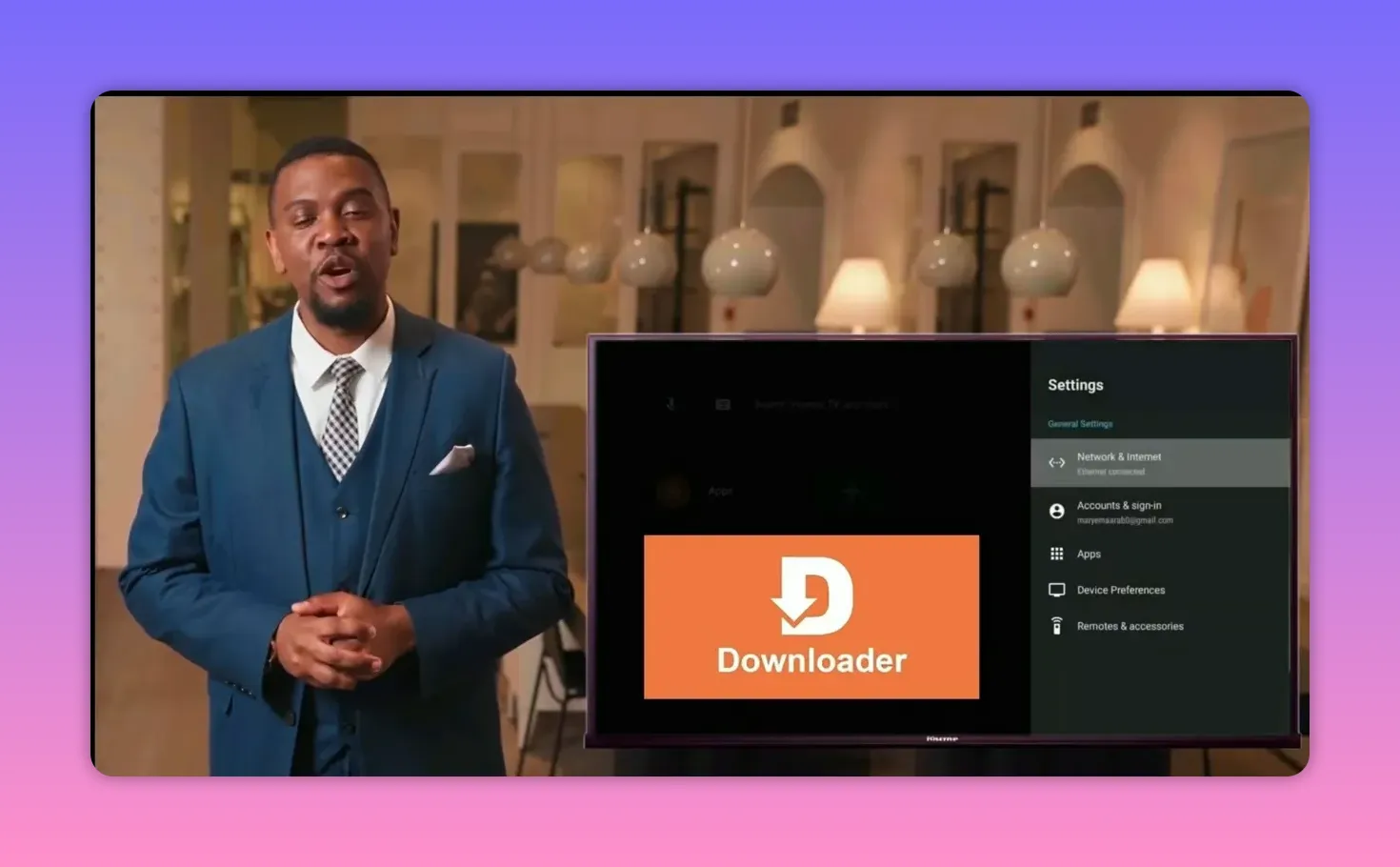
After installation:
Go to the necessary device settings if your system asks for permission.
Enable the app if needed.
Once it appears on your screen, open it and press OK when prompted.
This app is generally smooth and reliable, but there is one thing to know from the start: it includes ads. That can be a little annoying, but it is also how the developer monetizes the app.
In some cases, you may need to let the ad finish completely before you can continue. Once it ends, press the back button and continue with the setup.
🔢 Step 2: Enter the App Code in Downloader
After opening Downloader, use the code provided for the app:
335423
Type the code carefully, then press Go or Start. The activation and redirect process should begin automatically.
You may briefly land on a temporary page for a few seconds, and after that the download page should open.
When the file appears, make sure the file name shows Rajab Ismail. This is an important confirmation step so you know you are on the correct file and not downloading the wrong package.
✅ Step 3: Install the App and Delete the APK File Afterward
Once the download finishes, install the app normally.
After installation, do not leave the setup file sitting on the device. This is a small step many people skip, but it matters.
Delete the installation file after the app is installed to save storage space on your Android TV or TV Box. These devices often have limited internal storage, so clearing APK files after use is always a good habit.
🖥️ Why the App May Not Appear on the Home Screen
Here is the part that confuses many people.
Even if the app installs successfully and runs perfectly, it may not appear directly on the main screen of your Android TV. That does not mean the installation failed. It simply means the app was installed as a sideloaded app and your launcher is not showing it in the normal app row.
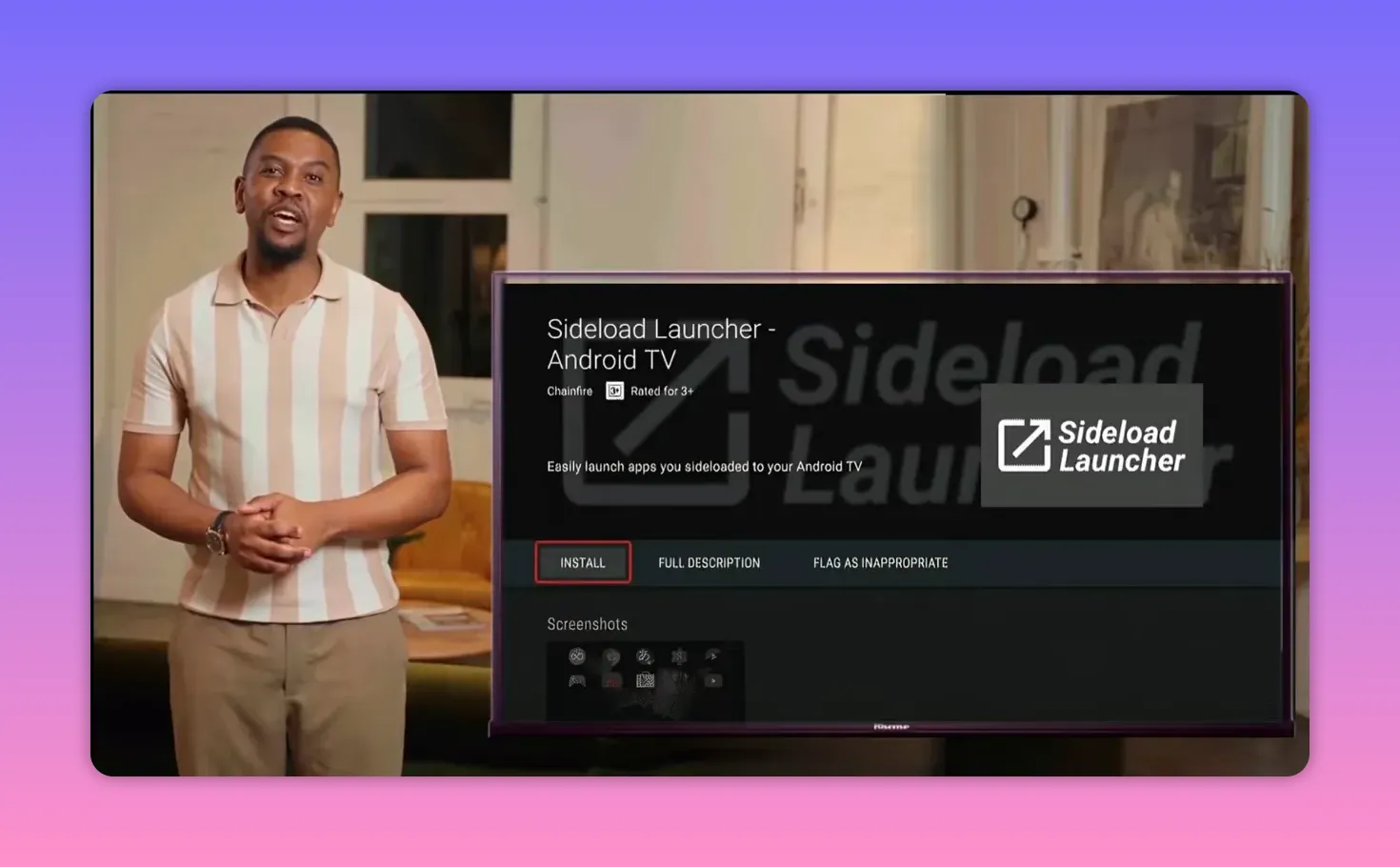
To access it easily, you need a launcher that can display sideloaded apps. Two options were mentioned:
Sideload Launcher
Both can help, but one of them is clearly the better long-term choice.
🚀 Option 1: Use Sideload Launcher
If you want the quick route, open Google Play Store and search for Sideload Launcher.
Install it, open it, and you will immediately see all apps installed on the device, including:
Apps installed from Google Play
Apps installed from external sources through Downloader
Other IPTV or APK-based apps added manually
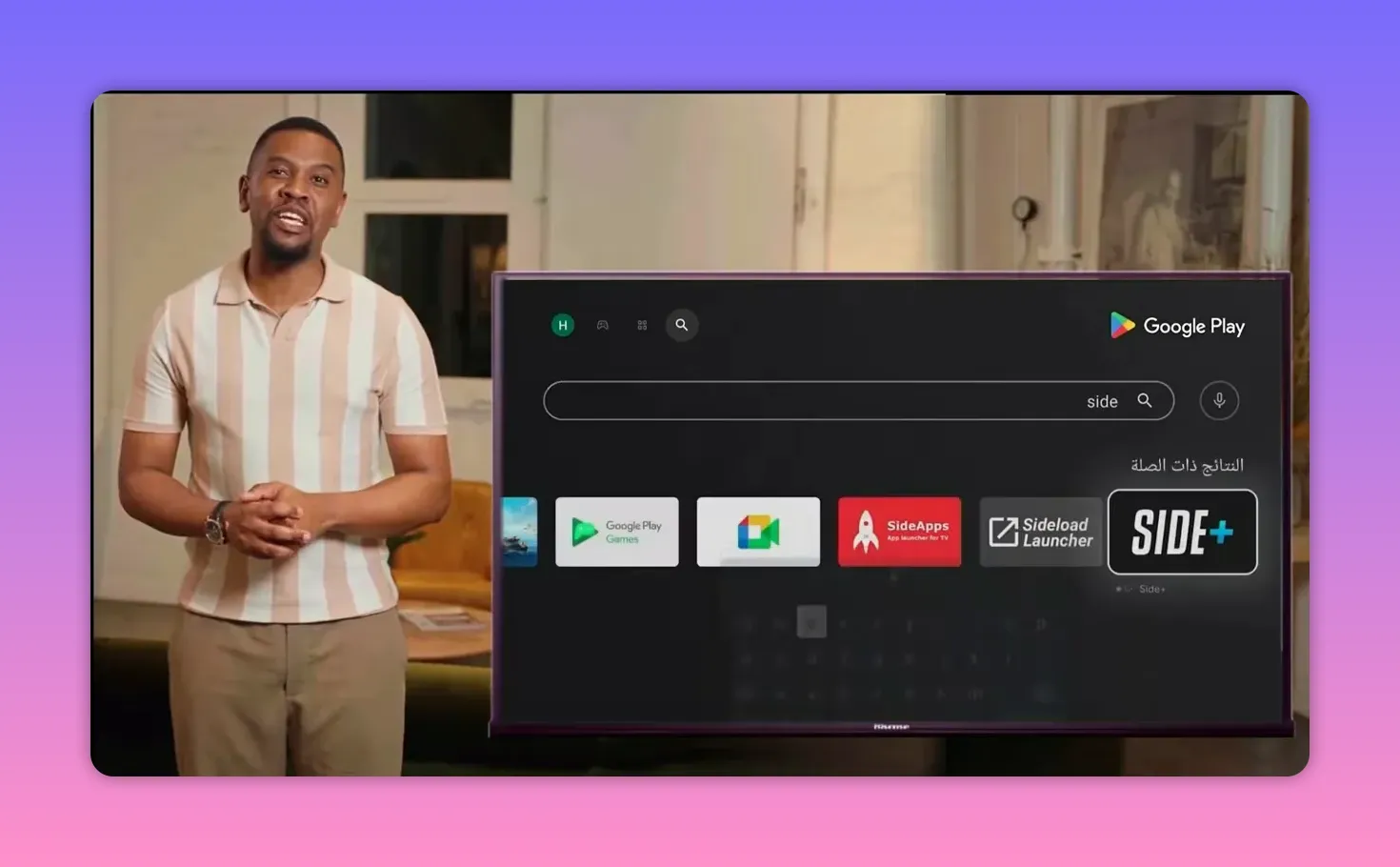
This makes Sideload Launcher useful because it solves the visibility problem quickly.
But there is an important limitation: it does not make app removal easy.
If later you want to uninstall an app, Sideload Launcher is not the most practical tool for that. You may end up digging through system settings and extra menus, which is frustrating on a TV interface.
⭐ Option 2: Use Dashboard Instead, Which Is the Better Choice
If you want something more complete, Dashboard is the better option.
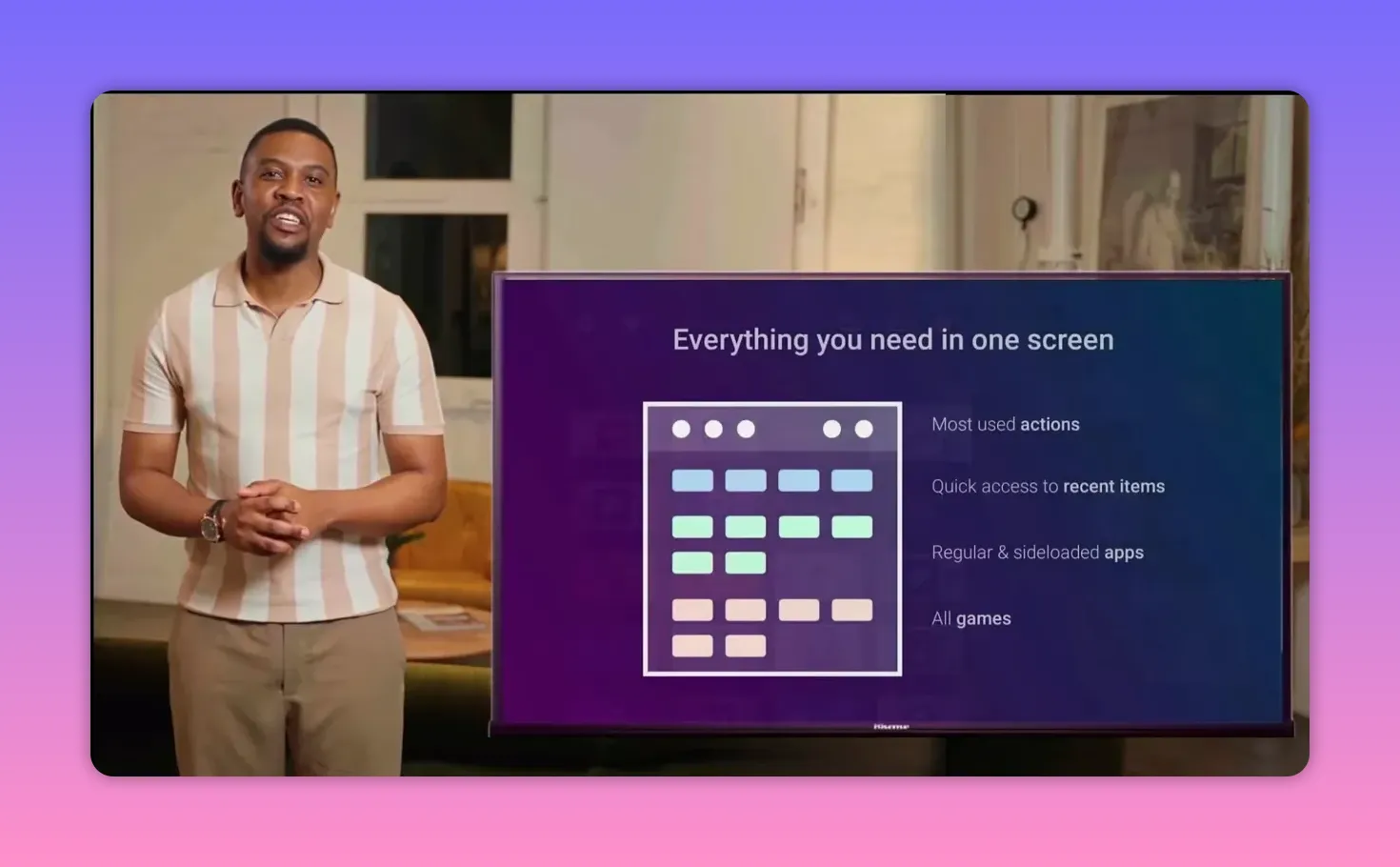
It gives you the same basic advantage as Sideload Launcher, which is showing the apps installed from outside the Play Store, but it adds a feature that makes a huge difference: easy uninstalling.
To install Dashboard, use Downloader again and enter this code:
3763535
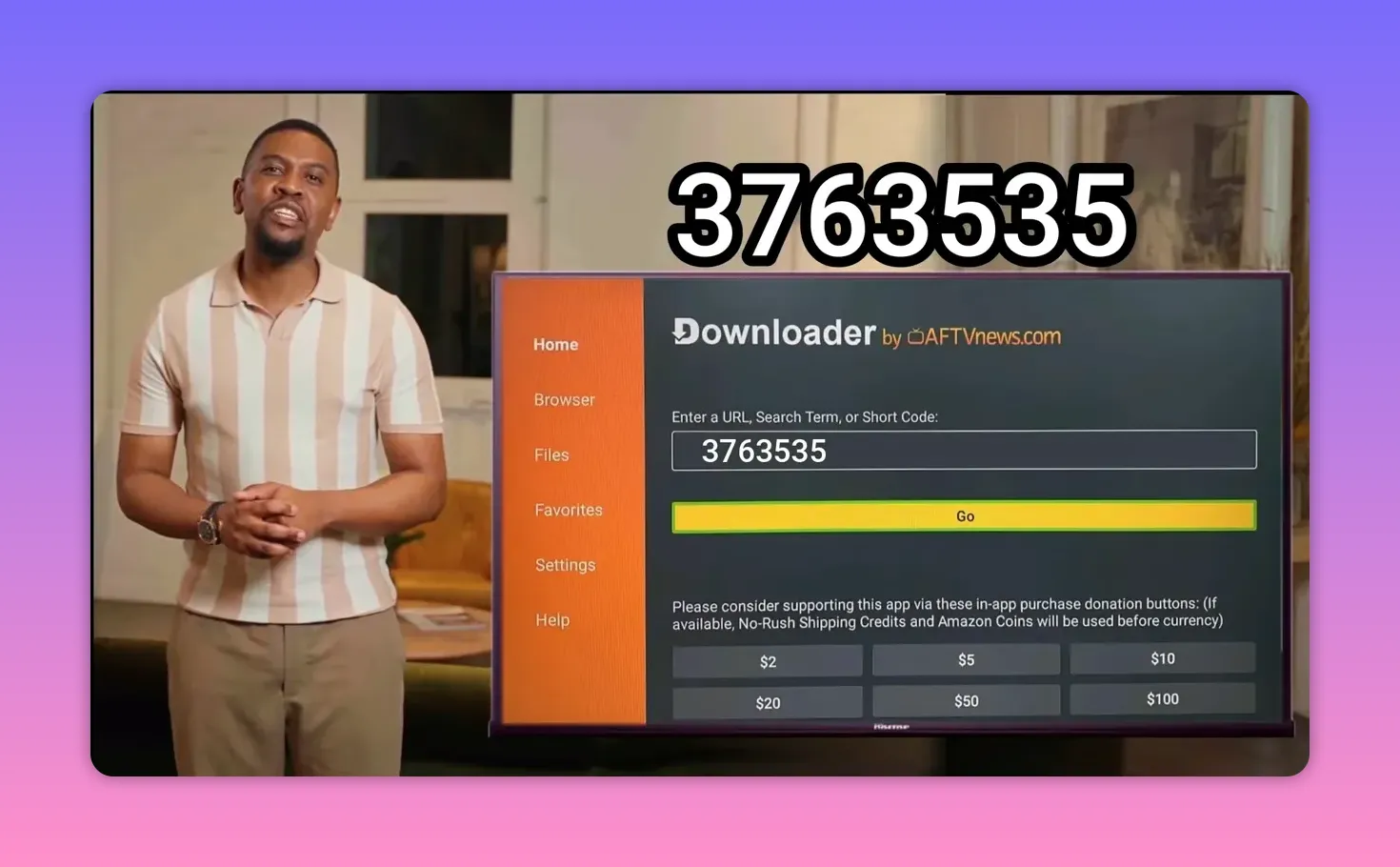
Then follow the usual installation steps just as you would with any other app.
Move Dashboard to the Home Screen
After installing Dashboard, it is a good idea to move it to the main screen and add it to favorites for quick access.
The process is simple:
Select the app.
Choose the move option.
Drag it forward so it sits in a visible spot.
This saves time later because Dashboard becomes your control center for all sideloaded apps.
⚙️ How to Enable Dashboard Properly
When you open Dashboard for the first time, a permission message may appear asking you to grant accessibility access so the app can manage and interact with other installed apps properly.
Press Open Settings. If the settings page does not open automatically, go there manually through your device preferences. Depending on your Android TV version, the wording may vary slightly.
Then follow this path:
Open Settings
Go to Accessibility
Select Dashboard
Enable it
Confirm by pressing OK
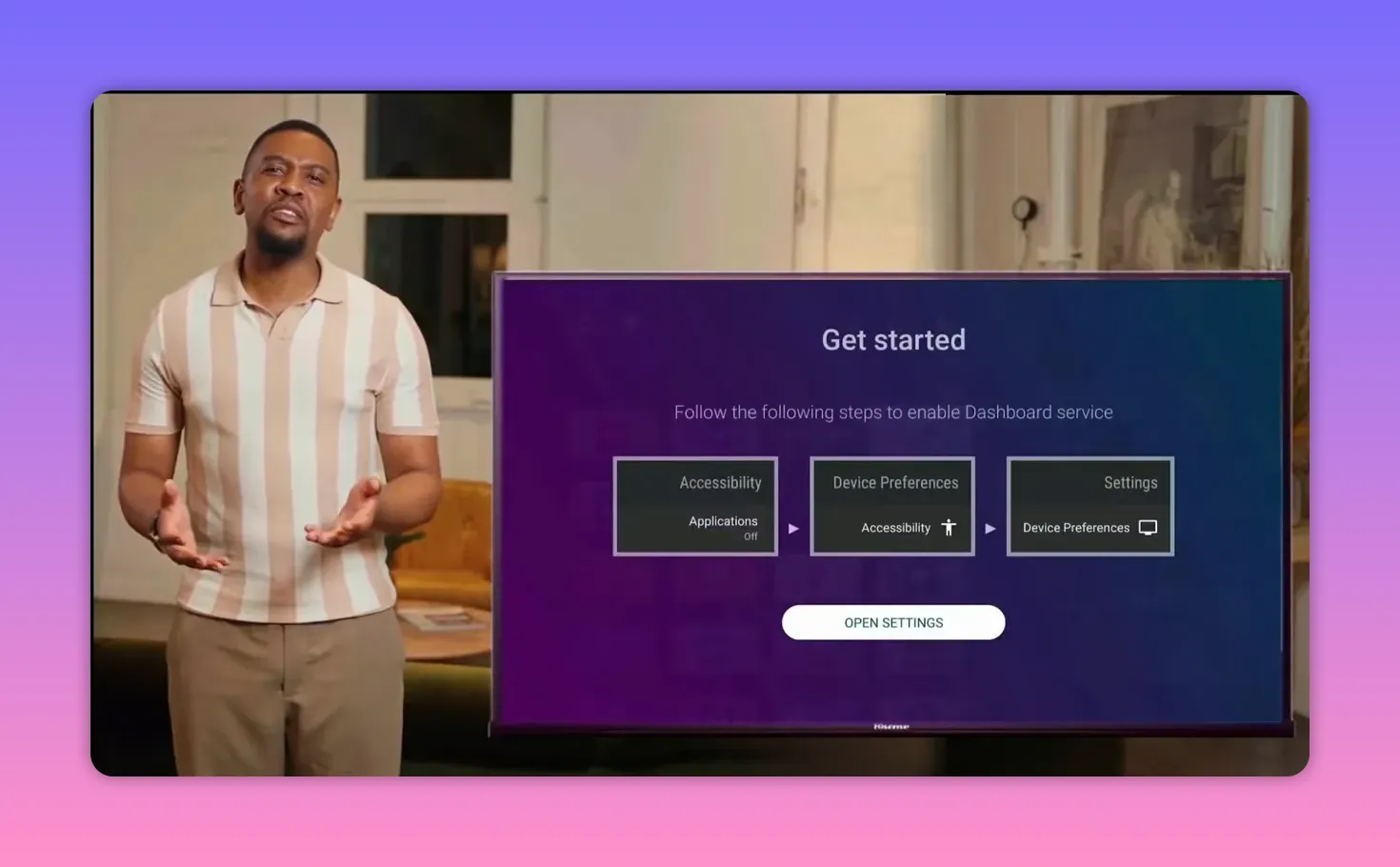
Once you return to Dashboard, you should see all installed apps listed clearly, whether they came from Google Play or were installed externally using Downloader.
🗑️ The Main Reason Dashboard Is Better Than Sideload Launcher
This is the real advantage.
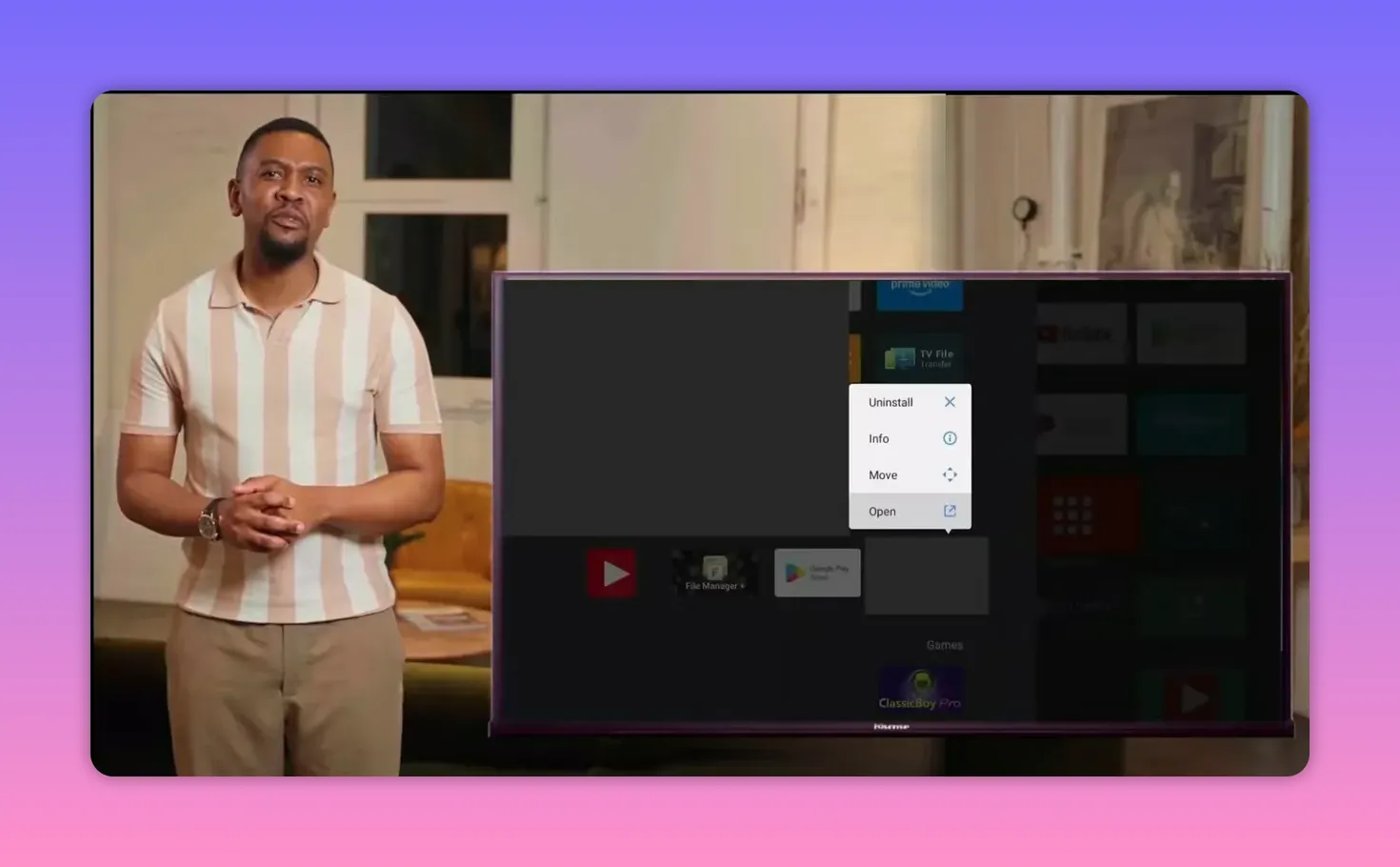
With Dashboard, you can long-press on any app and remove it or uninstall it directly. That means no unnecessary searching through hidden settings menus and no complicated cleanup later.
So if your goal is not just to open apps, but also to manage them properly on Android TV, Dashboard gives you a cleaner and more practical experience.
In short:
Sideload Launcher is simple and quick for displaying hidden apps.
Dashboard is better if you want both visibility and easy app management.
📺 What This Setup Solves on Android TV and TV Box
When people install Android TV apps from external sources, they usually run into three common issues:
The app installs but does not appear on the home screen
The installation process feels confusing
Removing apps later becomes a hassle
This method solves all three.
You use Downloader to install the app, then use Dashboard or Sideload Launcher to access it. If you choose Dashboard, you also get easier uninstall management built in.
That makes the whole setup cleaner for anyone using Android TV, Play Store, TV Box apps, IPTV apps, or other sideloaded tools on a smart screen.
💡 Best Practices to Keep Things Smooth
To avoid trouble later, keep these points in mind:
Double-check the code before pressing Go in Downloader.
Verify the file name before installing, especially if a trusted source name is expected.
Delete the APK file after installation to save device storage.
Use a launcher for sideloaded apps if installed apps do not appear on the main Android TV interface.
Prefer Dashboard if you want easier cleanup and uninstall control.
❓FAQ
Why does the app install successfully but not show on the main Android TV screen?
Because some sideloaded apps are not displayed by the default Android TV launcher. The app may be installed correctly, but you need a tool like Sideload Launcher or Dashboard to access it easily.
What is the Downloader code for the main app?
The code used for the app installation is 335423.
What is the Downloader code for Dashboard?
The code for installing Dashboard is 3763535.
Is Sideload Launcher enough on its own?
It is enough if all you need is a quick way to open apps that do not appear on the home screen. However, it is less convenient when you want to uninstall apps later.
Why is Dashboard preferred over Sideload Launcher?
Dashboard not only shows installed apps, but also makes it easier to remove them. A long press can let you uninstall apps directly, which makes device management much easier.
Do I need to give Dashboard accessibility access?
Yes, if you want it to fully manage and interact with installed apps. You can enable this from the Accessibility section in your device settings.
Should I delete the installation file after installing the app?
Yes. Deleting the APK file after installation helps preserve storage space, which is especially important on Android TV devices and TV Boxes with limited internal memory.
🏁 Final Take
If you want a simple Android TV app setup without unnecessary complication, this method works well.
Install Downloader, enter the app code, confirm the correct file, install it, and then use Dashboard or Sideload Launcher so the app is easy to find. If you want the better overall experience, especially for uninstalling apps later, Dashboard is the smarter choice.
It is a straightforward setup, but the small details make all the difference. Get those right once, and using apps on Android TV becomes much easier from that point forward.
