
If you want a fresh Free TV app that works on smart screens and phones without making the setup complicated, this one is worth trying. The whole idea here is simplicity: install one helper app, enter a short code, download the app, and start using it.
This guide covers the full setup exactly as needed for Google TV, Android TV, TV Stick, Android TV Box, and compatible Android devices. I’ll also point out one small extra step that matters on some TVs, especially when the app does not show up on the main home screen after installation.
Table of Contents
- 📥 What you need before installing
- 🔢 First download method using Downloader code
- 🖥️ Why Sideload Launcher matters on smart TVs
- ☁️ Alternative MediaFire download code
- 🔐 The code to enter when the app opens
- 👤 What happens after the first login
- 📅 Important expiry note
- ⚠️ Why this app is useful right now
- 💳 A note about paid content for LG, Samsung, and receivers
- 🛠️ Quick setup checklist
- 📱 Devices this setup is aimed at
- ❓FAQ
- ✅ Final notes
📥 What you need before installing
Before anything else, there are two apps you should have ready from the official Google Play Store:
- Downloader
- Sideload Launcher
Downloader is the tool used to fetch the app using a numeric code.
Sideload Launcher is especially important for TVs and Android-based screens because some installed apps do not appear directly on the home page. When that happens, Sideload Launcher helps you open those hidden apps easily.
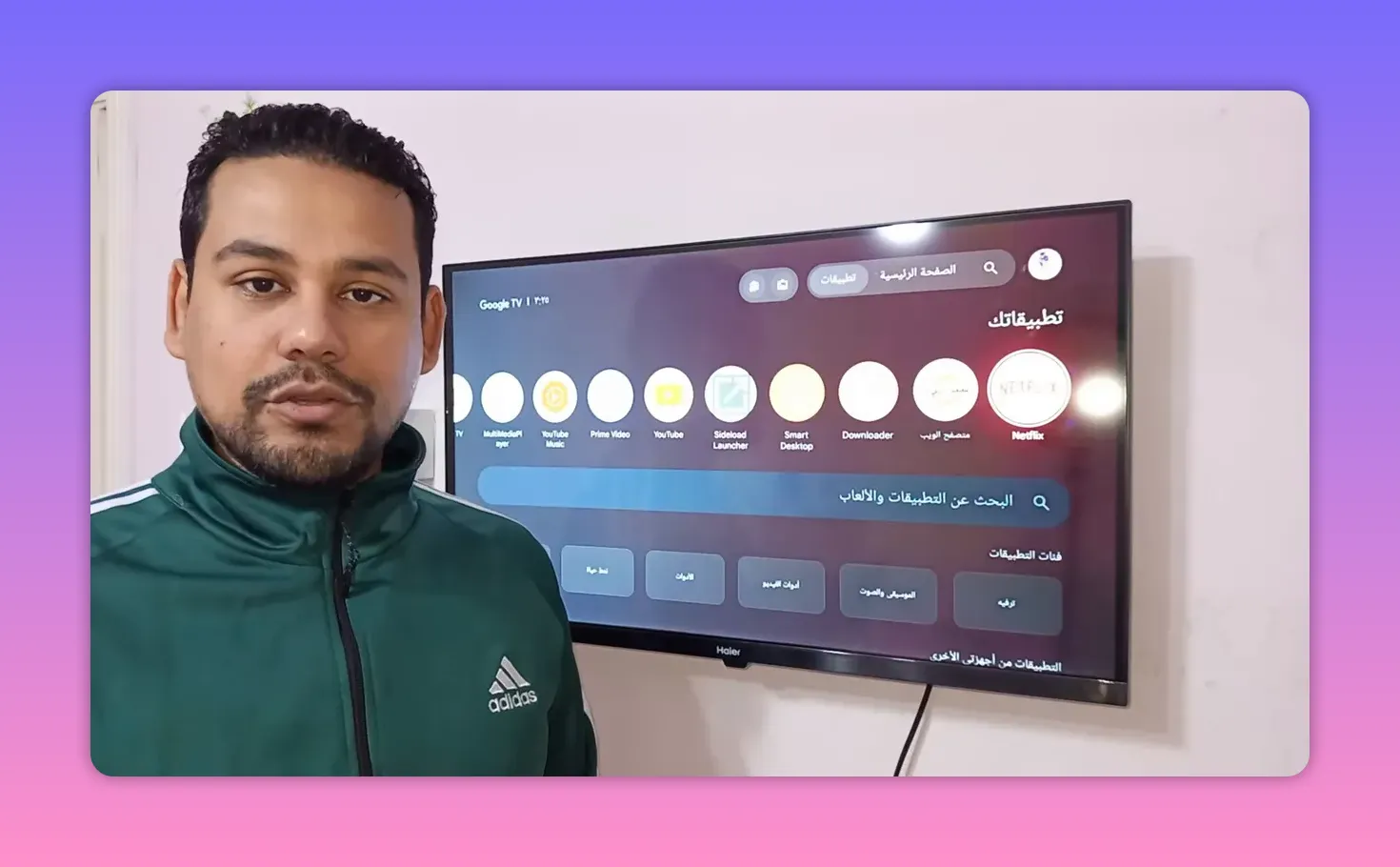
If Downloader is not already installed, open Google Play and install it first. Do the same for Sideload Launcher so you do not run into trouble later.
🔢 First download method using Downloader code
Once Downloader is installed, open it and enter the first code:
6607503
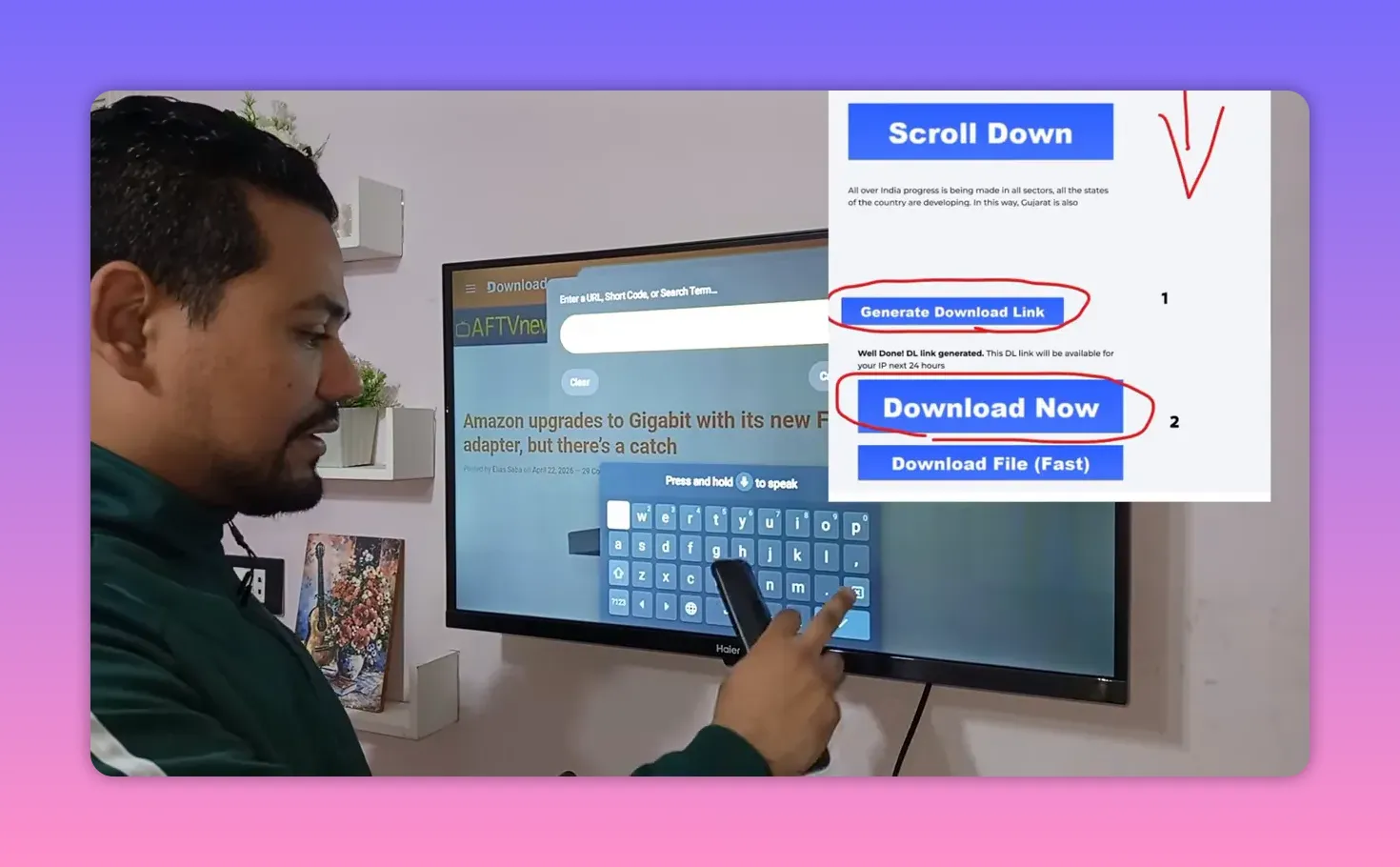
After entering the code, proceed to load the page. You will be taken to a download screen. From there:
- Scroll down until you find the download button.
- Tap Download.
- Wait for the short countdown.
- On the next page, choose the regular Download option.
One important note here: do not use the fast download option. Stick with the standard download button only.
After that, the APK will download and the install screen should open on your TV or device. Choose Install, and the app will be added normally.
🖥️ Why Sideload Launcher matters on smart TVs
This is the part many people miss.
The app may open normally the very first time right after installation. But later, when you want to use it again, you might not find it on the main home screen of your TV. That does not mean the installation failed.
It simply means the app is hidden from the standard launcher interface.
That is exactly why Sideload Launcher is recommended. It shows installed apps that are hidden from the normal TV home page, making it easy to open the app whenever you want.
☁️ Alternative MediaFire download code
There is also a second installation method for anyone who prefers a MediaFire link.
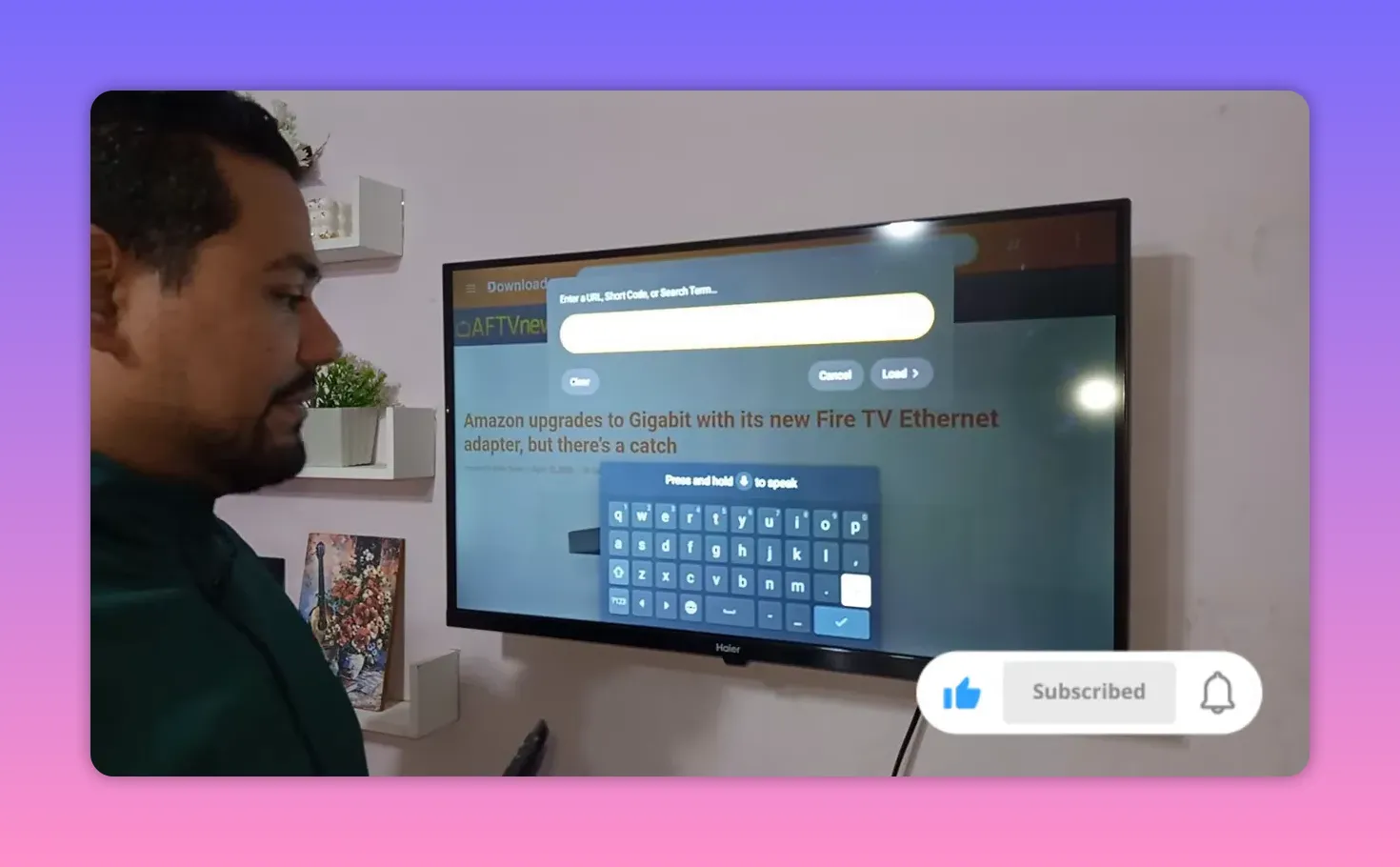
Use this Downloader code:
4S67
After entering that code in Downloader:
- Tap Load.
- Look for the blue box on the page.
- Select the file name shown there.
- Let it download.
- Tap Install when the installation screen appears.
This method reaches the same result, just through a different source that some people prefer.
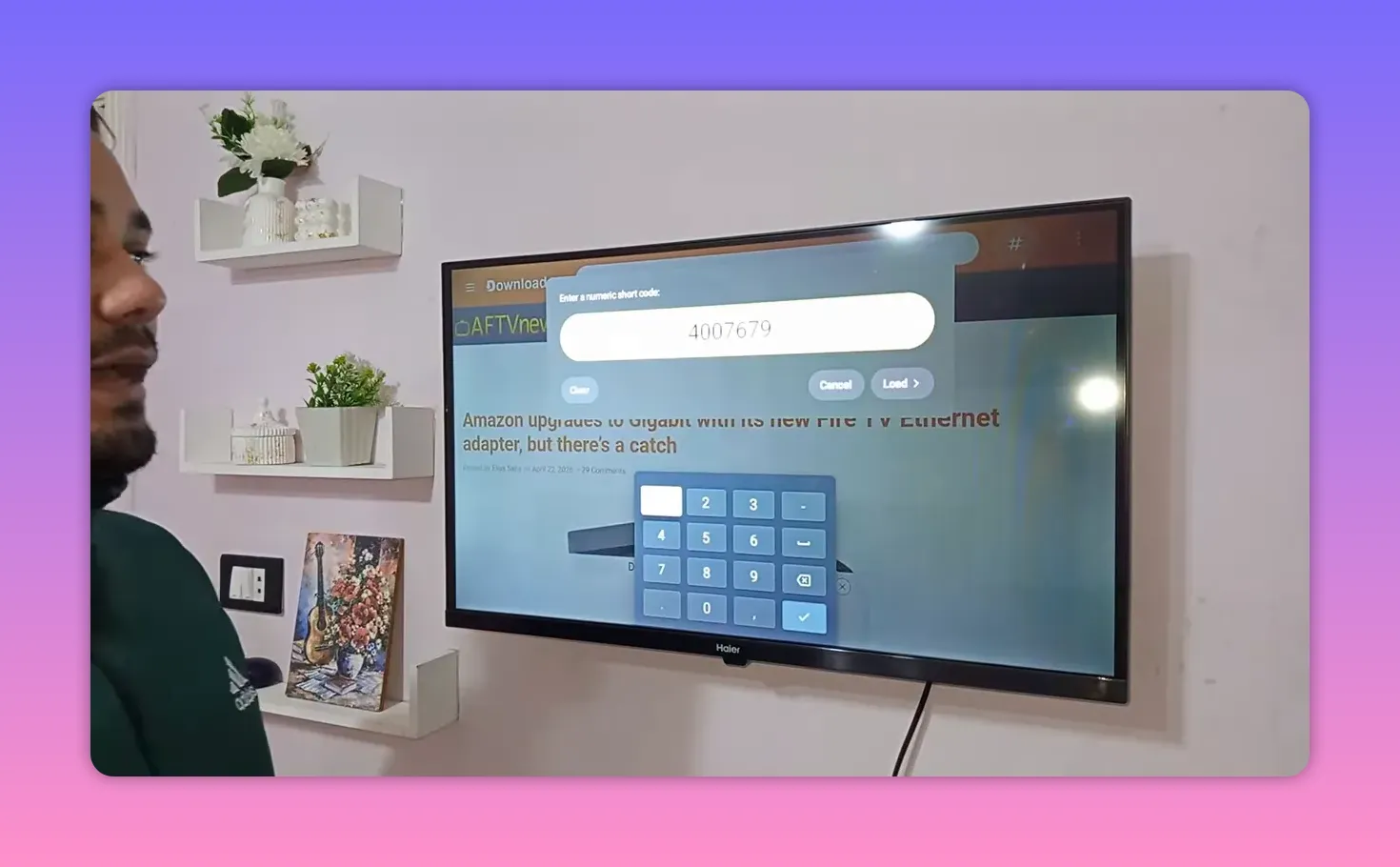
🔐 The code to enter when the app opens
After installation, open the Free TV app. In the middle of the screen, it will ask for a code.
Enter:
The speaker emphasizes using it in capital letters. So write it exactly as:
M3U
Once entered correctly, the app opens into its available content sections and options.
👤 What happens after the first login
After the initial setup, the app usually stores the profile or name you entered during the first access.
That means the next time you open the app, you may see a prompt asking for a code again, but you do not necessarily have to re-enter everything from scratch.
Instead, look to the side for the saved name you previously used. If you entered a name like Mohamed, Ahmed, or Ibrahim the first time, that saved name should appear in the list. Selecting it will reopen the content directly.
So in normal use:
- You enter the setup code the first time.
- Your profile or name gets saved.
- After that, you can often just select the saved entry and continue.
📅 Important expiry note
There is also a date shown inside the content area. The mentioned validity appears as:
30/6/2026
The recommendation is simple: keep using that date as the current working reference unless newer numbers or updated access details are announced later.
This matters because app content and server-based services can change over time. If newer codes or updated methods become necessary, they would need to be applied when available.
⚠️ Why this app is useful right now
One reason this Free TV option stands out is that some other players and services may stop working temporarily due to server issues. A specific example mentioned was that another player had paused because of server problems.
So for now, this app is presented as a practical alternative to keep things running until other services stabilize or newer content options are shared.
That makes it especially useful for anyone always looking for:
- new Android TV apps
- Google TV entertainment apps
- simple IPTV-style interfaces
- easy installation with Downloader codes
💳 A note about paid content for LG, Samsung, and receivers
There is also an important side note for anyone using LG TVs, Samsung TVs, or certain receivers.
These devices often do not allow the same installation style used on Android-based screens. Because of that, many people on those platforms depend on paid app ecosystems such as Smart IPTV-style solutions.
A separate upcoming recommendation is mentioned for a paid but strong content service that may suit those devices better. The idea is that:
- there may be a trial period in the first week
- there could be multiple subscription options
- some plans may be secondary subscriptions
- some may even offer long-term or lifetime access
The key point is that this paid option is described as being handled officially with the service provider, not through random middlemen. That means direct communication, official data, and a formal source are expected.
For people on LG, Samsung, or receivers who need a more official paid Free TV or IPTV-style route, that upcoming option may be the better fit.
🛠️ Quick setup checklist
If you want the shortest possible version, follow this order:
- Install Downloader from Google Play.
- Install Sideload Launcher from Google Play.
- Open Downloader.
- Enter 6607503 or use the MediaFire code 4S67.
- Download the APK using the normal download button.
- Install the app.
- Open it and enter M3U in capital letters.
- If the app disappears from the home screen later, open it through Sideload Launcher.
📱 Devices this setup is aimed at
This method is mainly useful for devices such as:
- Google TV
- Android TV
- TV Stick
- Android TV Box
- Android phones
On Android-based systems, the installation is much more flexible, which is why Downloader and sideloading remain such popular tools.
❓FAQ
Where do I get Downloader and Sideload Launcher?
Both apps should be installed from the official Google Play Store.
What is the main Downloader code for the app?
The main code is 6607503.
Is there an alternative download code?
Yes. A MediaFire-based alternative code is 4S67.
Which download option should be used on the page?
Use the regular Download option. Do not choose the fast download option.
What code should be entered when the app opens?
Enter M3U in uppercase letters.
Why do I need Sideload Launcher?
Some apps installed on Android TV or Google TV do not appear on the main home screen. Sideload Launcher helps open those hidden apps later.
Do I need to re-enter the code every time?
Usually no. After the first setup, the app can save the name or profile you entered, and you can open that saved entry next time.
What date was mentioned for the current content validity?
The mentioned date is 30/6/2026.
Is there another option for LG and Samsung TVs?
Yes. A separate paid service is mentioned as a better fit for LG TVs, Samsung TVs, and some receivers because those platforms often have different installation limitations.
✅ Final notes
If your goal is to try a new Free TV app on Android-based screens without overcomplicating the process, this setup is straightforward and practical. The two biggest things to remember are the Downloader code and the need for Sideload Launcher on devices where the app does not appear on the main screen.
Use the standard download option, enter M3U in uppercase, and keep the validity date in mind. For Android TV, Google TV, TV Stick, and Android phones, that is basically the whole path from installation to access.
