
If you use Google TV, Android TV, a TV Box, a smart screen, or even just your phone, this is the kind of update list you want to keep nearby.
Some of these apps are not just recommendations. They are updated versions. That matters, because if you already installed an older version before, there is a good chance it will stop working properly. In that case, the fix is simple: delete the old version and install the new update.
The goal here is practical. No unnecessary detours. Just the apps, the Downloader codes, what each one does, and the few extra tools you may need to make everything run smoothly.
Table of Contents
- 📥 What you need before installing anything
- 📺 App 1: Hi TV update
- 📡 App 2: Cast X Plus
- ▶️ App 3: Hawaii and the player it needs
- 🧩 App 4: Qitnan update
- 🎬 A working player for Ostora, plus the latest app version
- 🔥 App 5: Razan
- 📱 Bonus app: works on phone only
- 🌐 How to install with a browser if Downloader has problems
- 🛠️ If the app installs but does not appear on the home screen
- 📝 Quick reference list of all Downloader codes
- ✅ Final notes before you install
- ❓FAQ
📥 What you need before installing anything
Before entering any code, install Downloader from the Google Play Store. It works on:
Google TV
Android TV
TV Box devices
Smart screens running Android-based systems
Android phones
If Downloader gives you trouble on your device, there is a simple backup option: install a web browser from Google Play and use that instead.
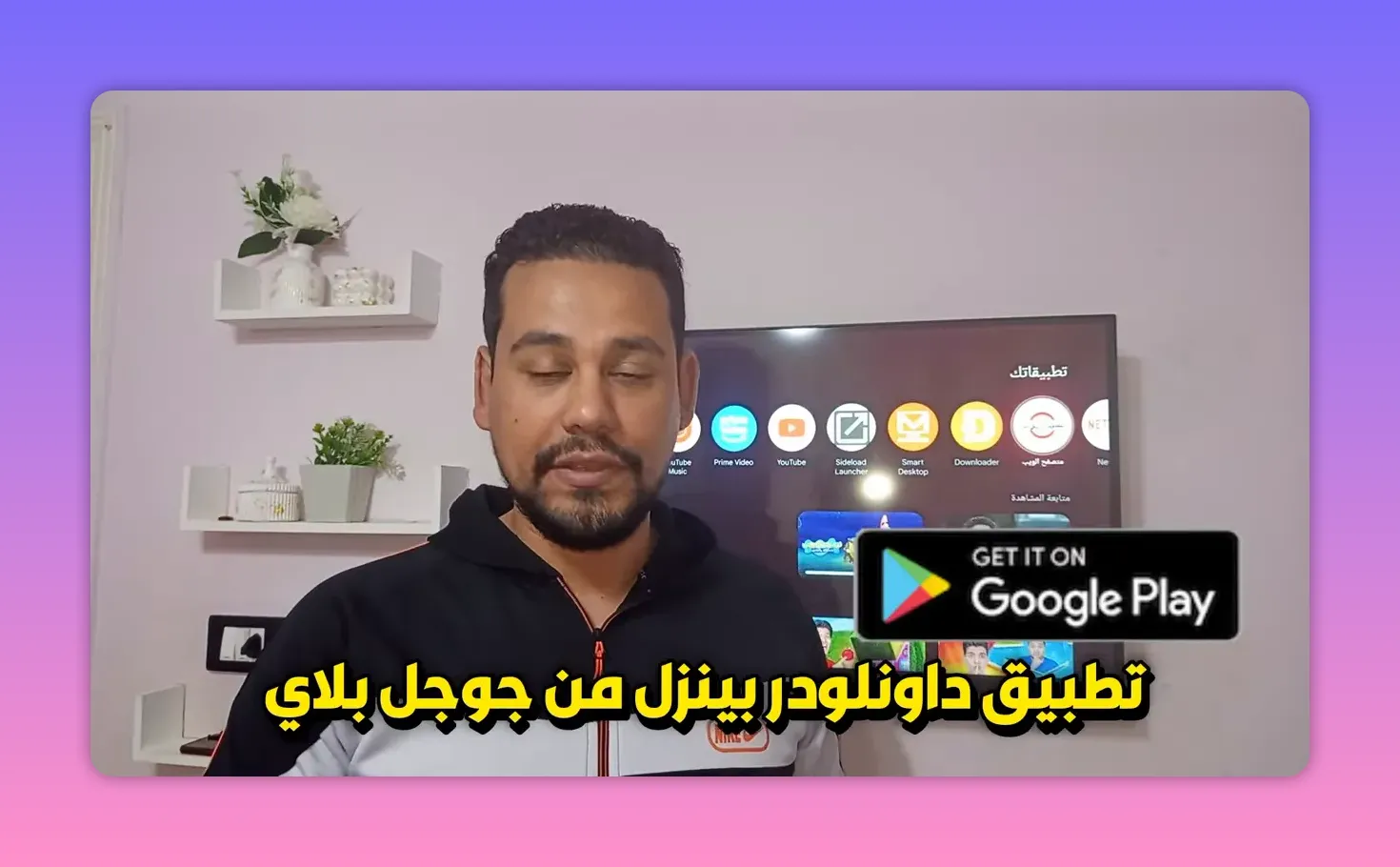
The basic process is straightforward:
Open Downloader.
Enter the numeric code.
Press Go or Load.
Open the blue download box that appears.
Install the app.
If you are replacing an older version, remove the previous app first, then install the new one.
📺 App 1: Hi TV update
The first app on the list is Hi TV, and this one is an important update because many people were asking about its latest working version.
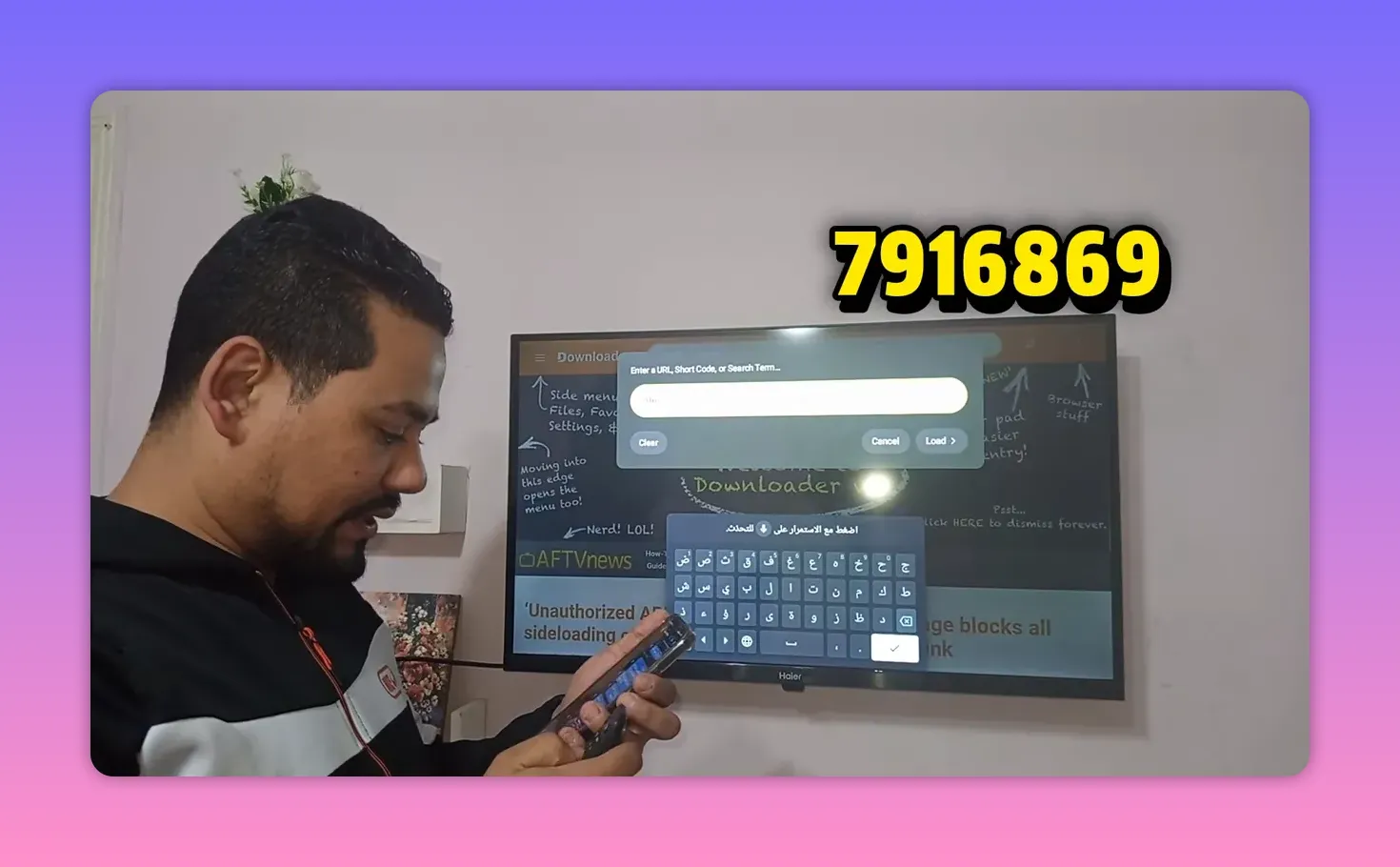
Downloader code: 791869
After entering the code, tap Load, and you should see a page with a blue rectangle for the download. Select it and continue with installation.
If Hi TV is already installed on your device and it stopped working, do not waste time trying to force the old version to run. Remove it and install this updated release instead.
📡 App 2: Cast X Plus
The second app is Cast X Plus.
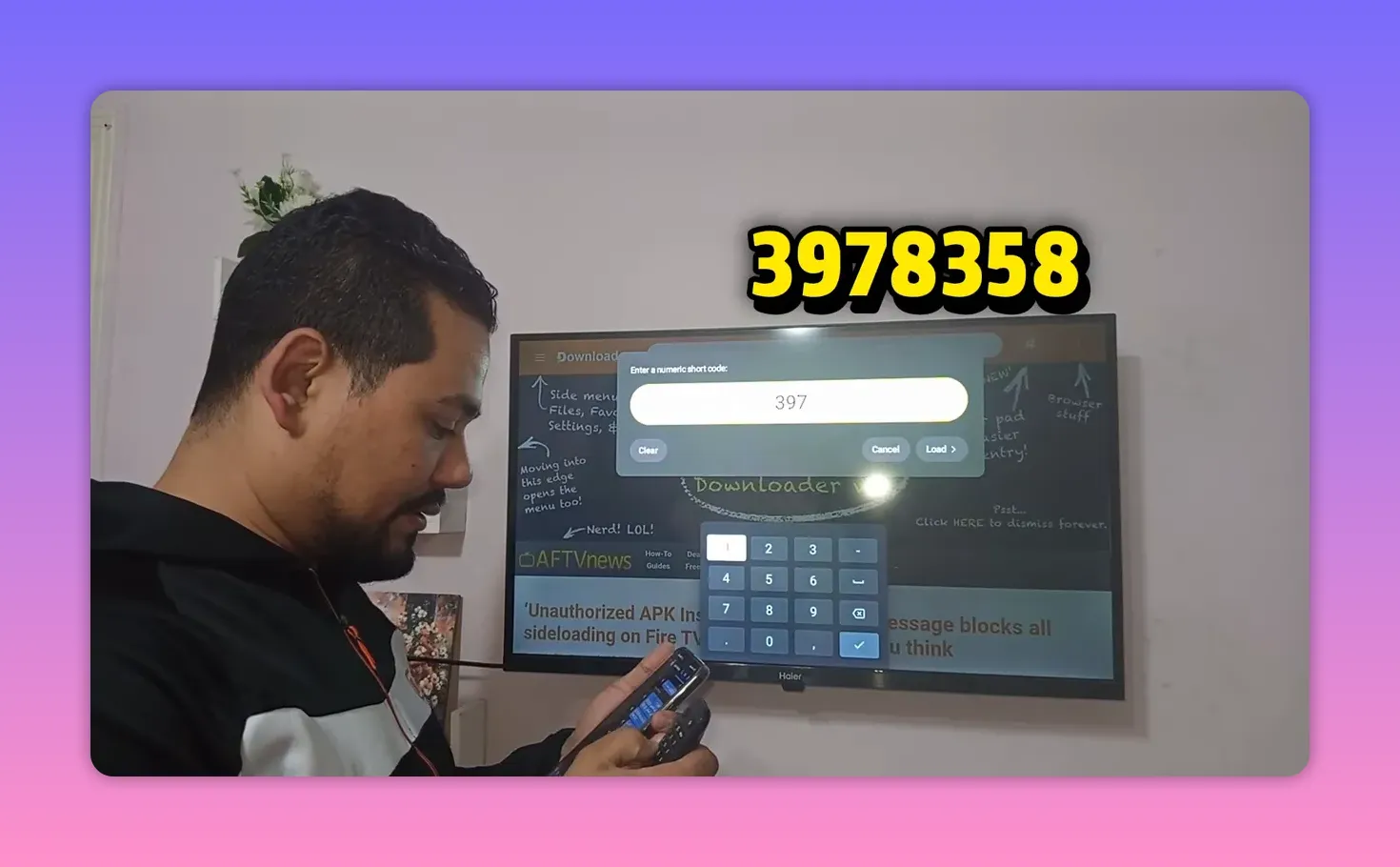
Downloader code: 3978358
This app was tested on both phone and screen setups and gave solid results. It is presented as one of the stronger all-around options in the list, especially if you want something that performs well across more than one type of device.
If you like trying apps that work well both on mobile and larger displays, this is one of the safer picks to start with.
▶️ App 3: Hawaii and the player it needs
The third app is Hawaii.
Downloader code: 5474539
There is one important detail here: to get the best performance, install its player too.
The recommended player is MV Player.
Player name: MV Player
Downloader code: 3982708
You can install MV Player either from Google Play or through Downloader using the code above.
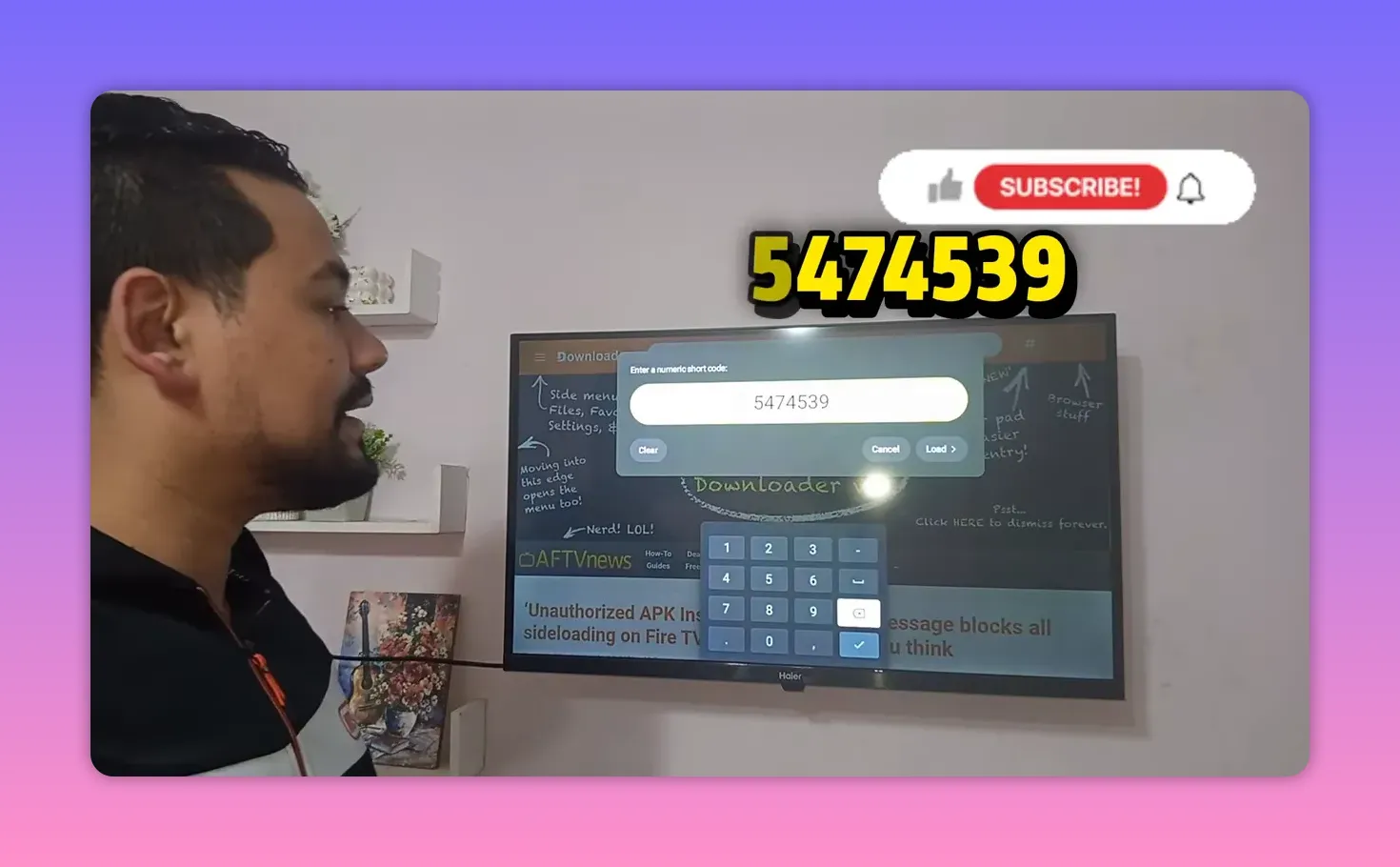
This matters because some apps are only as good as the player behind them. If Hawaii opens but playback is not smooth, or the experience feels incomplete, the missing player is often the reason.
🧩 App 4: Qitnan update
The fourth app is Qitnan.
Downloader code: 5195147
This is presented as the newest updated version. There is also a special note for setup:
When the app opens, enter 4444.
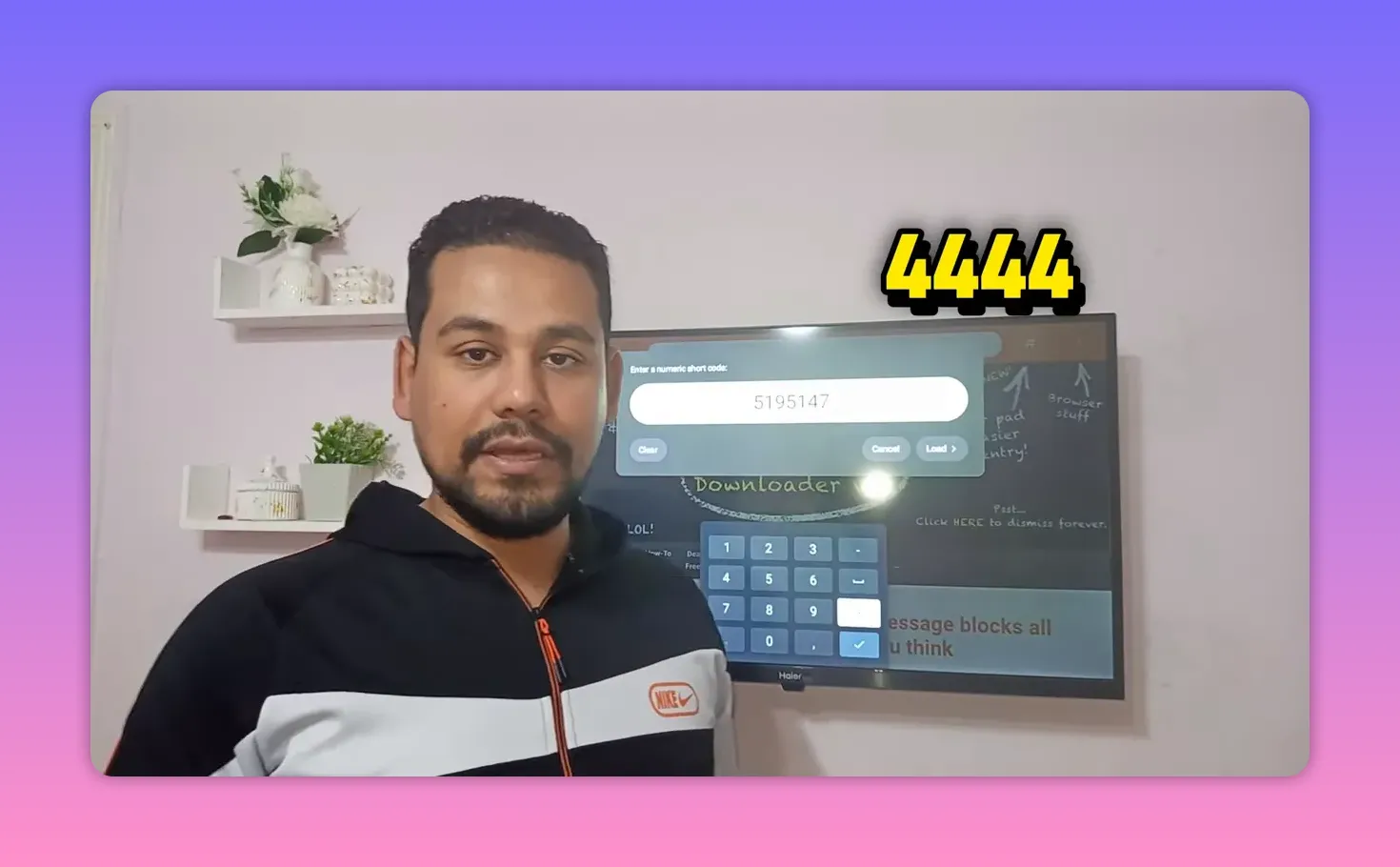
That makes it the one app in this lineup that requires an extra code after installation. So if it launches and asks for access, use four fours and continue.
🎬 A working player for Ostora, plus the latest app version
A lot of people ask about the player used with Ostora, especially because versions can vary and not every setup behaves the same way.
The tested working player here is:
Player code: 3307458
This player is also known on Google Play as URL Player, specifically the red version called URL Player One.
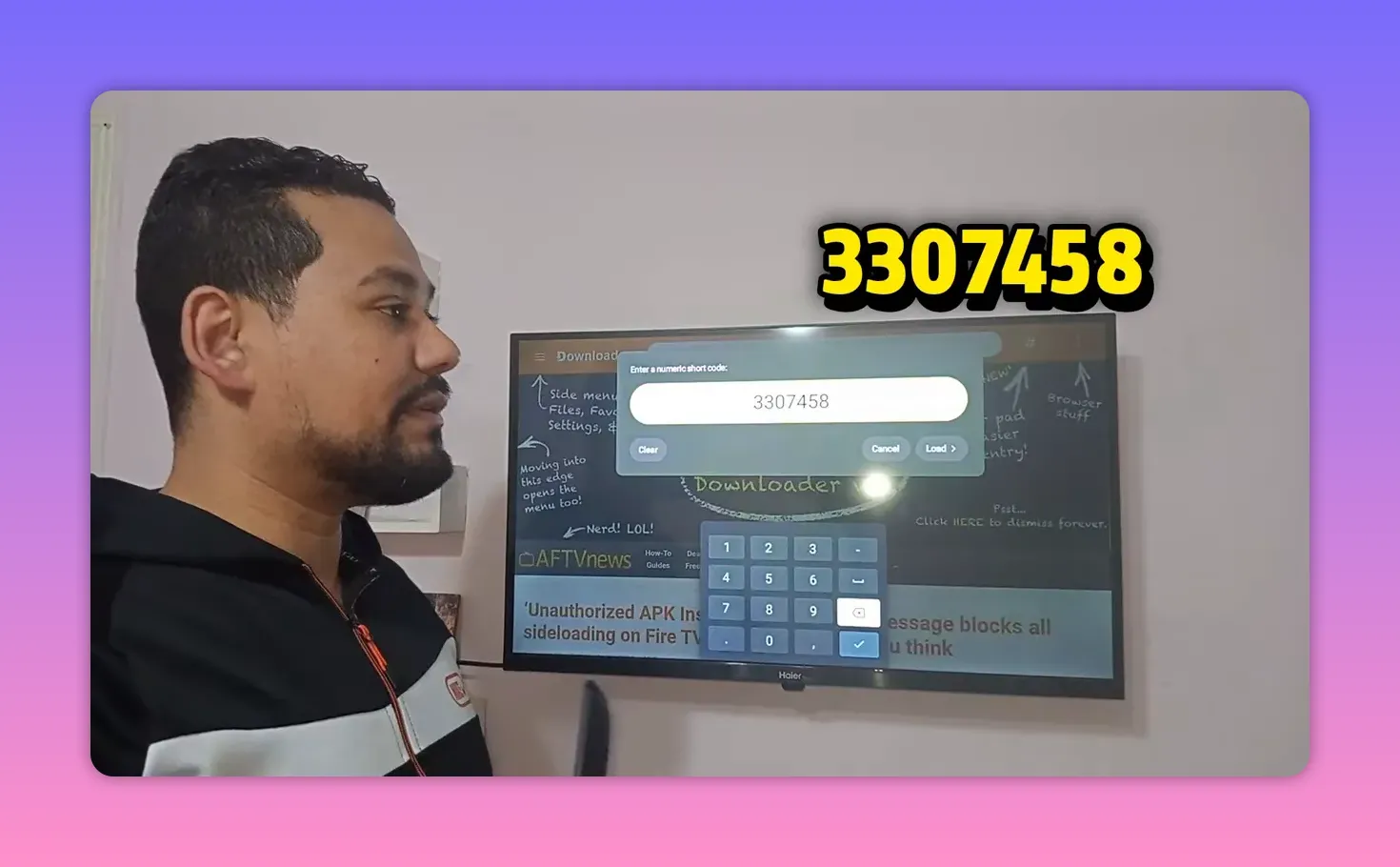
If you also want the latest version of the main Ostora app itself, use this code:
Ostora code: 762289
This combination is useful if you have had compatibility problems before and want a cleaner setup using a player that has already been tested.
🔥 App 5: Razan
The fifth and final main app in the list is Razan.
Downloader code: 238265
This one is described as a strong entertainment app with content that stands out, and it was tested on:
TV Box devices
Smart screens
Phones
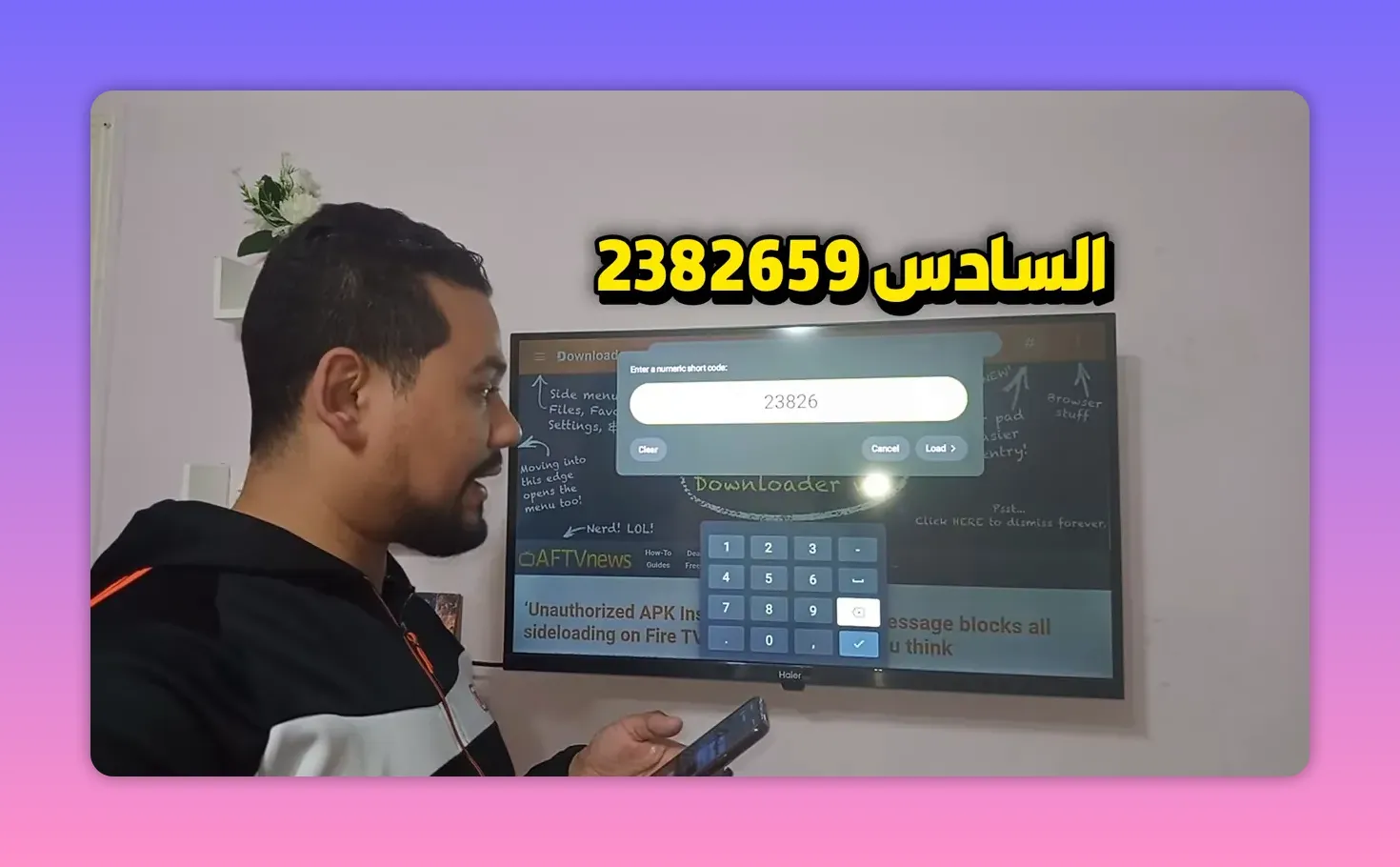
If you want something more entertainment-focused and you are installing across different devices, Razan is one of the highlighted options here.
📱 Bonus app: works on phone only
There is also one extra app mentioned at the end, but with an important limitation.
Downloader code: 9452647
This one worked on mobile only in testing and did not work on the screen setup.
So to avoid confusion:
If you are installing on a phone, it is worth trying.
If you are installing on a TV or smart screen, skip this one.
It was still included because it performed well on mobile, but it is not one of the cross-device recommendations.
🌐 How to install with a browser if Downloader has problems
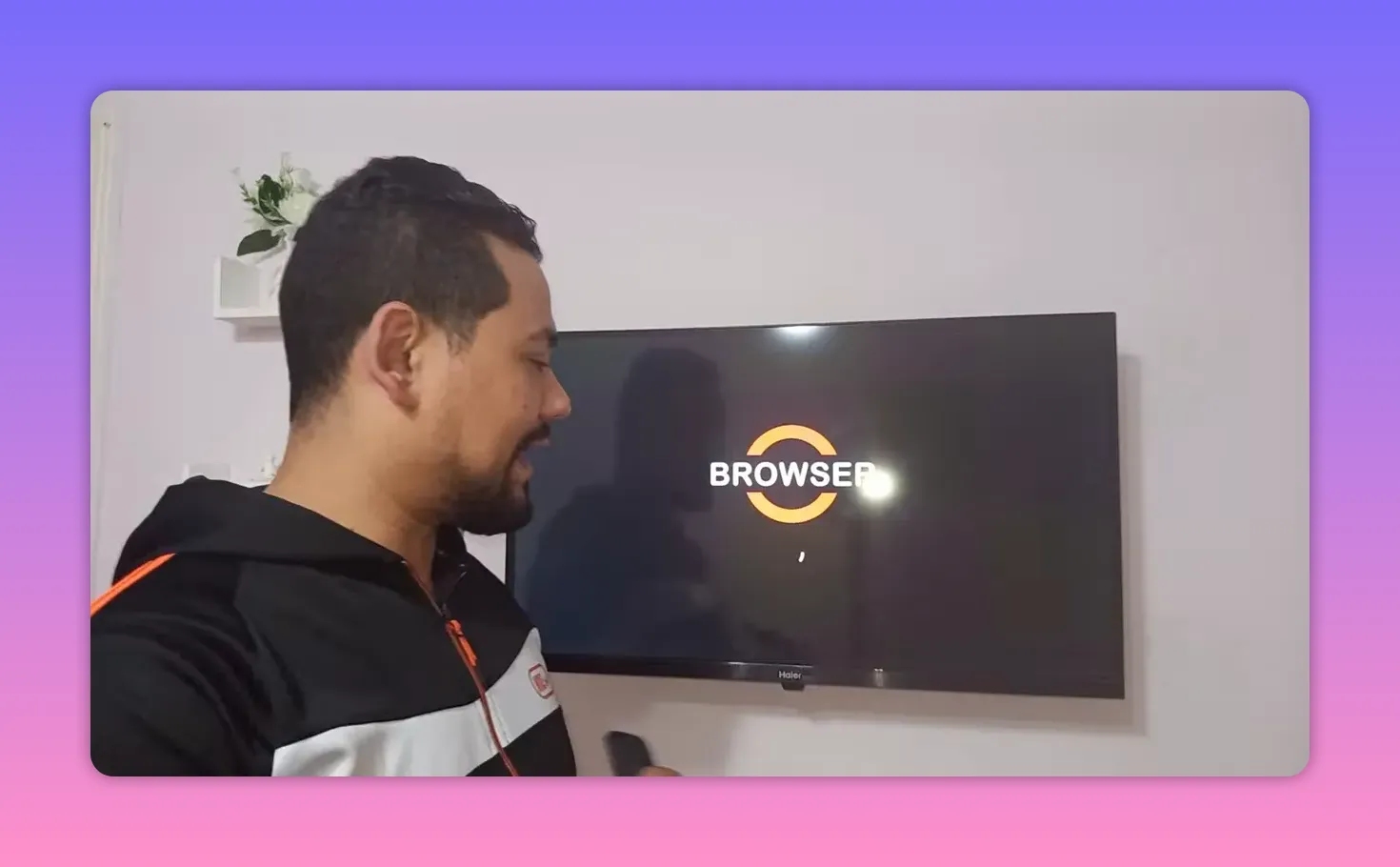
If Downloader does not work properly on your device, you can use a browser instead.
Install a browser such as Web Browser from Google Play, then do the following:
Open the browser.
Find the gray input box.
Type the numeric code there.
Press Enter.
Open the download page.
Select the blue download box.
Wait for the file to finish downloading.
After the file downloads, go to the left-side menu and open Downloads. From there, choose the file you downloaded. Tapping it will begin the installation.
This method is especially useful when Downloader freezes, fails to load a page, or simply refuses to fetch a file.
🛠️ If the app installs but does not appear on the home screen
This is a common issue on some Android TV and Google TV devices. The app installs successfully, but you cannot find it on the main apps page.
The fix is to install Sideload Launcher from the Google Play Store.
What it does: it shows hidden apps that were installed but are not visible on the regular home screen.
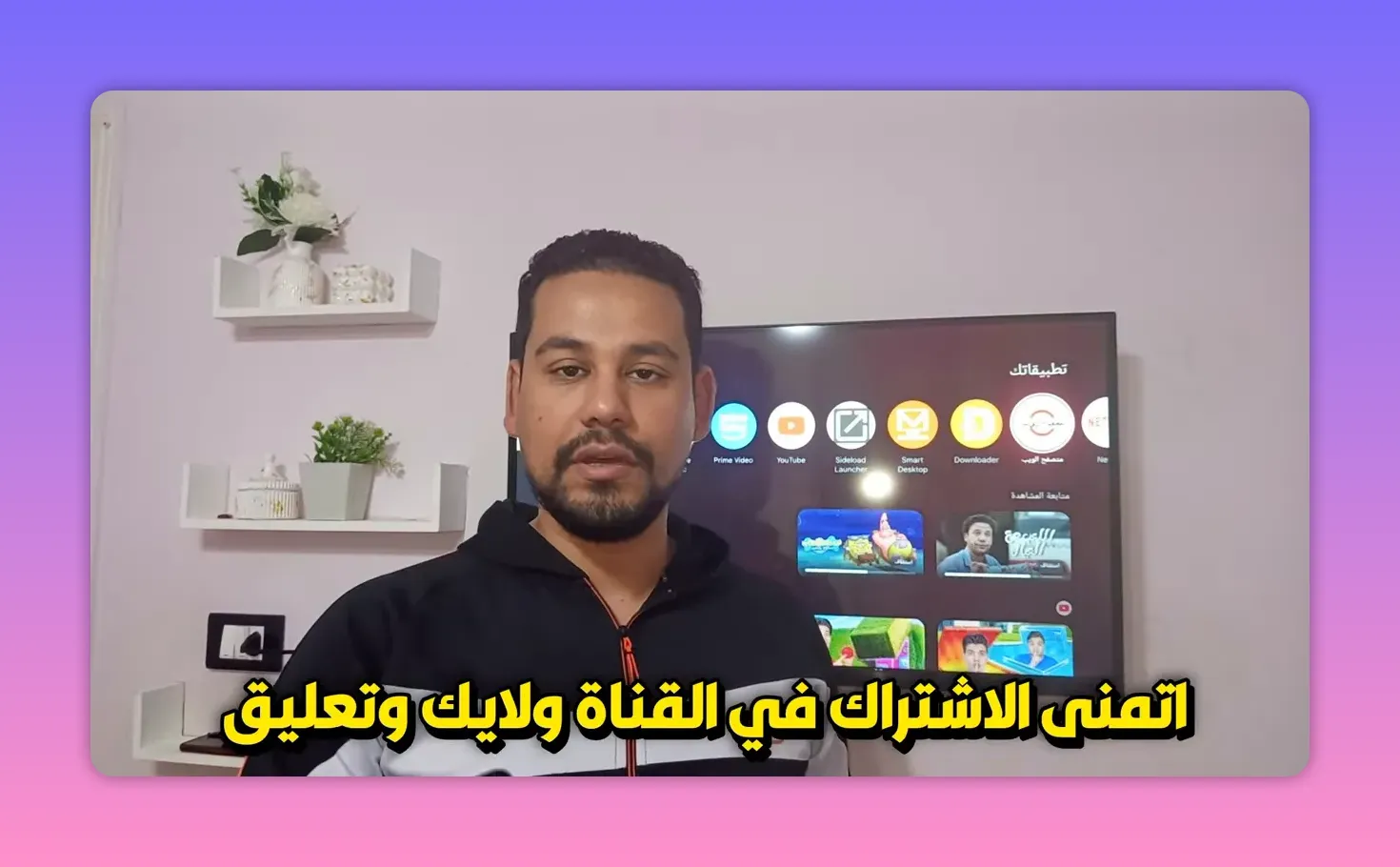
If an app says installed but seems to disappear afterward, Sideload Launcher is usually the missing piece.
📝 Quick reference list of all Downloader codes
Hi TV: 791869
Cast X Plus: 3978358
Hawaii: 5474539
MV Player for Hawaii: 3982708
Qitnan: 5195147
Player for Ostora: 3307458
Ostora latest version: 762289
Razan: 238265
Mobile-only bonus app: 9452647
✅ Final notes before you install
A few practical rules make this whole process much smoother:
If an app was already installed and stopped working, delete the old version first.
If an app needs a dedicated player, install that player too.
If Downloader fails, use a web browser.
If the app installs but stays hidden, use Sideload Launcher.
If you are testing on both TV and phone, remember that the final bonus app is phone-only.
The strongest part of this list is that most of the apps were selected with real device compatibility in mind, not just one-off installs. That means Google TV, Android TV, TV Box, smart screens, and phones were all part of the setup thinking.
❓FAQ
Do I need Downloader to install these apps?
No. Downloader is the easiest option, but if it does not work on your device, you can install a web browser from Google Play and enter the same numeric codes there.
What should I do if I already have an old version installed?
Remove the old version first, then install the updated one. Some older releases may stop working, and simply updating over them is not always enough.
Which app needs an extra player?
Hawaii works best with MV Player, which can be installed from Google Play or by using Downloader code 3982708.
Which app needs a login or access code after opening?
Qitnan requires 4444 when it opens.
What if the app installs but does not show up on my TV home screen?
Install Sideload Launcher from Google Play. It helps reveal hidden apps that were installed successfully but do not appear on the main launcher.
Is every app in this list compatible with smart TVs and TV Box devices?
Almost all of them are intended for phones, screens, and TV Box setups. The exception is the final bonus app with code 9452647, which was noted as working on mobile only.
What is the player suggested for Ostora?
The recommended tested player uses Downloader code 3307458. On Google Play, it is referred to as URL Player, specifically the red URL Player One.
