
If you are looking for a simple entertainment app for Smart TV, Google TV, TV Box, and even some modern tablets, this one is worth a try. The biggest idea behind it is convenience: install it, open it, and start browsing channels and content without needing complicated setup.
The app focuses on live streaming, entertainment, drama, Arabic content, foreign content, and sports, all inside one interface. It is also designed to be lightweight and easy to run, which makes it attractive for anyone who wants a quick installation without extra tools getting in the way.
Table of Contents
- 📺 Why this app stands out
- 🛠️ What you need before installing
- ⬇️ How to download the app
- 📦 Installing the app correctly
- 🧭 Inside the app interface
- 🎬 What content is available
- ✨ Streaming quality and overall experience
- 📱 Which devices can run it
- ✅ Final thoughts
- ❓FAQ
📺 Why this app stands out
What makes this app appealing is not only the variety of content, but also how little effort it asks from the user. It does not rely on the usual chain of extras that many TV apps require.
- No high internet speed required to get started
- No external player needed
- No login codes or complicated access steps
- Direct installation from a download link
- Works on multiple devices, including phones, screens, TV Box devices, and some tablets
That kind of setup is exactly what many people want: a practical entertainment app that does not turn into a technical project.
🛠️ What you need before installing
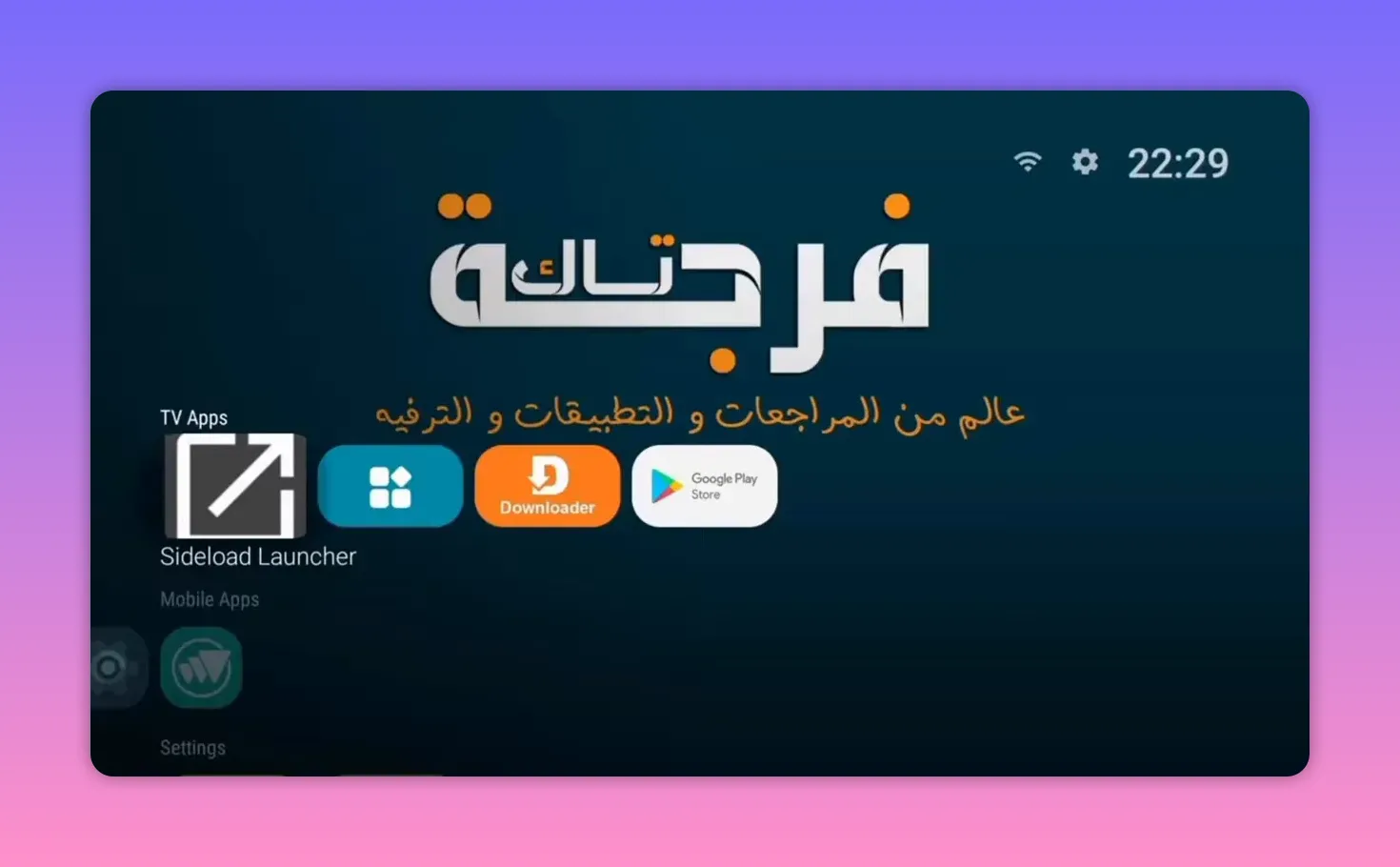
Before installing the app itself, the process starts with a helper tool from the Play Store. This is done so the app can be downloaded directly onto the device.
The first step is to open Google Play and search for Downloader. It is identified as the app with the orange icon. Once installed, it becomes the main tool for downloading apps shared through direct codes or links.
There is also mention of installing another app used to display hidden apps in the system. That can be useful on some TV devices where installed apps do not always appear normally in the launcher.
So the preparation phase is basically this:
- Open Google Play
- Search for Downloader
- Install it
- Install the helper app for hidden applications if needed
⬇️ How to download the app
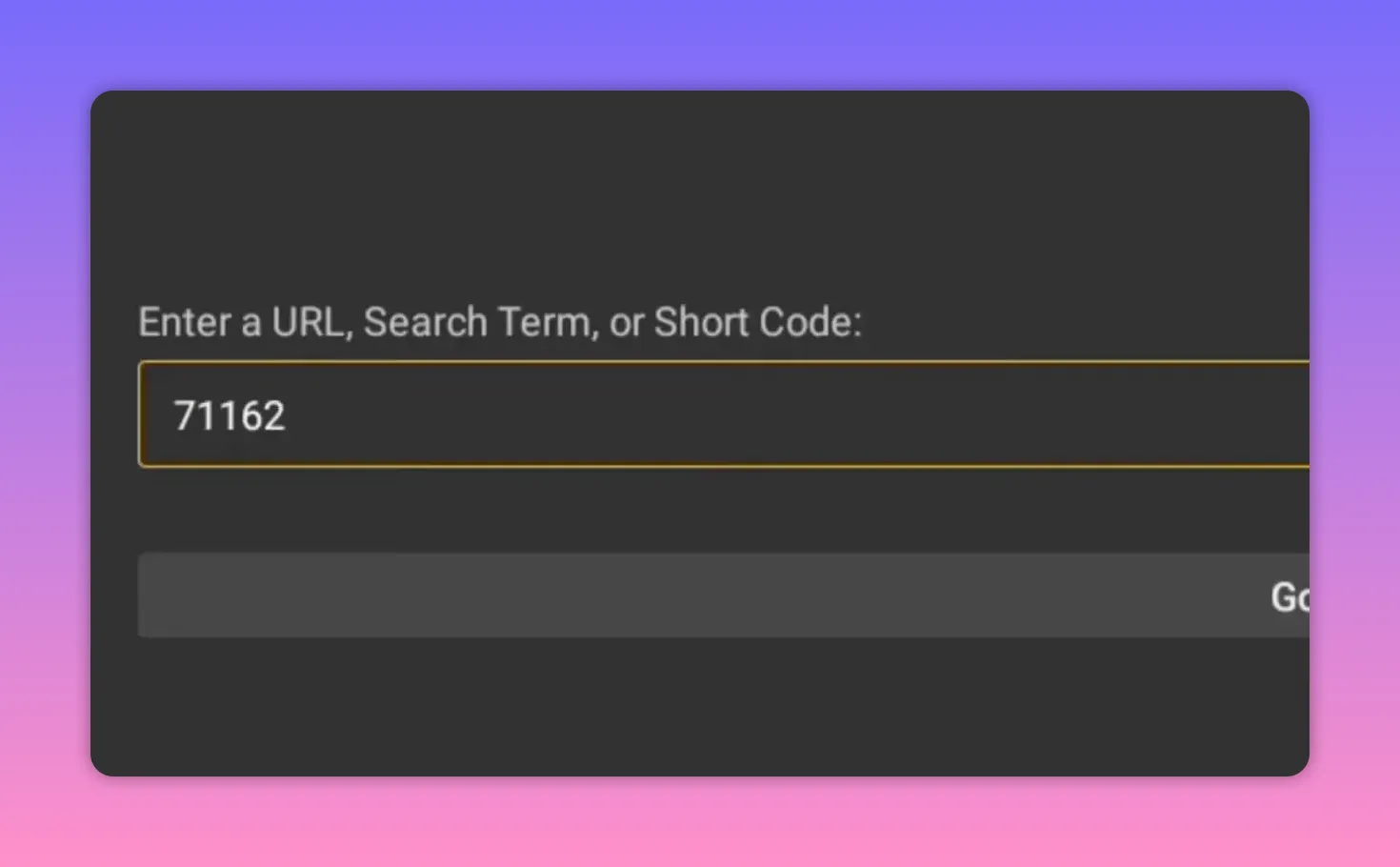
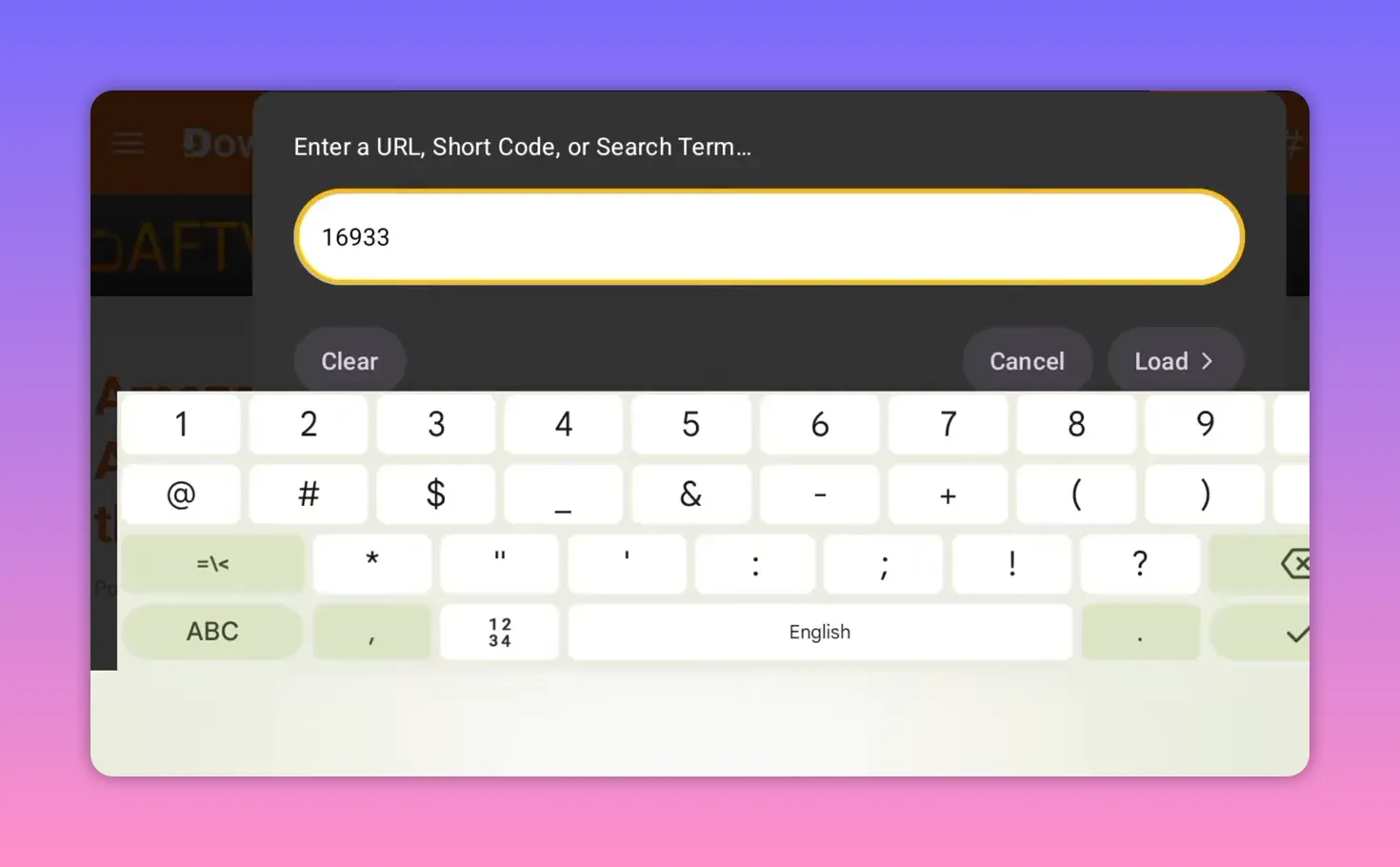
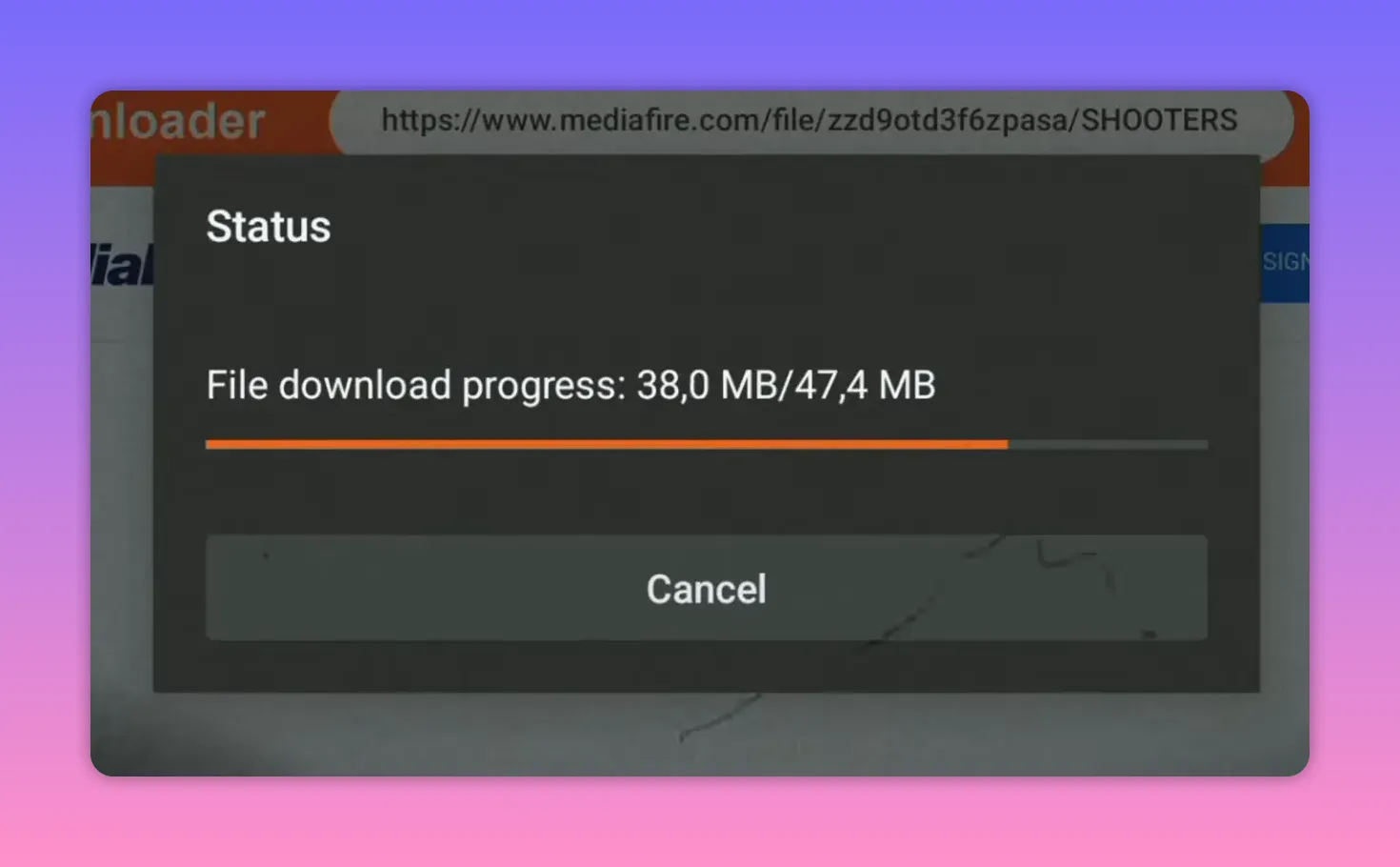
Once Downloader is installed, open it and go to the search field at the top. In that field, enter the following code:
16938
After entering the code, press Go and wait a few seconds for the download page to appear. The app should then show up in a blue box with its name visible.
If the app is already installed and working well on your device, there is no need to reinstall it. But if you have an older version that has stopped working, it is better to remove the previous version first before installing the new one.
That small detail matters, because old versions can sometimes cause conflicts or confusion during installation.
App size
The app size is around 47 MB, which is fairly light. For an app that offers entertainment, sports, and multiple content categories, that is a strong point.
A smaller app size usually means:
- Faster downloading
- Less storage usage on TV devices
- Better suitability for entry-level boxes and smart screens
And despite that compact size, the app still delivers a respectable content range and solid streaming quality.
📦 Installing the app correctly
After the file finishes downloading, the installation is straightforward:
- Press Install
- Wait for the installation to complete
- Delete the APK file afterward if you want to save space
This is the cleanest way to keep the device organized, especially on TVs and TV boxes where storage is often limited.
🧭 Inside the app interface
After opening the app, the interface appears organized and easy to navigate. The layout includes icons at the bottom, while the main channel or package categories appear at the top.
The browsing method is simple:
- Choose the package or category you want
- Press it
- Browse the content inside that section
This kind of arrangement is especially helpful on TV systems, where a clean layout matters more than on mobile. Nobody wants to fight through confusing menus with a remote control.
🎬 What content is available
The app is not limited to one type of media. It brings together a mix of categories that make it more versatile than a one-purpose streaming app.
The available content includes:
- Arabic artistic and dramatic works
- Foreign entertainment content
- Various series
- Sports content
- Live streaming channels
- Movies section with Arabic works
One notable point is that the app also suits people who specifically wanted European content. That content is available alongside the Arabic entertainment selection, which gives the app broader appeal.
Instead of focusing only on local content or only on sports, it combines both entertainment and sports in one place. That makes it useful for households with different preferences.
✨ Streaming quality and overall experience
The app is presented as working well, with very good playback quality across its available sections. It is described as offering excellent quality considering the type of content and the lightweight size of the app.
That balance is important. Many apps either offer lots of content with a poor interface, or a nice interface with limited usefulness. Here, the goal is clearly to provide:
- Good quality streaming
- Practical organization
- Low setup effort
- A broad entertainment mix
For people using a TV screen or Google TV setup, that combination can make the app a comfortable everyday option.
📱 Which devices can run it
The app is intended to work across several device types, not just one.
- Smartphones
- Smart screens and TVs
- TV Box devices
- Some newer tablets
- Google TV setups
That flexibility makes it easier to use the same app across more than one screen at home. If you like testing apps first on a phone and then moving to the main TV, this setup makes sense.
✅ Final thoughts
This is a practical entertainment app for anyone who wants Arabic and foreign entertainment, sports, live channels, and movies without going through a complicated installation routine.
The strongest points are clear:
- Simple installation process
- No external player required
- No codes or account hurdles inside the app
- Light file size
- Organized interface
- Good variety of Arabic, European, entertainment, and sports content
If your goal is to add a diverse streaming app to a screen, Google TV, or TV Box, this one checks many of the right boxes.
❓FAQ
Does this app require a fast internet connection?
No. One of the main advantages highlighted for this app is that it does not require a very high internet speed to be useful.
Do I need an external media player to use it?
No. The app works without needing an external player, which makes setup easier on TV devices.
What devices support this app?
It can work on phones, smart screens, TV Box devices, Google TV setups, and some newer tablets.
How do I download the app?
Install the Downloader app from Google Play, open it, and enter the code 16938 in the search field.
Should I remove an older version before installing the new one?
Yes. If you already have an older version that no longer works, it is better to uninstall it first before installing the updated release.
What kind of content does the app offer?
It includes live streaming, sports, Arabic entertainment, foreign content, series, and a movie section that contains Arabic artistic works.
How large is the app?
The app size is about 47 MB, which is relatively small for the amount of content it offers.
More about this setup
If you’re exploring different ways to download and install apps on your TV Box or Google TV, you may also want to browse the site’s other posts and navigation pages. You can start from the homepage and use the contact page if you have questions.
For troubleshooting or to find similar guides, return to the main site and look around—especially if a specific page doesn’t load as expected.
