
If you want an easy way to enjoy channels, movies, and series on your Android TV or TV Box, this setup is very straightforward once you know the right order.
The app covered here works very well and runs smoothly, provided your internet connection is stable and fast enough. It also comes with its own player, so the process involves two separate codes: one for the main app and one for the player.
To make everything simple, I’ll walk through the full installation method from start to finish, including what to do after installation if the app does not appear directly on the home screen.
Table of Contents
- Step 1: Install Downloader from Google Play 🛒
- Step 2: Use the Main App Code and Player Code 🔢
- Step 3: Understand Why the App May Not Show on the TV Home Screen 📺
- Step 4: Install Sideload Launcher from the Play Store 🧩
- Step 5: Install Dashboard for a Better Experience ⭐
- Step 6: Move Dashboard to the Home Screen and Favorites 🏠
- Step 7: Enable Accessibility Permission for Dashboard 🔐
- Step 8: Open and Manage All Installed Apps Easily ✅
- Step 9: Keep These Important Notes in Mind 📝
- Step 10: Final Setup Checklist for Android TV and TV Box 🎯
- FAQ ❓
Step 1: Install Downloader from Google Play 🛒
The first thing you need is the Downloader app. This is a well-known browser-style utility used on Android TV devices to download apps from external sources.
Open Google Play Store on your TV, search for Downloader, and make sure the app icon matches the correct one before installing it.
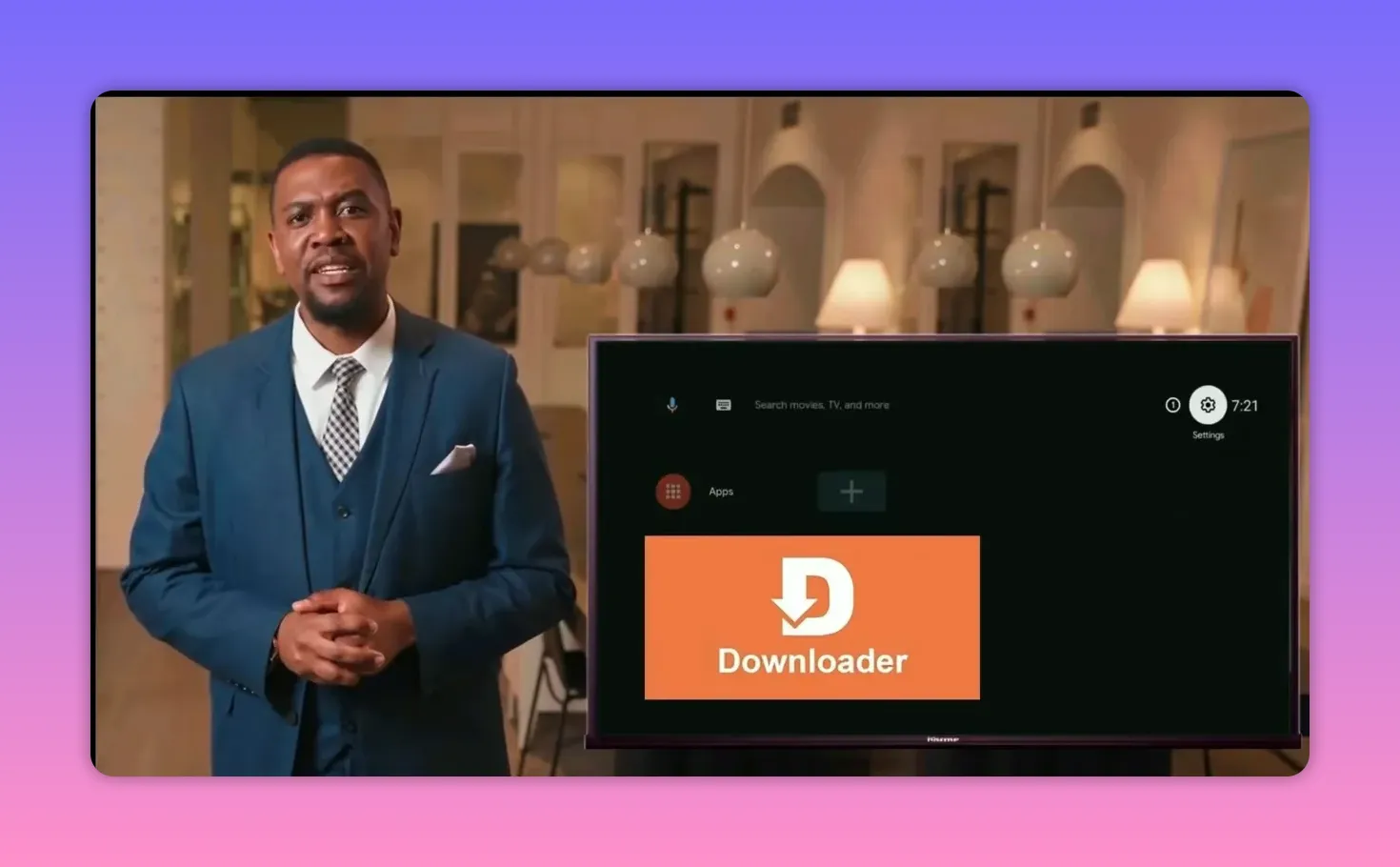
After installation, go ahead and enable it if your device asks for permissions or setup confirmation. Once the app is installed and visible on the interface, confirm any initial prompts by pressing OK.
This step matters because one of the tools in this guide, and sometimes the app itself depending on how you choose to install it, may need to be downloaded outside the Play Store.
Step 2: Use the Main App Code and Player Code 🔢
The entertainment app comes bundled with a player, which means you will need both of the following:
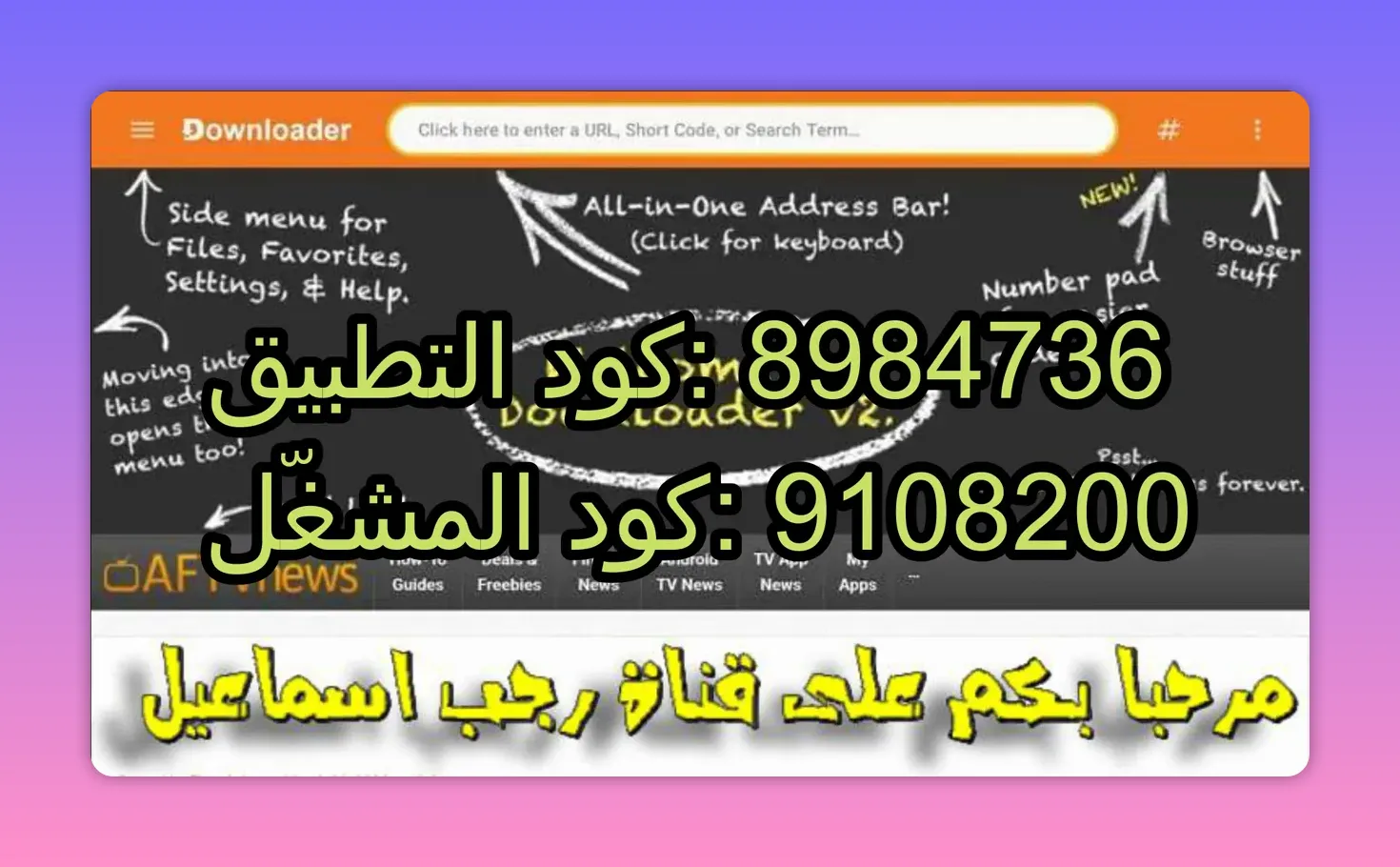
- Main app code: 8984736
- Player code: 91082
Enter these codes in the appropriate installation flow inside Downloader or the method supported by the app source you are using.
The important point here is not to stop after installing only the main app. Since the player is part of the full experience, using both codes ensures the app works as intended.
If you run into any issue while downloading through codes, the official website link for the app can be used as a direct alternative download source.
Step 3: Understand Why the App May Not Show on the TV Home Screen 📺
After installing and launching the app successfully, you may search for it on the Android TV home screen and not find it listed normally. This is a common situation with sideloaded apps on many Android TV systems.
That does not mean the installation failed.
It simply means you need a launcher tool that can display apps installed from external sources. Two options are mentioned here:
- Sideload Launcher
- Dashboard
Both can help you access hidden or sideloaded apps, but one of them is clearly the better choice for convenience, as explained in the next steps.
Step 4: Install Sideload Launcher from the Play Store 🧩
If you want the simplest possible method, open Google Play Store and search for Sideload Launcher. Install it directly.
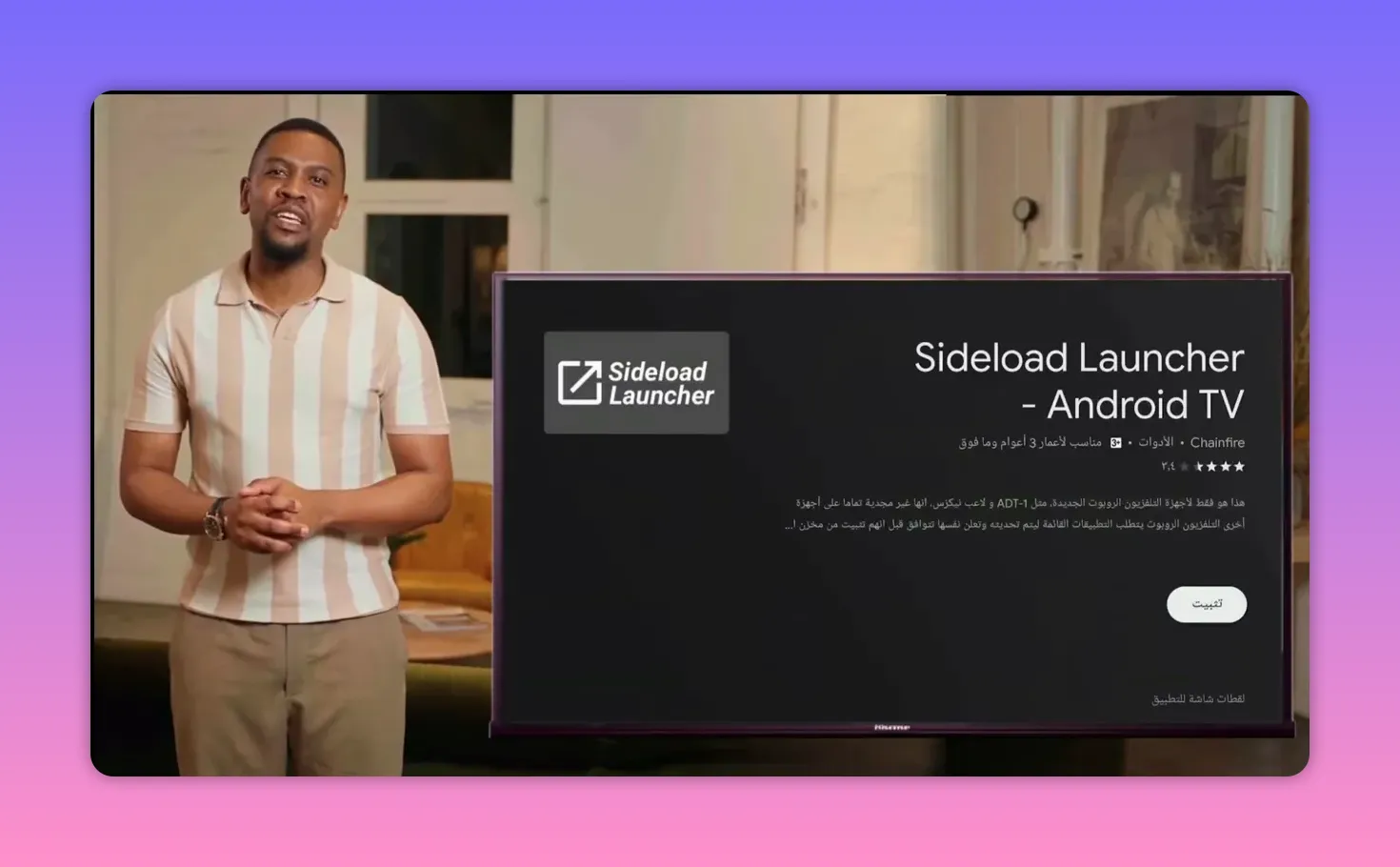
Once opened, Sideload Launcher will show all applications installed on the device, including:
- Apps installed from Google Play
- Apps installed externally through Downloader
- IPTV and entertainment apps that do not appear on the default home screen
This makes it useful as a quick fix when you need to launch something that Android TV hides by default.
However, there is one major limitation.
Sideload Launcher does not make app removal easy. If you want to uninstall an app, you usually have to go deep into settings and follow a more complicated path. For that reason, there is a better alternative.
Step 5: Install Dashboard for a Better Experience ⭐
If you want more control over your installed apps, Dashboard is the preferred option.
To install Dashboard, open Downloader and enter this code:
- Dashboard code: 3763535
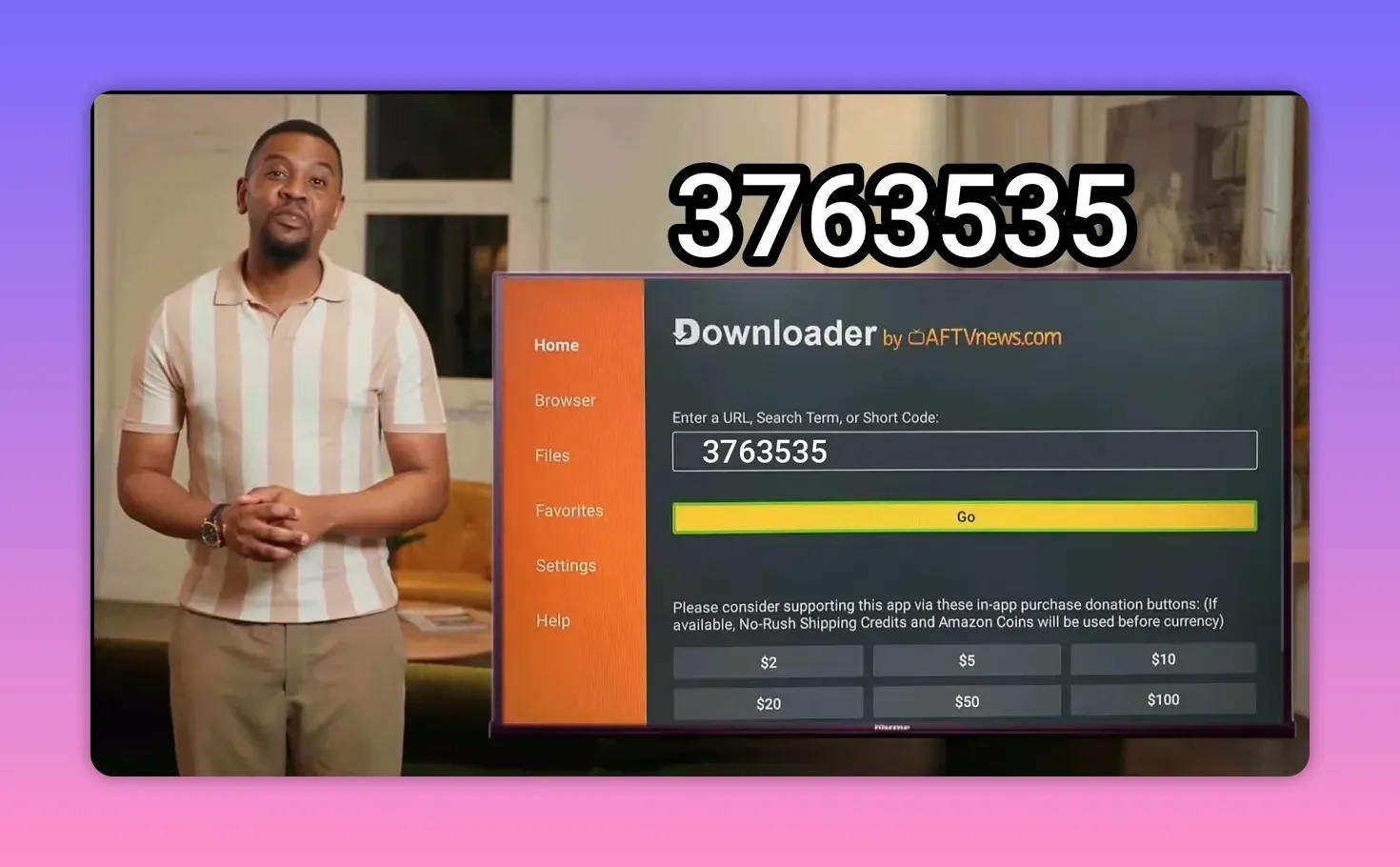
Then complete the installation the same way you would with any other app.
Dashboard is favored over Sideload Launcher because it does more than just display hidden apps. It also makes app management easier, especially when you need to remove something quickly.
Step 6: Move Dashboard to the Home Screen and Favorites 🏠
After installing Dashboard, place it somewhere easy to access.
The recommended approach is to move it to the main screen and add it to favorites. That way, whenever you install apps externally using Downloader, you can open Dashboard immediately and launch them without hunting through menus.
The process is simple:
- Select the app
- Choose the move option
- Drag it forward to a visible position
- Add it to favorites if your launcher supports that
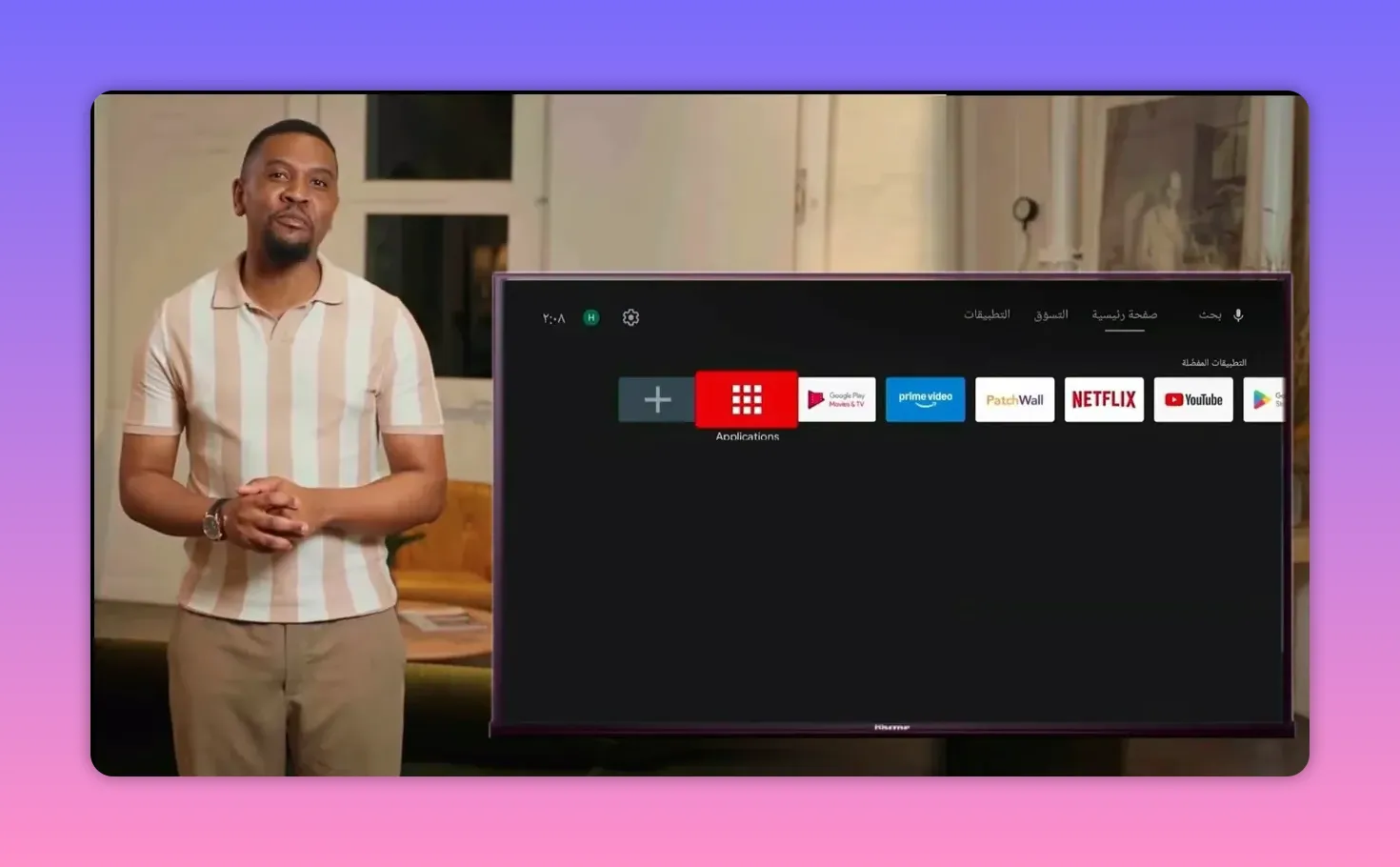
This small step saves time later and makes your Android TV setup feel much cleaner.
Step 7: Enable Accessibility Permission for Dashboard 🔐
When you open Dashboard for the first time, you will likely see a message asking for permission to access device controls so the app can manage other installed apps properly.
When that prompt appears:
- Select Open Settings
- If settings do not open automatically, go there manually through device preferences
- Find Accessibility
- Select Dashboard
- Enable the permission
- Confirm by pressing OK
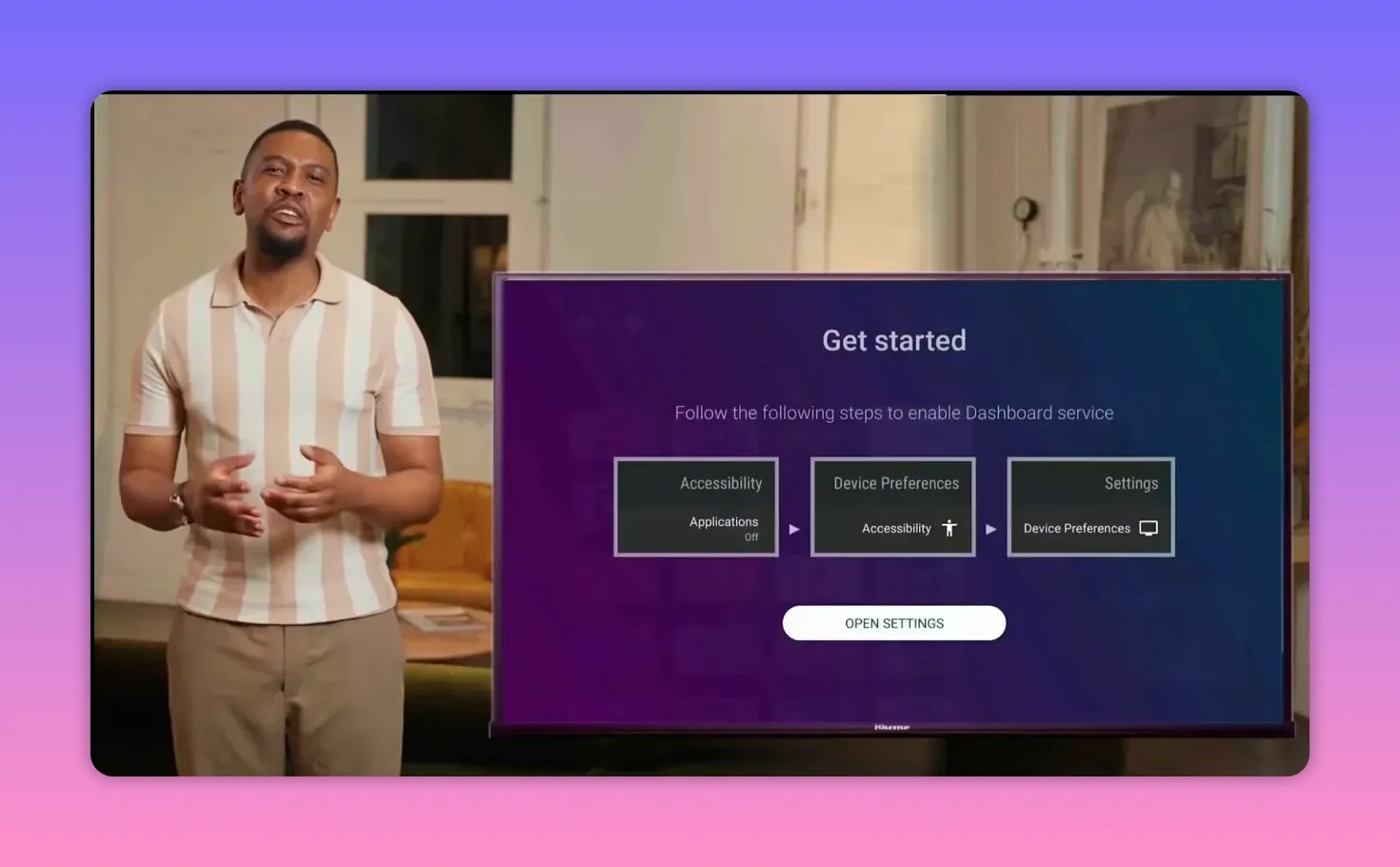
The menu layout may vary slightly depending on your Android version, but the idea is the same: Dashboard needs accessibility access to help manage apps more effectively.
Step 8: Open and Manage All Installed Apps Easily ✅
Once Dashboard is enabled, open it again and you will find all installed apps in one place, whether they came from:
- Google Play Store
- Downloader
- Any external installation source
This is where Dashboard really stands out.
Unlike Sideload Launcher, it allows you to remove apps easily. A long press on any app gives you the option to delete or uninstall it directly from your screen.
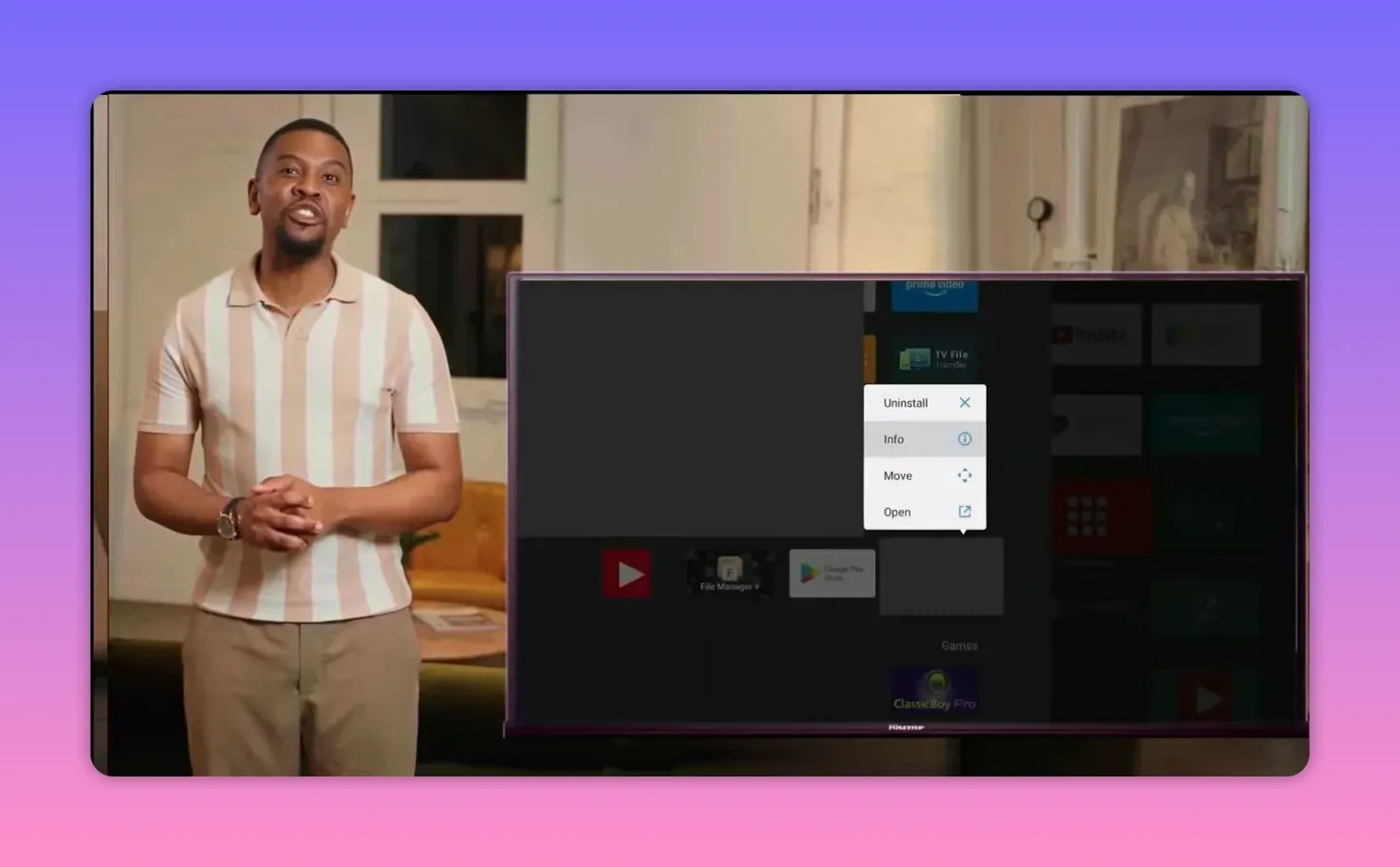
That means Dashboard is not only a launcher for hidden apps, but also a practical management tool for Android TV and TV Box setups.
Step 9: Keep These Important Notes in Mind 📝
Before finishing, here are the key points that matter most for a smooth experience:
- The app works well without lag if your internet connection is good
- You need two codes, one for the app and one for the player
- If the app does not appear on the home screen, that is normal for many sideloaded apps
- Sideload Launcher is easy to install from Play Store and helps reveal hidden apps
- Dashboard is the better long-term choice because it also supports easier uninstalling
- If code-based installation fails, use the app’s official website link as an alternative
For Android TV, TV Box, and Play Store based setups, this method gives you a reliable path to install and access entertainment apps with much less frustration.
Step 10: Final Setup Checklist for Android TV and TV Box 🎯
If you want the entire process in one quick checklist, use this order:
- Open Google Play Store
- Install Downloader
- Install the main app using code 8984736
- Install the player using code 91082
- If needed, install Sideload Launcher from Play Store
- For a better option, install Dashboard using Downloader code 3763535
- Move Dashboard to the home screen
- Enable accessibility permission for Dashboard
- Use Dashboard to open, organize, and uninstall apps easily
Once this is done, your setup is ready and much easier to manage going forward.
FAQ ❓
Why doesn’t the app appear directly on my Android TV home screen after installation?
Because many apps installed from external sources are sideloaded and do not automatically show on the default Android TV launcher. You can access them using Sideload Launcher or Dashboard.
Which is better, Sideload Launcher or Dashboard?
Dashboard is the better option. Both can display installed apps, but Dashboard also makes it easier to uninstall apps with a long press, while Sideload Launcher does not offer that convenience.
What is the code for the main entertainment app?
The code for the main app is 8984736.
What is the code for the player?
The player code is 91082.
What is the code used to install Dashboard?
The Dashboard installation code in Downloader is 3763535.
Do I need Google Play Store on my TV for this method?
Yes, at least for the easiest route. Google Play Store is used to install Downloader and Sideload Launcher directly. Dashboard, however, is installed through Downloader using its code.
What should I do if downloading with codes does not work?
Use the official website link for the app as a direct download alternative.
Why does Dashboard ask for accessibility permission?
It needs accessibility access so it can properly interact with and manage installed applications on the device, including offering easier control options.
