
If you want a simple entertainment app for Android TV, TV Box, or even your phone, this setup is very straightforward once you know the correct order. The app highlighted here is presented as a lightweight option for watching Arabic series, with an easy interface and smooth playback.
The key tools used in this method are Google Play, Downloader, and in some cases Side Load Launcher or Dashboard so the installed app actually appears in a convenient place on your smart TV.
Table of Contents
- Step 1: Install Downloader from Google Play 📥
- Step 2: Enter the app download code in Downloader 🔢
- Step 3: Verify the download page before installing ✅
- Step 4: Delete the installation file after setup 🧹
- Step 5: If the app does not appear on the TV home screen, use a launcher 🖥️
- Step 6: Install Side Load Launcher from the Play Store 🧩
- Step 7: Install Dashboard if you want better control ⭐
- Step 8: Move Dashboard to the home screen for quick access 🏠
- Step 9: Enable Accessibility permission for Dashboard 🔐
- Step 10: Use Dashboard to access and uninstall apps easily 🛠️
- Step 11: What this setup gives you in practice 🎬
- FAQ ❓
Step 1: Install Downloader from Google Play 📥
Start by opening Google Play Store on your Android TV or compatible device and search for Downloader.
Downloader is a popular browser-style utility used to download apps from external sources. This is the app you will use to enter the install code and fetch the entertainment app directly.
When Downloader appears in the Play Store results, make sure the icon matches the official app you expect to see, then install it.
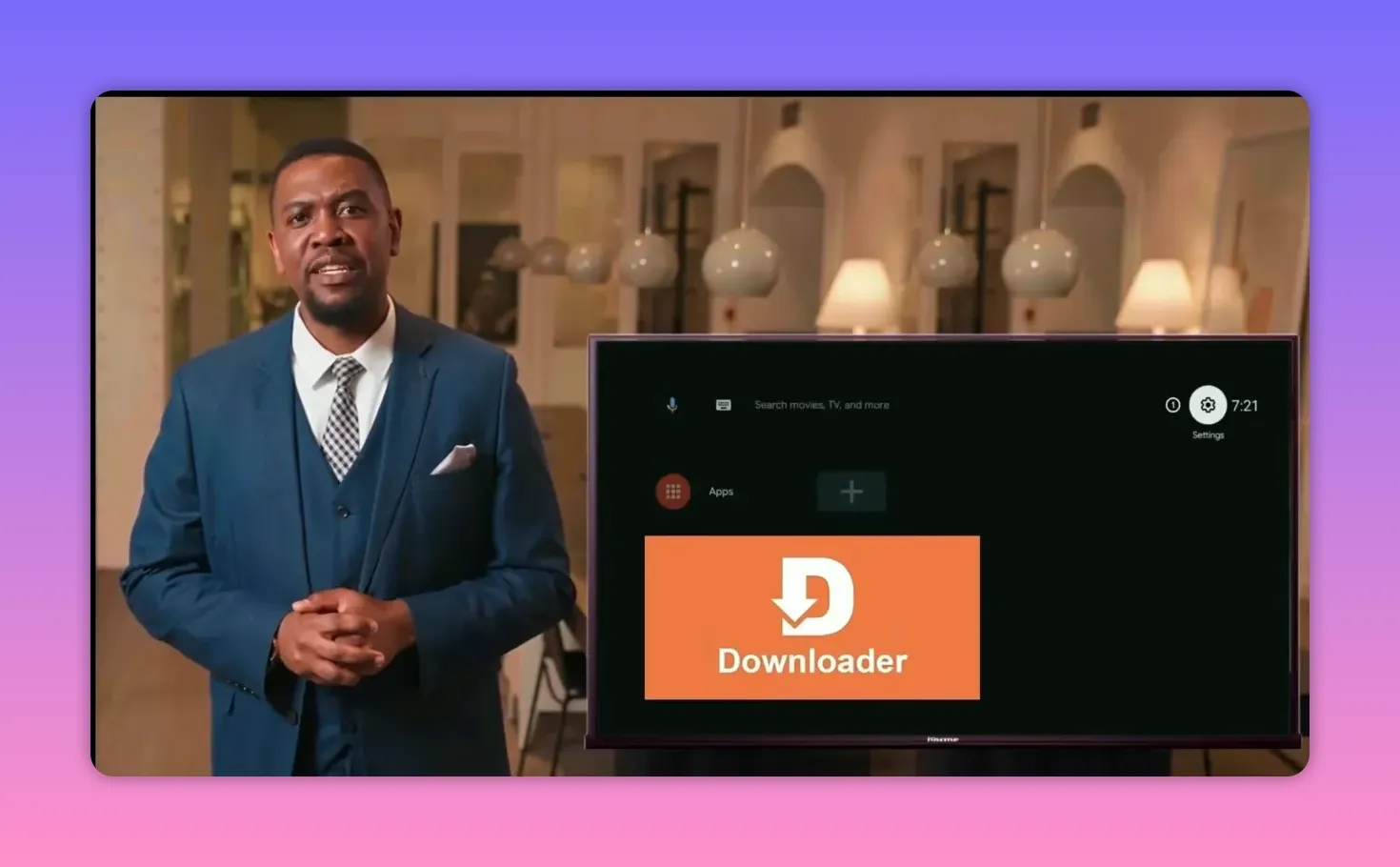
After installation, open Downloader. If a prompt appears on screen, confirm it by pressing OK. In some cases, you may also need to allow permissions or enable the app from settings so it can function properly.
Step 2: Enter the app download code in Downloader 🔢
Once Downloader is open, enter this code:
6959244
After entering the code, press Continue. The remaining download steps are designed to be simple, and the app should begin resolving automatically.
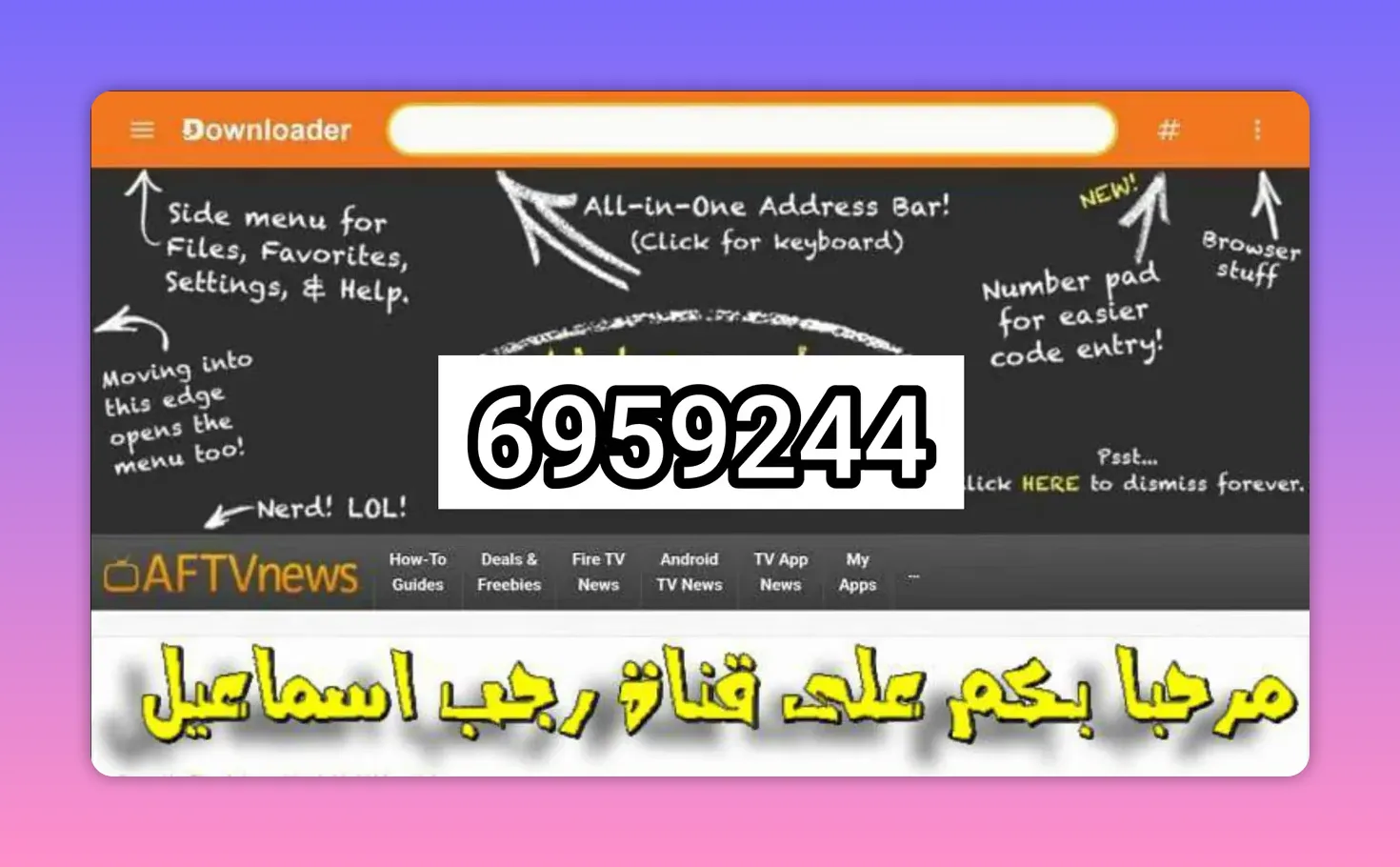
When the code is entered correctly, press Go or Start. The activation and redirect process should begin on its own.
You may be taken to a temporary page for a few seconds before the final app download page opens. That is normal in this setup.
Step 3: Verify the download page before installing ✅
Before installing anything, check the file name carefully. The file should appear under the name associated with the channel, Rajab Ismail, so you can be confident you are in the right place.
This small check matters. Whenever you install APK files through Downloader, it is always smart to confirm you are downloading the intended file and not something unrelated.
After that, proceed with the installation as usual on your device.
Step 4: Delete the installation file after setup 🧹
Once the app is installed successfully, do not leave the APK file sitting in storage if you do not need it anymore.
Delete the installation package after setup to save space on your device. This is especially useful on Android TV boxes and smart TV devices, where storage is often limited.
Tip: This does not remove the installed app itself. It only removes the downloaded installer file.
Step 5: If the app does not appear on the TV home screen, use a launcher 🖥️
Here is the part that confuses many people: sometimes the app installs and runs correctly, but it does not appear directly on the main TV screen.
If that happens, you need a launcher that can display sideloaded apps. Two options are mentioned:
- Side Load Launcher
- Dashboard
Both can help you access apps installed from outside the Play Store. However, Dashboard is presented as the better option because it offers easier app management.
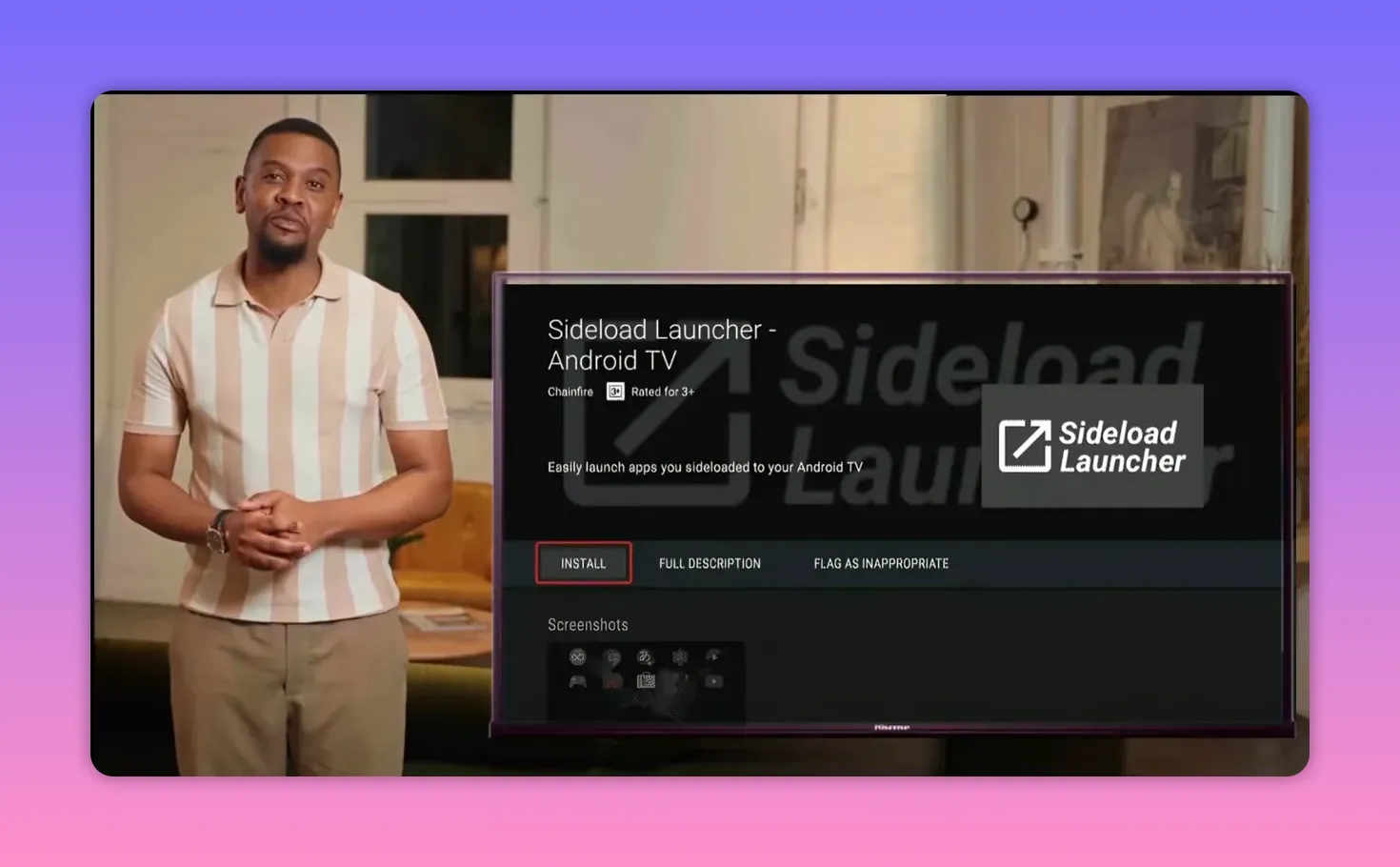
Step 6: Install Side Load Launcher from the Play Store 🧩
If you want the easiest route, open Google Play Store and search for Side Load Launcher.
Install it directly. Once opened, it will show all apps installed on the device, including:
- Apps installed from Google Play
- Apps installed from external sources through Downloader
- Tools such as IPTV apps or other sideloaded Android TV apps
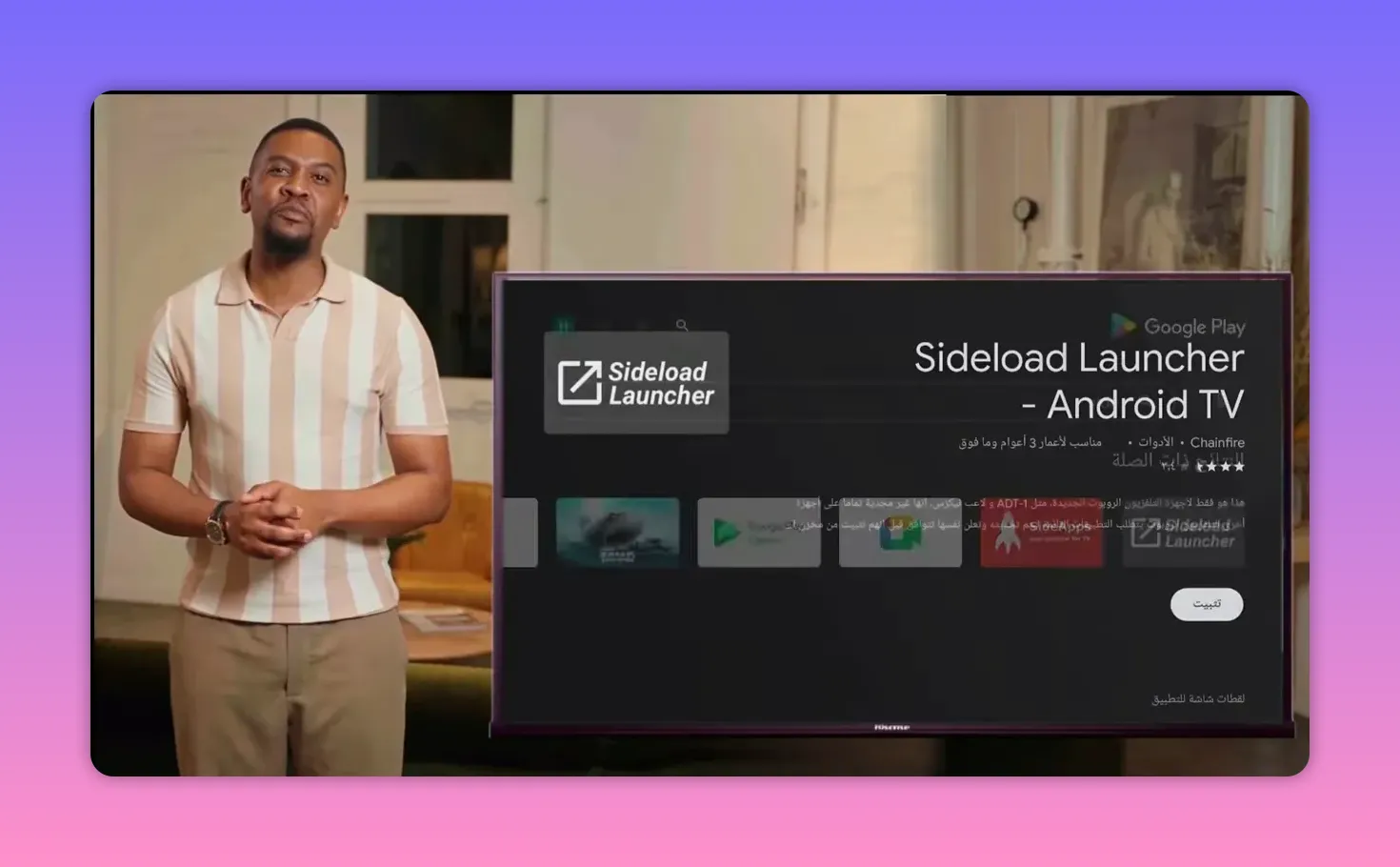
This makes it useful if your newly installed entertainment app is hidden from the default home screen.
There is, however, one limitation: Side Load Launcher does not make uninstalling apps easy. If you want to remove an app later, you usually have to go through the system settings manually, which is less convenient.
Step 7: Install Dashboard if you want better control ⭐
If you prefer something more practical, Dashboard is the recommended choice.
To install Dashboard, open Downloader and enter this code:
3763535
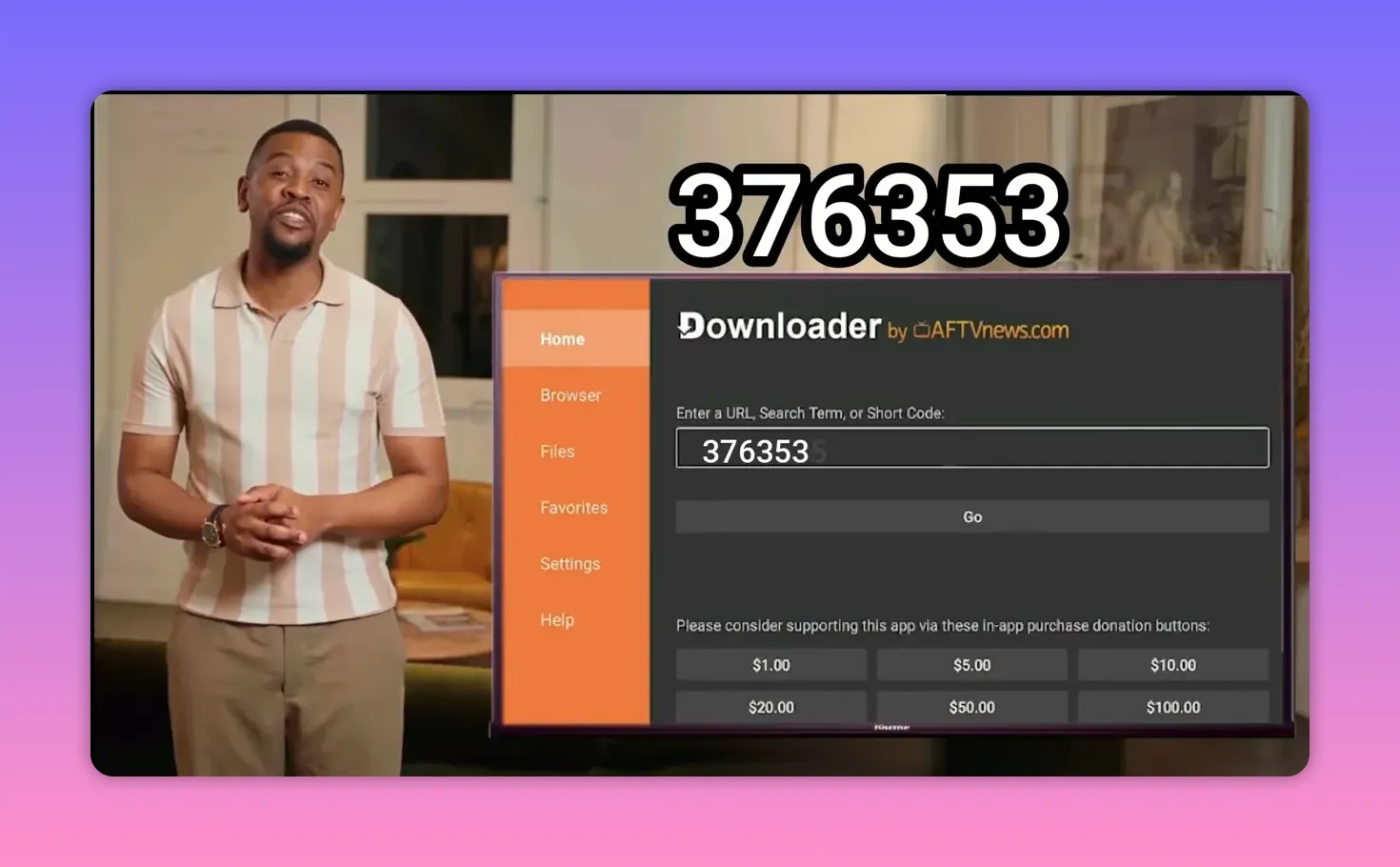
Then complete the installation just as you would with any other app.
What makes Dashboard stand out is not just that it displays sideloaded apps. Its main advantage is that it also lets you manage them more easily.
Step 8: Move Dashboard to the home screen for quick access 🏠
After installing Dashboard, move it to the main screen and add it to favorites so it is always easy to reach.
The process is simple:
- Highlight the Dashboard app
- Select the move option
- Drag it forward to a visible position
- Add it to favorites if your TV interface allows it
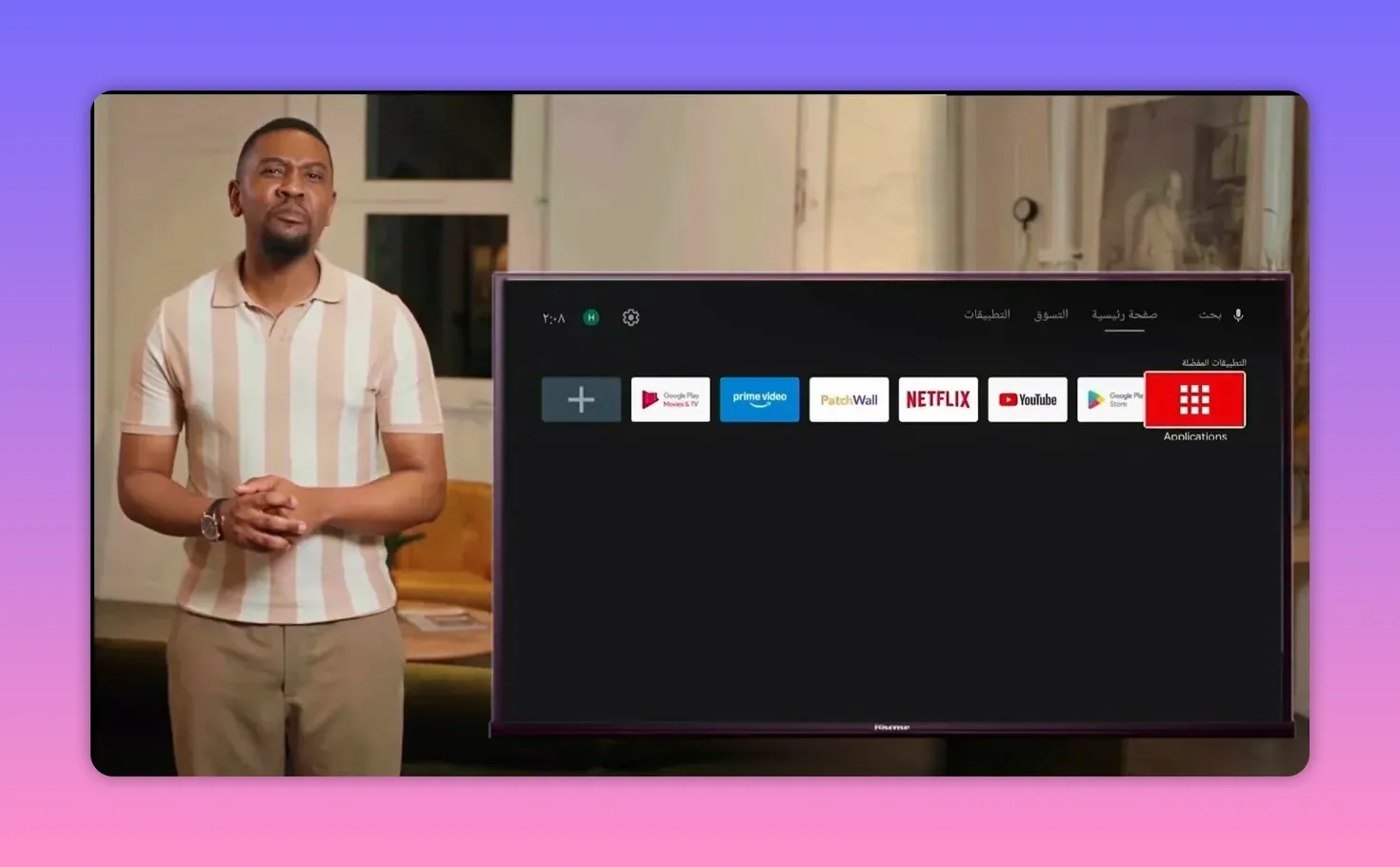
This saves time later, especially if you regularly install apps through Downloader.
Step 9: Enable Accessibility permission for Dashboard 🔐
When you open Dashboard for the first time, a message may appear asking for Accessibility access so the app can interact properly with other installed apps.
Press Open Settings. If the settings page does not open automatically, go there manually through your device preferences. Depending on your Android version, the exact wording may differ slightly.
Then follow this path:
- Open device settings
- Go to Accessibility
- Select Dashboard
- Enable the permission
- Confirm with OK
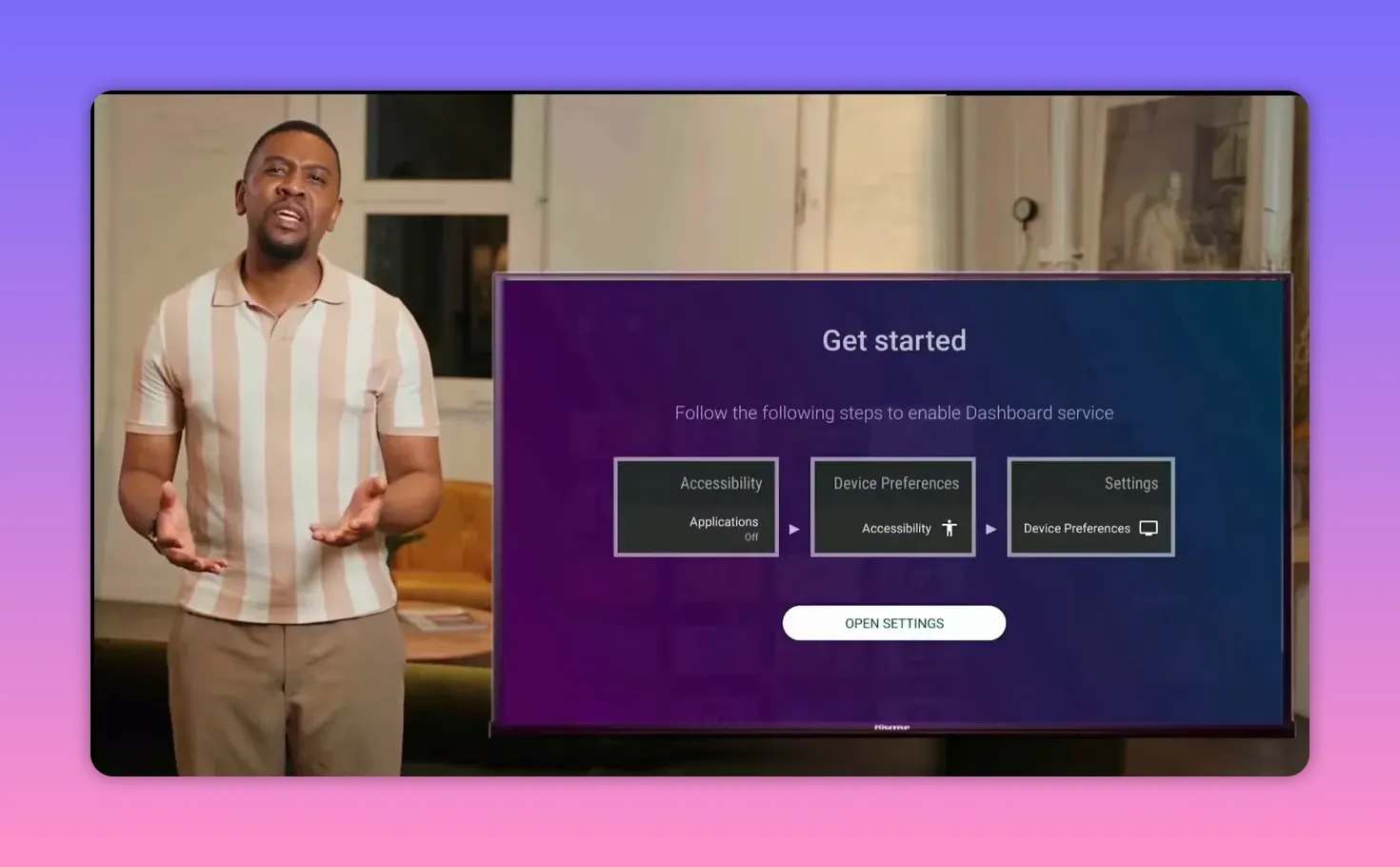
Once that is done, reopen Dashboard.
Step 10: Use Dashboard to access and uninstall apps easily 🛠️
After activation, Dashboard will show all installed apps, whether they came from:
- Google Play Store
- Downloader
- Other external installation methods
This is where it becomes more useful than Side Load Launcher.
With Dashboard, you can long-press any app and uninstall it directly. That means no digging through complicated settings menus just to remove something you no longer want.
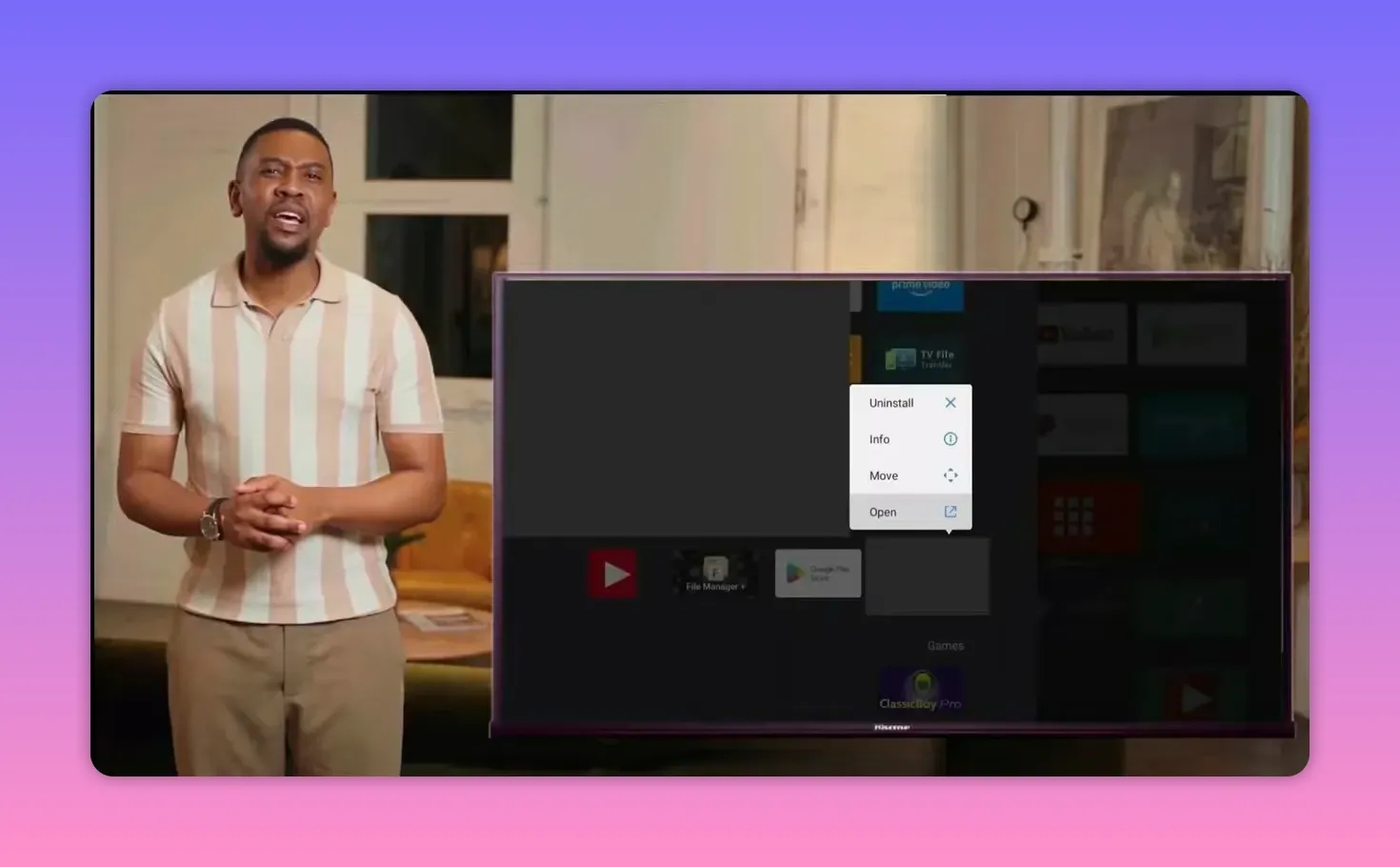
For anyone who frequently tests Android TV apps, that convenience alone makes Dashboard the stronger choice.
Step 11: What this setup gives you in practice 🎬
Once everything is installed correctly, you end up with a cleaner and more flexible entertainment setup on your smart TV or phone:
- A lightweight entertainment app focused on Arabic series
- A reliable sideloading method using Downloader
- A launcher solution if the app does not appear on the default TV screen
- An easier way to manage and remove apps later
The overall goal is simplicity. Install the app, make it accessible from your TV interface, and keep storage under control by deleting installer files once they are no longer needed.
FAQ ❓
Why do I need Downloader for this installation?
Downloader is used to download apps from external sources by entering a code. In this setup, it is the main tool for fetching both the entertainment app and Dashboard.
What is the download code for the entertainment app?
The code provided for the app is 6959244.
Why is the installed app not showing on my Android TV home screen?
Some sideloaded apps do not appear directly on the default Android TV interface. In that case, install Side Load Launcher or Dashboard to access them.
Which is better, Side Load Launcher or Dashboard?
Dashboard is the preferred option here because it not only shows installed apps, but also makes uninstalling them much easier.
What is the code for installing Dashboard?
The Downloader code for Dashboard is 3763535.
Do I need to enable any special permission for Dashboard?
Yes. Dashboard may ask for Accessibility permission. You need to enable it in your device settings so the app can manage and interact with installed apps correctly.
Should I keep the APK file after the app is installed?
No. It is better to delete the installation file after setup to save storage space, especially on smart TVs and TV boxes with limited internal memory.
Can this method be used only on smart TV?
The app is presented for smart TV and phone, but the launcher issue mainly applies to Android TV devices where sideloaded apps may not appear on the main screen.
If your goal is a smooth Android TV entertainment setup without unnecessary complications, this method works well: install through Downloader, confirm the correct file, clean up the APK afterward, and use Dashboard if you want the most practical way to access and manage your apps.
