
Peace be upon you. If you use an Android TV, TV Box, or smart screen and keep searching for a reliable streaming app, then you already know the problem: there are far too many apps in this category, but only a small number actually work well with stability.
After testing a huge number of apps in this space, one thing becomes clear very quickly. Most of them look promising at first, but many fall apart when it comes to performance, organization, or consistent playback. That is exactly why it makes sense to focus only on apps that are genuinely usable, properly arranged, and practical on a real device.
The app covered here stands out because it is well organized, includes the three main content packages, and offers multiple streaming quality options. It is not being presented as a perfect app, because no app in this category is 100% flawless. At times, a few channels may briefly repeat a few seconds of a scene due to server pressure or stream issues, but the majority of channels run with strong stability.
Table of Contents
- 📺 Why this app is worth trying
- ⬇️ How to install the app using Downloader
- 🧩 Why the app may not appear on the home screen
- 🛠️ Sideload Launcher vs Dashboard
- ⭐ How to set up Dashboard properly
- 🗑️ The key advantage of Dashboard
- ⚠️ A realistic note about streaming app stability
- ✅ Best practice for installing hidden apps on Android TV
- ❓ FAQ
- 🎬 Final thoughts
📺 Why this app is worth trying
There are a few reasons this app feels more complete than many alternatives:
Professional layout: the app is organized in a clean and practical way.
Comprehensive content: it includes the three main packages many people look for.
Multiple quality levels: useful if your internet speed changes.
Good overall stability: while not perfect, it performs better than many competing apps.
That last point matters. In apps of this type, perfection is rare. What matters more is whether the app is usable day to day without constant crashes, broken links, or chaotic menus.
⬇️ How to install the app using Downloader
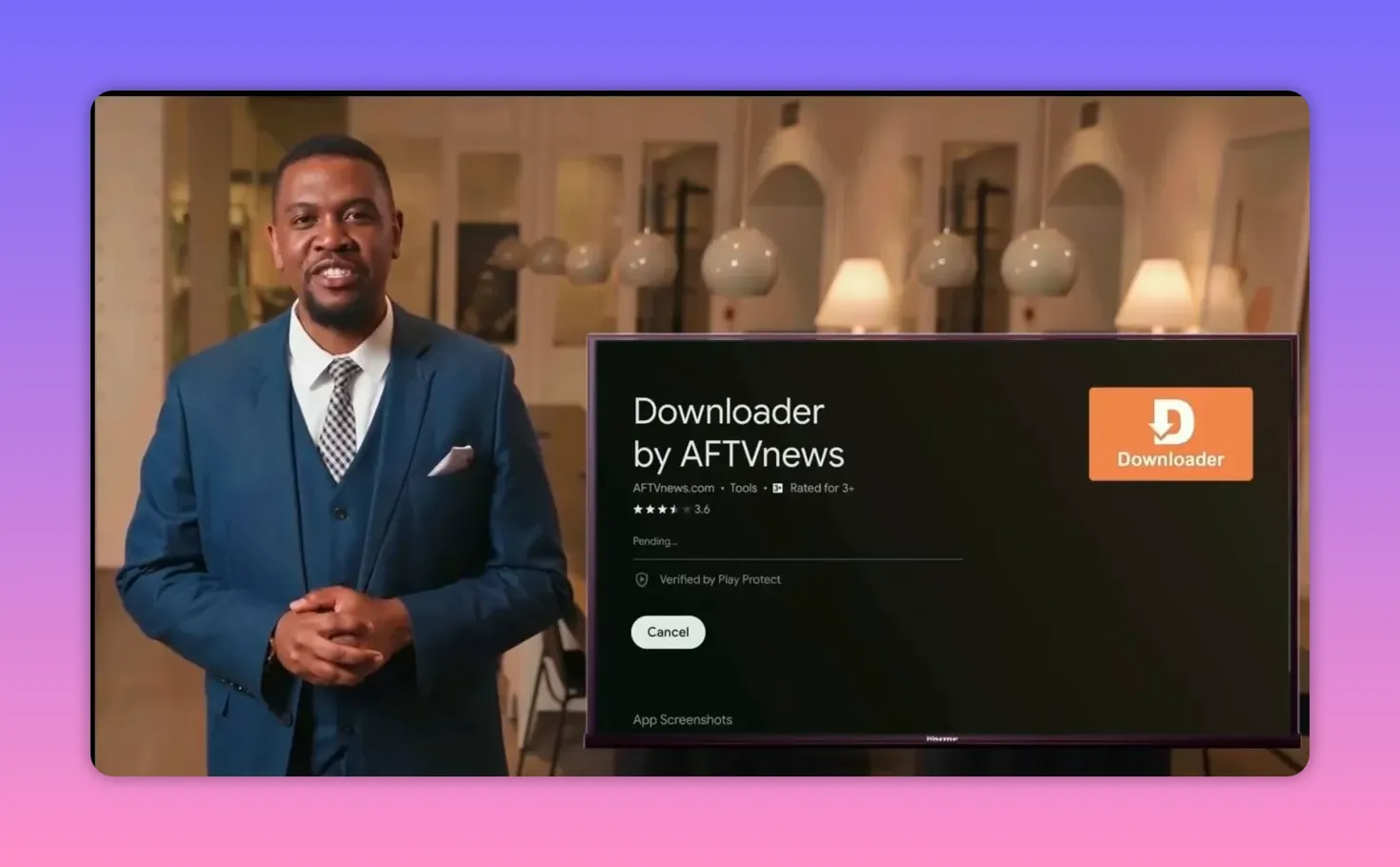
The easiest method here is through Downloader, which is a well-known browser-style tool used to install external Android TV apps.
Step 1: Install Downloader from Google Play
Open the Google Play Store on your Android TV device and search for Downloader. Make sure the app icon matches the expected Downloader icon before installing it.
Once installation is complete, go into the device settings if needed and enable the permissions required for installing apps from external sources.
Step 2: Open Downloader and enter the code
After opening Downloader, go to the code entry field and type this code:
358368
Then press Go.
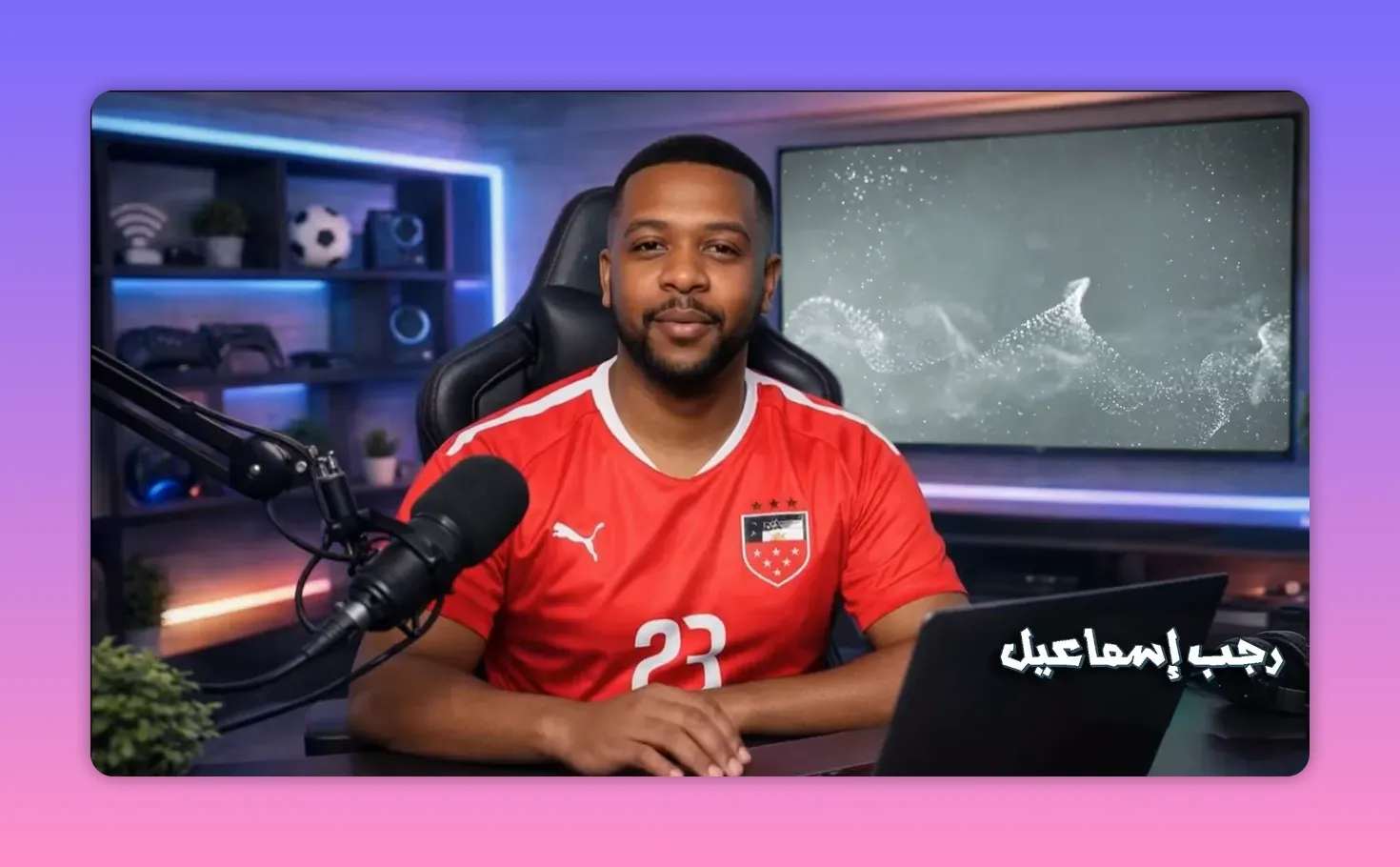
A blank white page may appear first with a five-second countdown. After that, the download page opens automatically. On that page, look for the blue rectangle labeled with the channel name Rajab Ismail and select it to start the download immediately.
Step 3: Finish installation properly
Once the app finishes downloading and installing, do not rush to open it immediately from the installer screen.
Instead:
Press OK after installation.
Delete the temporary downloaded file.
Save storage space on the device by removing the installer package you no longer need.
This is a simple habit, but it helps keep Android TV devices lighter and cleaner, especially on devices with limited internal storage.
🧩 Why the app may not appear on the home screen
After installation, many Android TV users get confused because the app does not always show up directly on the main screen. That is normal with some sideloaded apps.
To access apps installed from external sources, you usually need a launcher that can display hidden or sideloaded apps. Two options are mentioned here:
Sideload Launcher
Both can show installed apps, but one of them is clearly more convenient in daily use.
🛠️ Sideload Launcher vs Dashboard
If you already have Sideload Launcher or Dashboard installed, then this stage is simple. You can open the new app from there without any extra work.
But if you are deciding between the two, here is the practical difference.
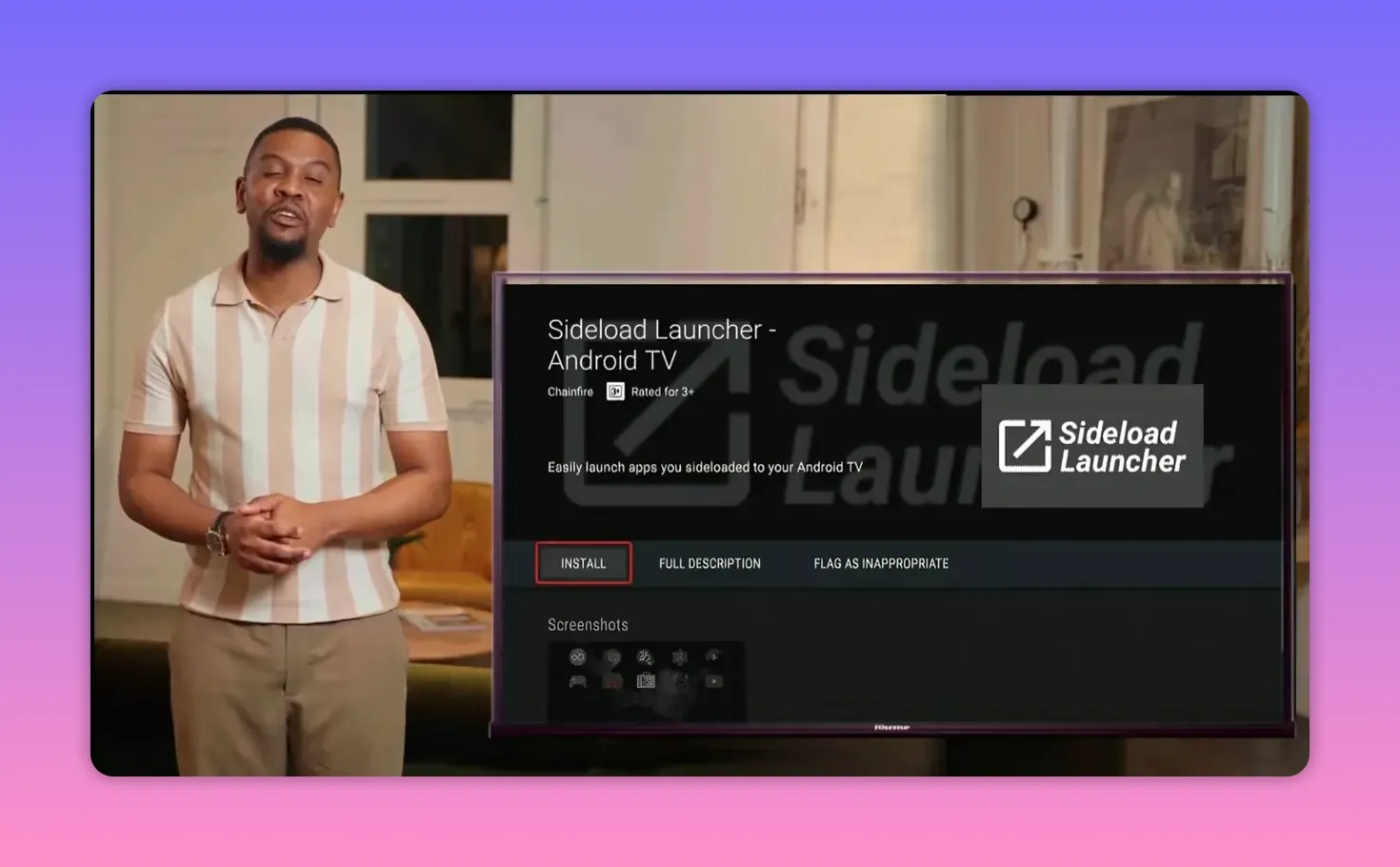
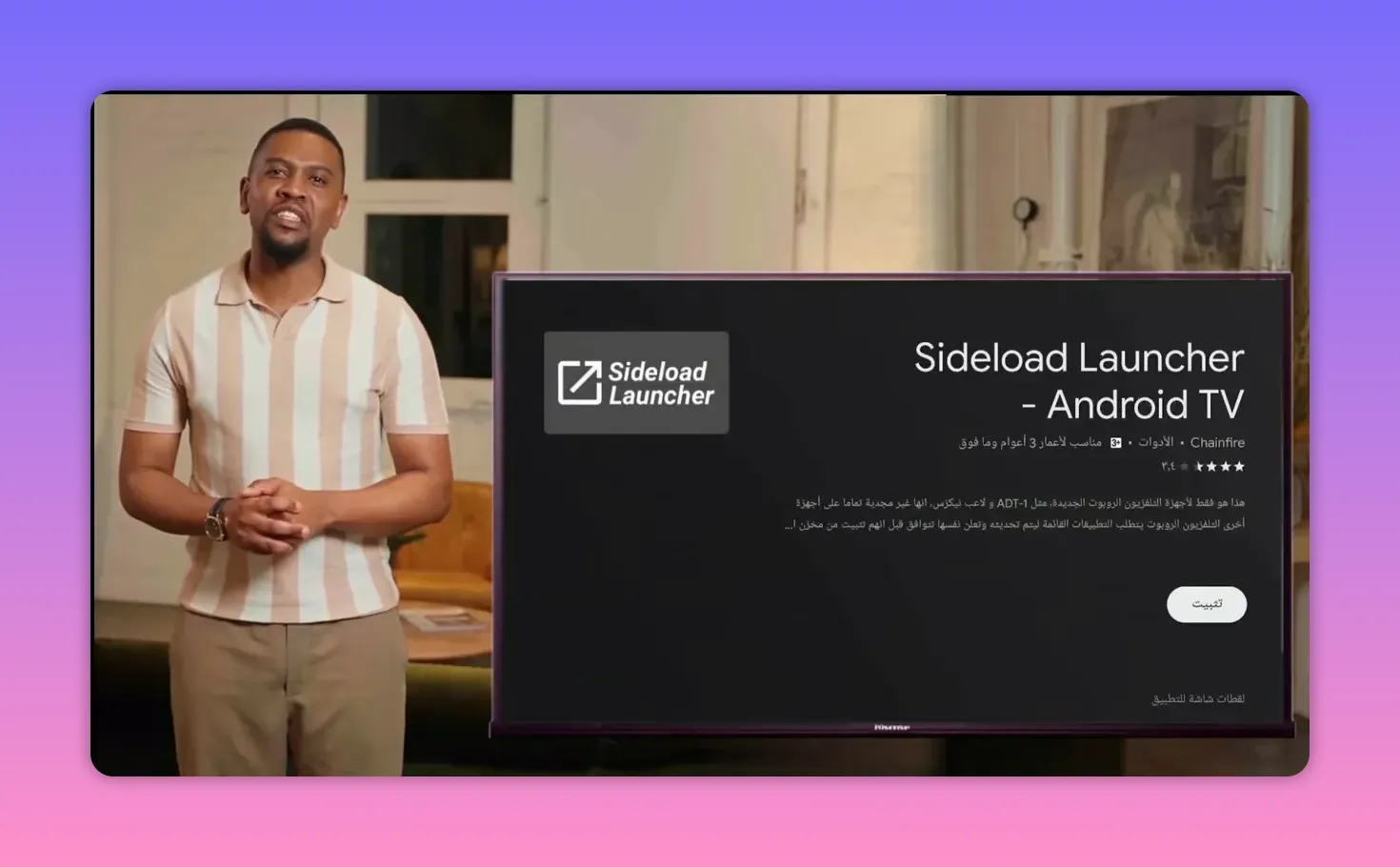
Sideload Launcher
You can download Sideload Launcher directly from the Google Play Store. Search for it, install it, and once opened, it will display all apps installed on the device, including apps installed from the Play Store and apps installed externally through Downloader.
This makes it useful for finding hidden apps quickly.
Its main weakness is uninstalling apps. It does not make removal easy. If you want to delete an app, you may end up going through multiple settings menus and extra steps.
Dashboard
Dashboard is presented as the better option overall, especially if you want easier control over apps on your screen.
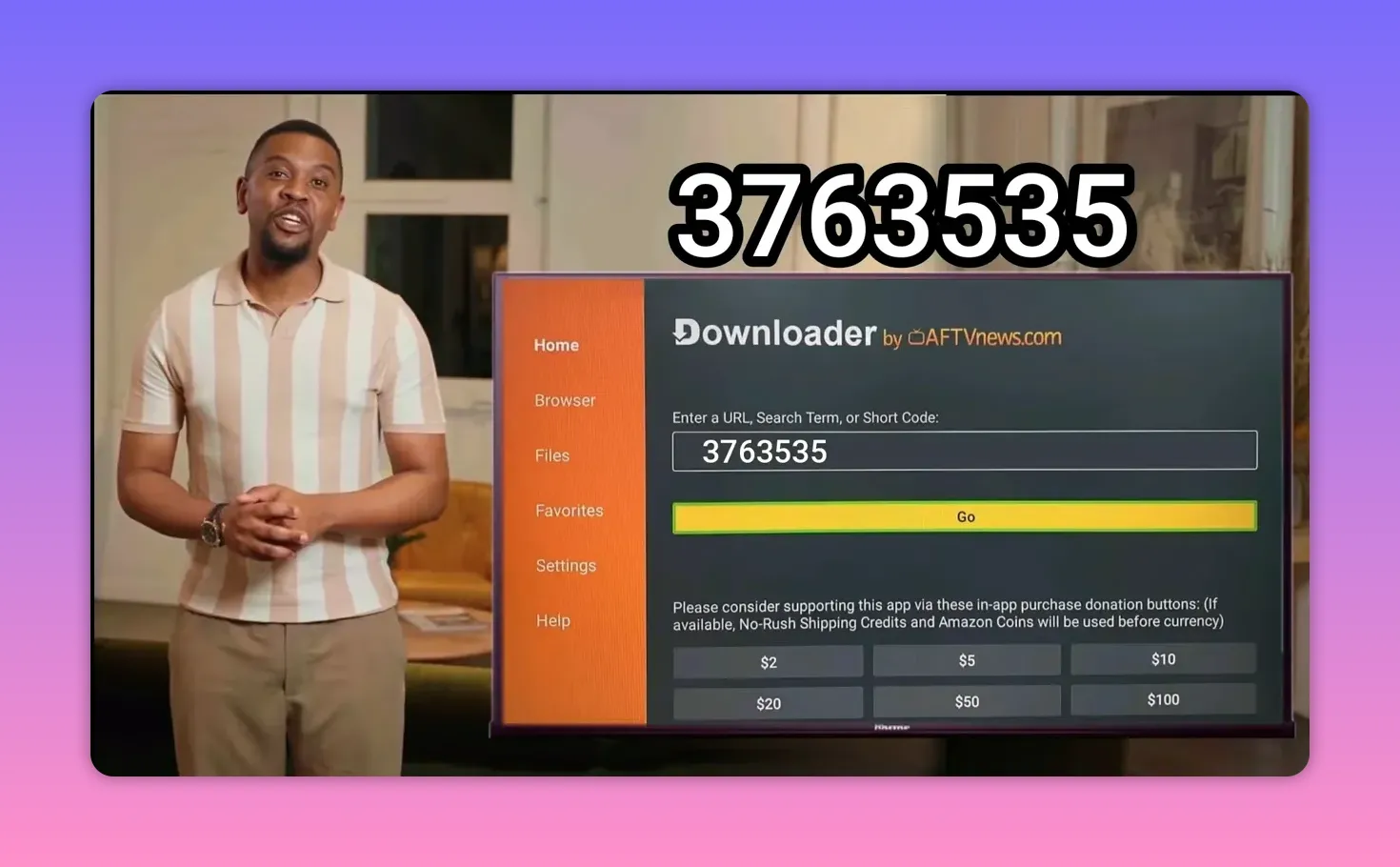
To install Dashboard, use Downloader and enter this code:
3763535
Then complete the installation the same way you would with any other app.
⭐ How to set up Dashboard properly
After installing Dashboard, it is a good idea to move it to the main screen and add it to favorites so it is always easy to reach.
The general process is:
Select the Dashboard app.
Use the move option.
Drag it toward the front or your preferred position on the home screen.
Once that is done, open the app. The first time it launches, it will likely ask for accessibility permission so it can interact with and manage other apps.
Enable accessibility access
When prompted, choose Open Settings. If the settings page does not open automatically, go there manually through your device preferences. The exact path may vary depending on your Android version, but the target is the same:
Open device settings
Go to Accessibility
Select Dashboard
Enable it
Confirm with OK
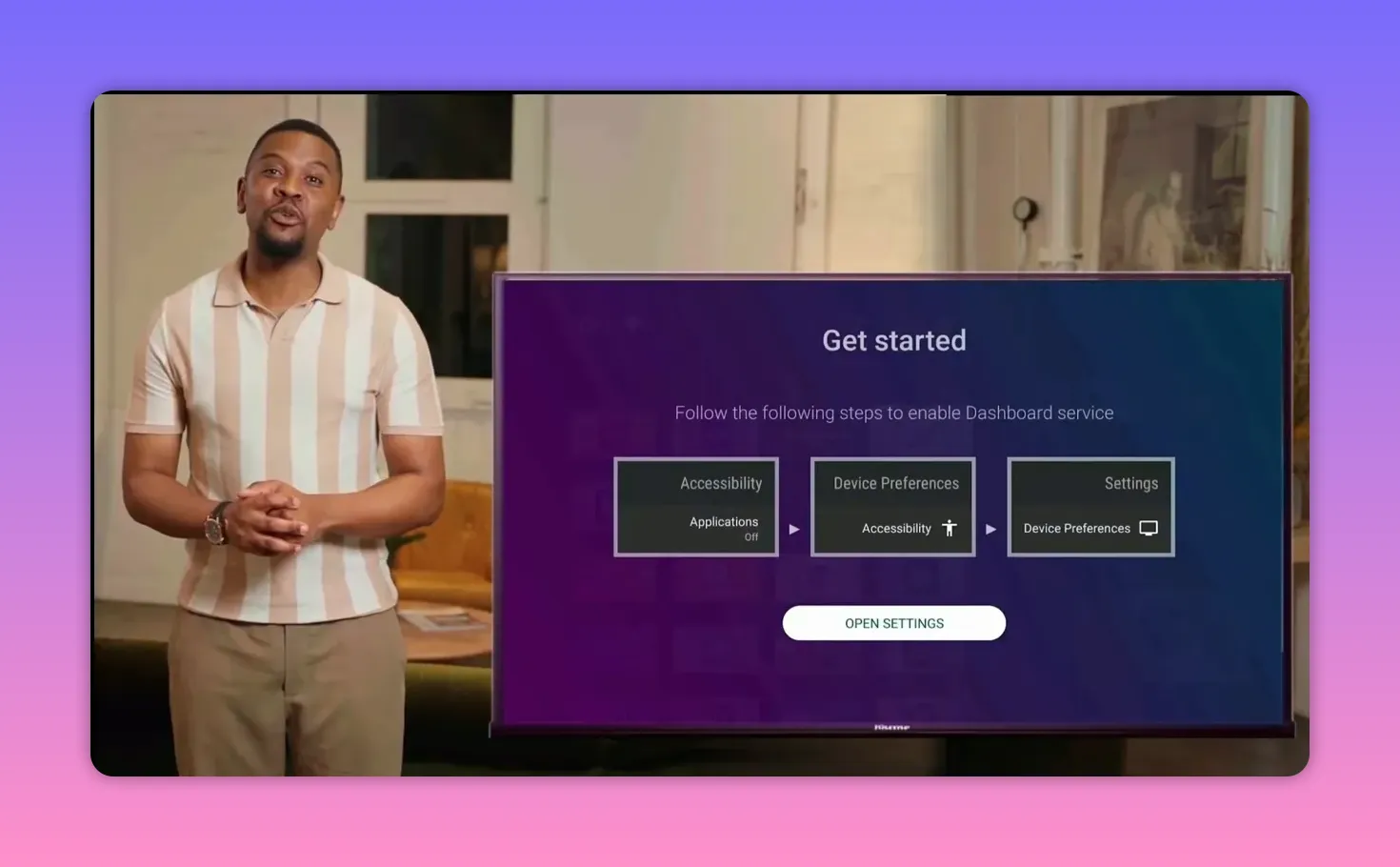
After enabling the permission, reopen Dashboard. You should now see all installed applications, whether they came from Google Play or were sideloaded through Downloader.
🗑️ The key advantage of Dashboard
This is where Dashboard really wins over Sideload Launcher.
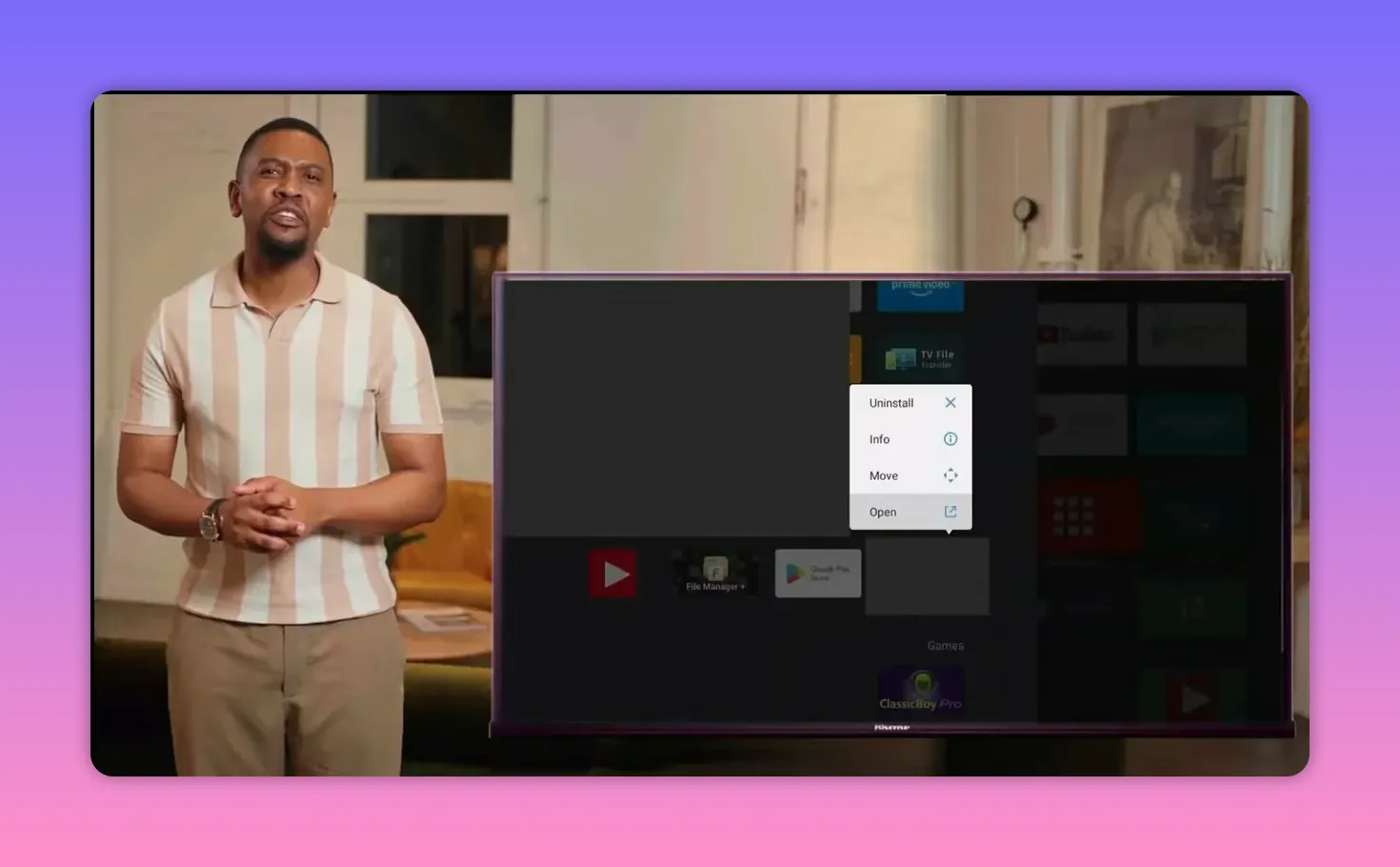
With Dashboard, uninstalling an app is straightforward. Just press and hold on an app, and you can remove or fully uninstall it directly from the interface.
That single feature makes it much easier to manage an Android TV device, especially if you test many apps and regularly clean up the ones that are no longer useful.
In other words, Dashboard is not just a launcher for hidden apps. It is also a practical management tool.
⚠️ A realistic note about streaming app stability
It is important to keep expectations realistic. Even strong apps in this category can sometimes have minor issues. A short repeated scene of around three seconds on certain channels can happen from time to time, usually due to server load or the nature of live stream sources.
That does not automatically mean the app is poor. The more useful standard is whether most channels work smoothly and consistently. In this case, the app is presented as offering very good overall stability compared with the large number of weaker alternatives available.
✅ Best practice for installing hidden apps on Android TV
If you install apps from outside the Play Store on Android TV, this setup works especially well:
Use Google Play to install Downloader
Use Downloader to install external APKs
Use Dashboard to show and manage hidden apps
Delete temporary APK files after installation to save storage
This approach keeps the system cleaner and makes sideloaded apps much easier to handle.
❓ FAQ
What is the Downloader code for the app?
The Downloader code used to install the app is 358368.
Why does the installed app not appear on the Android TV home screen?
Some apps installed from external sources do not appear directly on the main screen. In that case, a tool like Sideload Launcher or Dashboard is needed to display them.
Can Sideload Launcher show apps installed through Downloader?
Yes. Sideload Launcher can display apps installed from both the Play Store and external sources such as Downloader.
Why is Dashboard preferred over Sideload Launcher?
Dashboard is preferred because it not only shows hidden apps, but also makes it easy to uninstall them directly by pressing and holding on the app.
What is the Downloader code for Dashboard?
The Downloader code for Dashboard is 3763535.
Should the temporary APK file be deleted after installation?
Yes. Deleting the temporary download file after installation is recommended to save storage space on the device.
Does the app work perfectly on every channel?
No app in this category is completely perfect. Some channels may occasionally repeat a short segment, but the majority are described as working with very good stability.
🎬 Final thoughts
If your goal is to find one of the better lightweight streaming apps for Android TV in 2026, the biggest takeaway is not just the app itself, but the full setup around it.
A reliable installation method, a proper hidden-app launcher, and easy app management make all the difference. Downloader handles the installation, Dashboard handles visibility and cleanup, and together they create a much smoother Android TV experience.
That is often the real difference between a frustrating setup and one that actually feels complete.
