
If you are looking for an entertainment app that offers a mix of sports and general content in Arabic and foreign channels, with strong picture quality and support for both smart TVs and phones, this one is worth trying.
What makes it especially useful is that it comes in two versions: one for TV screens and TV boxes, and another for mobile devices. The setup is simple, the app size is light, and the content organization is straightforward enough that you can start using it quickly.
Table of Contents
- 📺 What this app offers
- 🛠️ What you need before installing it
- ⬇️ How to install the app on a TV screen or TV box
- ▶️ Installing the player required for playback
- 🔎 Using the app after installation
- 🌐 How the servers work inside the app
- ⚽ Stream quality and internet requirements
- 📦 Why this app is interesting compared to widely shared apps
- 📱 How to install it on a phone or tablet
- ✅ Best tips for a smooth setup
- ❓FAQ
- 🎯 Final thoughts
📺 What this app offers
This app is built for people who enjoy free entertainment on larger screens as well as on smartphones. The content includes:
- Sports content
- Arabic channels
- Foreign channels
- High-quality playback
One of the main highlights is the sports section, where the stream quality is described as excellent, especially for anyone with a solid internet connection.
🛠️ What you need before installing it
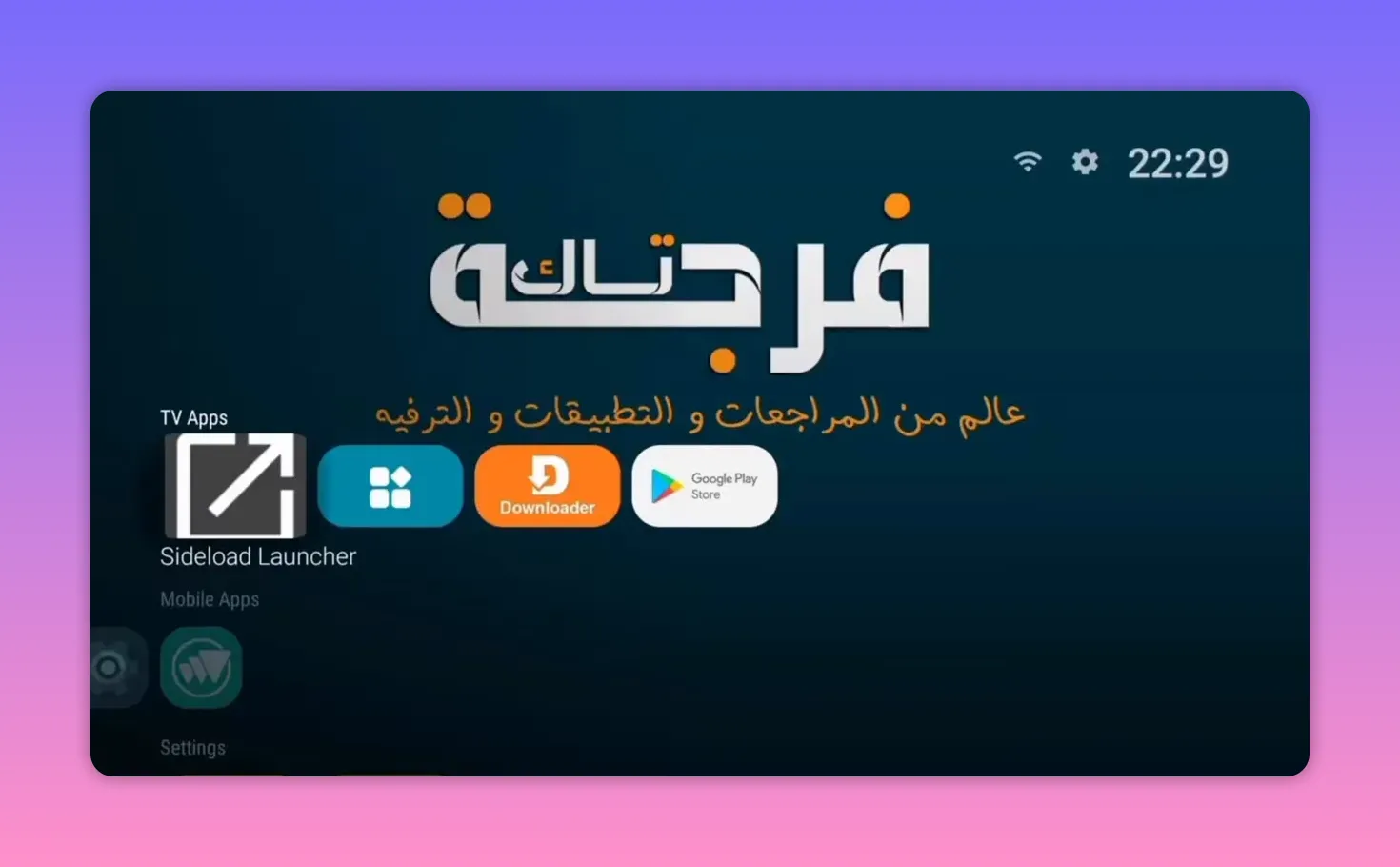
Before installing the app on a TV or TV box, you need two supporting tools:
- Downloader
This is the app used to enter the download code and fetch the APK directly. - Sideload Launcher or Dashboard
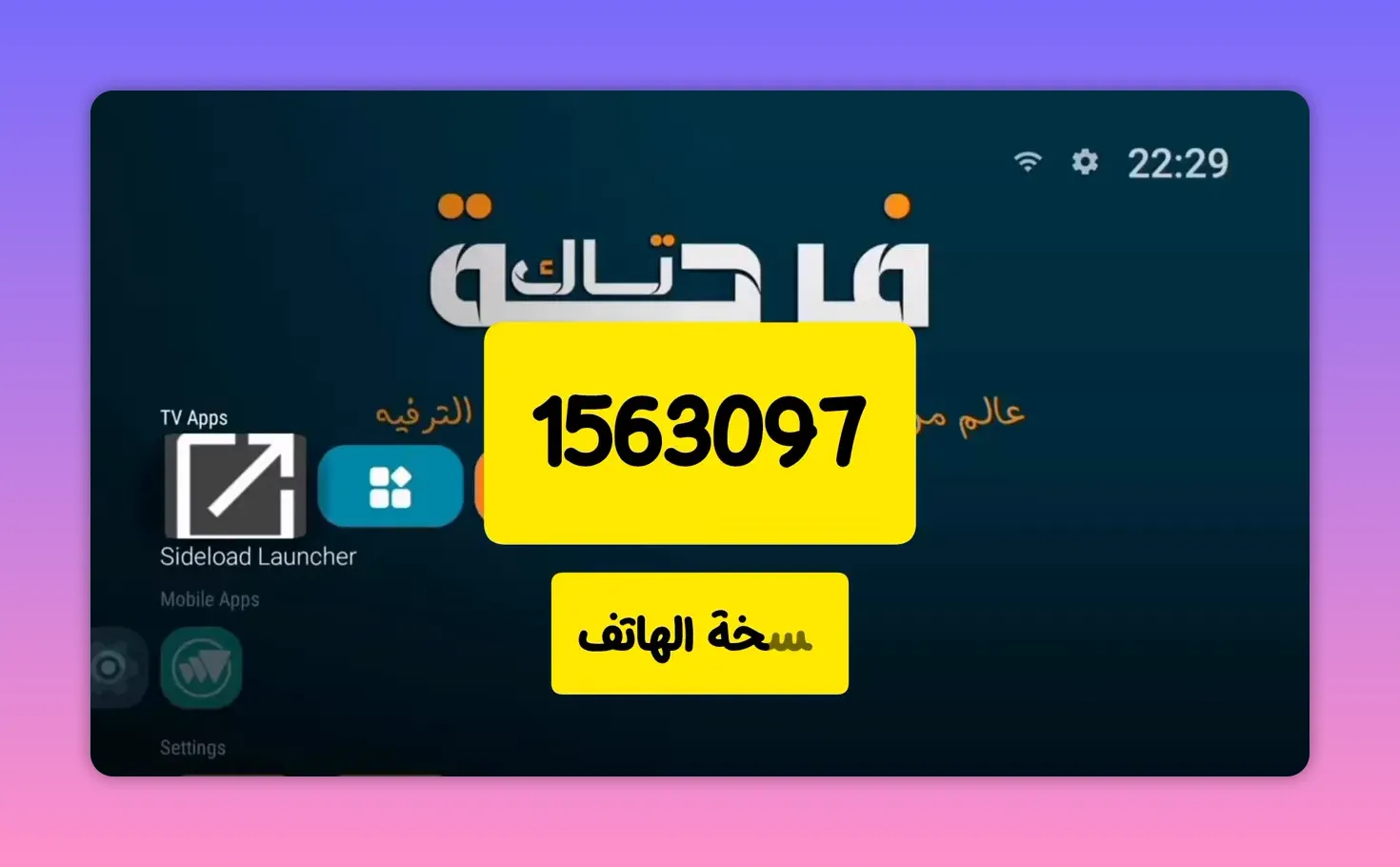
This is important for anyone installing apps from outside the Play Store. It helps you display and launch apps that do not appear normally in the main app list.
If you already use Android TV, a TV box, or a smart screen with Play Store access, this step will feel familiar. Downloader is installed normally from the Play Store, and the launcher app helps you access sideloaded apps with no hassle.
⬇️ How to install the app on a TV screen or TV box
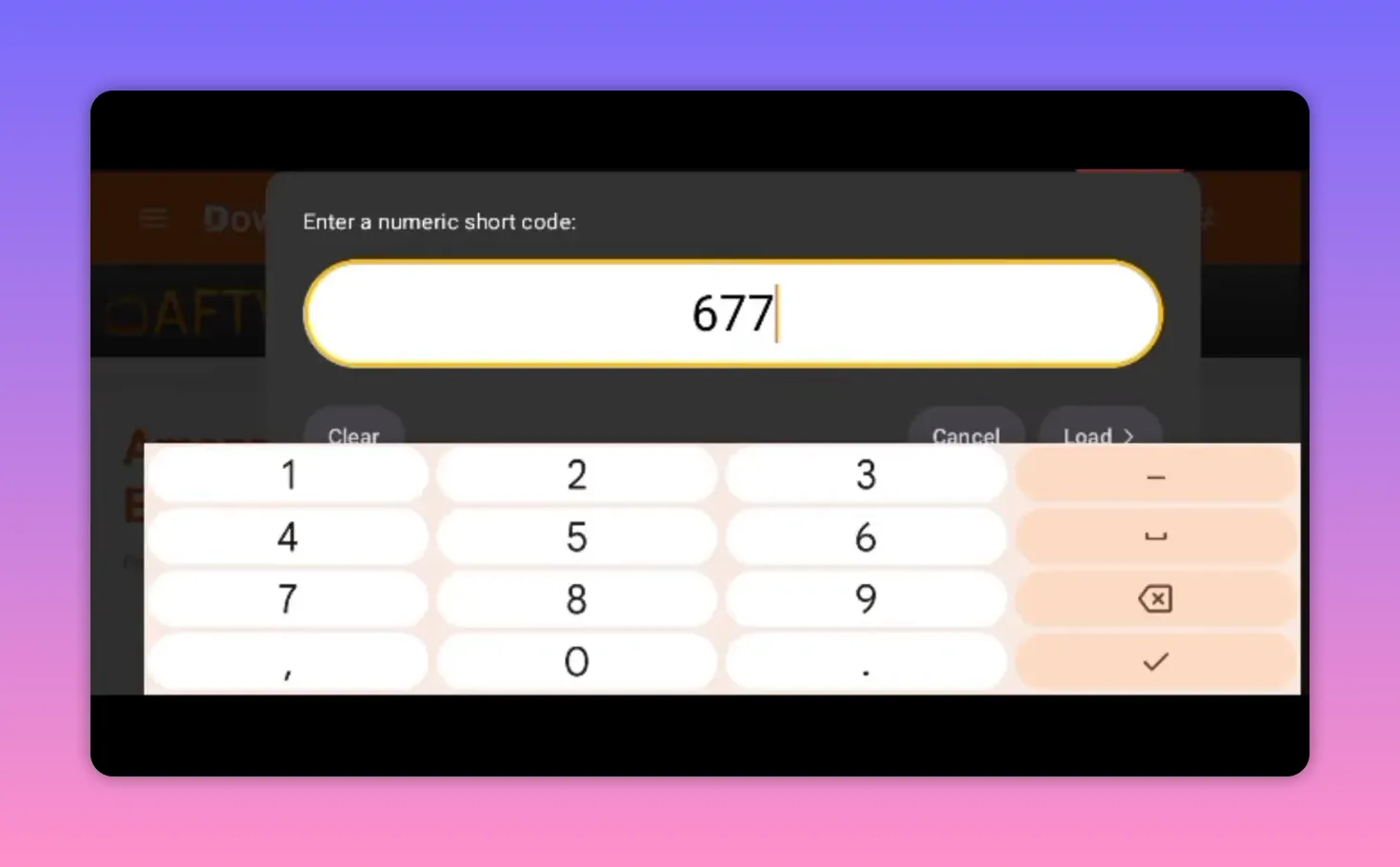
Once Downloader is ready, open it and go to the search box. There you will enter the code for the main app.
Main app download code: 67711
After entering the code and confirming, the download page opens. There is a short wait of around five seconds, then the file begins downloading automatically.
The app size is light, around 23 MB, so installation should be quick on most devices.
- Open Downloader
- Go to the search field
- Enter 67711
- Start the download
- Wait for the APK to finish downloading
- Install it on your screen or TV box
- Delete the APK file afterward to save storage space
Deleting the APK after installation is a small but smart step, especially if your device has limited internal storage.
▶️ Installing the player required for playback
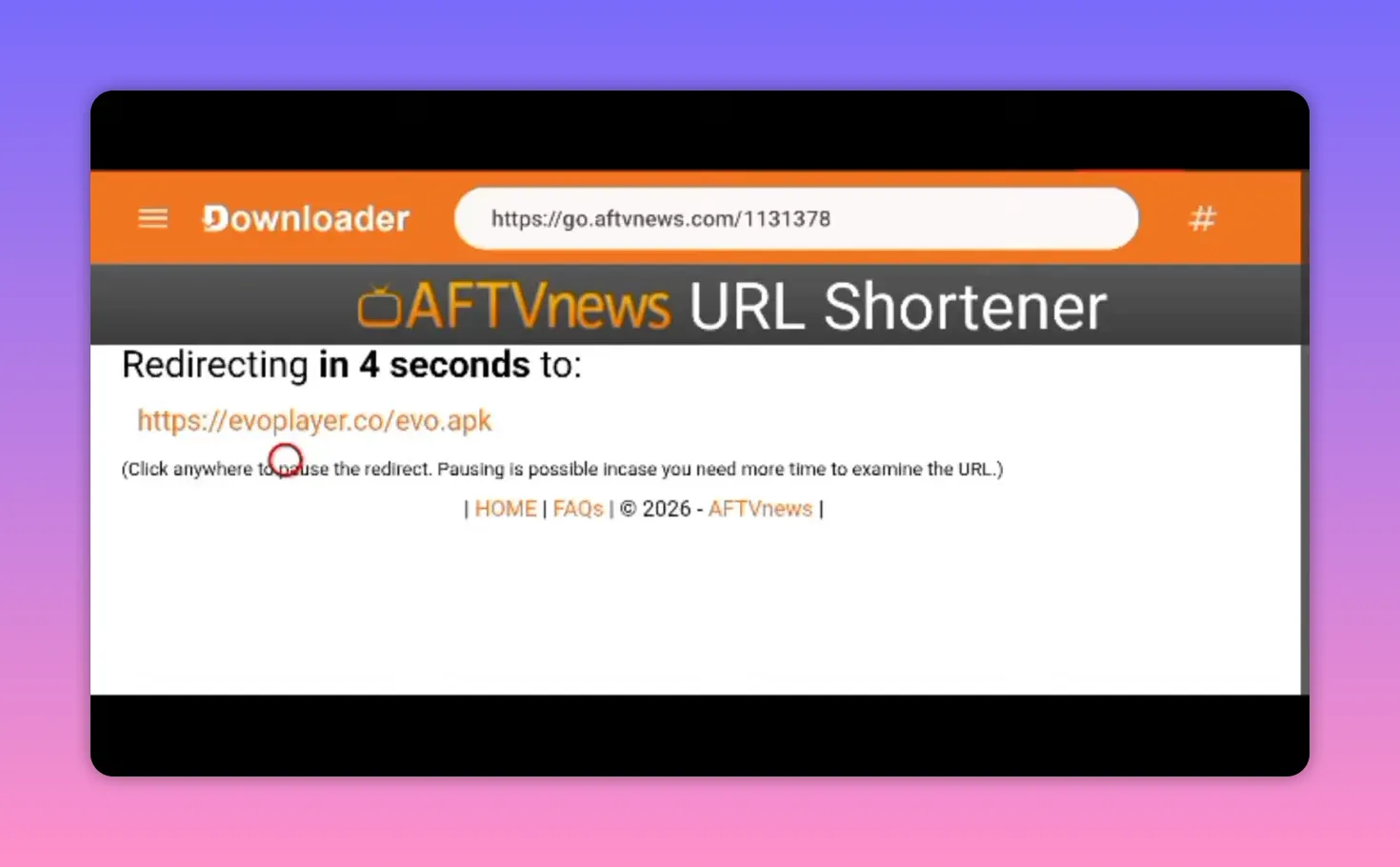
After installing the main app, there is also a player that needs to be downloaded. This is done the same way through Downloader.
Player download code: 11378
The player size is around 16 MB. Install it normally once the download is complete.
There may be a notice that an update is available on the Play Store. If that appears, you have two choices:
- Update it directly
- Try the installed version first, and only update if you run into problems
This is a practical approach. If everything works smoothly, there may be no need to change anything. If playback issues appear, updating the player can help.
🔎 Using the app after installation
Once opened, the app presents a simple interface. In the sports section, the channels are organized clearly, and there is also a search bar at the top.
If you already know the channel name you want, you can search for it directly instead of browsing manually.
This is especially useful in apps with a lot of content, because it saves time and gets you to the channel faster.
🌐 How the servers work inside the app
When you try to play a channel, you may see two servers, usually labeled something like:
- S1
- S2
If the first server does not work properly, simply switch to the second one.
This matters because changing the server also changes the IP address path being used for the stream. In practical terms, that gives you another chance to load the same channel successfully if the first route is unstable or unavailable.
The advice here is simple and effective:
- Try server 1 first
- If it fails, switch to server 2
- In many cases, the channel will start working normally
This small step can make a big difference, especially with live sports streams.
⚽ Stream quality and internet requirements
The strongest praise is reserved for the sports content quality. The streams are described as very high quality, even impressive, but there is one important condition: your internet connection needs to be at least decent and, more importantly, stable.
A medium-speed connection can be enough if it is consistent. Stability matters more than raw speed, especially on home routers where interruptions and fluctuations can affect live playback.
To get the best experience:
- Use a stable Wi-Fi connection or wired connection if available
- Make sure your router is performing well
- Switch servers if a channel stalls
- Update the player only if needed
If your internet is reliable, you are much more likely to enjoy the app’s sports and entertainment content without constant interruptions.
📦 Why this app is interesting compared to widely shared apps
One notable point is that this app is described as somewhat hidden and not heavily shared. That is presented as a good thing.
Why? Because apps that spread too widely can end up under heavy pressure, which often affects performance. When an app remains less public, it may stay more usable for the people who install it early and use it regularly.
That does not guarantee perfect performance, of course, but it helps explain why lighter-distributed apps can sometimes feel smoother and more reliable than the ones everyone rushes to install.
📱 How to install it on a phone or tablet
The mobile installation method is easy.
If you have the Downloader app on your phone, open it and use the search field the same way. Enter the code and download the mobile version from there.
If you do not have Downloader installed on your phone, just use any browser such as Google Chrome. Enter the provided URL exactly as shown in the source demonstration, and it will take you to the same kind of download page. From there, the app downloads directly and can be installed on a phone or tablet.
In short, there are two ways to get it on mobile:
- Through Downloader, by entering the code in the search field
- Through a web browser, by opening the direct download link
Once downloaded, install it normally on your phone or tablet and it should work properly.
✅ Best tips for a smooth setup
To avoid the most common issues, keep these points in mind:
- Install Downloader first
- On TV devices, install Sideload Launcher or Dashboard so the app is easy to access
- Use the correct code for the main app and the player
- Delete APK files after installation to save storage
- If playback does not start on S1, test S2
- Use a stable internet connection, especially for sports channels
- If the player behaves badly, try updating it from the Play Store
❓FAQ
Does this app work on both TV screens and phones?
Yes. There is a version for TV screens and TV boxes, and there is also a version for phones and tablets.
What do I need before installing it on a TV device?
You need the Downloader app, and it is also recommended to install Sideload Launcher or Dashboard so you can open apps installed from outside the Play Store.
What is the download code for the main app?
The main app code is 67711.
What is the code for the player?
The player code is 11378.
What should I do if a channel does not play?
Try switching from server 1 to server 2. If that still does not help, check your internet connection and consider updating the player.
Is the app heavy?
No. The main app is around 23 MB, and the player is around 16 MB, so both are relatively light.
Can I install it without Downloader on a phone?
Yes. You can use any browser, such as Chrome, open the direct link, and download the app from there.
🎯 Final thoughts
This is the kind of app that appeals to anyone who wants varied entertainment content with a special focus on sports, without dealing with a bloated installation process.
The setup is simple, the files are lightweight, there is support for both TV and mobile, and the built-in server switching gives you an extra chance when a stream does not load the first time.
If your internet connection is stable, especially on a home router, this app can deliver a very enjoyable experience across both big screens and portable devices.
