
There is one small point I want to clear up first because it matters more than it may seem. Sometimes app videos are kept slightly longer on purpose, and that is for a technical reason. When a video is shorter than three minutes, YouTube may classify it as a Short and display it vertically. That does not fit content designed for a horizontal format. That is why some clips go just over three minutes. It is not padding. It is simply to make sure everything appears correctly.
Another important note before anything else: the app explained here does not work on LG and Samsung TVs. This method is intended for Android TV devices, TV Box systems, and screens that support Google Play and app sideloading.
Table of Contents
- 📺 Today’s app at a glance
- ⚠️ What you need before installing
- ⬇️ Step 1: Install Downloader from Google Play
- 🔢 Step 2: Enter the download code for the app
- 💾 Step 3: Download and install the app correctly
- 🧩 Step 4: Why the app may not appear on the main screen
- 🛠️ Sideload Launcher or Dashboard: which one is better?
- 📥 How to install Dashboard
- 🏠 Move Dashboard to the home screen for quick access
- 🔓 Enable permissions for Dashboard
- 🗑️ The big advantage of Dashboard
- ✅ Quick recap of the full process
- 📌 Important reminders
- ❓FAQ
📺 Today’s app at a glance
The app featured here is one of the good lightweight options worth trying if the goal is to access important TV channels that most people care about. It does not take up much storage, which is always a plus on Android TV devices where space can be limited.
Its strongest advantage is simple: channels load quickly and play in high quality. That creates a smoother and more comfortable viewing experience.
For the sake of honesty, not every single channel is guaranteed to work. A few may fail when selected, but they are limited in number and do not really affect the overall experience. In general, this is a solid app for anyone who wants the essential channels without installing something heavy or complicated.
⚠️ What you need before installing
Before starting, make sure the following basics are available on your device:
- Google Play Store on your Android TV or TV Box
- Downloader, which is used to install apps from external sources
- Enough free space for a small app download
If you already know how to install apps this way, great. If not, the steps below cover everything clearly from start to finish.
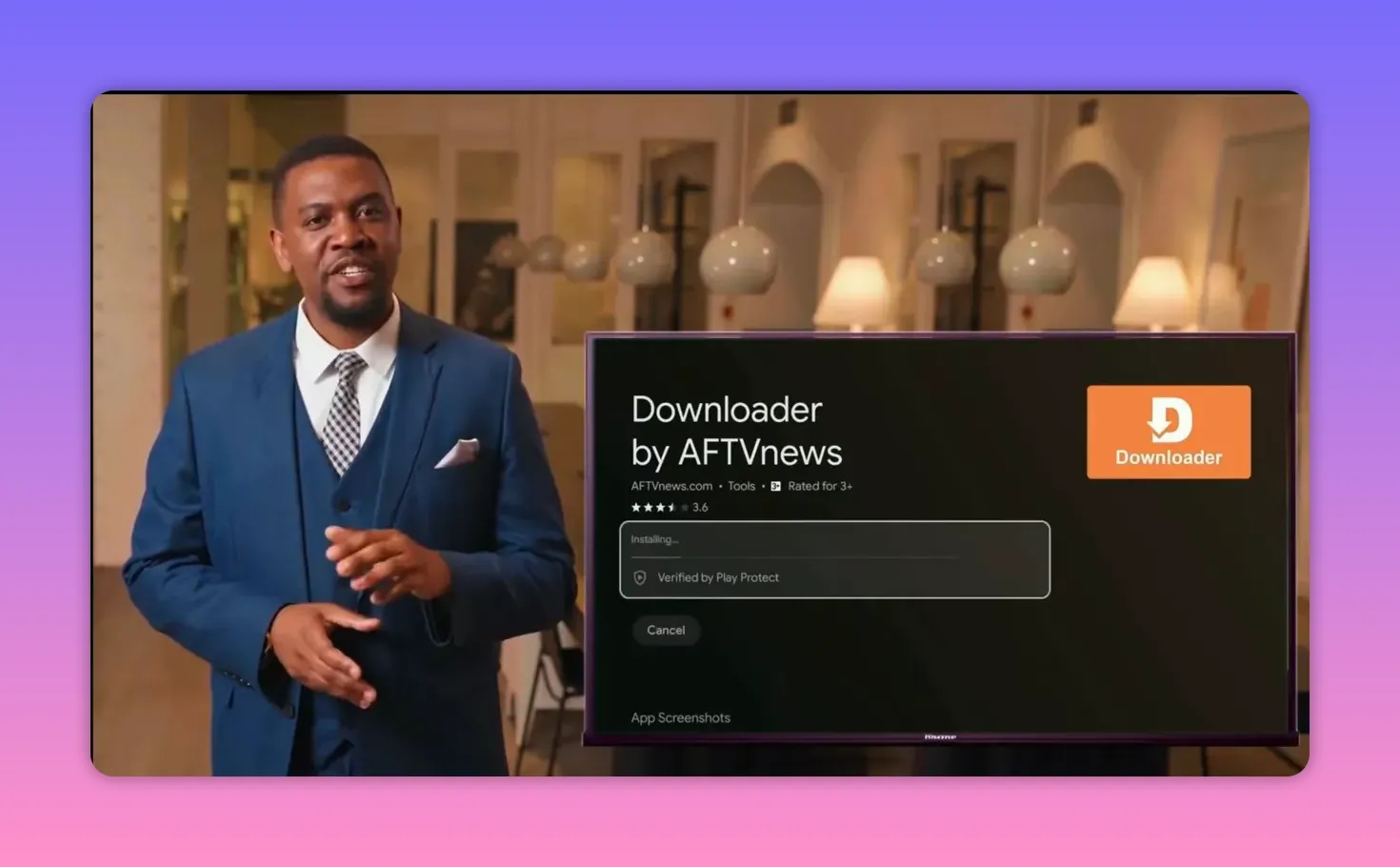
⬇️ Step 1: Install Downloader from Google Play
The first thing to do is install Downloader. This app acts like a simple browser and download tool that makes it easy to fetch external APK files directly on Android TV.
- Open Google Play Store.
- Search for Downloader.
- Confirm the app icon matches the correct Downloader app.
- Install it.
- After installation, go into settings if needed and make sure it is enabled properly.
Once Downloader appears on the home interface, open it and continue to the code entry step.
🔢 Step 2: Enter the download code for the app
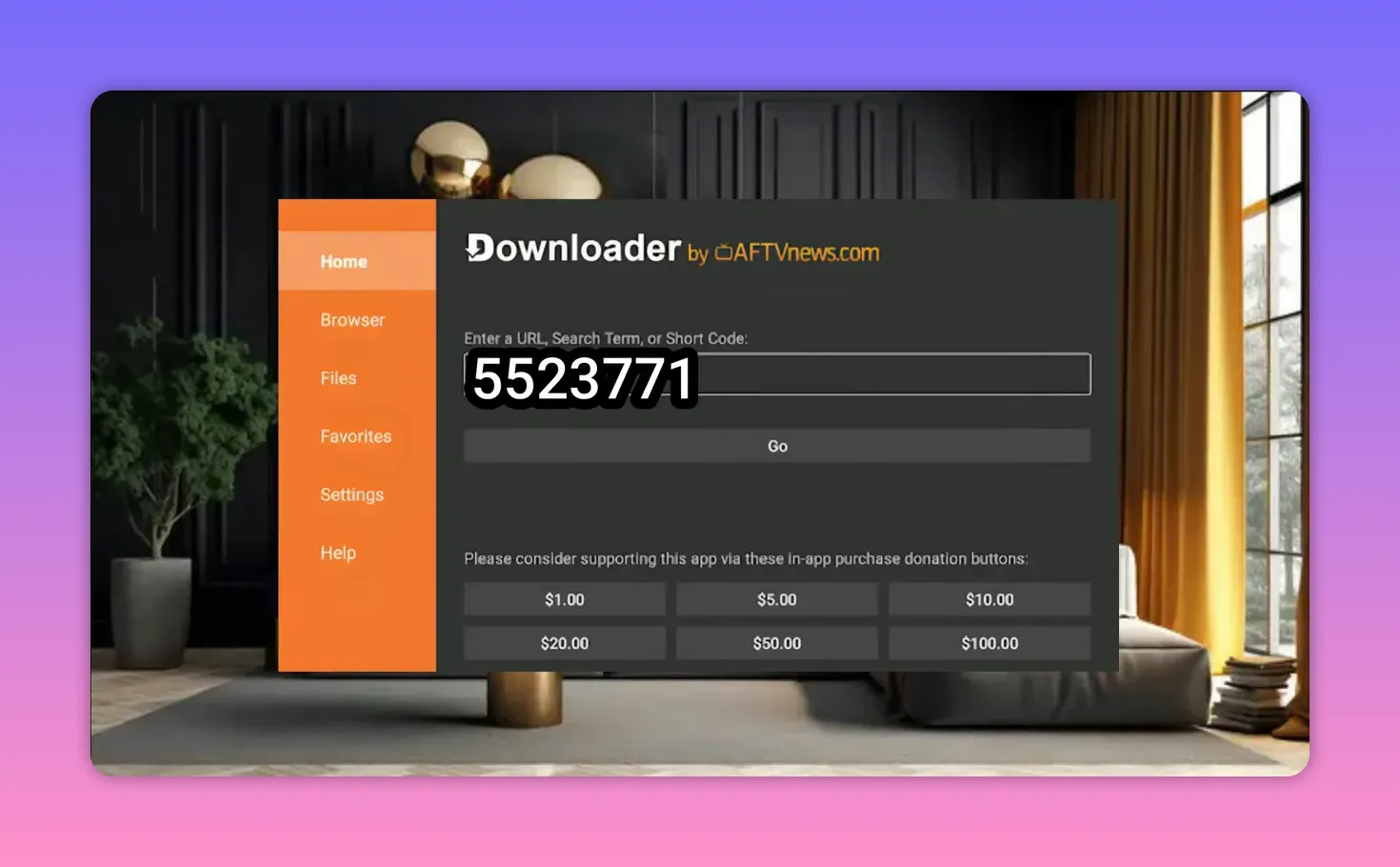
Inside Downloader, you will see the main interface with a field for entering a numeric code. These codes are usually seven digits.
For this app, enter the following code:
5232371
After entering the code, press OK.
A white page should appear with a short five-second countdown. When the countdown ends, the download page will open. In the middle of the page, there will be a blue button. Press that button to begin downloading the app.
💾 Step 3: Download and install the app correctly
One nice thing about this app is that the file size is very small, so the download is quick and it does not consume much device storage.
After the app finishes downloading, do not rush through the next step. This part matters.
- Complete the installation.
- After the install process, press OK.
- When the next window appears, delete the downloaded installation file.
Why delete it? Because once the app is installed, the APK file itself is no longer needed. Keeping it only wastes storage space.
To remove it, press Delete twice. After that, you can exit Downloader.
🧩 Step 4: Why the app may not appear on the main screen
After installation, the app may be successfully installed and working, but it might not appear directly in the main TV interface. This is normal on many Android TV systems when apps are installed from outside the Play Store.
To access those apps easily, you need a launcher tool such as:
- Sideload Launcher
- Dashboard
Both can help display installed apps that are otherwise hidden from the standard home screen.
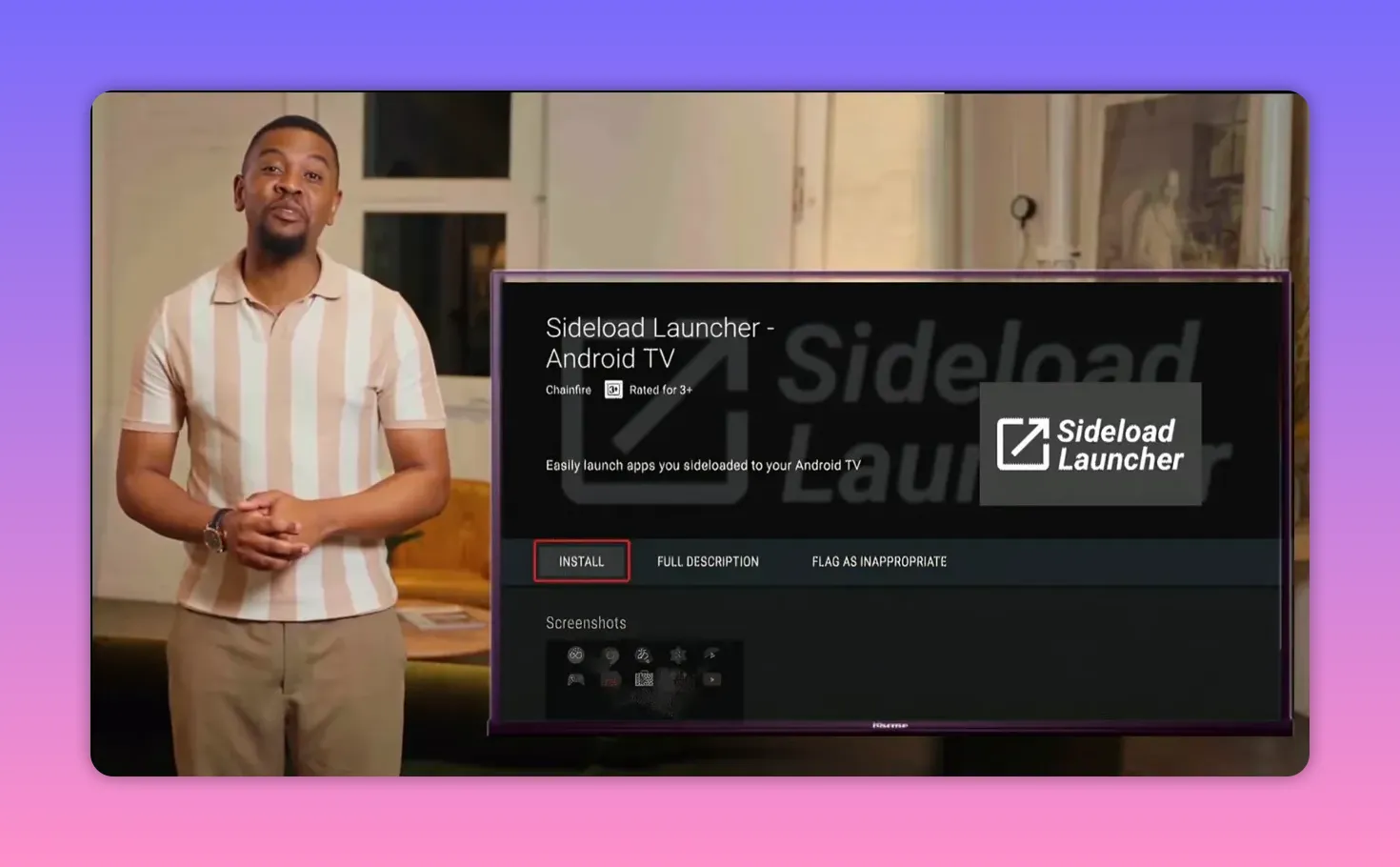
🛠️ Sideload Launcher or Dashboard: which one is better?
Both options can show apps installed from external sources, including IPTV apps and APK files added through Downloader. But there is a key difference.
Sideload Launcher
Sideload Launcher is easy to find in Google Play. You can install it directly by searching for:
Sideload Launcher
Once opened, it displays all installed applications, whether they came from Google Play or from an external APK.
However, it has one clear limitation: it does not make uninstalling apps easy. If you want to remove an app, you may have to go through several settings menus manually.
Dashboard
Dashboard is the preferred option here because it gives a cleaner and more practical experience. Most importantly, it lets you remove installed apps easily with a long press.
That one feature alone makes it more useful for many people, especially if they test apps frequently and want better control over what stays on the device.
📥 How to install Dashboard
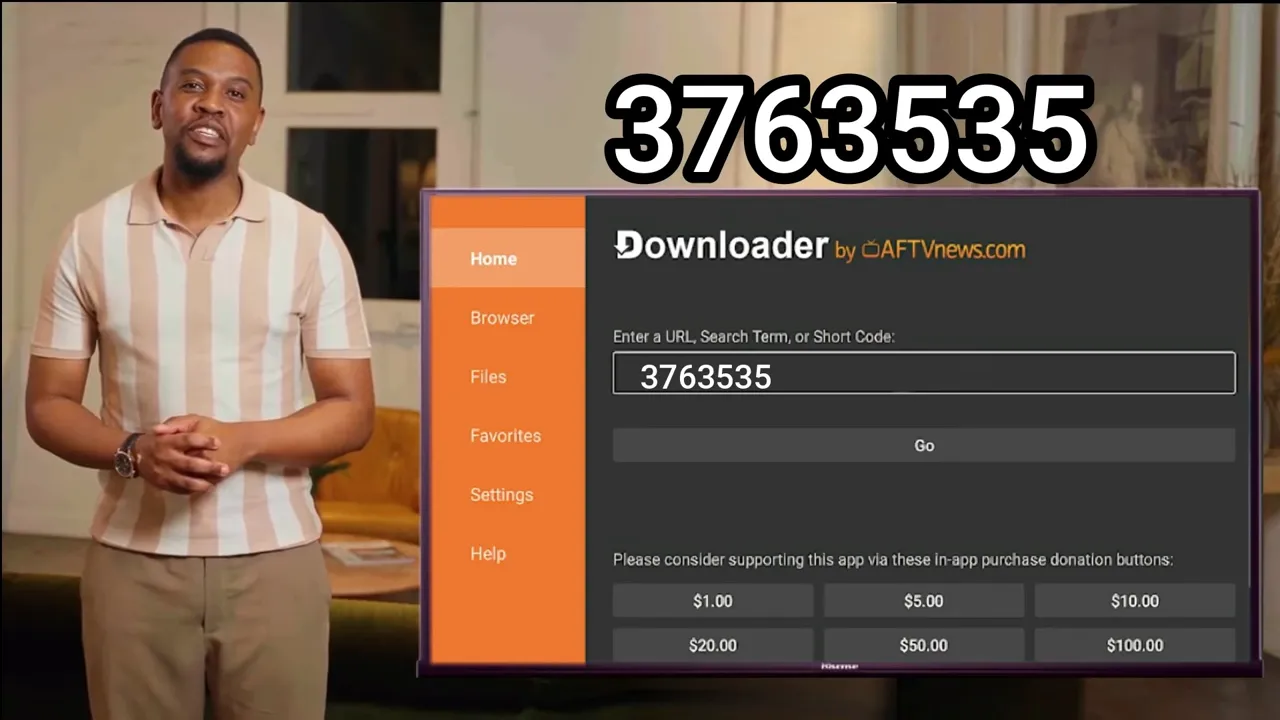
Dashboard is installed using Downloader rather than directly from Play Store.
Open Downloader and enter this code:
3763535
Then follow the same installation steps used for any other app.
🏠 Move Dashboard to the home screen for quick access
Once Dashboard is installed, it is a good idea to move it to the front of your apps row or add it to favorites so it is always easy to reach.
- Select the Dashboard app.
- Choose the move option.
- Drag it forward to a visible position on the main screen.
This small step saves time later, especially if you regularly install and manage apps from external sources.
🔓 Enable permissions for Dashboard
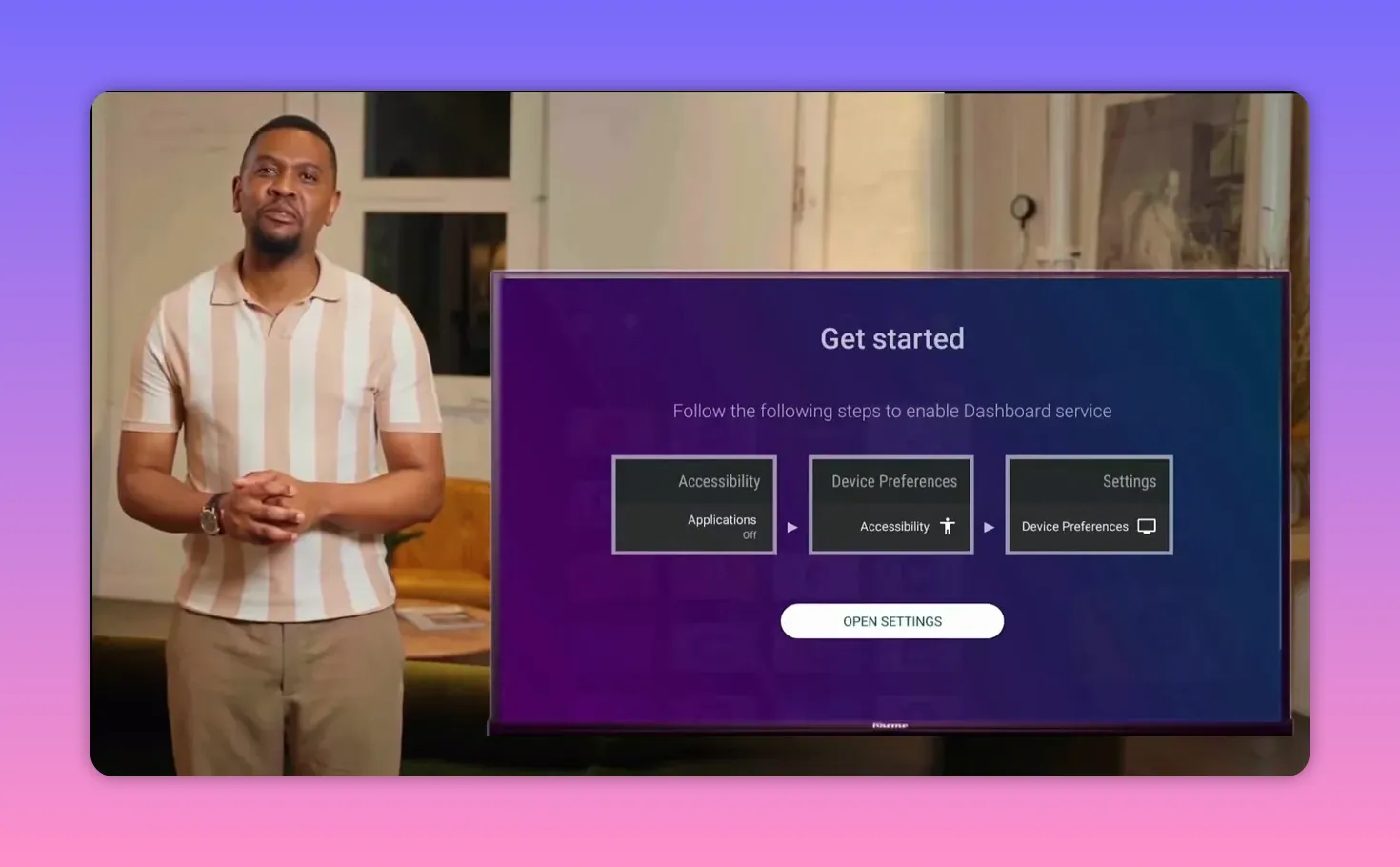
When opening Dashboard for the first time, it may ask for accessibility access so it can interact properly with other installed apps.
Here is how to enable it:
- Open Dashboard.
- When prompted, choose Open Settings.
- If settings do not open automatically, enter them manually through your device preferences.
- Go to Accessibility.
- Select Dashboard.
- Enable the permission and confirm.
After that, reopen Dashboard. You should now see all apps installed on the device, whether they came from Google Play or from Downloader.
🗑️ The big advantage of Dashboard
This is where Dashboard really stands out.
With a long press on any app, Dashboard can give you the option to remove or uninstall it directly. That is far more convenient than digging through system settings every time you want to clean up your device.
If app management matters to you, Dashboard is simply the better pick compared to Sideload Launcher.
✅ Quick recap of the full process
- Install Downloader from Google Play.
- Open Downloader and enter 5232371 to get the featured TV app.
- Install the app.
- Delete the APK file afterward to save storage space.
- If the app does not appear on the main screen, install Sideload Launcher or preferably Dashboard.
- For Dashboard, use Downloader code 3763535.
- Enable accessibility permission for Dashboard.
- Use Dashboard to open and manage installed apps, including uninstalling them easily.
📌 Important reminders
- This app setup is for Android TV devices and TV Box systems.
- It does not work on LG and Samsung TVs.
- Some channels inside the app may not work, but they are very few.
- The app is lightweight and fast, which makes it a practical option for many users.
- Deleting installation files after setup helps keep your device clean and saves storage.
❓FAQ
Why are some app videos made slightly longer than expected?
Because videos under three minutes can be classified as Shorts on YouTube and displayed vertically. Keeping the duration just over three minutes helps preserve the proper horizontal format.
Does this app work on LG or Samsung TVs?
No. This method and app are not intended for LG and Samsung TVs. It is for Android TV devices and compatible TV Box systems.
What is the Downloader code for the featured app?
The code is 5232371.
Why should the APK file be deleted after installation?
Because once the app is installed, the APK file is no longer needed. Deleting it saves storage space on the device.
Why does the installed app not show up on the main Android TV screen?
Some apps installed from external sources do not appear directly in the default launcher. A tool like Sideload Launcher or Dashboard is needed to access them easily.
Which is better, Sideload Launcher or Dashboard?
Dashboard is the better option here because it not only shows installed apps but also makes uninstalling them much easier with a long press.
What is the Downloader code for Dashboard?
The code is 3763535.
Do all channels inside the app work perfectly?
Not all of them. A small number of channels may not work, but overall the app still performs well and offers a good experience for essential channel viewing.
For anyone looking for a lightweight Android TV app for channels, this is a practical option with a straightforward setup. Install it properly, clean up the leftover files, and use Dashboard to make app access and management much easier.
